

A Windows local account password bypass has raised questions among security researchers and power users for years. Some Windows recovery environments have historically provided ways for someone with physical access to manipulate system files and gain elevated control. The big question is not only how these weaknesses happen, but why Microsoft still allows recovery tools to exist that can be abused.
This issue is connected to the way Windows Recovery Environment (WinRE), installation media, and offline repair tools interact with the operating system. In this article, we will look at why this type of weakness exists, what Microsoft has done about it, why physical access changes the security model, and what Windows users can do to protect their systems.
Why Does a Windows Local Account Password Bypass Happen?
The short answer is that Windows has always needed recovery options.
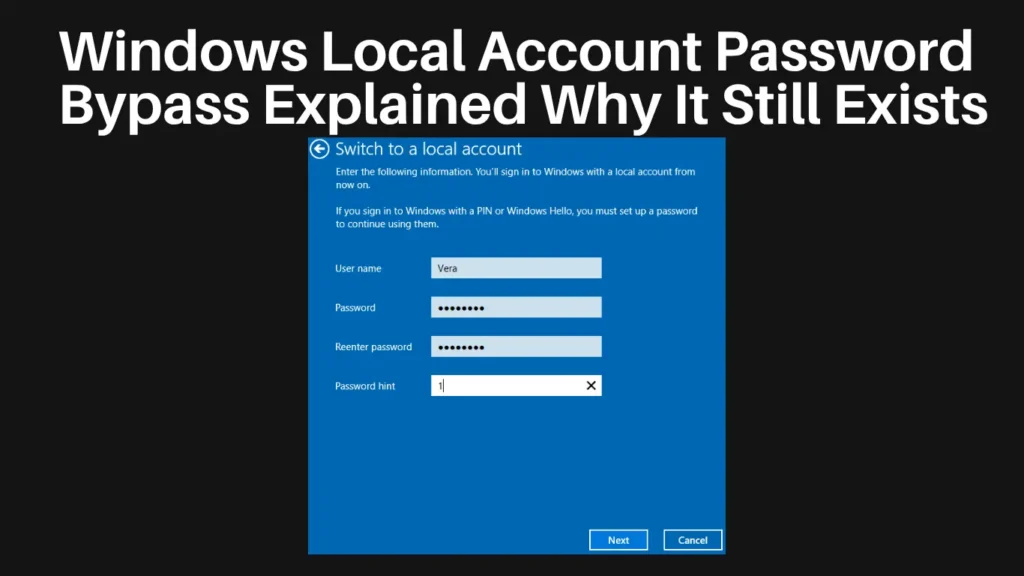
A computer can become unusable for many legitimate reasons. Users forget passwords, damaged files prevent Windows from starting, or updates can break system components. Microsoft built recovery features to help administrators repair machines without reinstalling the entire operating system.
The problem appears when a recovery environment is powerful enough to modify important Windows files while operating outside the normal security controls.
Normally, Windows protects system files through account permissions, User Account Control (UAC), Secure Boot protections, and other security layers. However, when someone boots a computer into an offline recovery environment, the usual Windows login system is not running in the same way.
That creates a different security situation.
The Difference Between Online and Offline Security
Many users assume that a Windows password protects everything on the computer. In reality, it mainly protects access while Windows is running normally.
When Windows starts:
- User accounts control access.
- Permissions limit file changes.
- Security services monitor activity.
- Authentication systems verify identity.
But when a computer is started from external recovery media or another operating environment, the operating system being repaired is no longer fully controlling access.
This is why physical access is such an important factor in cybersecurity.
A local password can stop someone from casually opening your desktop, but it is not designed to protect data from an attacker who can physically control the machine, remove the drive, or boot alternative software.
Why Microsoft Still Allows Powerful Recovery Tools
The reason is simple: recovery and security are always a trade-off.

If Microsoft completely blocked offline repair capabilities, many legitimate support scenarios would become much harder.
Imagine an IT administrator managing hundreds of office computers. A damaged Windows installation cannot boot, but important files need to be recovered. Recovery tools provide a way to repair the system without replacing hardware or wiping data.
Removing those tools would create a different problem.
Microsoft has to balance:
- Helping users recover broken systems.
- Supporting enterprise administrators.
- Preventing unauthorized access.
- Maintaining compatibility with older hardware.
That balance is difficult because any tool powerful enough to fix Windows can potentially become dangerous when placed in the wrong hands.
Windows 10 and Windows 11 Security Improvements
Microsoft has improved Windows security significantly over time.
Modern versions of Windows 10 and Windows 11 include protections such as:
Secure Boot
Secure Boot helps prevent unauthorized software from loading before Windows starts. It works with UEFI firmware to verify that trusted components are being used during startup.
BitLocker Drive Encryption
BitLocker changes the situation completely because the data on the drive remains encrypted when Windows is offline.
Without the recovery key or proper authentication, an attacker cannot simply access files by starting another environment.
Trusted Platform Module (TPM)
Windows 11 strongly encourages TPM 2.0 because it helps protect encryption keys and improve system integrity.
Windows Defender and System Integrity Features
Windows security features continue to evolve, adding more protection against unauthorized modifications.
However, these features depend on configuration. A computer running Windows 11 without encryption may still have weaker protection against physical attacks.
Is This a Windows Password Problem or a Design Limitation?
Many people describe these situations as a “password bypass,” but that description can be misleading.
The issue is usually not that Microsoft cannot protect a password. The issue is that the attacker is operating outside the normal Windows security boundary.
A locked house door protects against someone trying the handle. It does not protect against someone who removes the entire wall.
Operating systems face a similar challenge.
If an attacker has unrestricted physical access to hardware, the security requirements change.
How to Protect Your Windows PC From Offline Attacks
If you are worried about someone accessing your computer physically, focus on protecting the data, not only the login screen.
1. Enable BitLocker Encryption
For Windows Pro, Enterprise, and Education editions:
- Open Settings.
- Go to Privacy & security.
- Select Device encryption if available.
Alternatively:
- Open Control Panel.
- Select System and Security.
- Choose BitLocker Drive Encryption.
- Turn on BitLocker.
Note: BitLocker availability depends on the Windows edition and hardware support.
2. Use a Microsoft Account or Strong Local Account Password
A strong password reduces unauthorized access during normal Windows usage.
Avoid:
- Simple personal information.
- Short passwords.
- Reused passwords.
A password manager can help create stronger credentials.
3. Keep Secure Boot Enabled
To check Secure Boot:
- Press Windows + R.
- Type msinfo32.
- Press Enter.
- Look for Secure Boot State.
If supported, Secure Boot should generally remain enabled.
4. Protect BIOS/UEFI Settings
On shared or business computers, administrators should consider:
- Setting a firmware password.
- Blocking external boot devices.
- Restricting boot order changes.
These options vary by manufacturer.
5. Keep Windows Updated
Microsoft regularly patches security issues.
Go to:
Settings → Windows Update → Check for updates
Security updates are especially important because recovery environments and startup components receive improvements over time.
Why Removing Recovery Features Is Not the Answer
It may seem like Microsoft should simply remove every powerful recovery option. However, that would create serious problems.
A computer without recovery tools would be much harder to repair.
Businesses depend on recovery environments for:
- System troubleshooting.
- Deployment.
- Disaster recovery.
- Maintenance.
The better solution is layered security.
A modern Windows system should combine:
- Strong authentication.
- Encryption.
- Secure Boot.
- Updated firmware.
- Good physical security practices.
No single feature can solve every security problem.
What IT Administrators Should Know
For businesses, local accounts require extra attention.
Administrators should consider:
- Using Microsoft Entra ID or domain-based authentication where appropriate.
- Managing devices with security policies.
- Enforcing BitLocker encryption.
- Controlling recovery key storage.
- Restricting physical access to important devices.
Enterprise environments should assume that physical access equals a higher risk level.
The Bigger Lesson About Computer Security
The discussion around Windows local account password bypass issues reveals an important security principle:
Security depends on the entire system, not one password.
A password protects an account. Encryption protects stored data. Secure Boot protects the startup process. Device management protects organizational systems.
Each layer handles a different threat.
A computer with only a login password may feel secure, but a properly configured Windows 11 PC with encryption and modern security settings provides much stronger protection.
Also Read: Black Screen After Login in Windows 10? Simple Ways to Fix It (2026 Guide)
Conclusion
Windows recovery tools exist because users and administrators need ways to repair computers. The same power that makes recovery possible can create risks when someone gains unauthorized physical access.
The solution is not eliminating recovery features. The stronger approach is using modern protections such as BitLocker, Secure Boot, TPM, strong passwords, and regular updates.
A Windows login screen is only one part of security. Protecting the entire device is what keeps your data safe.
FAQ Section
Can someone bypass a Windows local account password without the password?
If someone has physical access and the device lacks proper encryption, certain recovery scenarios may create security risks. Modern protections like BitLocker make unauthorized offline access much harder.
Does Windows 11 fix local account password bypass issues?
Windows 11 improves security through features like TPM 2.0, Secure Boot requirements, and stronger encryption support. However, physical access remains an important security consideration.
Is a Windows password enough to protect my files?
No. A password protects normal account access, but encryption such as BitLocker provides stronger protection for stored files.
Should I disable Windows Recovery Environment?
Generally, no. Recovery tools are important for troubleshooting. Instead, protect the device with encryption and proper security settings.
Is BitLocker available on every Windows PC?
No. BitLocker is mainly available on Windows Pro, Enterprise, and Education editions. Some Windows Home devices support a related feature called Device Encryption.
Also Read: