
Speed Up Your Windows 11 PC in 2026: If you’ve ever sat staring at a loading screen muttering “why is my Windows 11 PC so slow,” you’re not alone. Millions of users upgraded to Windows 11 with high hopes — only to find their computers crawling, freezing, or behaving in ways that make even simple tasks feel painful. The good news? Most of these issues have clear causes and straightforward fixes. This guide breaks it all down for you.
What’s Actually Going On Under the Hood?
Before jumping into solutions, it helps to understand why Windows 11 can slow things down. Windows 11 came with a redesigned interface, tighter hardware requirements, and background services that didn’t exist in Windows 10. For many users — especially those on older machines — this created a performance gap that wasn’t obvious at first.
Let’s walk through the most common culprits.
How to Speed Up Your Windows 11 PC in 2026
Common Known Issues in Windows 11
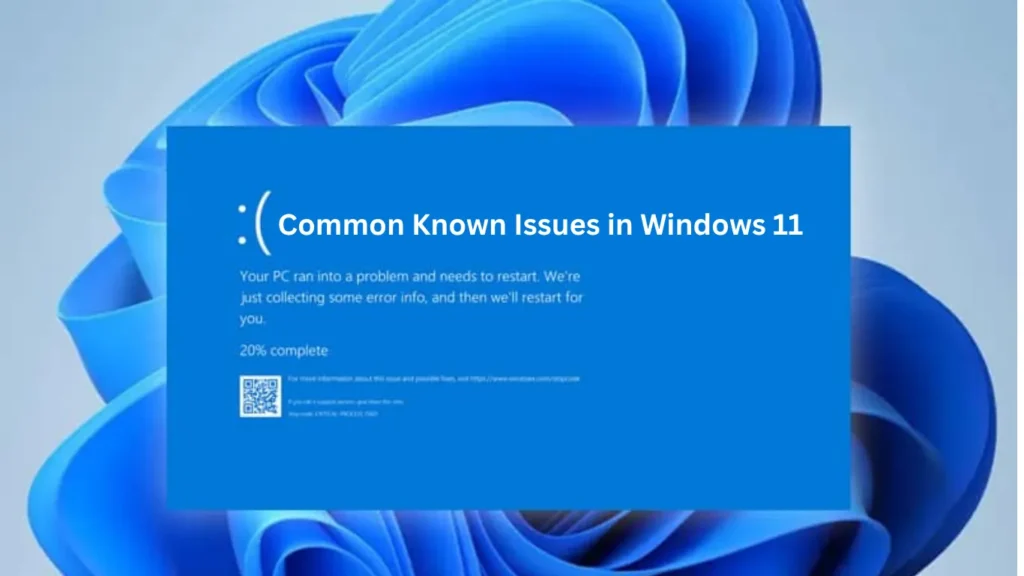
Windows 11 has come a long way since its rocky 2021 launch, but even in 2026, a handful of persistent issues continue to frustrate everyday users.
Here are the most widely reported problems:
- High CPU and RAM usage at idle — Windows 11 runs more background services by default, which quietly consumes resources even when you’re not doing anything intensive.
- Slow startup times — Too many startup apps and services can turn a 10-second boot into a 2-minute ordeal.
- File Explorer freezing or crashing — This remains a known bug in several Windows 11 builds, particularly after cumulative updates.
- Search bar not working — The integrated Windows Search can hang or return no results, especially after updates.
- Taskbar glitches — The redesigned taskbar has caused ongoing complaints about disappearing icons, unresponsive clicks, and layout bugs.
Most of these issues aren’t signs of a dying computer. They’re software-level problems — and that means they’re fixable.
Performance Problems
Performance degradation is the most common complaint from Windows 11 users. If your PC feels sluggish, one or more of these factors are likely at play.
Too Many Startup Programs
Every time your PC boots up, Windows loads a list of programs automatically. Over time, this list grows — and so does your wait time.
Fix: Press Ctrl + Shift + Esc to open Task Manager, click the Startup tab, and disable anything you don’t need running at boot. Be conservative — only disable programs you recognize and don’t use immediately.
Background Processes Eating Resources
Some apps run silently in the background, consuming CPU and memory without your knowledge. Antivirus software, cloud sync services, and update managers are common offenders.
Fix: In Task Manager, click the Processes tab and sort by CPU or Memory usage. Identify anything using excessive resources and close or uninstall it if it’s not essential.
Low Storage Space
Windows 11 needs breathing room. When your drive is nearly full — especially if it’s a traditional HDD — performance takes a significant hit.
Fix: Use the built-in Storage Sense feature (Settings > System > Storage) to automatically clean up temporary files, old downloads, and system junk.
Virtual Memory Settings
If your PC doesn’t have much RAM, Windows uses a portion of your hard drive as “virtual memory.” On older HDDs, this is painfully slow.
Fix: If possible, upgrade to an SSD or increase your RAM. Even 8GB of RAM makes a noticeable difference over 4GB.
Gaming Issues
Gamers running Windows 11 have reported some specific performance headaches that are worth addressing separately.
Frame Rate Drops and Stuttering
One of the biggest complaints from gamers post-Windows 11 upgrade has been unexpected FPS drops — even on hardware that previously handled the same games smoothly.
Common causes include:
- Variable Refresh Rate (VRR) bugs — Some early Windows 11 builds had a known VRR bug that caused significant FPS instability. Microsoft issued patches, but not all systems received them cleanly.
- Xbox Game Bar overhead — The built-in Game Bar records gameplay in the background, which can impact performance even when you’re not actively using it.
- DirectStorage conflicts — While DirectStorage is a great feature in theory, it has caused compatibility issues on some setups.
Fix: Disable the Xbox Game Bar (Settings > Gaming > Xbox Game Bar), enable Game Mode (Settings > Gaming > Game Mode), and make sure your GPU drivers are fully up to date.
Shader Compilation Stutters
This is a technical issue where games stutter heavily the first time they load new visual assets. It’s partly an industry-wide problem, but Windows 11’s DirectX implementation can make it more noticeable on certain hardware.
Driver Compatibility Problems
One of the biggest under-discussed reasons your Windows 11 PC feels so slow is outdated or incompatible drivers.
When Windows 11 rolled out, many peripheral manufacturers — printers, audio cards, older GPUs — hadn’t released compatible drivers yet. Even now, some older hardware remains in a gray zone.
Signs You Have a Driver Problem
- Device Manager shows yellow warning icons
- Specific hardware (audio, USB ports, Wi-Fi) stops working after an update
- Blue Screen of Death (BSOD) errors that reference hardware
- Unusually high “System” process CPU usage
How to Fix Driver Issues
- Open Device Manager — Right-click the Start button and select Device Manager.
- Look for warning signs — Yellow triangles indicate problem drivers.
- Update drivers manually — Visit the manufacturer’s website directly. Avoid third-party driver updater software, which can sometimes cause more problems than it solves.
- Roll back a bad driver — If a recent update broke something, right-click the device > Properties > Driver tab > Roll Back Driver.
Windows Update Errors
Updates are supposed to keep your system secure and running smoothly. Unfortunately, Windows 11 updates have a complicated history.
Common Update Problems
- Updates stuck at a percentage — This often happens due to corrupted update cache files.
- Update rollback loops — Windows installs an update, fails, and reverts — over and over.
- Post-update slowdowns — Some cumulative updates have introduced new performance regressions.
How to Fix Windows Update Issues
Run the Windows Update Troubleshooter: Go to Settings > System > Troubleshoot > Other troubleshooters > Windows Update > Run.
Clear the update cache manually:
- Open Command Prompt as Administrator
- Type:
net stop wuauservand press Enter - Type:
net stop bitsand press Enter - Navigate to
C:\Windows\SoftwareDistributionand delete the contents - Restart the services:
net start wuauservandnet start bits
Use the System File Checker: Open Command Prompt as Administrator and run: sfc /scannow
This scans and repairs corrupted system files, which are a frequent cause of update failures and general instability.
How to Fix Windows 11 Issues: A Quick-Action Checklist
Here’s a consolidated list of actionable fixes you can try right now:
- ✅ Disable startup programs via Task Manager
- ✅ Run Disk Cleanup — Search “Disk Cleanup” in the Start menu
- ✅ Check for Windows Updates — Sometimes a pending update is the fix, not the problem
- ✅ Update all drivers — GPU, chipset, audio, and network adapters
- ✅ Disable visual effects — Settings > Accessibility > Visual Effects > turn off animation effects
- ✅ Adjust Power Plan — Set to “Balanced” or “High Performance” (Settings > Power & Battery)
- ✅ Run SFC and DISM — Use Command Prompt to scan for and repair system file corruption
- ✅ Reset or Repair Windows — As a last resort, Settings > System > Recovery > Reset this PC (keep your files)
Each of these steps addresses a specific category of slowdown. Start from the top and work your way down — many users find relief after the first two or three.
Also Read: How to Reinstall a Keyboard or Display Driver Without Resetting Windows (Driver Problems)
Is Windows 11 Stable in 2026?
The short answer: yes, significantly more stable than its launch version.
Microsoft has released dozens of cumulative updates since the original Windows 11 rollout, addressing the majority of the early-stage bugs. Features like the redesigned File Explorer, improved Task Manager, and better multi-monitor support have matured considerably.
That said, stability still varies by hardware. Users on modern systems — 12th or 13th gen Intel, AMD Ryzen 5000 or 7000 series, with NVMe SSDs — report a smooth, responsive experience. Users on older or budget hardware may still encounter friction.
If you’re on a supported device and keeping your system updated, Windows 11 in 2026 is a solid, capable operating system. It’s not perfect, but it’s come a long way.
Final Verdict
A Windows 11 PC running slow is frustrating, but it’s rarely a mystery. Nine times out of ten, the cause is one of the issues covered in this guide — startup bloat, outdated drivers, update errors, or background processes consuming resources they shouldn’t.
The fixes aren’t complicated. They just take a little patience and a systematic approach. Start with the basics: clean up your startup, run an SFC scan, update your drivers, and free up storage space. You’ll likely notice a real difference within minutes.
If you found this guide helpful, head over to solvingdad.com for more practical tech guides, troubleshooting walkthroughs, and no-nonsense solutions for everyday PC problems. Whether you’re dealing with a slow laptop, a stubborn update, or a device that just won’t cooperate — there’s a fix waiting for you there.
Also Read: How do I stop Windows 10 updates permanently?
FAQ: Windows 11 Slow PC
Why is my Windows 11 PC so slow after a recent update?
Windows updates occasionally introduce performance regressions, especially if they conflict with existing drivers or system configurations. Try running the Windows Update Troubleshooter, roll back the update if possible, and clear the Software Distribution cache. Also run sfc /scannow in an elevated Command Prompt to check for corrupted system files.
How do I speed up Windows 11 without buying new hardware?
You can get meaningful performance gains without spending a dime. Disable unnecessary startup programs, clean up your storage with Storage Sense, lower visual effects through Accessibility settings, and make sure all your drivers are current. Adjusting your Power Plan to High Performance also helps on laptops and desktops alike.
Does Windows 11 use more RAM than Windows 10?
Yes, Windows 11 generally uses slightly more RAM at idle due to additional background services and the redesigned shell. Microsoft recommends a minimum of 4GB RAM, but realistically, 8GB is the sweet spot for smooth everyday performance. If you’re running 4GB and finding your Windows 11 PC extremely slow, a RAM upgrade is one of the highest-impact hardware changes you can make.
Can too many browser tabs slow down Windows 11?
Absolutely. Browsers like Chrome and Edge are notorious memory consumers. Each open tab uses RAM, and if your available memory is low, Windows begins using the pagefile (virtual memory on your drive) — which is dramatically slower than physical RAM. Close unnecessary tabs, use browser extensions like OneTab, or consider switching to a lighter browser if this is a recurring issue.
Is it safe to disable Windows 11 background services to improve speed?
Some background services can safely be disabled, while others are critical to system security and functionality. Services like Windows Search indexing, SysMain (Superfetch), and Connected User Experiences can be turned off on older hardware without major consequences. However, it’s best to research each service before disabling it. Disabling the wrong service can cause system instability or leave you vulnerable to security threats.
Why does my Windows 11 PC slow down over time?
This is a common phenomenon sometimes called “software entropy.” Over time, installed programs add startup entries, background tasks, registry clutter, and residual files that accumulate and degrade performance. Regular maintenance — monthly disk cleanup, reviewing startup apps, and keeping drivers updated — goes a long way toward keeping your system running like new.
Also Read: