
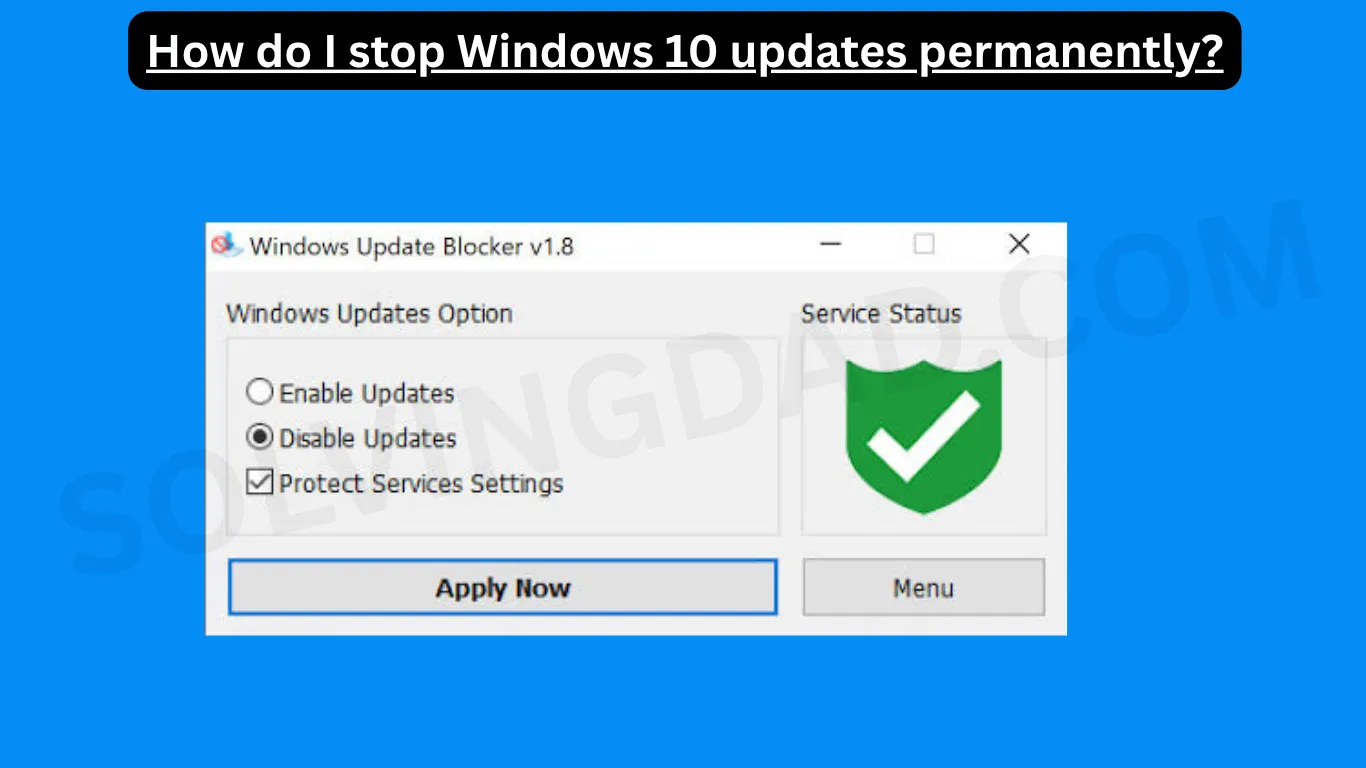
Stop Windows 10 updates permanently: If you are tired of Windows restarting your PC at the worst possible moment, downloading updates when your internet is slow, or installing updates that sometimes create problems, then you are not alone. Many users search for how do I stop Windows 10 from updating permanently because they want full control over their computer.
The good news is that there are several easy methods you can use to disable Windows 10 updates permanently. In this guide, I’ll explain everything step-by-step in very simple language so even a beginner can follow along without confusion.
Why People Want to Stop Windows 10 Updates
Before we jump into the methods, let’s quickly understand why many users disable Windows updates.
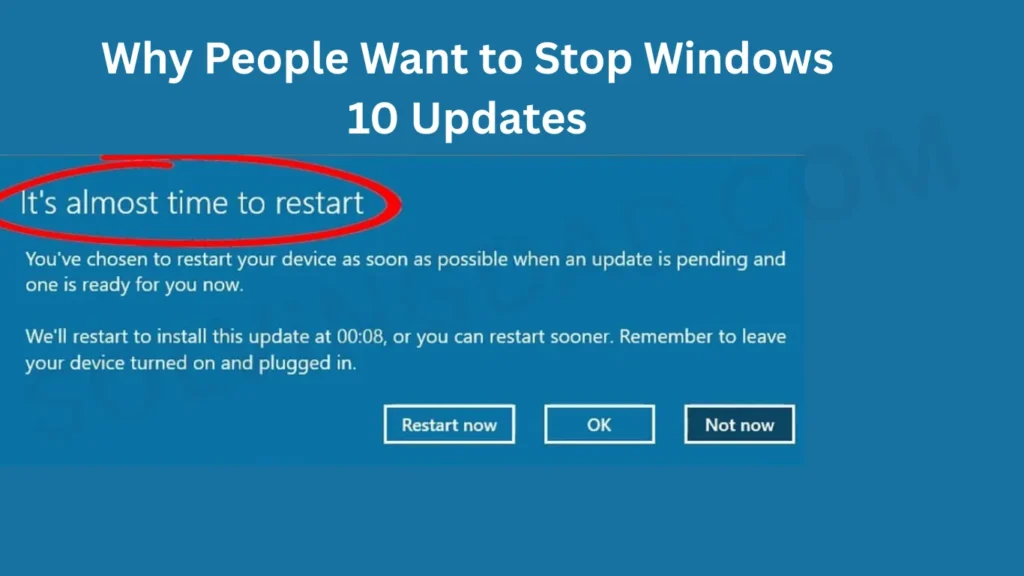
Here are the most common reasons:
- Updates slow down older computers
- Automatic restarts interrupt work or gaming
- Some updates cause software bugs
- Limited internet data gets consumed quickly
- Drivers sometimes break after updates
- Users want manual control instead of automatic updates
Windows updates are important for security, but sometimes they become more annoying than helpful.
Method 1: Disable Windows Update Service Permanently
This is one of the easiest and most effective methods.
Step-by-Step Guide
Step 1: Open Run Box
Press:
Windows + RNow type:
services.mscPress Enter.
Step 2: Find Windows Update
Scroll down and find:
Windows UpdateDouble-click on it.
Step 3: Stop the Service
You will see a button called:
StopClick it.
Step 4: Disable Startup Type
Now look for:
Startup typeSelect:
DisabledClick:
Apply → OKThat’s it. Windows 10 updates are now disabled permanently.
Method 2: Disable Updates Using Group Policy Editor
This method works best for Windows 10 Pro, Enterprise, and Education editions.
Follow These Steps
Step 1: Open Run
Press:
Windows + RType:
gpedit.mscPress Enter.
Step 2: Navigate to Windows Update Settings
Go to:
Computer Configuration
→ Administrative Templates
→ Windows Components
→ Windows Update
Step 3: Open Configure Automatic Updates
Double-click:
Configure Automatic UpdatesStep 4: Disable It
Select:
DisabledClick:
Apply → OKNow Windows will stop downloading updates automatically.
Method 3: Stop Windows 10 Updates Using Registry Editor
This method is slightly advanced but very powerful.
Important
Before editing the registry, create a restore point.
Steps
Step 1: Open Registry Editor
Press:
Windows + RType:
regeditPress Enter.
Step 2: Navigate to This Path
HKEY_LOCAL_MACHINE
SOFTWARE
Policies
Microsoft
Windows
Step 3: Create New Keys
Right-click Windows → New → Key
Name it:
WindowsUpdateInside it, create another key called:
AUStep 4: Create DWORD
Inside AU:
Right-click → New → DWORD (32-bit)
Name it:
NoAutoUpdateSet value to:
1Restart your PC.
Updates should now stop permanently.
Method 4: Set Your Internet Connection as Metered
This method doesn’t fully disable updates but greatly reduces them.
Steps
For Wi-Fi
Go to:
Settings
→ Network & Internet
→ Wi-Fi
→ Your Network
Turn ON:
Metered ConnectionWindows will avoid large updates automatically.
Method 5: Disable Windows Update Using Command Prompt
If you like quick methods, this one is perfect.
Steps
Open Command Prompt as Administrator and type:
net stop wuauserv
sc config wuauserv start=disabled
Press Enter after each command.
Done.
Can Windows Re-enable Updates Automatically?
Sometimes yes.
Microsoft occasionally reactivates update services after major upgrades.
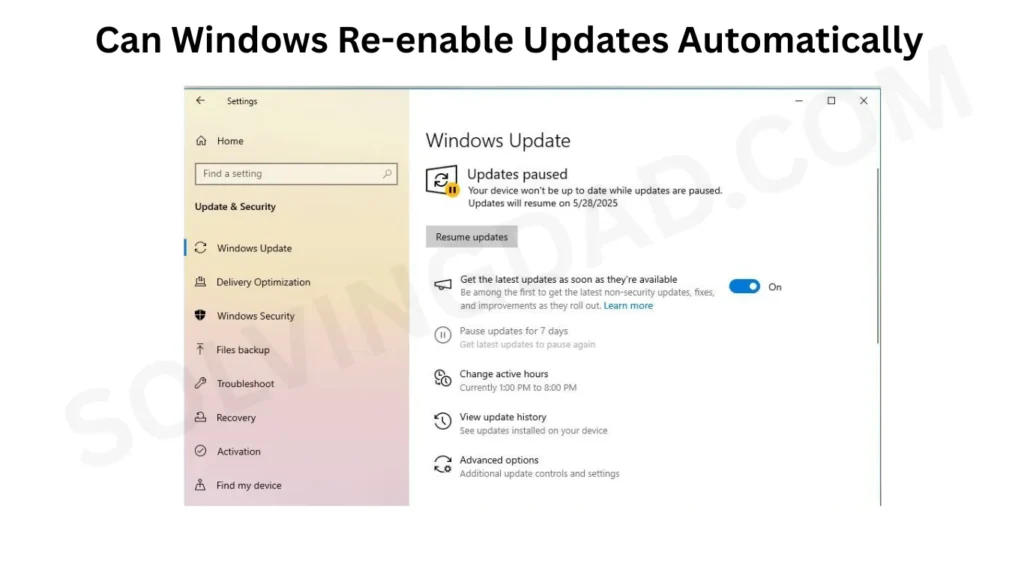
If that happens:
- Repeat the methods above
- Use multiple methods together
- Check settings after large Windows upgrades
Is It Safe to Disable Windows 10 Updates?
This is a very important question.
Pros of Disabling Updates
- Faster performance on old PCs
- No surprise restarts
- Better control
- Saves internet data
- Prevents buggy updates
Cons of Disabling Updates
- Security vulnerabilities may remain
- Some apps may stop working properly
- Drivers may become outdated
A smart option is to disable automatic updates and manually update once every few months.
Best Method Recommended
If you ask me personally, the best method is:
Disable Windows Update Service
Why?
Because:
- It is easy
- Works on all Windows 10 versions
- Takes less than 2 minutes
- No technical knowledge required
Most users find this method enough.
Common Problems and Fixes
Windows Update Service Keeps Turning Back On
Try these fixes:
- Disable Update Orchestrator Service
- Disable Windows Medic Service
- Use Group Policy with Services together
Windows Still Downloads Updates
Sometimes cached update files remain.
Delete them from:
C:\Windows\SoftwareDistributionThen restart your computer.
Should You Disable Updates Permanently?
It depends on your needs.
You can disable updates permanently if:
- You use an older PC
- Your system works perfectly already
- You have limited internet
- You hate forced restarts
But if security matters a lot to you, consider pausing updates instead of fully disabling them.
Also Read: Windows Update Not Working Due to Corrupted Files Error? Here’s How to Fix It in Windows 11
FAQs
How do I stop Windows 10 updates forever?
You can permanently stop updates by disabling the Windows Update service through Services Manager.
Can I disable Windows 10 updates permanently without software?
Yes, all methods in this guide work without third-party software.
Will disabling updates improve performance?
Sometimes yes, especially on older computers with limited RAM or storage.
Does Windows 10 force updates again?
Major upgrades may reactivate updates, so you may need to disable them again.
Is it legal to disable Windows updates?
Yes, users are allowed to control update settings on their own computers.
Which method is easiest for beginners?
Disabling the Windows Update service is the simplest method for most users.
Also Read: How to Disable Startup Apps in Windows 11 (Make PC Faster)
Final Thoughts
If you were searching for how do I stop Windows 10 from updating permanently, now you know several simple ways to do it.
The easiest methods are:
- Disable Windows Update Service
- Use Group Policy Editor
- Use Registry Editor
- Set connection as metered
- Use Command Prompt
You don’t need to be a computer expert. Just follow the steps carefully, and you can stop Windows 10 updates in minutes.
Remember though — updates exist for security reasons. So if you disable them permanently, make sure you stay careful online and use good antivirus protection.