
Microsoft Store Not Downloading Apps in Windows 11? Fix Now — if you’re facing this frustrating issue, you’re not alone. Many Windows 11 users experience problems where the Microsoft Store refuses to download apps, gets stuck on “Pending,” shows error messages, or simply does nothing after clicking the Install button.
The good news is that this problem is usually caused by simple system glitches, incorrect settings, cache corruption, or update issues — and most fixes take only a few minutes.
In this complete step-by-step guide, you’ll learn why the Microsoft Store is not downloading apps in Windows 11 and how to fix it using safe, beginner-friendly methods that actually work.
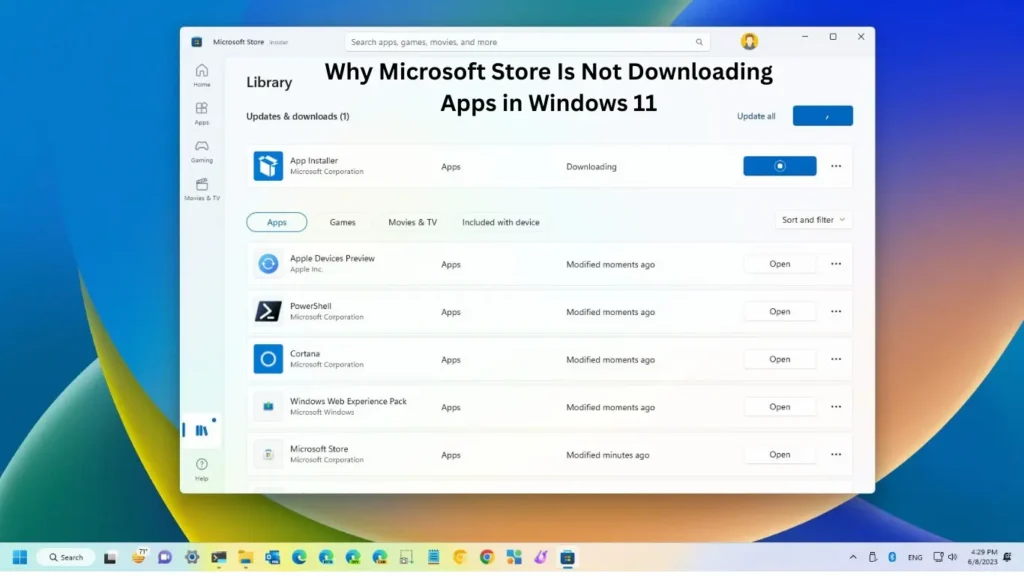
Why Microsoft Store Is Not Downloading Apps in Windows 11
Before jumping into fixes, it’s important to understand the root causes. The issue usually happens due to:
- Corrupted Microsoft Store cache
- Incorrect date and time settings
- Windows Update problems
- Network configuration errors
- Background services not running
- Account synchronization issues
- Damaged system files
Sometimes, even a minor Windows glitch can stop downloads completely.
Also Read: How to Reset Network Settings in Windows 11 Without Losing Files
Quick Checks Before Trying Advanced Fixes
Start with these basic checks. Many users solve the issue right here.
✅ Restart Your PC
A simple restart refreshes system services responsible for app downloads.
✅ Check Internet Connection
Make sure:
- Wi-Fi or Ethernet is stable
- No VPN is interrupting downloads
- Websites load normally in your browser
✅ Sign Out and Sign Back Into Microsoft Store
- Open Microsoft Store.
- Click your profile icon.
- Sign out.
- Restart the PC.
- Sign in again.
If the Microsoft Store not downloading apps in Windows 11 problem continues, move to the solutions below.
Fix 1: Clear Microsoft Store Cache (Most Effective)
A corrupted cache is the number one reason downloads fail.
Steps:
- Press Windows + R
- Type:
wsreset.exe
- Press Enter.
- A blank Command Prompt window will appear.
- The Store will automatically reopen.
This process resets the Store cache without deleting apps or data.
Fix 2: Run Windows Store Troubleshooter
Windows 11 includes a built-in repair tool.
Steps:
- Open Settings
- Go to System → Troubleshoot
- Click Other troubleshooters
- Find Windows Store Apps
- Click Run
The troubleshooter automatically detects and fixes common issues causing Microsoft Store download failures.
Fix 3: Check Date and Time Settings
Incorrect system time prevents secure server communication.
Steps:
- Open Settings
- Select Time & Language
- Click Date & Time
- Enable:
- Set time automatically
- Set time zone automatically
Restart your PC afterward.
Fix 4: Reset Microsoft Store App
Resetting restores the Store to its default state.
Steps:
- Open Settings
- Go to Apps → Installed Apps
- Search for Microsoft Store
- Click Advanced Options
- Scroll down and click:
- Repair (try first)
- Reset (if repair fails)
This fix resolves most cases where Microsoft Store is not downloading apps in Windows 11.
Fix 5: Check Windows Update
Outdated system files often break Store functionality.
Steps:
- Open Settings
- Go to Windows Update
- Click Check for updates
- Install all available updates
- Restart your PC
Windows updates include Store performance patches and bug fixes.
Fix 6: Restart Required Services
Certain background services must run for downloads to work.
Steps:
- Press Windows + R
- Type:
services.msc
- Locate these services:
- Windows Update
- Background Intelligent Transfer Service (BITS)
- Microsoft Store Install Service
- Right-click each → Click Restart
These services handle downloading and installing apps in the background.
Fix 7: Disable Proxy or VPN
Proxy servers or VPN apps sometimes block Store servers.
Disable Proxy:
- Open Settings
- Go to Network & Internet
- Select Proxy
- Turn OFF proxy settings
Temporarily disable VPN software and try downloading again.
Fix 8: Re-register Microsoft Store Using PowerShell
If system components are damaged, re-registering fixes them.
Steps:
- Right-click Start.
- Open Windows Terminal (Admin).
- Paste this command:
Get-AppxPackage -allusers Microsoft.WindowsStore | Foreach {Add-AppxPackage -DisableDevelopmentMode -Register "$($_.InstallLocation)\AppxManifest.xml"}
- Press Enter.
- Restart your PC.
This rebuilds Store registration files.
Fix 9: Reset Network Settings
Network misconfiguration is another hidden cause.
Steps:
- Open Settings
- Go to Network & Internet
- Click Advanced network settings
- Select Network reset
- Restart PC
This removes faulty network configurations safely.
Fix 10: Check Storage Space
Microsoft Store cannot download apps if storage is low.
Check Storage:
- Open Settings → System → Storage
- Free at least 5–10 GB space
Delete temporary files if needed.
Advanced Fix: Repair Corrupted System Files
If nothing works, system files may be damaged.
Run SFC Scan:
- Open Command Prompt as Administrator.
- Run:
sfc /scannow
Wait for completion and restart your PC.
This scan repairs Windows system components affecting the Store.
Pro Tips to Prevent Microsoft Store Issues
To avoid future problems:
- Keep Windows updated regularly
- Avoid aggressive system cleaner apps
- Don’t force-close Store during downloads
- Maintain stable internet connection
- Restart PC weekly to refresh services
Following these habits keeps Microsoft Store running smoothly.
Also Read: Windows 11 Update Error 0x800f0922 – Simple Step-by-Step Fix
Frequently Asked Questions (FAQs)
Why is Microsoft Store stuck on pending downloads?
Usually due to cache corruption, slow internet, or Windows Update service issues. Clearing cache using wsreset.exe often fixes it.
Will resetting Microsoft Store delete my apps?
No. Resetting only clears settings and cache. Installed apps remain safe.
Can antivirus software block Microsoft Store downloads?
Yes, sometimes third-party antivirus tools interfere. Temporarily disable them to test.
Why do downloads start but never finish?
This happens when background services like BITS stop working or network settings are incorrect.
Is reinstalling Windows necessary?
Almost never. The fixes in this guide solve the Microsoft Store not downloading apps in Windows 11 issue in most cases.
Final Thoughts
Facing the Microsoft Store Not Downloading Apps in Windows 11 problem can be annoying, especially when you urgently need an app. Fortunately, the issue is rarely serious and can usually be fixed using cache reset, troubleshooting tools, or simple system adjustments.
Start with basic fixes and move step-by-step through this guide. In most cases, downloads begin working again within minutes.
If you found this guide helpful, consider bookmarking SolvingDad.com for more practical Windows troubleshooting tutorials designed for beginners and advanced users alike.
Also Read: