
Cannot Open Settings in Windows 11 is a frustrating problem that many users suddenly face after updates, system crashes, or software conflicts. The Settings app is essential because it controls almost everything — updates, WiFi, personalization, apps, accounts, and system configuration. When it refuses to open, even simple tasks become impossible.
The good news? In most cases, you can fix this issue in less than 5 minutes without reinstalling Windows or losing your data. In this complete step-by-step guide, you’ll learn the real causes behind the problem and the fastest working solutions used by professionals.
This guide is written especially for beginners, so you can follow along easily even if you are not a technical expert.
Why You Cannot Open Settings in Windows 11
Before fixing the issue, it helps to understand why it happens. The Cannot Open Settings in Windows 11 error usually appears due to one of these reasons:
- Corrupted system files after a Windows update
- Broken Settings app packages
- Disabled system services
- User profile errors
- Malware or third-party software conflicts
- Registry issues
- Incomplete Windows installation updates
Sometimes clicking Settings does nothing, or the window opens and immediately closes. Both problems are common and fixable.
Also Read: Best Free Utilities Every Windows User Should Install in 2025
Quick Fix #1 — Restart Windows Explorer (30 Seconds Fix)
This is the fastest solution and works surprisingly often.
Steps:
- Press Ctrl + Shift + Esc to open Task Manager.
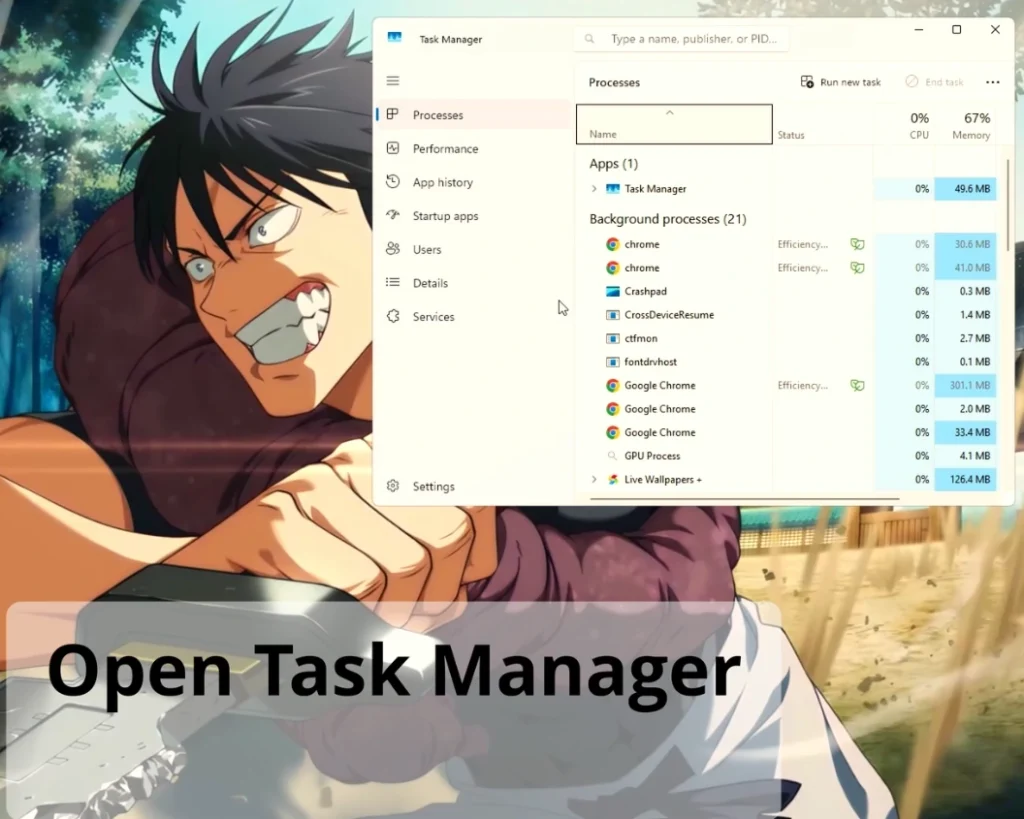
- 2. Scroll down and find Windows Explorer.
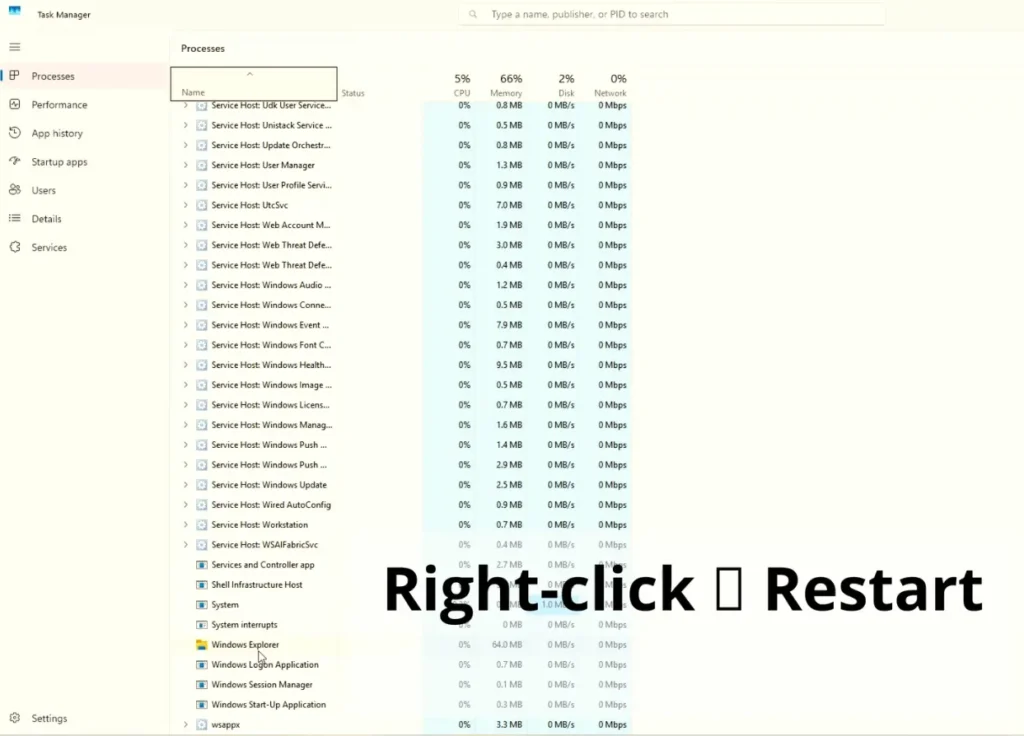
- Right-click and then Click Restart.
Now try opening Settings again.
👉 If the Settings app was frozen in the background, this refresh instantly fixes the problem.
Quick Fix #2 — Open Settings Using a Command
If clicking the icon does not work, try launching it manually.
Method:
- Press Windows + R.
- Type:
ms-settings:
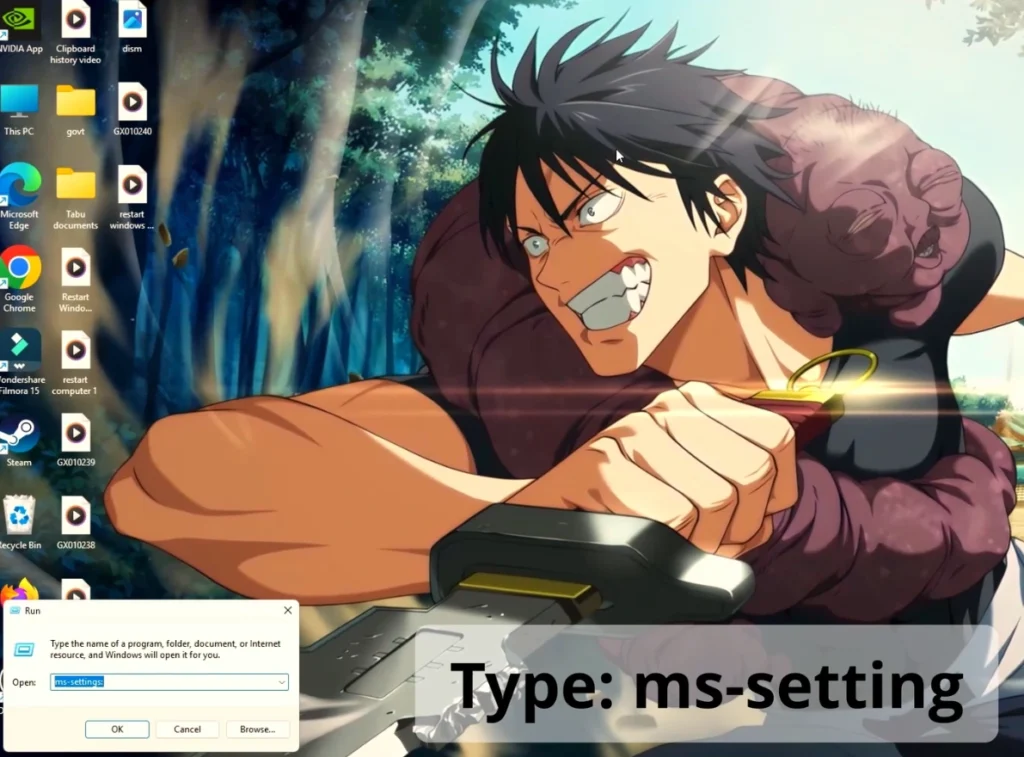
- Press Enter.
If Settings opens now, the issue is likely a shortcut or Start Menu glitch.
Fix #3 — Repair Corrupted System Files (Most Effective Method)
Corrupted files are the #1 reason behind the Cannot Open Settings in Windows 11 issue.
Windows includes built-in repair tools called SFC and DISM.
Step 1: Run SFC Scan
- Search Command Prompt Run as Administrator.
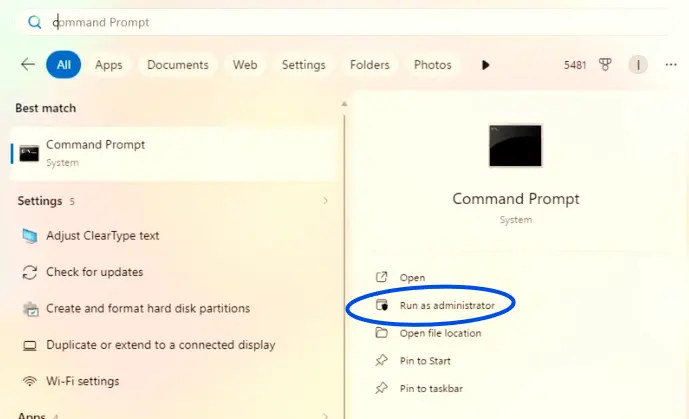
- Type:
sfc /scannow
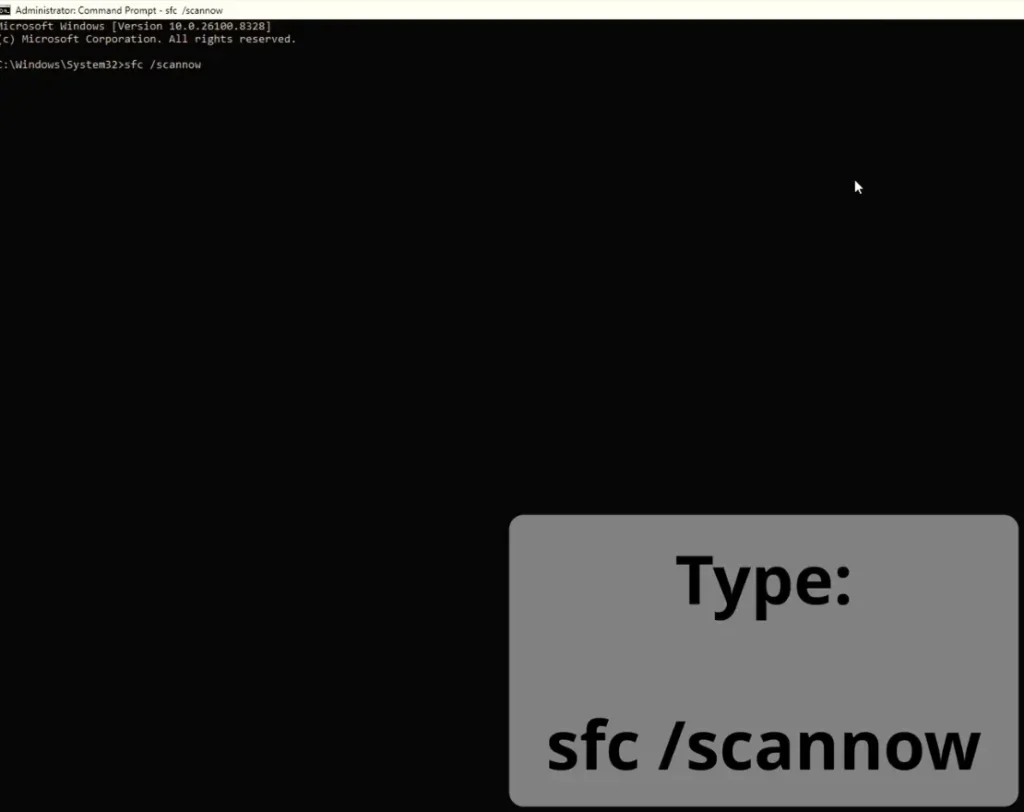
- Press Enter and wait.
This scan repairs damaged system files automatically.
Step 2: Run DISM Tool
After SFC completes, run:
DISM /Online /Cleanup-Image /RestoreHealth
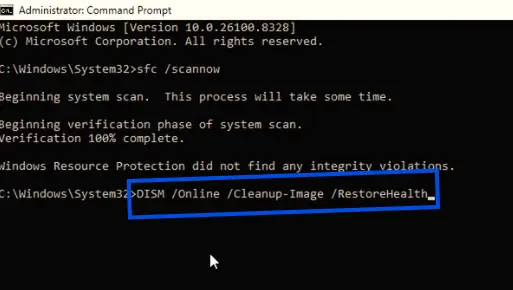
Restart your PC after completion.
✅ In many cases, Settings starts working normally after this repair.
Fix #4 — Reset the Settings App
Windows allows you to reset built-in apps without deleting data.
Steps:
- Press Windows + X → select Windows Terminal (Admin).
- Copy and paste:
Get-AppxPackage *windows.immersivecontrolpanel* | Reset-AppxPackage
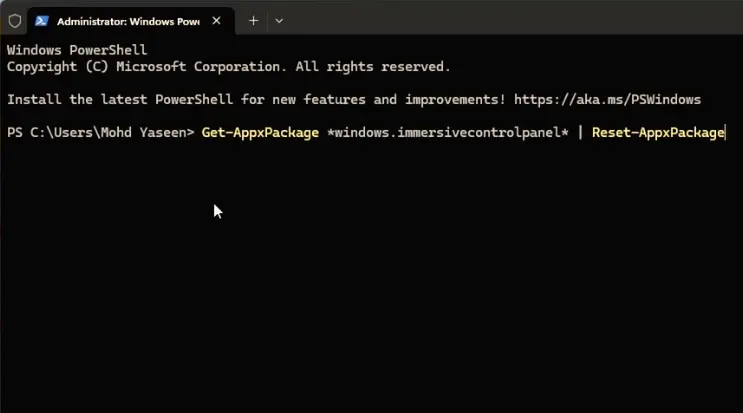
- Press Enter.
This command reinstalls and refreshes the Settings app components.
Fix #5 — Create a New User Account
Sometimes the problem exists only inside your user profile.
Create a new account:
- Press Ctrl + Alt + Delete.
- Open Task Manager → File → Run New Task.
- Type:
netplwiz
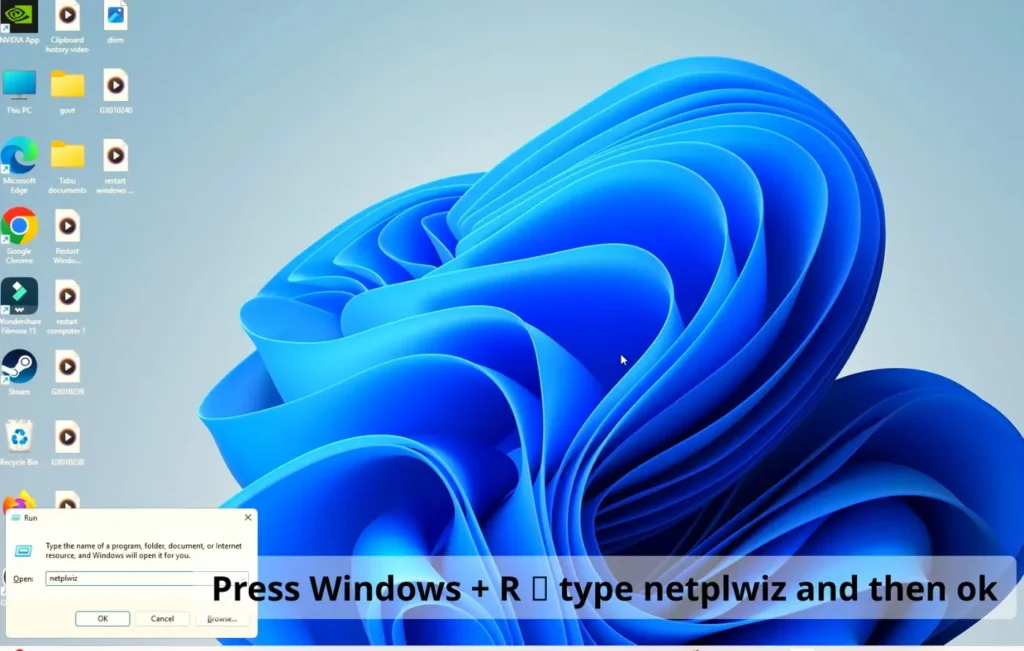
- Add a new local user account.
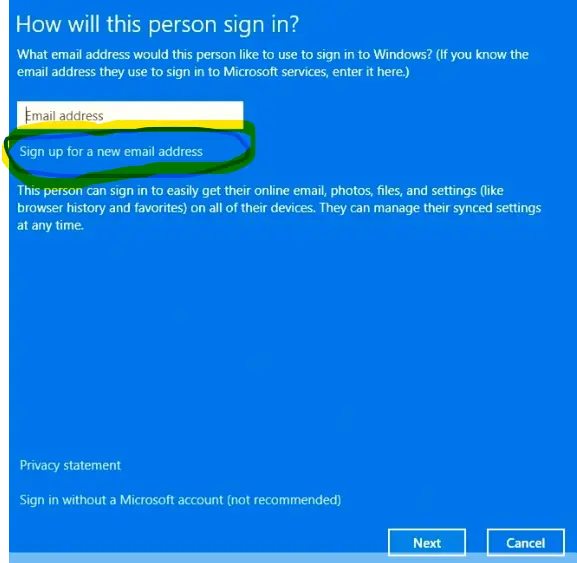
Log into the new account and check Settings.
If it works, your original profile is corrupted.
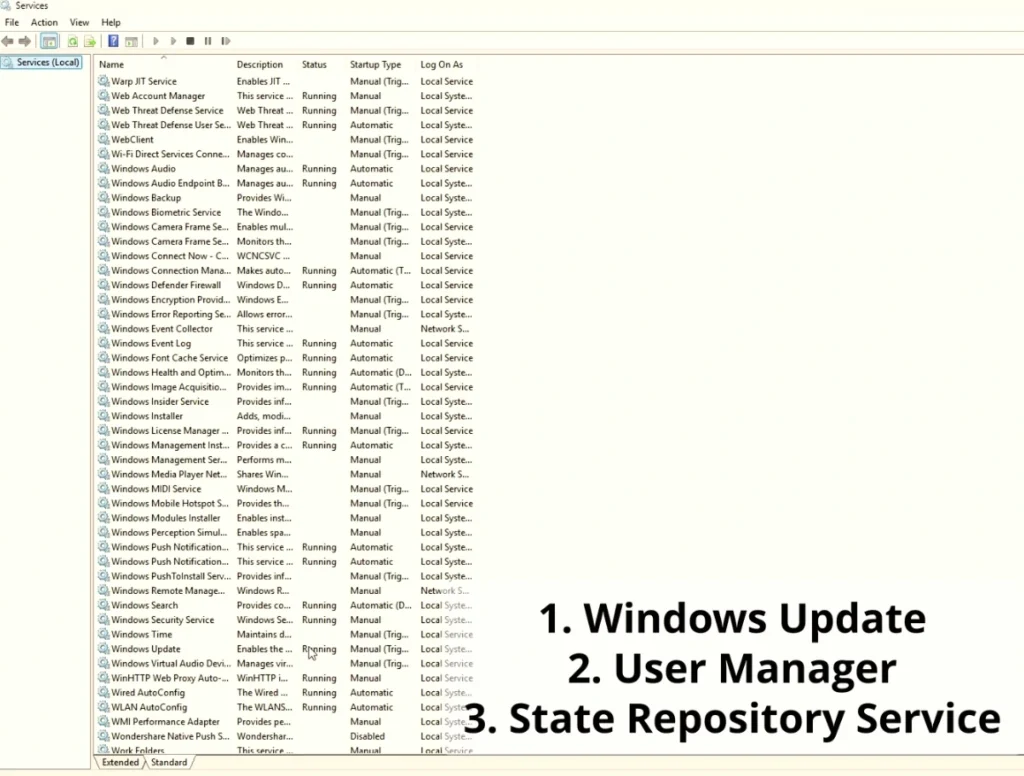
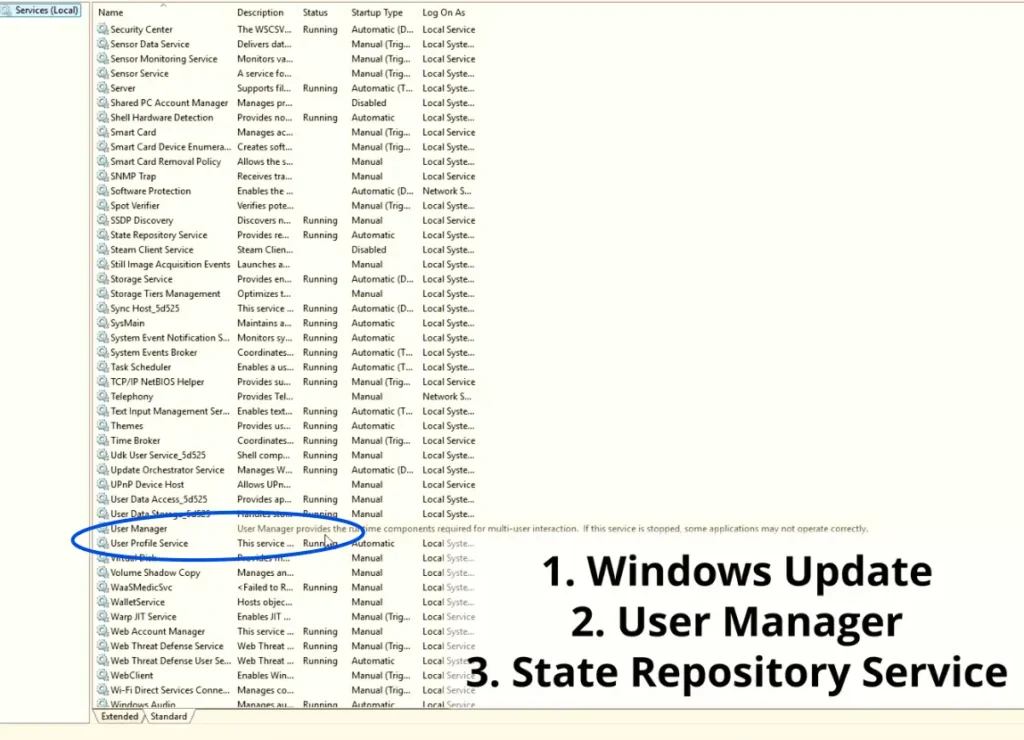
Fix #6 — Enable Required Windows Services
Certain services must run for Settings to open.
Check Services:
- Press Windows + R.
- Type:
services.msc
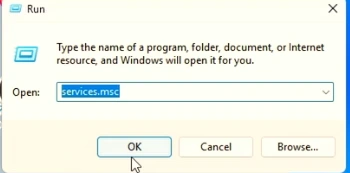
- Ensure these are running:
- Windows Update
- User Manager
- State Repository Service
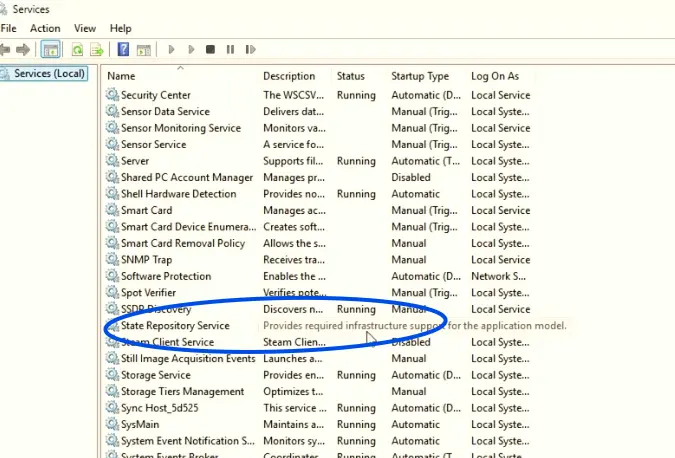
Right-click → Start if disabled.
Fix #7 — Re-register Windows Apps (Advanced but Safe)
If multiple apps are broken, re-register all Windows apps.
Steps:
- Open Windows Terminal (Admin).
- Run:
Get-AppxPackage | Foreach {Add-AppxPackage -DisableDevelopmentMode -Register "$($_.InstallLocation)\AppXManifest.xml"}
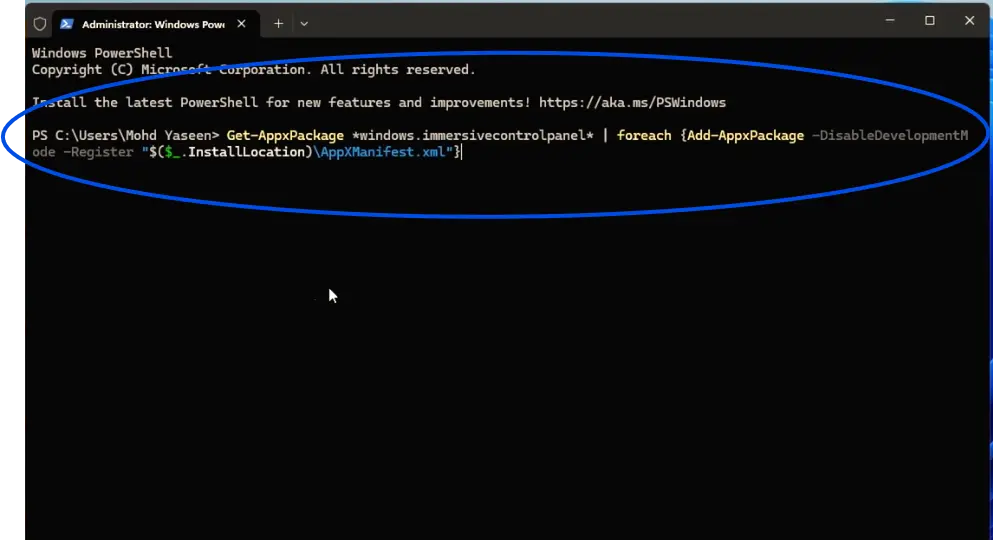
This rebuilds system app registrations.
⚠️ The screen may flicker — this is normal.
Fix #8 — Remove Problematic Windows Update
If the Cannot Open Settings in Windows 11 issue started after an update, rolling it back may help.
Steps:
- Press Windows + R
- Type:
appwiz.cpl
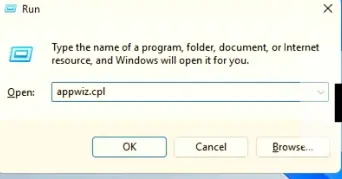
- Click View Installed Updates
- Uninstall the latest update.
Restart your PC afterward.
Fix #9 — Scan for Malware
Malware sometimes blocks system tools like Settings.
Run:
- Windows Security Full Scan
- Or trusted antivirus software
Removing hidden threats often restores system functionality.
Bonus Tip — Use System Restore (If Available)
If Settings suddenly stopped working recently:
- Search Create Restore Point
- Click System Restore
- Choose a restore point before the problem started.
Your files remain safe, but system settings revert.
Also Read: How to Benchmarking Your Windows PC Correctly (CPU, GPU, SSD, and NPU Tests)
Prevent This Problem in the Future
To avoid facing Cannot Open Settings in Windows 11 again:
- Always complete Windows updates fully
- Avoid forced shutdowns
- Keep drivers updated
- Install software only from trusted sources
- Create restore points regularly
Small habits can prevent major Windows issues.
Also Read: Best SSDs for Windows in 2025: PCIe 5.0 vs PCIe 4.0 — Which Should You Buy?
Frequently Asked Questions (FAQs)
Why does Settings not open in Windows 11?
Usually due to corrupted system files, broken updates, or damaged user profiles.
Can I fix the Settings app without reinstalling Windows?
Yes. Most users fix the Cannot Open Settings in Windows 11 problem using SFC, DISM, or app reset methods.
Is this issue caused by Windows updates?
Sometimes yes. Incomplete or buggy updates can break system apps temporarily.
Will resetting Settings delete my files?
No. Resetting only repairs the app and does not remove personal data.
What if none of the fixes work?
Use System Restore or create a new Windows user profile before considering a full reinstall.
Final Words
Facing the Cannot Open Settings in Windows 11 issue can feel stressful, especially when you rely on Settings for daily tasks. Thankfully, this problem is rarely serious and can usually be fixed within minutes using the methods above.
Start with simple solutions like restarting Windows Explorer, then move toward system file repair if needed. In most cases, one of these fixes restores the Settings app completely.
If you found this guide helpful, consider bookmarking SolvingDad.com for more beginner-friendly Windows troubleshooting tutorials designed to save your time and effort.
Also Read: