
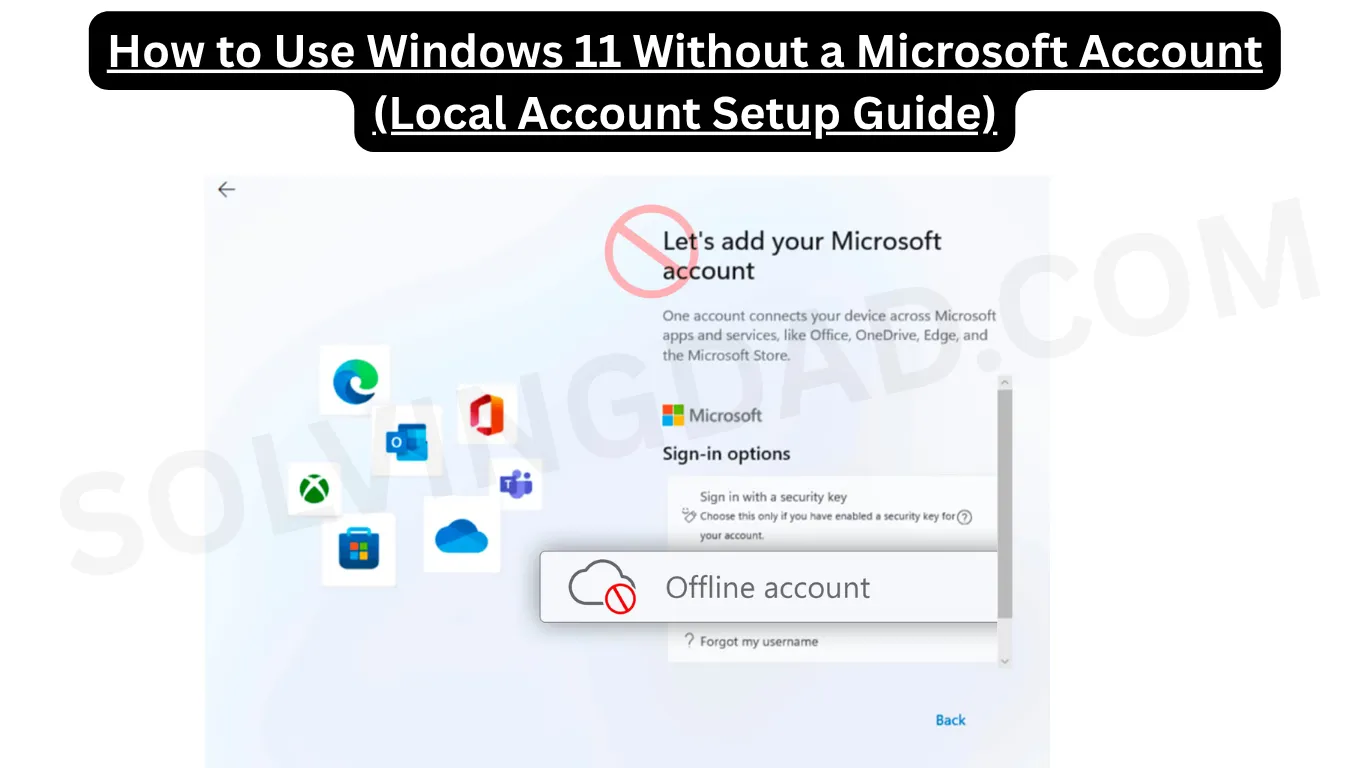
If you’ve been wondering how to use Windows 11 without a Microsoft account, you’re definitely not alone. Millions of users feel the same frustration — you just bought a new laptop, powered it on, and suddenly Windows is pushing you to sign in with a Microsoft account before you can even see your own desktop. It feels a bit like being asked for your passport just to enter your own house.
The good news? You absolutely can set up and run Windows 11 with a local account. It takes a little know-how, but once it’s done, your PC belongs to you — no Microsoft cloud syncing, no forced sign-ins, no strings attached.
In this guide, we’ll walk you through every method, tackle common issues users run into, and make sure you’re set up for smooth sailing in 2026.
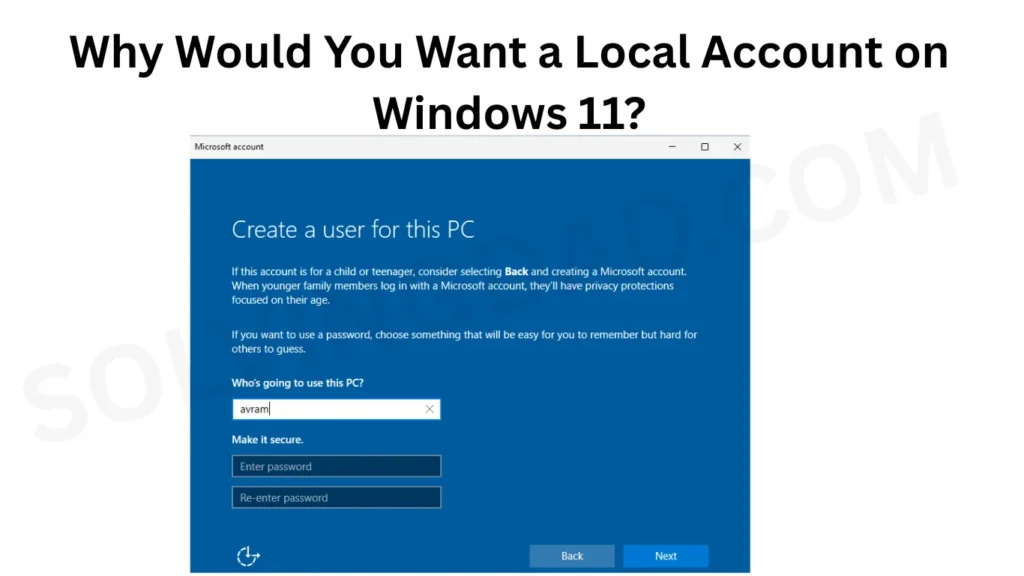
Why Would You Want a Local Account on Windows 11?
Before we dive into the how-to, let’s talk about the why. Microsoft has been steadily pushing users toward its cloud ecosystem, and Windows 11 is the most aggressive version yet. But there are completely valid reasons to skip the Microsoft account:
- Privacy concerns — A local account means less data shared with Microsoft servers.
- Offline use — Not everyone has a reliable internet connection at all times.
- Shared or work PCs — You may not want personal Microsoft credentials on a shared machine.
- Simplicity — Some users just want a clean, straightforward computing experience.
Whatever your reason, it’s your computer. You get to decide.
Common Known Issues When Setting Up Windows 11 Without a Microsoft Account
Microsoft doesn’t exactly roll out the red carpet for users who want to skip the account setup. Here are the roadblocks you’re likely to encounter.
H3: The “Something Went Wrong” Loop
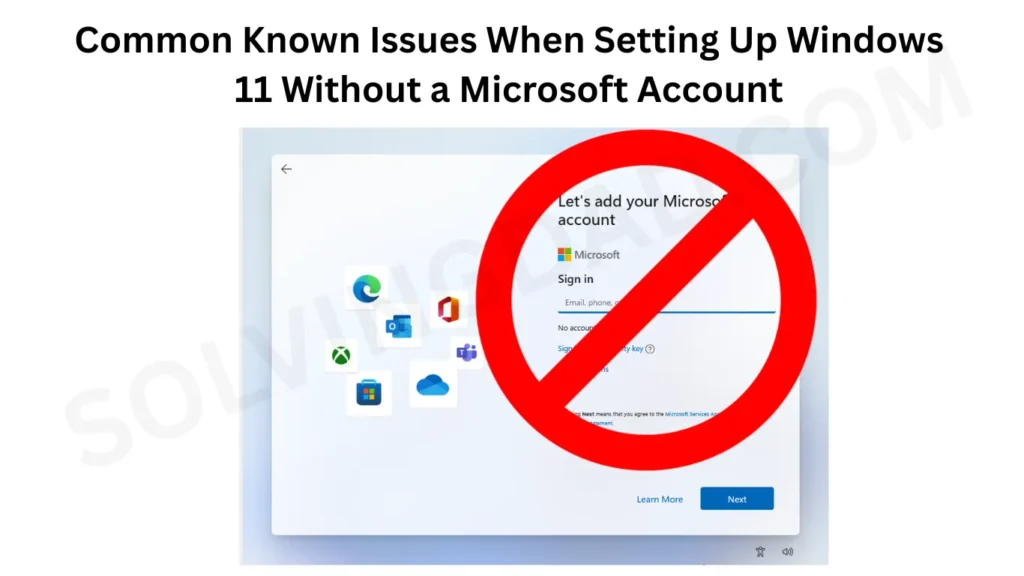
During the Out-of-Box Experience (OOBE) setup, some users hit a dead end when trying to skip the Microsoft account step. Windows 11 Home, in particular, was designed to require an internet connection and a Microsoft account — at least on the surface.
H3: The “Let’s Add Your Account” Screen
Even after setup, Windows 11 may repeatedly prompt you to link a Microsoft account, especially after updates. This can feel relentless, but it’s manageable once you know what to do.
H3: Features That Require a Microsoft Account
To be fair to Microsoft, some features genuinely won’t work without an account:
- Microsoft Store apps
- OneDrive sync
- Xbox Game Pass
- Synced Settings across devices
That said, most everyday computing tasks — browsing, documents, media — work perfectly fine with a local account.
Performance Problems Related to Account Type
Interestingly, some users on forums like Reddit and Microsoft’s own community pages have reported that switching to a local account improved their system performance. Here’s why that makes sense:
- Without a Microsoft account, background syncing processes (OneDrive, Settings Sync, Windows Search indexing tied to cloud) run less aggressively.
- Startup times can be slightly faster on local accounts because fewer cloud-dependent services need to initialize.
- RAM usage can drop by a small but noticeable margin.
Of course, this won’t turn a budget laptop into a gaming rig, but for everyday use it’s a real benefit.
Gaming Issues on Local Accounts
Gamers, listen up — there are a few things to keep in mind if you plan to game on a local account in Windows 11.
H3: Xbox Game Bar and Game Pass
The Xbox Game Bar works partially without a Microsoft account, but features like achievements, Game Pass integration, and social features won’t function. If you play Game Pass titles, a Microsoft account is required for those specific games.
H3: Steam and Third-Party Launchers
Here’s the good news: Steam, Epic Games, GOG, and most other launchers work flawlessly on a local account. Your gaming library on these platforms is tied to the launcher account, not your Windows account. So if you mostly play on Steam, you won’t miss a thing.
Driver Compatibility Problems
Driver installation on Windows 11 doesn’t depend on whether you use a Microsoft account or a local account — drivers work the same either way. However, there’s one area where local accounts occasionally run into friction:
Windows Update and Optional Driver Downloads
Some optional drivers distributed through Windows Update may have reduced functionality when a Microsoft account isn’t linked. In most cases, visiting the manufacturer’s website directly (NVIDIA, AMD, Intel, Dell, HP, etc.) and downloading drivers manually is the more reliable approach anyway.
Windows Update Errors on Local Accounts
Windows Update itself functions normally on local accounts. However, users have occasionally reported these errors:
- Error 0x80070005 — Access denied. This can happen if user account permissions weren’t set correctly during setup. Fix: Run Windows Update as an administrator or check your account type under Settings > Accounts.
- Update stuck at 0% — Rarely linked to account type; more often caused by corrupted update cache. Fix: Run
wsreset.exeor use the Windows Update troubleshooter.
How to Use Windows 11 Without a Microsoft Account — Step-by-Step
Here’s where we get practical. There are three main methods depending on where you are in the setup process.
Method 1 — During Fresh Installation (The Offline Trick)
This is the cleanest approach.
- Begin the Windows 11 setup as normal.
- When prompted to connect to a network, do not connect to Wi-Fi.
- Click “I don’t have internet” (this option appears if you’re offline).
- Then click “Continue with limited setup.”
- You’ll be taken directly to the local account creation screen.
- Enter a username, password, and security questions — done.
Pro tip: If your PC auto-detects an Ethernet connection, temporarily unplug the cable before starting setup.
Also Read: Microsoft Store Not Downloading Apps in Windows 11? Fix Now
Method 2 — Using a Fake Email Address (Works on Windows 11 Home)
If you’re already past the network screen and Windows is demanding a Microsoft account:
- Enter
no@thankyou.com(or any fake email) in the Microsoft account field. - Enter any random password.
- Windows will throw an error — and then offer you a local account option.
- Click through and set up your local account normally.
It sounds like a workaround because it is one. But it works reliably as of 2026.
Method 3 — Switch from Microsoft Account to Local Account After Setup
Already set up Windows 11 with a Microsoft account? No problem. You can switch to a local account anytime.
- Go to Settings > Accounts > Your Info.
- Click “Sign in with a local account instead.”
- Enter your current Microsoft account password to verify.
- Create a local account username and password.
- Click Sign out and finish.
Your files stay exactly where they are. Nothing gets deleted. This process is safe and reversible.
Method 4 — Using Command Prompt During Setup (Advanced Users)
During the Windows setup screen, press Shift + F10 to open Command Prompt. Then type:
OOBE\BYPASSNROPress Enter. Your PC will restart and re-enter setup — this time with an option to proceed without internet, letting you create a local account.
This method works on Windows 11 Home and Pro.
Is Windows 11 Stable in 2026 With a Local Account?
Absolutely. By 2026, Windows 11 has matured considerably from its rocky 2021 launch. Microsoft has ironed out most of the major compatibility and stability bugs through regular cumulative updates. Running Windows 11 on a local account is stable, secure, and fully functional for the overwhelming majority of users.
Security updates, Defender antivirus, and system patches all apply normally — your machine stays protected even without a Microsoft account linked.
The only genuine limitations are cloud-dependent features, which makes sense. If you don’t need OneDrive, Xbox integration, or cross-device sync, you won’t feel like you’re missing anything.
Final Verdict
Using Windows 11 without a Microsoft account is entirely doable, and once you’re set up, it’s genuinely liberating. Your computer feels like yours again — faster boot, less background chatter, and no feeling that a corporation is looking over your shoulder.
Whether you’re a privacy-conscious professional, a parent setting up a family PC, or just someone who values simplicity, a local account is a completely valid — and increasingly popular — choice.
For more practical Windows guides, troubleshooting tips, and everyday tech solutions written in plain English, visit solvingdad.com — your go-to resource for making technology actually work for real people.
Also Read: Windows Update Not Working Due to Corrupted Files Error? Here’s How to Fix It in Windows 11
Frequently Asked Questions
Can I use Windows 11 without a Microsoft account permanently?
Yes, absolutely. Once you create a local account — either during setup or by switching afterward — Windows 11 runs fully without ever needing a Microsoft account again. You won’t be forced to sign in, and your system will continue receiving security updates normally.
Will I lose my files if I switch from a Microsoft account to a local account on Windows 11?
No. Switching to a local account does not delete or move your personal files. Documents, photos, downloads, and installed applications remain exactly where they are. The only thing that changes is your sign-in method.
Does Windows 11 Home require a Microsoft account?
Out of the box, Windows 11 Home pushes hard for a Microsoft account during setup. However, using the offline trick (disconnecting from the internet during setup), the fake email workaround, or the OOBE\BYPASSNRO command, you can bypass this requirement and use a local account instead.
Is a local account less secure than a Microsoft account on Windows 11?
Not necessarily. A local account can be secured with a strong password and Windows Hello (PIN, fingerprint, or face recognition). The main security difference is that a Microsoft account enables remote account recovery if you forget your password — with a local account, you’d rely on security questions instead. For most home users, a well-protected local account is perfectly secure.
Can I still use the Microsoft Store with a local account on Windows 11?
You can browse the Microsoft Store without signing in, but downloading and installing apps requires a Microsoft account. A practical workaround is to download apps from the official developer websites (like VLC, LibreOffice, or 7-Zip) directly, bypassing the Store entirely for non-Store apps.
Why does Windows 11 keep asking me to add a Microsoft account even after I set up a local account?
Windows 11 periodically displays prompts encouraging users to link a Microsoft account, especially after major updates. These are notifications, not requirements. You can dismiss them or, in some cases, disable them through Settings > Notifications > Turn off notifications from “Your Microsoft account.”
Does using a local account affect Windows Defender or antivirus protection in Windows 11?
No. Windows Defender (Microsoft Defender Antivirus) works completely independently of your account type. Your system stays fully protected with real-time threat detection, automatic definition updates, and all standard security features — whether you use a local account or a Microsoft account.
For more guides like this one, head over to solvingdad.com — where tech problems meet practical, dad-approved solutions.