
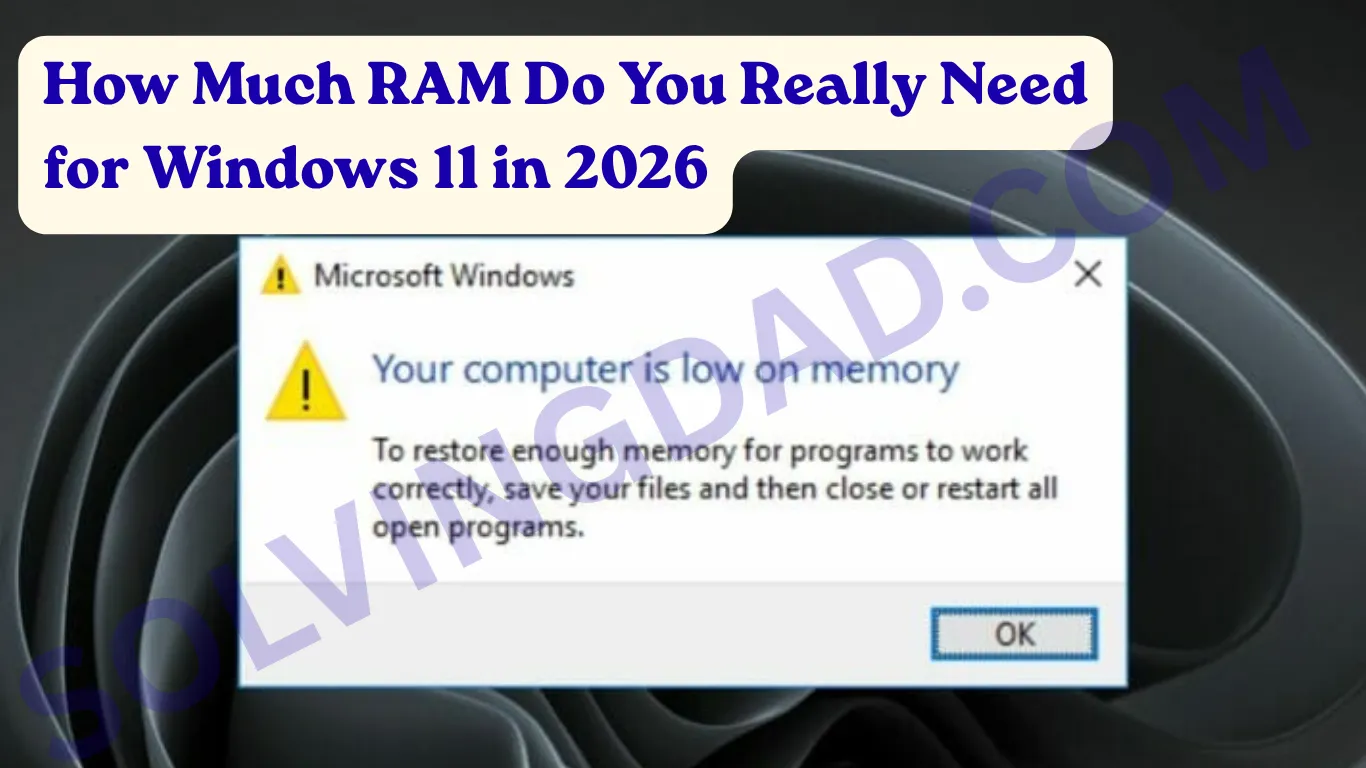
If you’ve ever asked yourself, “How much RAM do I need for Windows 11?” — you’re not alone. It’s one of the most searched questions among PC users in 2026, and for good reason. Windows 11 has grown considerably since its launch, and its memory demands have evolved right along with it.
Whether you’re building a new PC, upgrading an older machine, or just trying to figure out why your computer feels sluggish, RAM is one of the first things you should look at. In this guide, we break down exactly how much memory you need — from bare minimums to the sweet spot for everyday use, gaming, and demanding workloads.
Let’s get into it.
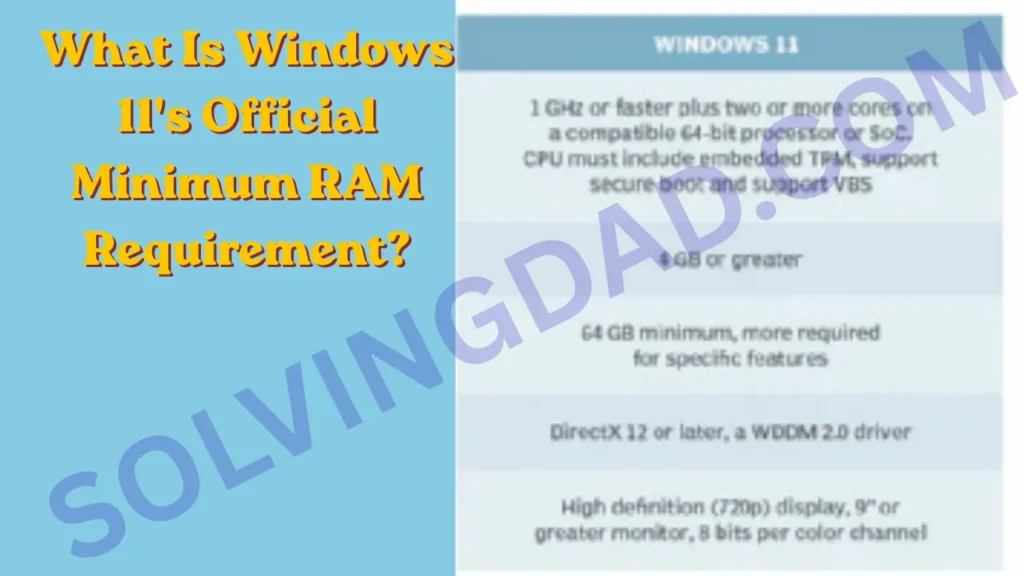
What Is Windows 11’s Official Minimum RAM Requirement?
Microsoft officially lists 4GB of RAM as the minimum requirement for Windows 11. But let’s be honest — that number is barely enough to get the OS running, let alone doing anything useful with it.
In real-world use, 4GB in 2026 means:
- Slow boot times
- Frequent lag when switching between apps
- Browser tabs crashing or refreshing constantly
- An overall frustrating experience
Think of 4GB as the floor, not the foundation. You technically can run Windows 11 on it, but you probably won’t want to.
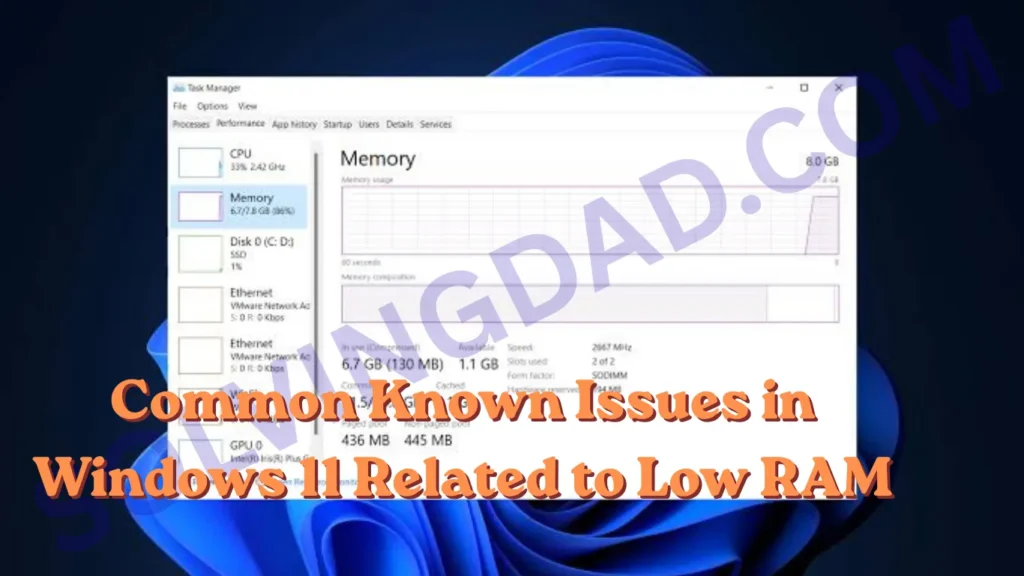
Common Known Issues in Windows 11 Related to Low RAM
Before we talk numbers, it’s worth understanding what actually happens when Windows 11 doesn’t have enough memory to work with. Many users blame drivers, updates, or even the OS itself — when the real culprit is simply not enough RAM.
Memory Compression and Paging
When your physical RAM fills up, Windows 11 starts using a portion of your storage drive as virtual memory (called the paging file). This is significantly slower than actual RAM. The result? Apps stutter, files take forever to load, and your PC sounds like it’s working overtime — because it is.
High Memory Usage at Idle
Many users report that Windows 11 consumes anywhere from 2.5GB to 3.5GB of RAM just at idle — before you open a single app. With only 4GB installed, you’re already halfway through your budget before doing anything.
Background Services Eating RAM
Windows 11 runs several background processes by default: Windows Update, Antimalware Service Executable, Search Indexing, and more. These can collectively consume 1–2GB, leaving very little breathing room on low-memory systems.
Performance Problems Caused by Insufficient RAM
Low RAM doesn’t just slow things down — it creates a cascade of performance problems that affect every part of your workflow.
Symptoms you might notice:
- Apps take several seconds to open instead of launching instantly
- The browser becomes unresponsive when you have more than 5–6 tabs open
- File Explorer hangs when browsing large folders
- Video playback stutters even on local files
- The taskbar and Start Menu feel delayed or unresponsive
These aren’t bugs. They’re signs that your system is memory-starved. Upgrading RAM often fixes these issues immediately — no reinstall required.
Gaming Issues on Windows 11 with Low RAM
For gamers, RAM is even more critical. Modern games in 2026 are memory-hungry, and Windows 11 doesn’t make it easier by running its own background processes while you play.
Minimum RAM for Gaming on Windows 11
8GB is technically playable for older or less demanding titles, but you’ll encounter:
- In-game stuttering and frame drops
- Long loading screens
- Crashes in open-world games that require large asset streaming
- Discord, stream software, or overlays consuming the RAM your game needs
Recommended RAM for Gaming
16GB is the current sweet spot for gaming in 2026. Most AAA titles recommend it, and it gives you enough headroom to run the game alongside Discord, a browser, and system processes without sacrificing performance.
32GB is worth considering if you stream, run a game capture software like OBS, or play memory-intensive games like open-world RPGs or simulation titles.
Driver Compatibility Problems That Mimic RAM Issues
Here’s something that surprises a lot of users: driver issues can look and feel exactly like RAM problems. Blue screens, random freezes, and app crashes don’t always mean your RAM is defective — sometimes it’s a driver conflict.
Common culprits include:
- GPU drivers (especially after a Windows Update)
- NVMe or SATA storage drivers causing slow read/write speeds
- Audio drivers crashing and taking system resources with them
If you’ve upgraded your RAM and still experience instability, run Windows Memory Diagnostic (mdsched.exe) and check for driver updates in Device Manager. A clean driver install often resolves what looks like a memory problem.
Windows Update Errors Linked to Memory
Windows Update requires a certain amount of free RAM and disk space to download and install updates properly. On systems with 4GB or less, updates frequently:
- Fail mid-installation and roll back
- Get stuck in a pending or loop state
- Cause unexpected reboots that don’t complete the update
Quick fix: Before running a major update, close all open applications and ensure at least 1–2GB of RAM is free. You can check this in Task Manager under the Performance tab.
If updates keep failing, also check your C: drive has at least 10–20GB of free space. Windows 11 needs room to stage the update files before installing.
How to Fix Windows 11 Memory and Performance Issues
Good news: most RAM-related issues on Windows 11 are fixable without spending a dime — or with a modest upgrade.
1. Disable Startup Programs
Open Task Manager → Startup Apps → Disable anything you don’t need launching at boot. This alone can free up 500MB–1GB of RAM.
2. Adjust Virtual Memory Settings
Go to System Properties → Advanced → Performance Settings → Advanced → Virtual Memory. Set a custom paging file size (typically 1.5x your RAM) for better control.
3. Use Efficiency Mode
Windows 11 includes an Efficiency Mode for background apps. Right-click a process in Task Manager and select Efficiency Mode to throttle its CPU and memory usage.
4. Upgrade Your RAM
If your system supports it, upgrading from 8GB to 16GB is one of the best performance investments you can make. It’s relatively inexpensive and the improvement is immediately noticeable.
5. Run the Windows Memory Diagnostic Tool
Press Win + R, type mdsched.exe, and hit Enter. Restart and let Windows test your RAM for hardware errors. Faulty RAM sticks cause instability even when you have “enough” memory.
Is Windows 11 Stable in 2026?
Windows 11 has come a long way since its rocky launch in 2021. By 2026, it’s a significantly more polished operating system — especially for users running it on capable hardware.
That said, stability is closely tied to your hardware configuration:
- 8GB or less: Expect occasional slowdowns, especially with multitasking
- 16GB: Smooth performance for most users — work, browsing, casual gaming
- 32GB+: Near-flawless performance for power users, creators, and gamers
Driver support has also matured considerably, and Microsoft’s regular patch cadence means most compatibility issues get resolved quickly. If you’re running a well-maintained system with adequate RAM, Windows 11 in 2026 is genuinely stable and reliable.
How Much RAM Do You Actually Need? A Quick Reference
| Use Case | Recommended RAM |
|---|---|
| Basic tasks (email, browsing) | 8GB |
| Everyday productivity | 16GB |
| Gaming | 16GB (32GB for streaming) |
| Video editing / creative work | 32GB |
| Professional workstations | 64GB+ |
Final Verdict
So, how much RAM do I need for Windows 11 in 2026? Here’s the honest answer:
Don’t settle for less than 8GB. It’s the bare minimum for a usable experience, but even that will feel tight if you’re a multitasker or browser power user.
16GB is the real sweet spot for the vast majority of users. It handles everyday tasks, gaming, light creative work, and everything in between without breaking a sweat.
32GB makes sense if you game and stream simultaneously, work with large media files, run virtual machines, or simply want your PC to feel future-proof for the next several years.
The good news? RAM in 2026 is more affordable than ever. Upgrading is one of the easiest and most impactful things you can do for your PC’s performance — and unlike many upgrades, the results are immediate.
For more practical guides like this one — from diagnosing slow PCs to choosing the right hardware upgrades — visit solvingdad.com. We break down tech problems in plain English so you can fix them fast and get back to what matters.
Also Read: PC Crashes Randomly Multiple Times a Day — Here’s Why It’s Happening (and How to Fix It)
Frequently Asked Questions (FAQ)
Q1: Is 4GB of RAM enough for Windows 11 in 2026?
Technically, yes — 4GB meets Microsoft’s minimum requirement. But in practice, it’s not enough for a smooth experience. Windows 11 alone can consume 3–3.5GB at idle, leaving almost no room for apps or browser tabs. If you’re stuck at 4GB, expect constant slowdowns and freezes. Upgrade to at least 8GB as soon as possible.
Q2: Can Windows 11 run smoothly on 8GB RAM?
Yes, 8GB is workable for light to moderate use — basic browsing, email, document editing, and streaming video. However, if you tend to have many browser tabs open or run multiple applications at once, you’ll start to feel the limitations. For a noticeably smoother experience, 16GB is a worthwhile upgrade.
Q3: Does upgrading RAM fix Windows 11 performance issues?
In many cases, yes. If your PC is slow, stuttering, or freezing frequently, insufficient RAM is often the cause. Upgrading from 8GB to 16GB can dramatically improve responsiveness, reduce load times, and eliminate most multitasking slowdowns. That said, if the issue is driver-related or caused by malware, more RAM won’t fix it — diagnosis is key.
Q4: What type of RAM is best for Windows 11 in 2026?
For most users, DDR4 (3200MHz or faster) remains the standard and is widely compatible with current systems. Newer builds support DDR5, which offers higher speeds and improved efficiency — it’s worth going with DDR5 if you’re building a new PC in 2026. Always check your motherboard’s specifications to confirm compatibility before purchasing.
Q5: Why is my Windows 11 PC using so much RAM even when idle?
Windows 11 runs numerous background services by default — Windows Update, Defender antivirus, Search Indexer, and more. These can collectively use 2–3.5GB at idle. This is normal behavior. However, you can reduce idle RAM usage by disabling unnecessary startup programs in Task Manager and adjusting which background apps are allowed to run.
Q6: Does more RAM improve Windows 11 gaming performance?
Yes, particularly for modern AAA titles. Going from 8GB to 16GB often reduces in-game stuttering, improves frame pacing, and shortens loading screens. For streamers or players who run Discord and OBS alongside their games, 32GB provides a noticeable advantage and eliminates background app interference.
Q7: Will Windows 12 require more RAM than Windows 11?
Microsoft has not officially announced Windows 12 requirements as of mid-2026. However, given the trajectory of OS development and the increasing RAM demands of modern software, it’s reasonable to expect future Windows versions will require at least 8GB minimum — with 16GB being the practical baseline. Investing in 16GB now is a safe, future-proof choice.
Published on SolvingDad.com — Your trusted source for practical tech solutions, hardware guides, and Windows troubleshooting tips.
Also Read: