
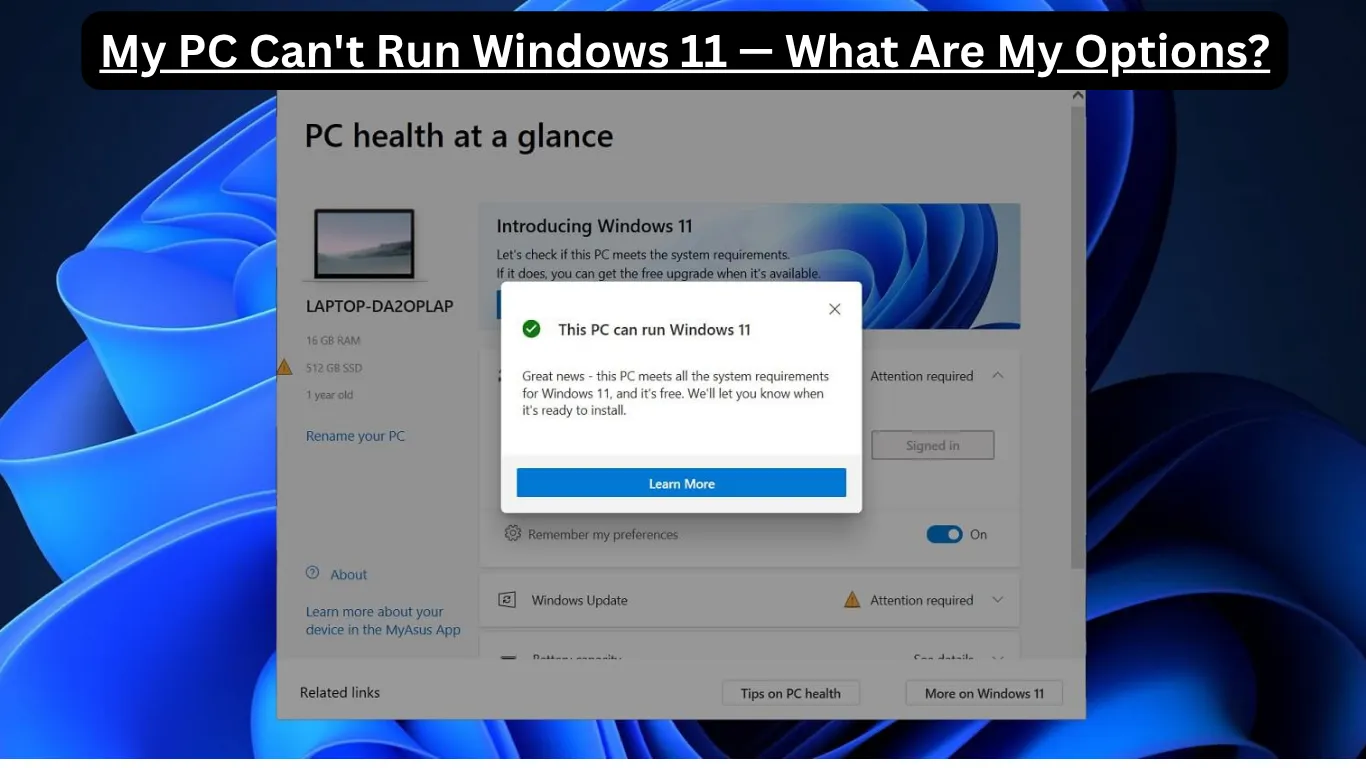
If your first thought after checking compatibility was, “My PC can’t run Windows 11… now what?” — don’t worry. You are not alone. Thousands of people around the world discovered that their perfectly working computers suddenly don’t meet Microsoft’s new requirements.
And honestly? It feels frustrating.
Your computer may still be fast, reliable, and good enough for daily work, gaming, school, or watching YouTube. But Windows 11 has strict hardware rules that block many older PCs.
The good news is this: you still have several smart options.
In this guide, we’ll explain everything in very simple language so anyone can understand it — even if you’re not a tech expert.
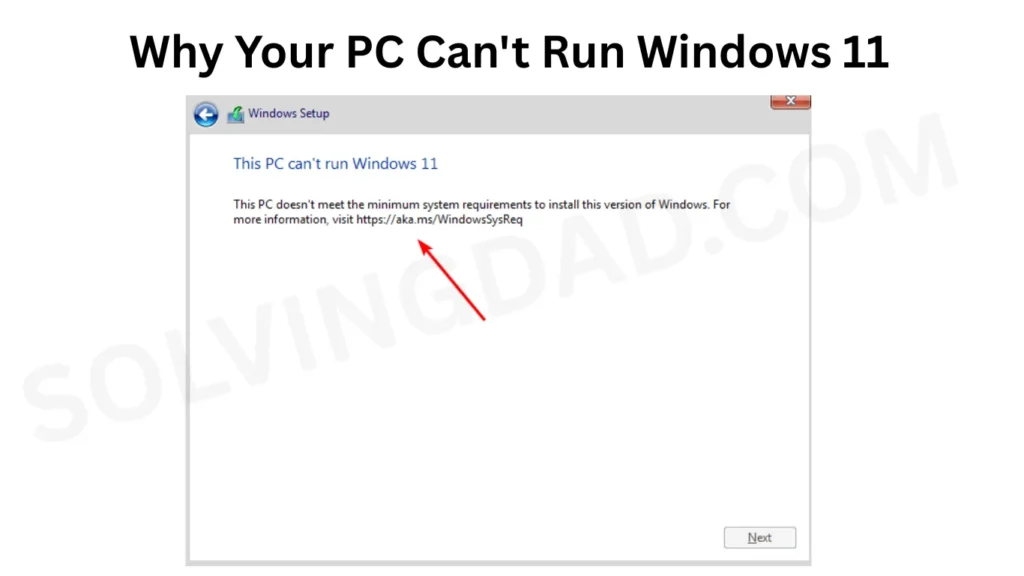
Why Your PC Can’t Run Windows 11
Microsoft added new hardware requirements for Windows 11. Some older computers fail because they don’t have:
- TPM 2.0 security chip
- Secure Boot support
- A supported processor
- Enough modern hardware features
Even many computers from 2016–2018 are unsupported.
So when you see the message:
“This PC can’t run Windows 11”
…it does not always mean your computer is bad.
It simply means Microsoft wants newer security and performance standards.
Option 1: Keep Using Windows 10
This is the easiest and safest option for most people.
Windows 10 still works very well, and Microsoft will support it with security updates until October 14, 2025.
That means:
- You can still browse safely
- Use Office apps
- Watch movies
- Play many games
- Attend online classes
- Do regular daily tasks
If your PC runs smoothly today, there’s no need to panic.
Who Should Choose This?
Keep Windows 10 if:
- Your computer works fine
- You only use basic apps
- You don’t want technical problems
- You want stability
For many families, students, and office users, this is honestly the smartest choice right now.
Option 2: Upgrade Your Hardware
Sometimes your PC fails the Windows 11 test because of a small missing feature.
For example:
- TPM may simply be disabled in BIOS
- Secure Boot may be turned off
- RAM or storage may be too low
Things You Can Check
Enable TPM 2.0
Many motherboards already include TPM but keep it disabled.
You can:
- Restart your PC
- Open BIOS settings
- Enable TPM or “PTT/fTPM”
Turn On Secure Boot
This feature is also often disabled by default.
Upgrade RAM or SSD
Adding more RAM or replacing an old hard drive with an SSD can make your PC feel much faster.
Option 3: Install Windows 11 Anyway (Unsupported Method)
Yes, it is possible.
Many people bypass Microsoft’s requirements and install Windows 11 on unsupported PCs.
But there are important risks.
Pros
- You get Windows 11 features
- New design and interface
- Better multitasking tools
Cons
- Possible update issues
- Driver problems
- Reduced stability
- Microsoft may stop support anytime
If you are comfortable with technology and love experimenting, this can work.
But for beginners, this may become stressful later.
Option 4: Buy a New PC
Sometimes upgrading becomes more expensive than replacing the computer.
If your PC is:
- Very slow
- More than 8–10 years old
- Frequently crashing
- Unable to run modern apps
…then buying a new computer may save time and frustration.
The good thing is that modern laptops are:
- Faster
- More energy efficient
- Better for security
- Built for Windows 11
What to Look For in a New PC
Try to get:
- Intel 11th Gen or newer
- AMD Ryzen 5000 series or newer
- At least 8GB RAM
- SSD storage
- TPM 2.0 enabled
This will help your PC stay useful for many years.
Option 5: Switch to Linux
This option surprises many people.
If your old PC still works but cannot run Windows 11, Linux can give it a second life.
Linux operating systems like:
- Ubuntu
- Linux Mint
- Zorin OS
…are free and lightweight.
Many older computers become fast again after switching.
Why Some People Love Linux
- Free to use
- Very secure
- Works well on older PCs
- No forced upgrades
- Good for web browsing and office work
The Downside
Some Windows software and games may not work properly.
So Linux is best for:
- Students
- Casual users
- People who mainly use browsers
- Older family computers
Is Windows 11 Really Worth It?
This is the big question.
Honestly, for many users, Windows 10 and Windows 11 feel very similar.
Windows 11 mainly offers:
- A cleaner design
- Better window management
- Improved gaming support
- New AI features
- Better security
But if your current PC already works perfectly, you may not notice a huge difference.
That’s why many experts say:
Don’t upgrade just because of pressure.
Upgrade only if it truly helps your needs.
How to Check Why Your PC Is Unsupported
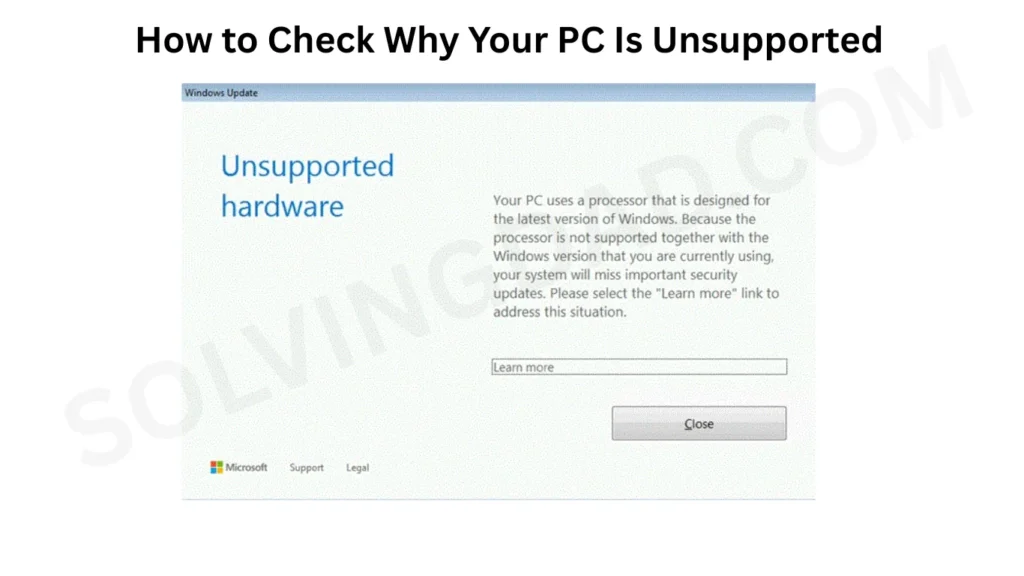
Microsoft provides a free tool called PC Health Check.
It tells you exactly:
- Which requirement failed
- What your PC is missing
- Whether you can fix it
Sometimes the solution is incredibly simple.
Also Read: Touchpad Gestures Not Working in Windows 11? Fix in Minutes
Best Option for Most People
Here’s the truth in simple words:
If your PC still works well:
Stay on Windows 10 for now.
If your PC is slightly outdated:
Try enabling TPM or upgrading small parts.
If your PC is very old:
Consider Linux or buying a newer device.
If you love experimenting:
You can try unsupported Windows 11 installation.
There is no single perfect answer for everyone.
Common Mistakes People Make
1. Throwing Away a Good PC
A computer that can’t run Windows 11 is not automatically useless.
2. Panic Buying
Many people rush into buying expensive devices they don’t actually need.
3. Ignoring Security Updates
If you stay on Windows 10 after support ends, security risks increase.
Also Read: Microsoft Store Not Downloading Apps in Windows 11? Fix Now
FAQs
Can I still use Windows 10 after 2025?
Yes, your PC will still work. However, Microsoft will stop security updates, which may increase security risks over time.
Is it safe to install Windows 11 on unsupported hardware?
It can work, but there may be stability and update issues. It’s safer for advanced users than beginners.
Can adding RAM make my PC compatible with Windows 11?
Sometimes. But most compatibility problems are related to TPM, Secure Boot, or unsupported processors.
Is Linux hard to use?
Not anymore. Modern Linux systems like Ubuntu and Linux Mint are beginner-friendly and easy for basic tasks.
Should I buy a new computer just for Windows 11?
Only if your current PC is already struggling with performance or modern software. Otherwise, Windows 10 may still be enough for now.
Final Thoughts
If you’ve been searching:
“My PC can’t run Windows 11 — what are my options?”
…hopefully now you feel much calmer.
Your computer still has value.
And you still have choices.
Technology companies often make older devices feel outdated faster than necessary. But in reality, many unsupported PCs continue working perfectly for years.
The smartest decision is the one that matches:
- Your budget
- Your needs
- Your comfort level
Don’t let a compatibility message scare you into making a rushed decision.