
Windows crashes after a recent update are one of the most frustrating experiences any PC user can face — especially when everything was working perfectly just hours before. You restart your machine after installing a Windows update, and suddenly you’re staring at a Blue Screen of Death, a freezing desktop, or a system that won’t even boot properly.
You’re not alone. Millions of Windows 11 users report similar post-update nightmares every year. The good news? There are reliable, tested ways to roll back a problematic update and get your system back on track. This guide walks you through everything — from identifying the culprit to executing a clean rollback.
Common Known Issues in Windows 11 Window
Windows 11 has come a long way since its rocky 2021 launch, but it still ships updates that introduce new bugs. Before jumping to solutions, it helps to understand what kinds of problems people typically run into after an update.
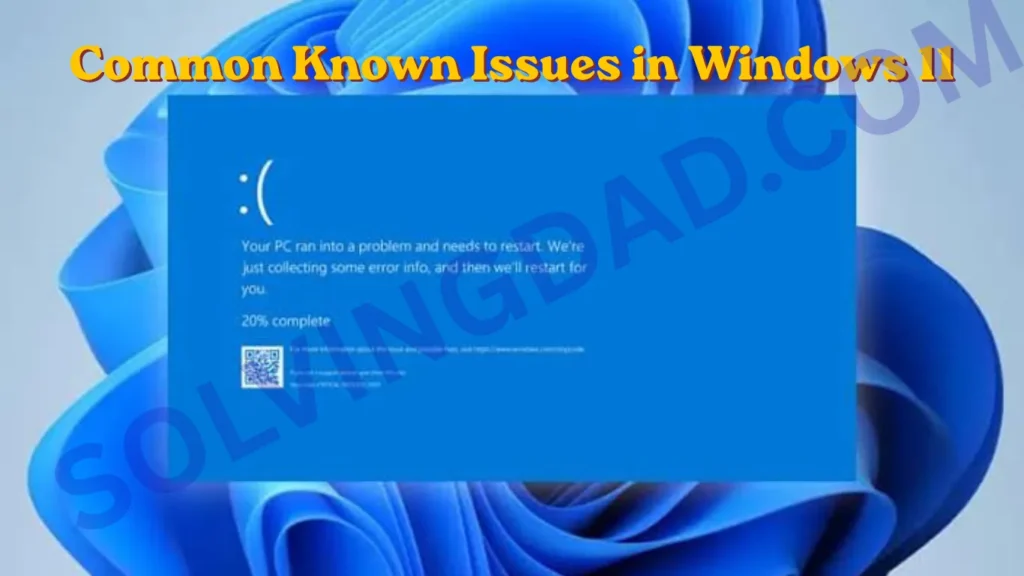
Here are the most reported Windows 11 post-update issues in 2026:
- Taskbar and Start Menu freezing — a recurring problem after cumulative updates
- Audio output dropping or disappearing — especially on Realtek and Intel HD Audio drivers
- Wi-Fi and Bluetooth disconnections — often triggered by network adapter driver conflicts
- File Explorer crashes — random closures when browsing folders
- Black screen on startup — one of the most alarming post-update symptoms
- Slow boot times — sometimes doubling after a feature update
- Missing or broken Settings app — certain updates have corrupted the Settings UI
Knowing these patterns makes it easier to connect the dots between when you installed an update and when your system started acting up.
Performance Problems
One of the most common complaints after a Windows 11 update is a noticeable drop in performance. Your PC might feel sluggish, apps take longer to open, or the system fan runs constantly even when you’re not doing anything heavy.
This often happens because Windows Update runs background indexing and optimization tasks after installation. In most cases, performance returns to normal within 24–48 hours as these tasks complete.
However, if your system remains slow after two or three days, the update itself may have introduced a bug. Common performance culprits include:
- SysMain (formerly Superfetch) consuming excessive RAM after updates
- Windows Search indexing going into overdrive
- Vmmem process in WSL (Windows Subsystem for Linux) behaving abnormally
- CPU usage spikes caused by broken background services
To check what’s eating your resources, open Task Manager (Ctrl + Shift + Esc) and look at the CPU and Memory columns. If a Windows process is consistently above 20–30% for extended periods, the update likely broke something.
Gaming Issues
Gamers are arguably the most affected group when Windows crashes after an update. Updates can break DirectX configurations, mess with GPU drivers, or interfere with anti-cheat systems — none of which is fun when you’re mid-session.
After problematic updates, gamers have reported:
- Lower FPS and frame drops in titles that ran fine before
- Game crashes and freezes — often tied to GPU or DirectX changes
- Anti-cheat software failures (Valorant’s Vanguard, Easy Anti-Cheat, etc.)
- Controller input lag due to HID driver changes
- HDR and VRR breaking on certain monitor configurations
If your games started crashing after a Windows update, the first thing to try is updating or rolling back your GPU drivers separately. NVIDIA and AMD both release driver hotfixes faster than Microsoft ships patches, so sometimes the fix is already out there.
Driver Compatibility Problems
Driver conflicts are behind a large percentage of post-update Windows crashes. When Microsoft pushes a new kernel or hardware abstraction update, it can silently break drivers that were working fine for months.
The most commonly affected drivers include:
- Graphics drivers (NVIDIA, AMD, Intel Arc)
- Network adapters (especially older Intel and Realtek chips)
- Audio drivers (Realtek HD Audio is notorious for post-update issues)
- Thunderbolt and USB-C controllers
- Storage drivers — NVMe drivers can be particularly sensitive
How to check for driver issues:
- Right-click the Start button and open Device Manager
- Look for any devices flagged with a yellow warning triangle
- Right-click the flagged device and choose Update driver or Roll back driver
Rolling back an individual driver is often faster and safer than rolling back the entire Windows update.
Windows Update Errors
Sometimes the update itself doesn’t finish cleanly, leaving your system in a half-updated state that causes unpredictable behavior. Common Windows Update error codes that signal trouble include:
- 0x800F0922 — can’t connect to update servers
- 0x80070005 — access denied during installation
- 0x80073712 — update files are missing or corrupted
- 0xC1900101 — driver-related failure during update
- 0x80240034 — update process stuck in a loop
If you see any of these, the update didn’t install correctly. Running the Windows Update Troubleshooter (Settings → System → Troubleshoot → Other Troubleshooters) is a good first step. It catches and repairs the most common update-related file corruption issues automatically.
How to Fix Windows 11 Issues
Option 1: Roll Back a Windows Update
This is the most direct fix when you can pinpoint the exact update that broke things.
Steps to roll back a Windows Update:
- Go to Settings → Windows Update → Update History
- Scroll down and click Uninstall Updates
- Find the update you want to remove (sort by date to find the most recent one)
- Click Uninstall and follow the prompts
- Restart your PC
Note: Microsoft only allows rollbacks within 10 days of a feature update being installed. After that window closes, the option disappears. Act quickly.
Option 2: Use System Restore
If rolling back the update doesn’t work — or the option is greyed out — System Restore is your next best move.
- Type “Create a restore point” in the Start menu search bar
- Click System Restore
- Choose a restore point dated before the update
- Follow the wizard and restart
System Restore doesn’t delete personal files, but it does reverse app installations and system setting changes made after the restore point was created.
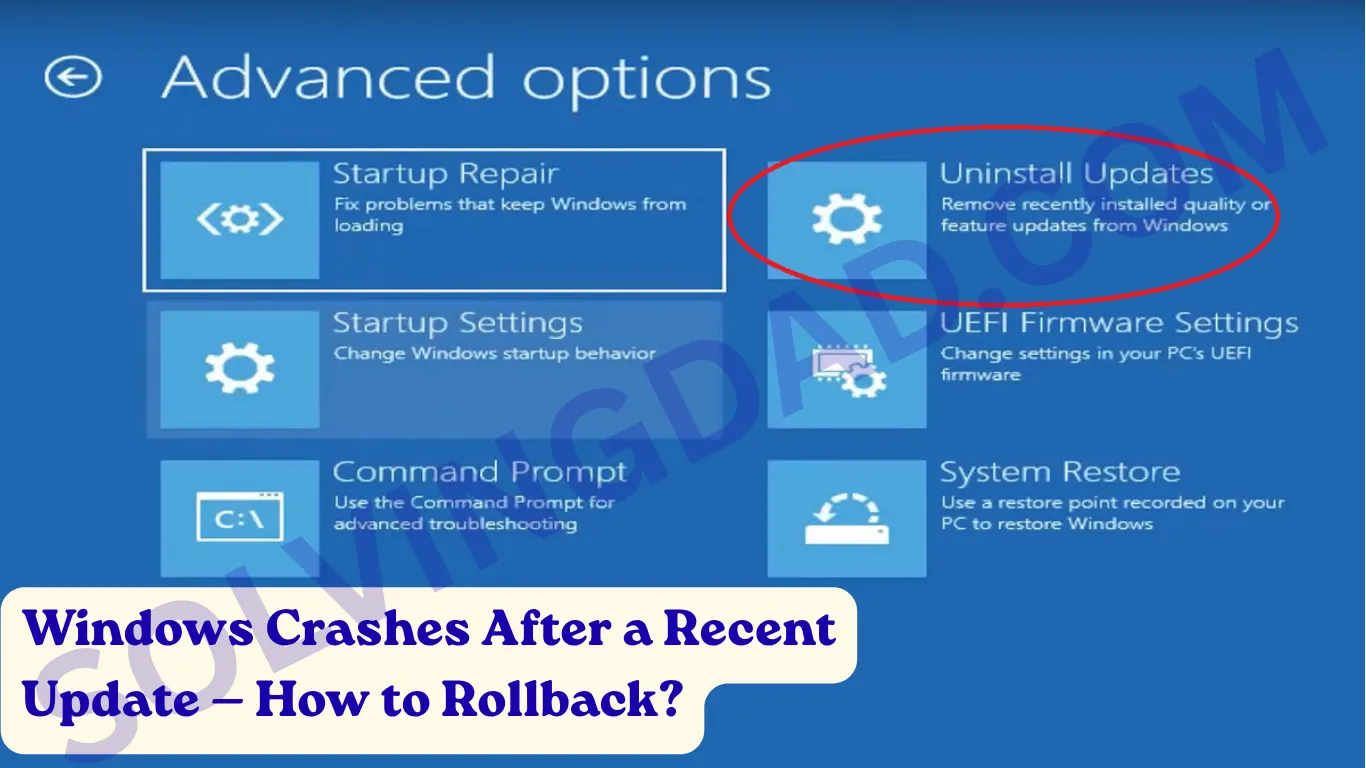
Option 3: Roll Back via Advanced Startup (For Unbootable Systems)
If your PC won’t boot at all after the update, you’ll need to access the Windows Recovery Environment (WinRE).
- Hold Shift while clicking Restart from the login screen (if accessible), OR force-restart the PC three times in a row to trigger automatic recovery mode
- Go to Troubleshoot → Advanced Options → Uninstall Updates
- Choose either Uninstall latest quality update or Uninstall latest feature update
- Confirm and let the system restore itself
This method works even when Windows won’t fully load, making it a lifesaver for the most severe post-update crashes.
Option 4: Pause Future Updates Temporarily
Once you’re stable, you might want to pause updates while Microsoft issues a fix.
Go to Settings → Windows Update → Pause Updates and select up to 5 weeks. This gives you breathing room while the community confirms whether a patch is safe to install.
Is Windows 11 Stable in 2026?
Honestly? More stable than it used to be — but not perfect. Microsoft has significantly improved its update quality control over the past two years, and the optional preview builds now serve as a better testing ground before changes hit mainstream users.
That said, Windows 11 still ships updates that cause problems for a segment of users, particularly those with older hardware or niche driver configurations. The Windows Insider Program continues to catch some bugs before release, but not all of them.
For most everyday users in 2026, Windows 11 is reliable. For power users, gamers, or professionals with specialized hardware, keeping an eye on patch notes and community forums before installing major updates is still a smart habit.
Also Read: PC Crashes Randomly Multiple Times a Day — Here’s Why It’s Happening (and How to Fix It)
Final Verdict
Windows crashes after an update are annoying, but they’re almost always fixable. Whether you use the built-in update rollback tool, System Restore, or the Windows Recovery Environment, Microsoft gives you solid options to undo damage and get back to normal.
The key is to act quickly — especially if you’ve installed a feature update, since the 10-day rollback window closes fast. Beyond that, staying informed about known issues through Microsoft’s official release health dashboard or community forums like Reddit’s r/Windows11 can save you a lot of headaches down the road.
For more practical guides like this one, keep exploring solvingdad.com — your go-to resource for honest, no-fluff tech solutions that actually work.
Frequently Asked Questions (FAQ)
Why does Windows crash after an update?
Windows crashes after an update can happen for several reasons — driver conflicts, corrupted update files, hardware incompatibilities, or bugs introduced in the new build. The most common cause is a driver that worked fine with the previous kernel version but breaks after the update changes core system components.
How do I rollback a Windows 11 update without losing files?
You can roll back a Windows 11 update by going to Settings → Windows Update → Update History → Uninstall Updates. This process removes the update but does not delete your personal files, documents, or photos. System Restore is another option that also preserves personal data.
How long do I have to uninstall a Windows feature update?
Microsoft gives you a 10-day window to uninstall a feature update after it’s installed. After those 10 days, the rollback option is automatically removed. Quality updates (monthly patches) can typically be uninstalled at any time from the Update History page.
What should I do if Windows won’t boot after an update?
If Windows won’t start after an update, force-restart your PC two or three times to trigger the Windows Recovery Environment (WinRE). From there, navigate to Troubleshoot → Advanced Options → Uninstall Updates to remove the problematic update without needing to access the full desktop.
How can I prevent Windows updates from causing problems?
A few smart habits can help protect you: always create a System Restore point before updating, pause updates for a week or two after a major release to let the community identify bugs, keep your drivers updated independently of Windows Update, and regularly back up important data. Checking Microsoft’s Windows Health Dashboard before installing an update is also worth the two minutes it takes.
Can a Windows update permanently damage my PC?
In rare cases, a failed or corrupted update can cause persistent issues that require a clean Windows reinstall. However, permanent hardware damage from software updates is extremely uncommon. Most problems are software-level and can be resolved through rollback, System Restore, or repair installation using Windows media.
Published on solvingdad.com
Also Read: