
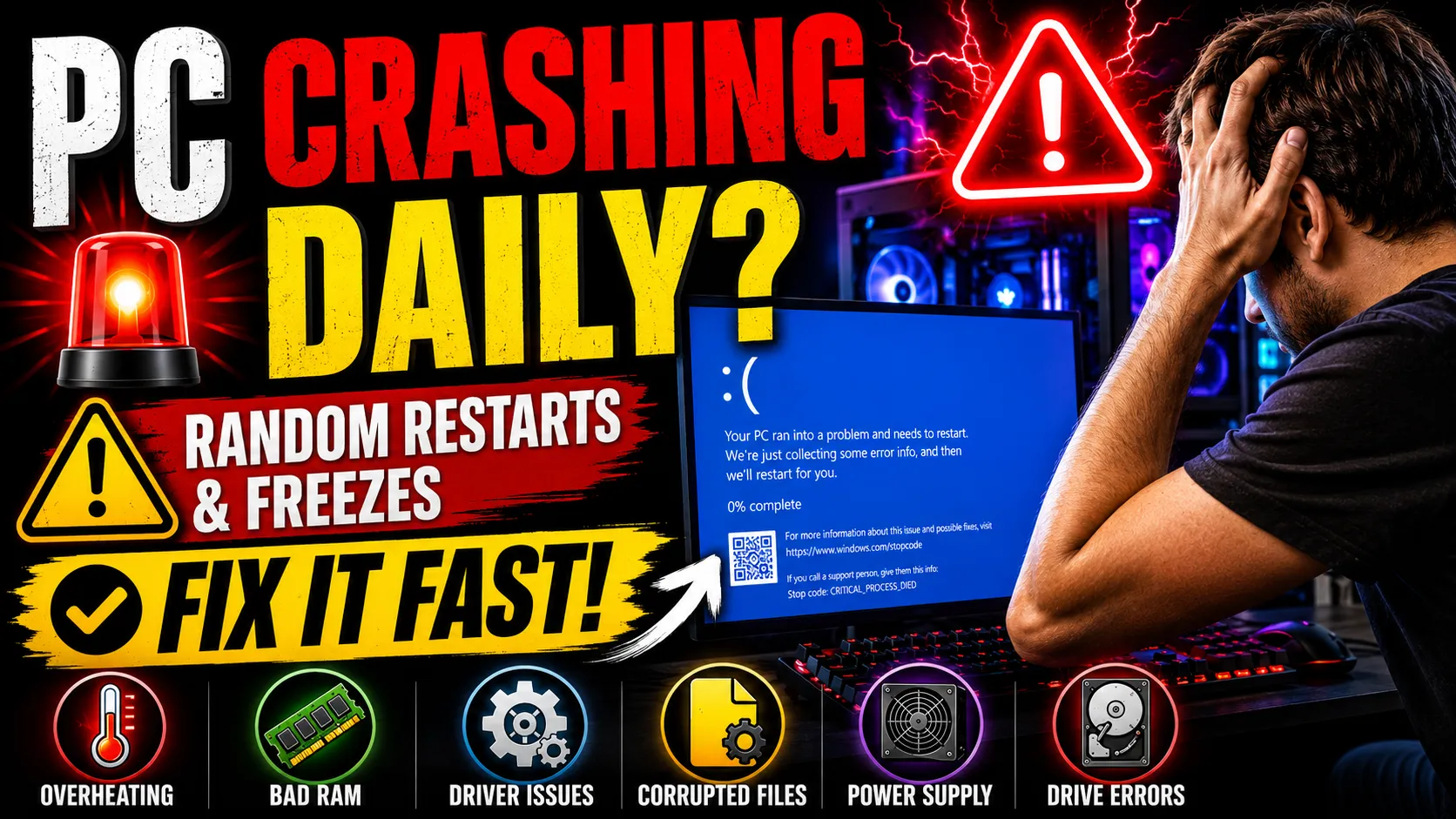
PC crashes are one of the most frustrating things a computer user can experience — especially when they happen out of nowhere, multiple times a day, with no clear warning. One minute you’re working, gaming, or simply browsing, and the next, your screen goes black, blue, or freezes solid.
If this sounds painfully familiar, you’re not alone. Thousands of users face this exact problem, and the root cause isn’t always obvious. In this guide, we’ll break down why your PC keeps crashing, what’s happening behind the scenes, and — most importantly — how to stop it for good.
Common Reasons Your PC Keeps Crashing
Before jumping to fixes, it’s important to understand what’s actually going wrong. PC crashes don’t usually happen randomly — there’s almost always an underlying cause. Here are the most common culprits.
1. Overheating Components
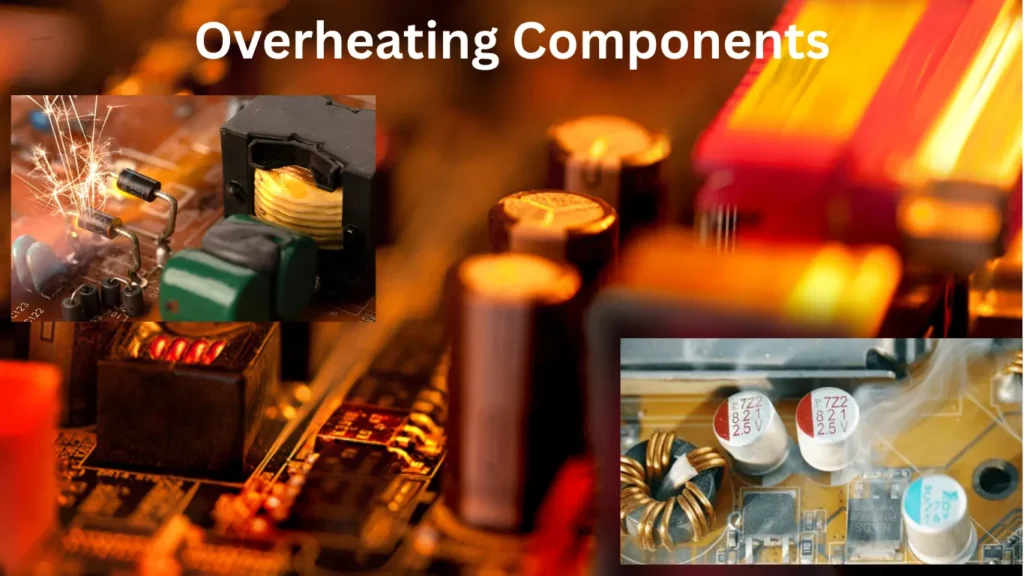
Heat is the silent killer of PCs. When your CPU or GPU runs too hot for too long, your system will shut down or restart automatically as a protective measure.
This is especially common if:
- Your PC is in a dusty or poorly ventilated area
- The thermal paste on your CPU is old and dried out
- A cooling fan has failed or is running at low RPM
- You’re running demanding tasks without adequate airflow
Even a few degrees above the safe threshold can trigger repeated crashes. Use a free tool like HWMonitor or Core Temp to check your CPU and GPU temperatures in real time.
2. Faulty or Failing RAM
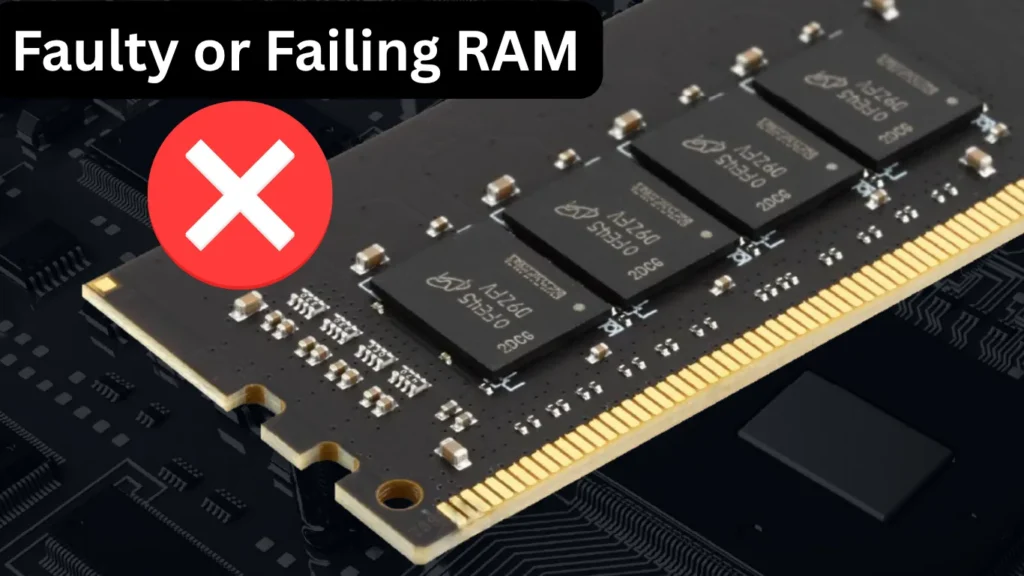
Unstable or defective RAM is one of the top causes of random system crashes. If your RAM modules are failing, your system might crash during memory-intensive operations — or even at idle.
Signs of bad RAM include:
- Blue Screen of Death (BSOD) errors with codes like
MEMORY_MANAGEMENTorPAGE_FAULT_IN_NONPAGED_AREA - System freezes that require a hard reboot
- Random restarts with no error message
Windows includes a built-in diagnostic tool called Windows Memory Diagnostic (search it in the Start menu) that can scan for RAM errors during startup.
3. Corrupt or Outdated Drivers
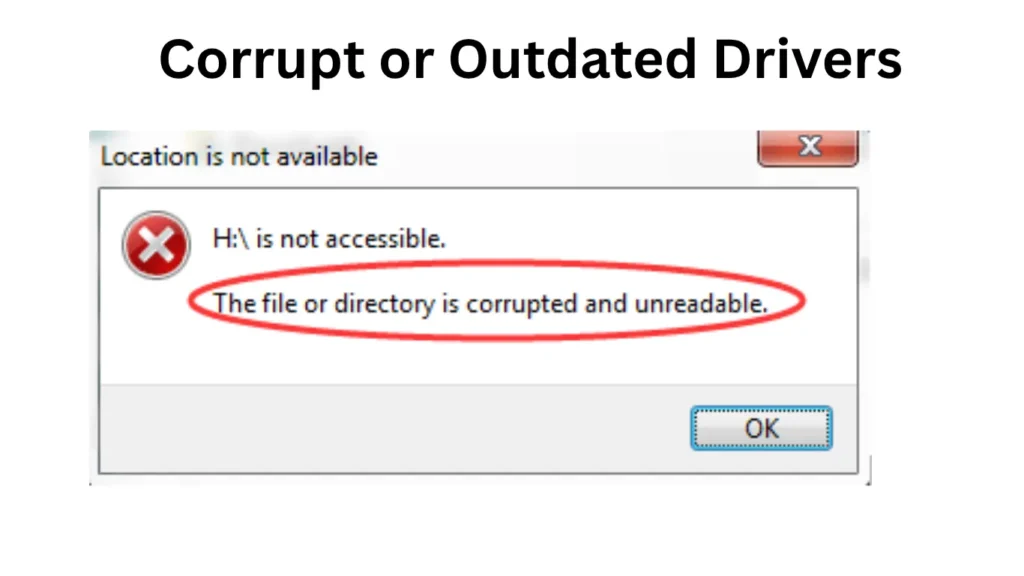
Driver issues are a surprisingly common trigger for PC crashes — particularly on Windows 11. When a driver becomes outdated, corrupted, or incompatible with a recent Windows update, it can cause system instability.
GPU drivers are often the most frequent offender, especially after a major Windows or graphics card software update.
What to do:
- Open Device Manager and look for yellow warning icons
- Right-click flagged devices and select Update driver
- For GPU drivers, use DDU (Display Driver Uninstaller) to do a clean reinstall of the latest drivers from NVIDIA, AMD, or Intel’s official websites
4. Corrupted System Files
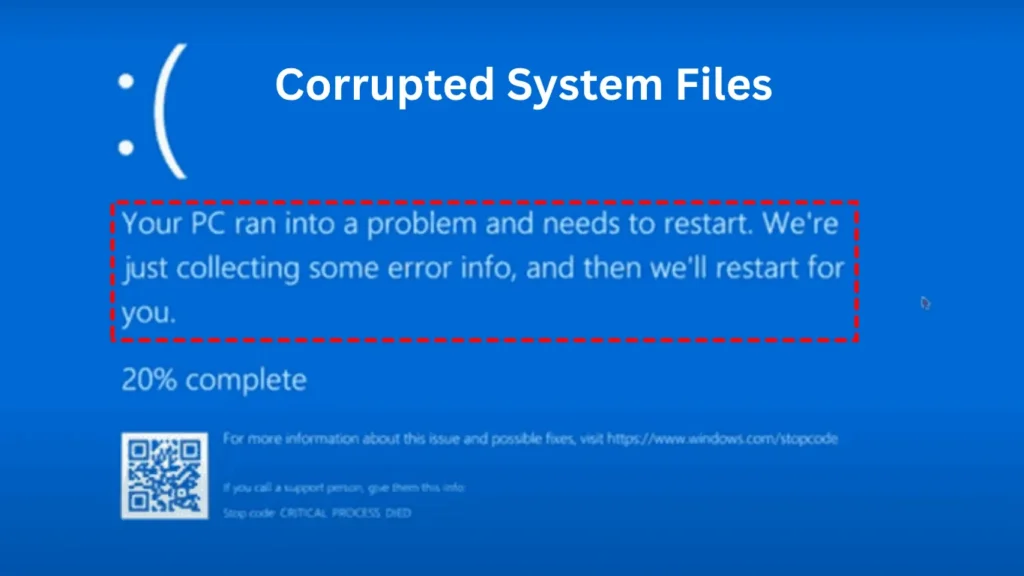
Your Windows installation relies on thousands of system files to run properly. If even a handful of these become corrupted — due to a botched update, malware, or an interrupted shutdown — your PC can crash frequently.
Run these two commands in Command Prompt (Admin) to scan and repair corrupted files:
sfc /scannow
DISM /Online /Cleanup-Image /RestoreHealth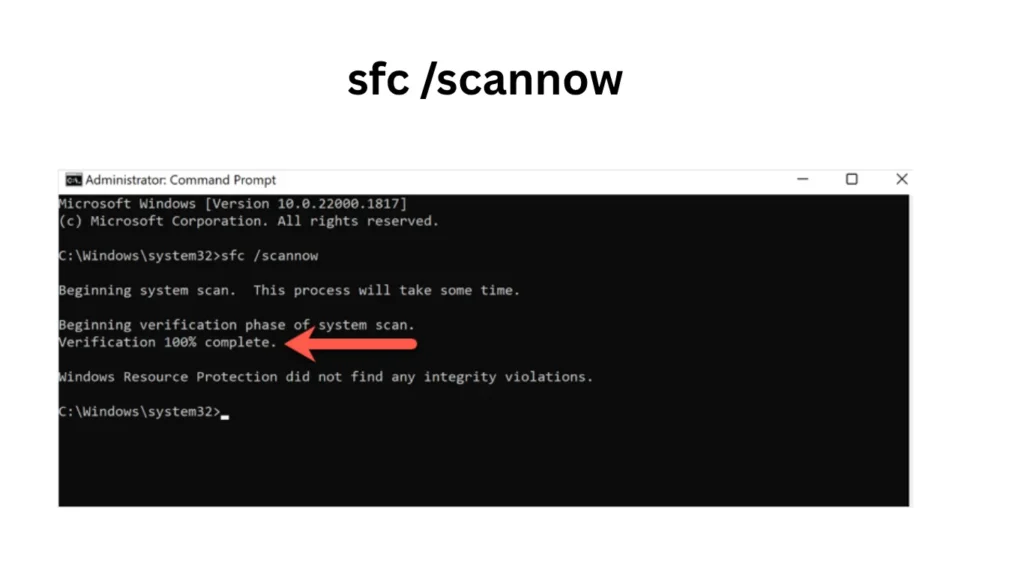
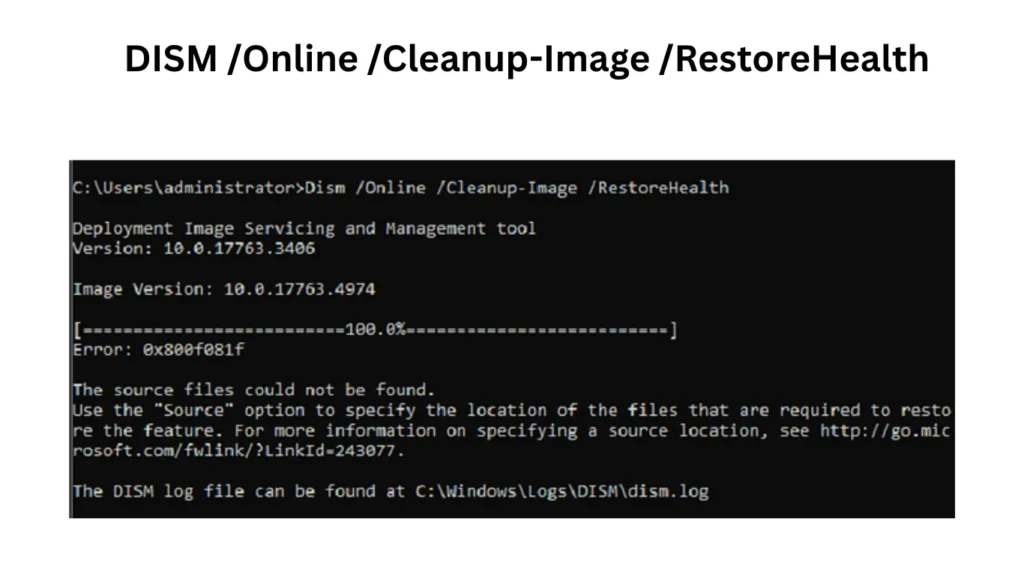
Give each command time to complete. The SFC scan checks for corrupted system files and replaces them automatically.
5. Failing Hard Drive or SSD
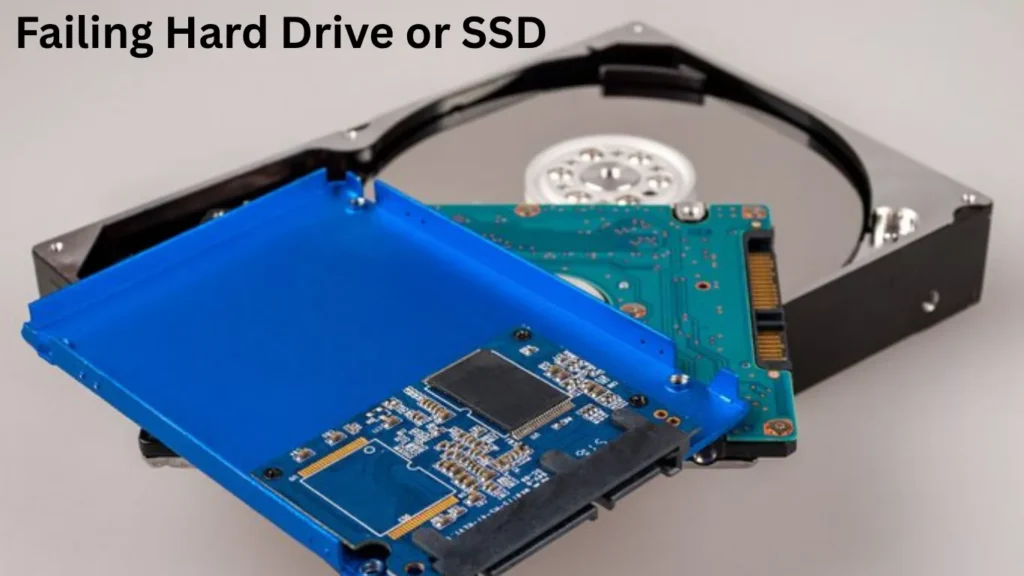
Storage drive failures can cause system crashes, especially if Windows itself is installed on a drive that’s beginning to fail. Symptoms include:
- Crashes during file operations or app launches
- Unusually slow load times before a freeze
- Clicking or grinding sounds (for traditional HDDs)
Use CrystalDiskInfo (free) to check your drive’s SMART status. A “Caution” or “Bad” reading means it’s time to back up your data and replace the drive immediately.
6. Power Supply Unit (PSU) Issues
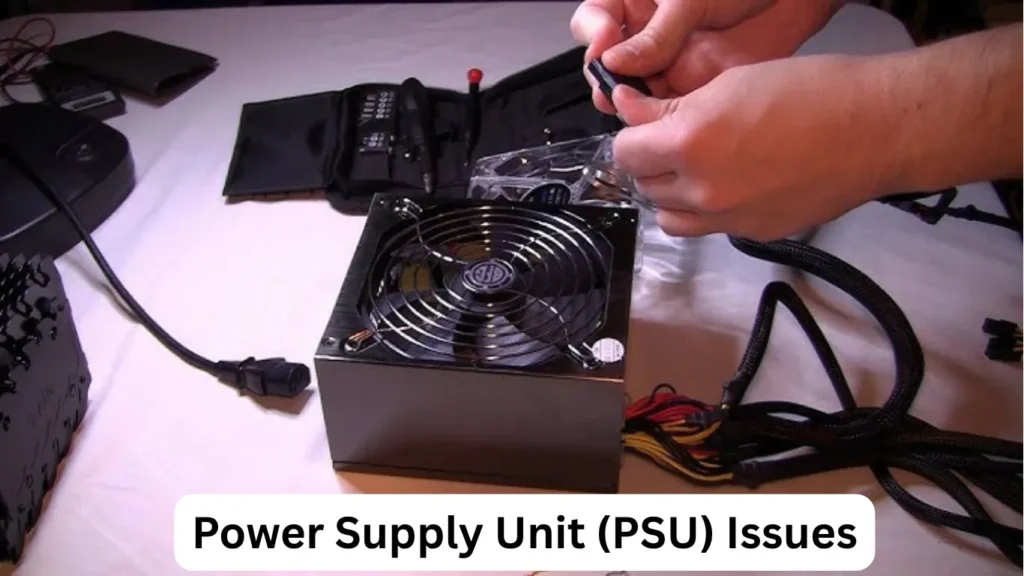
An underpowered or failing PSU is another overlooked cause of random PC crashes. If your system demands more power than the PSU can reliably deliver — especially under load — it can shut down the entire system without warning.
This is especially common in:
- Older PCs where a new GPU was added without upgrading the PSU
- Budget builds with low-quality power supplies
- Systems experiencing power fluctuations or running on unprotected outlets
Use a PSU calculator online to check if your current power supply meets your system’s needs.
7. Malware or Virus Infections

Some types of malware actively interfere with system processes, causing freezes and crashes. In other cases, crypto-mining malware pushes your CPU and GPU to 100% utilization, which then triggers thermal shutdowns.
Run a full system scan using Windows Defender or a reputable third-party tool like Malwarebytes to rule out any infections.
8. Windows Update Issues
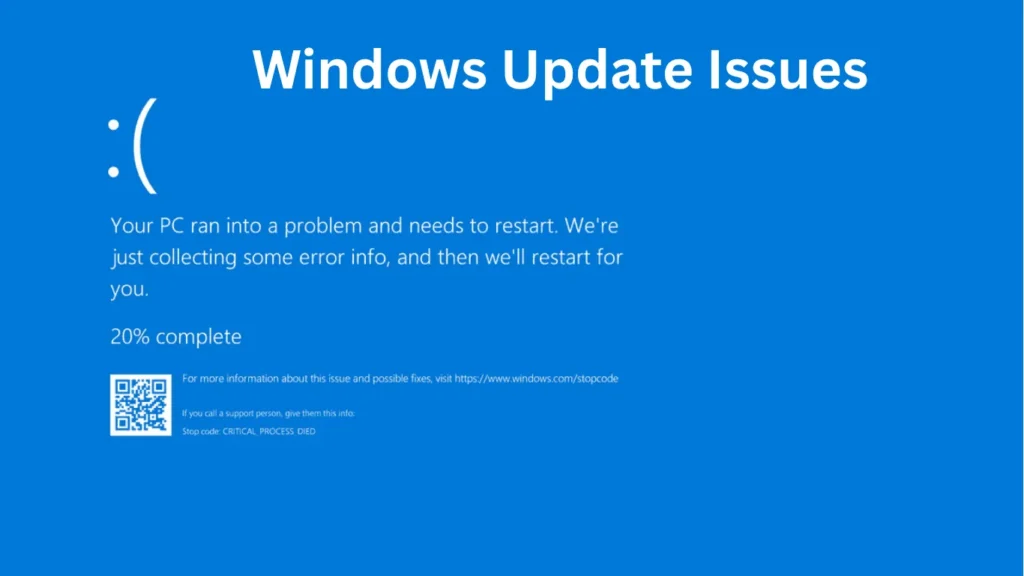
Sometimes, a faulty Windows update introduces new bugs that cause system instability. This is more common than Microsoft would like to admit. After a problematic Patch Tuesday update, forums tend to fill up with reports of crashes and BSODs.
If your PC started crashing right after a Windows update:
- Go to Settings > Windows Update > Update History
- Click Uninstall Updates
- Remove the most recent update and restart
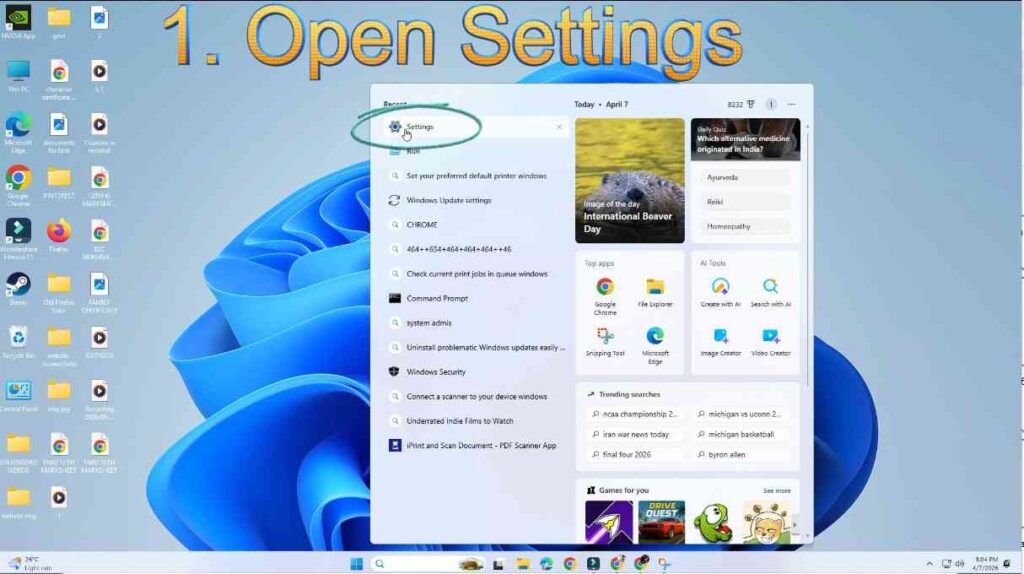
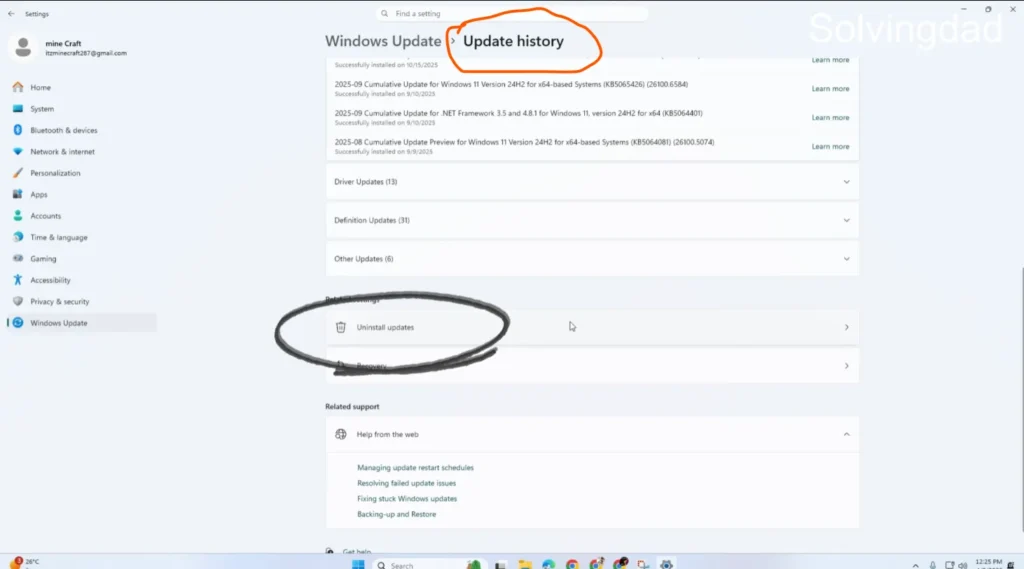
You can also pause future updates temporarily to give Microsoft time to push a fix.
9. Software Conflicts
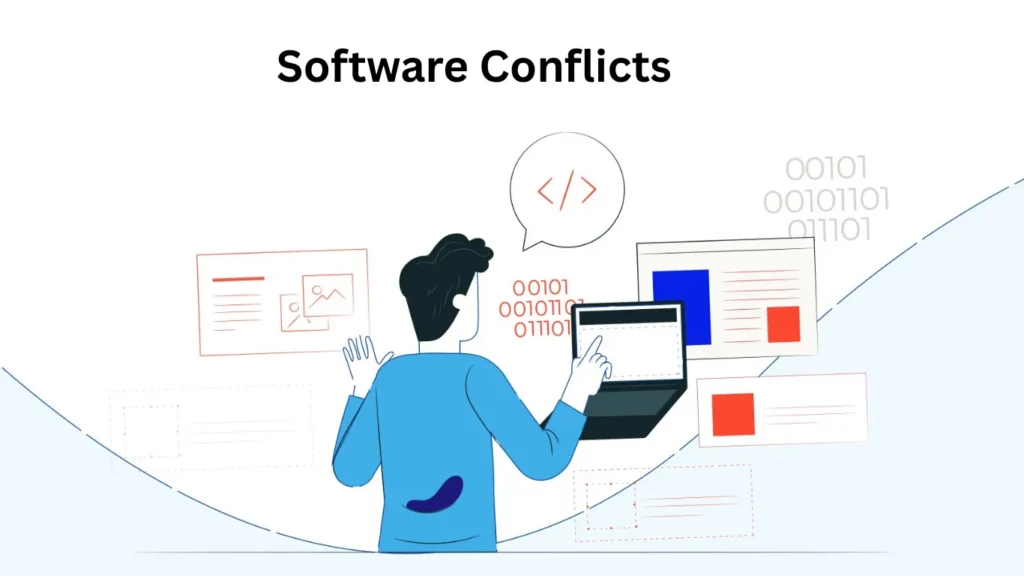
Two programs fighting over the same system resource can cause crashes — particularly at startup. Common offenders include antivirus software, third-party system optimizers, and background apps that auto-launch.
Use Task Manager or MSConfig to disable non-essential startup programs and see if the crashes stop. If they do, re-enable programs one at a time to find the conflict.
10. Hardware Incompatibility or Loose Connections
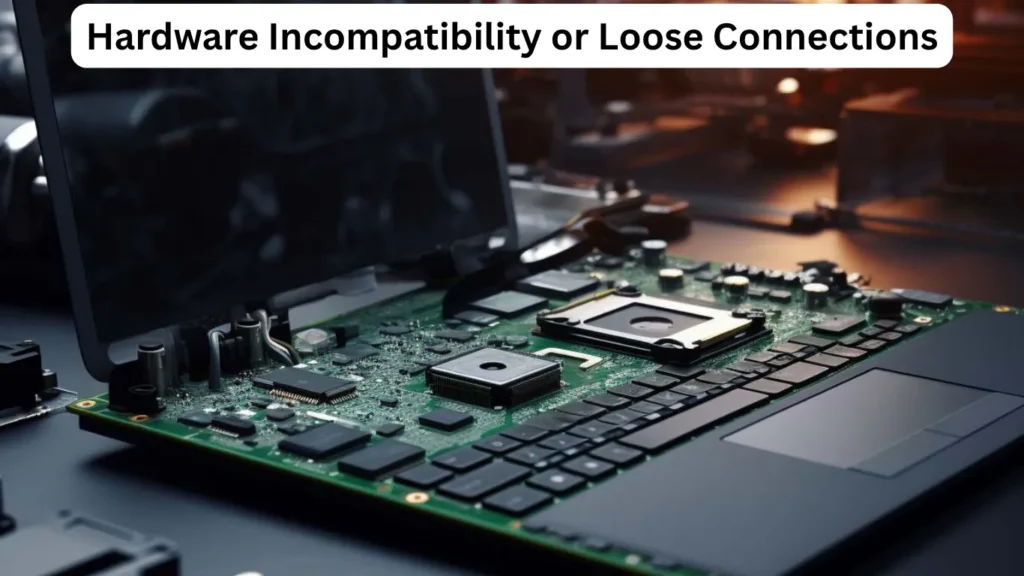
Sometimes, the issue is physical. A loose RAM stick, a GPU not fully seated in its slot, or a poorly connected power cable can cause intermittent crashes that seem impossible to diagnose.
If you’re comfortable doing so, open your case and reseat all components — RAM, GPU, and any power connectors — to ensure everything is firmly in place.
Common Known Issues in Windows 11
Windows 11 has introduced specific instability in some configurations. Known issues include:
- AMD CPU performance degradation after certain updates, causing unexpected crashes
- TPM 2.0 conflicts on certain motherboards leading to boot loop crashes
- Memory integrity crashes related to Virtualization-Based Security (VBS) conflicting with older drivers
- Intel 12th/13th/14th Gen instability tied to elevated CPU voltages — a BIOS update is typically required
If you’re on Windows 11, check your motherboard manufacturer’s website for the latest BIOS update and apply it carefully.
Performance Problems That Trigger Crashes
Beyond hardware faults, poor system performance can snowball into crashes. When your PC is consistently running at 90–100% CPU or RAM usage, it becomes vulnerable to crashes because there’s no headroom left for system processes.
Common performance-related crash triggers:
- Too many browser tabs open simultaneously
- Memory-hungry applications running in the background
- Insufficient virtual memory (page file) allocation
- Storage drive nearly full (below 10% free space)
Keeping your drive at least 15% free and managing startup programs goes a long way toward preventing performance-related crashes.
Also Read:Windows 11 Start Menu Not Opening? Simple Fix for Beginners
Gaming Issues and PC Crashes
Gamers are hit especially hard by PC crashes. Games push every component to its limit — GPU, CPU, RAM, and storage — all at once. A single weak link in that chain and the whole system can go down.
Common gaming crash causes include:
- Overclocking instability — even mild OC settings can cause crashes under full load
- VRAM overflow — running games at resolutions or settings that exceed your GPU’s VRAM
- DirectX or Vulkan errors — often logged in Windows Event Viewer
- Shader compilation stutters that escalate into full crashes on DX12 titles
If your PC only crashes while gaming, start by reverting any overclock settings to stock and monitoring GPU temperatures during gameplay using MSI Afterburner.
Driver Compatibility Problems
Driver compatibility problems deserve their own mention because they’re responsible for a surprisingly large share of PC crashes. This is particularly true when:
- A Windows feature update installs a generic driver over your manufacturer’s driver
- You’ve recently installed a new piece of hardware without updated drivers
- You’re running legacy drivers with a new OS
Always download drivers directly from the manufacturer (NVIDIA, AMD, Intel, Realtek, etc.) rather than relying on Windows Update to handle this automatically.
Windows Update Errors
Windows Update errors can corrupt system files mid-installation, leaving your PC in an unstable state. Common error codes to look out for include 0x800f0845, 0x80070005, and 0x8007000d.
If Windows Update is stuck or failing, try:
- Running the Windows Update Troubleshooter (Settings > System > Troubleshoot)
- Resetting Windows Update components via Command Prompt
- Downloading the update manually from the Microsoft Update Catalog
How to Fix PC Crashes: Step-by-Step
Here’s a practical order of operations to diagnose and fix PC crashes:
- Check temperatures — Use HWMonitor; CPU should stay under 90°C and GPU under 85°C under load
- Run Windows Memory Diagnostic — Scan for RAM faults at startup
- Run SFC and DISM — Repair corrupted system files
- Update or reinstall drivers — Especially GPU drivers
- Check drive health — Use CrystalDiskInfo for SMART data
- Scan for malware — Full scan with Windows Defender or Malwarebytes
- Review Event Viewer — Go to Windows Logs > System and look for Critical errors around the time of crashes
- Roll back recent Windows updates — If crashes began post-update
- Test hardware — Reseat RAM and GPU; test with a different PSU if available
- Clean reinstall Windows — As a last resort, a fresh Windows install eliminates software-side causes entirely
Is Your PC Stable Enough? When to Worry
The occasional crash — maybe once a month — isn’t always cause for panic. But if your PC crashes multiple times a day, every day, that’s a sign something is genuinely wrong and needs immediate attention.
Watch for these red flags:
- BSODs with different error codes each time (suggests RAM or PSU issues)
- Crashes only under load (suggests thermal or power delivery problems)
- Crashes at idle (suggests software, driver, or failing storage issues)
- Crashes accompanied by hardware sounds (suggests imminent drive failure)
Don’t ignore repeated crashes. What starts as an annoying reboot can escalate into permanent data loss if the underlying cause — especially a failing drive — isn’t addressed promptly.
Also Read: Cannot Open Settings in Windows 11? Fix It in 5 Minutes
Frequently Asked Questions (FAQ)
Q1: Why does my PC crash randomly with no error message?
Random crashes with no BSOD or error message are often caused by overheating, a failing PSU, or loose hardware connections. When a system shuts down due to a thermal or power event, it can restart so quickly that no error screen appears. Check your CPU and GPU temperatures, reseat your RAM and GPU, and test with a different power supply if possible.
Q2: How do I find out why my PC crashed?
Open the Windows Event Viewer (search it in the Start menu), navigate to Windows Logs > System, and look for “Critical” events that occurred around the time of the crash. These entries often contain error codes and descriptions that point directly to the cause. You can also check Reliability Monitor (search it in Control Panel) for a visual timeline of crashes and errors.
Q3: Can a bad Windows update cause my PC to crash?
Yes, absolutely. Faulty Windows updates — particularly cumulative updates — can introduce driver conflicts, corrupt system files, or alter settings that destabilize the OS. If your PC started crashing right after an update, go to Settings > Windows Update > Update History > Uninstall Updates and remove the most recent one.
Q4: Does RAM cause random PC crashes?
Failing or incompatible RAM is one of the most common causes of random PC crashes. Symptoms include BSODs with memory-related error codes, freezes during multitasking, and crashes that seem to follow no pattern. Run Windows Memory Diagnostic at startup to scan for faulty RAM. If errors are found, try running with one stick at a time to isolate the bad module.
Q5: Can dust cause a PC to crash?
Yes. Dust buildup on heatsinks, fans, and vents restricts airflow, causing components to overheat. Overheating is one of the leading causes of thermal shutdowns and crashes. Cleaning your PC’s internals every three to six months — using compressed air — can dramatically improve stability and extend component lifespan.
Q6: How do I stop my PC from crashing while gaming?
Start by reverting any overclocking settings to stock defaults. Then update your GPU drivers using a clean install via DDU. Monitor GPU temperatures with MSI Afterburner during gameplay — if temps spike above 85°C, improve case airflow or reapply thermal paste. Also check that your game’s graphics settings aren’t exceeding your GPU’s VRAM capacity.
Q7: Is a PC that crashes multiple times a day about to die?
Not necessarily — but it is a serious warning sign. Multiple daily crashes indicate something is significantly wrong, whether it’s a software conflict, driver issue, failing component, or overheating problem. Addressing the cause promptly is important, because unresolved hardware failures (especially storage drives) can escalate into complete data loss.