
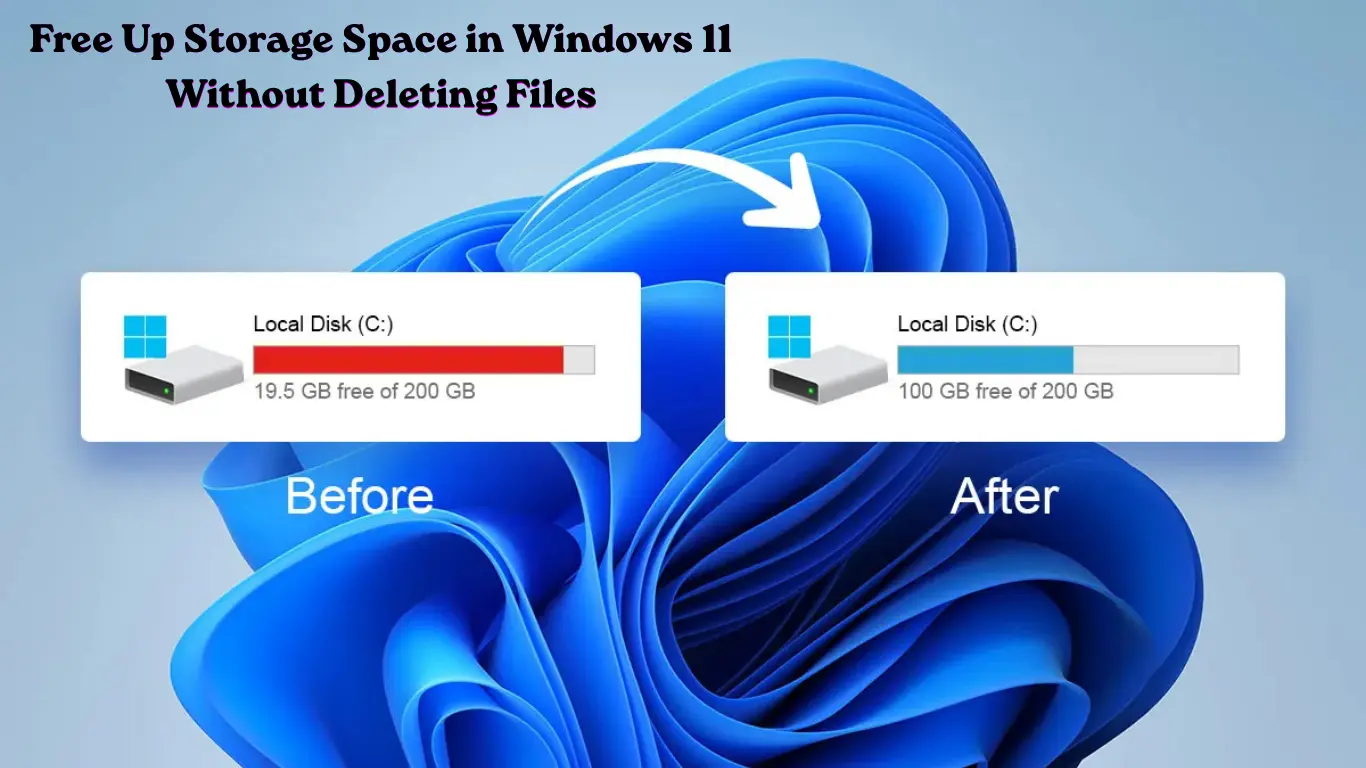
Running out of storage on a Windows 11 PC does not always mean you need to remove your photos, documents, or installed apps. Many computers lose gigabytes of space because of temporary files, update leftovers, cached data, old installation files, and system clutter that builds up silently over time.
If you want to Free Up Storage Space in Windows 11 Without Deleting important files, Windows already includes several safe tools designed for this purpose. This guide explains how to identify what is consuming your drive space, clean unnecessary data, and recover storage without risking your personal files.
You will learn how to use Storage Sense, Disk Cleanup, temporary file management, Windows update cleanup, cloud storage options, and other practical methods that work for everyday users, IT administrators, and power users.
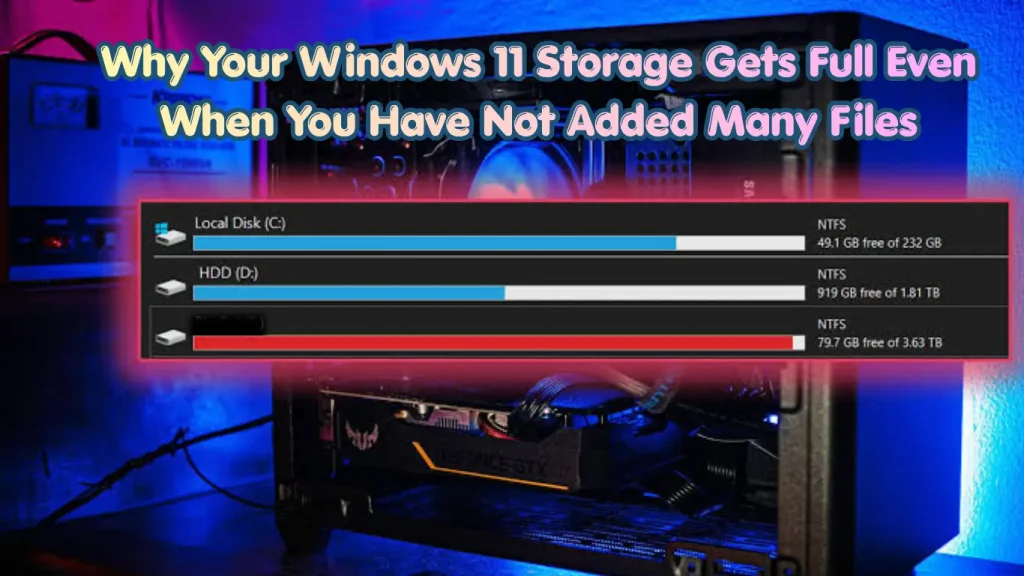
Why Your Windows 11 Storage Gets Full Even When You Have Not Added Many Files
A common misunderstanding is that storage disappears only because of large personal files. In reality, Windows itself creates and stores many types of data during normal operation.
Some of the biggest space consumers include:
- Windows Update files left behind after upgrades
- Temporary installation files
- Browser and application caches
- Previous Windows installation folders
- Delivery Optimization files
- System restore points
- Crash dumps and diagnostic files
- Unused downloaded files
- Large application data folders
For example, after a major Windows 11 feature update, a computer may keep the previous Windows installation for rollback purposes. That folder can occupy 20GB or more even though you never created it manually.
Before deleting anything manually, it is better to use Windows tools that understand which files are safe to remove.
How to Check What Is Using Storage Space in Windows 11
Before cleaning your drive, first identify where your storage is being used.
Windows 11 includes a built-in storage breakdown that shows categories such as apps, temporary files, documents, pictures, and system files.
Steps to Check Storage Usage
- Press Windows + I to open Settings.
- Select System from the left menu.
- Click Storage.
- Wait for Windows to calculate storage usage.
- Select categories to view more details.
You may see sections such as:
- Installed apps
- Temporary files
- Documents
- Other
- System & reserved
This screen helps you avoid unnecessary deletions. For example, if your system files are using most of your drive, removing personal folders will not solve the problem.
Use Storage Sense to Automatically Free Up Space in Windows 11 Without Deleting Important Files
Storage Sense is one of the safest ways to automatically remove unnecessary files. It is built into Windows 11 and does not require third-party cleanup software.
Storage Sense can remove:
- Temporary system files
- Recycle Bin contents after a selected period
- Old files from the Downloads folder (optional)
- Cloud-backed files that are already available online
How to Enable Storage Sense in Windows 11
Follow these steps:
- Open Settings.
- Go to System > Storage.
- Select Storage Sense.
- Turn on Automatic User Content Cleanup.
- Choose your preferred cleanup schedule.
You can configure:
- Run Storage Sense: Daily, weekly, monthly, or during low free disk space
- Delete files from Recycle Bin after a chosen period
- Remove files from Downloads after a chosen period
Important Note About Downloads Folder
Storage Sense can delete old files from the Downloads folder if you enable that option. If you store important installers, documents, or personal files there, review the setting carefully.
A safer configuration for most users is:
- Enable temporary file cleanup
- Empty Recycle Bin automatically
- Keep Downloads cleanup disabled unless you regularly manage that folder
Remove Temporary Files Safely Using Windows 11 Settings
Temporary files are among the easiest storage items to remove because Windows creates them for short-term tasks.
These files may include:
- App temporary data
- Windows upgrade leftovers
- Thumbnail cache
- DirectX shader cache
- Delivery Optimization files
Step-by-Step: Delete Temporary Files in Windows 11
- Press Windows + I.
- Open System > Storage.
- Click Temporary files.
- Wait while Windows scans available cleanup options.
- Select the categories you want to remove.
- Click Remove files.
Windows will show the estimated amount of space you can recover.
Files You Can Usually Remove Safely
Most users can safely remove:
- Temporary files
- Delivery Optimization Files
- DirectX Shader Cache
- Windows upgrade log files
- Thumbnails
Be Careful With These Options
Think before removing:
- Downloads
- Previous Windows installation(s)
- Windows ESD installation files

Previous Windows installations allow you to return to an earlier Windows version. Removing them is usually safe after your system has been running properly for several days.
Clean Windows Update Leftovers Using Disk Cleanup
Windows Update can leave behind old files after installing patches or feature updates. The classic Disk Cleanup tool can still be used in Windows 11.
How to Run Disk Cleanup as Administrator
- Press Windows + S.
- Search for Disk Cleanup.
- Right-click it.
- Select Run as administrator.
- Choose your Windows drive, usually C:.
- Click Clean up system files.
- Select additional cleanup categories.
- Click OK.
Running Disk Cleanup with administrator rights unlocks extra options such as:
- Windows Update Cleanup
- Previous Windows installation(s)
- Device driver packages
The scan may take several minutes because Windows checks protected system locations.
Remove Old Windows Installation Files
After upgrading Windows, you may notice a folder called Windows.old on your system drive.
This folder stores the previous Windows installation so you can roll back if something goes wrong.
If your PC is working correctly and you do not plan to return to the previous version, removing it can recover significant space.
Remove Windows.old Through Settings
- Open Settings.
- Go to System > Storage.
- Select Temporary files.
- Check Previous Windows installation(s).
- Click Remove files.
Windows controls this cleanup process automatically, which is safer than manually deleting the folder.
Uninstall Apps You No Longer Use
Applications often consume more space than users expect. Games, creative software, and development tools can take tens or hundreds of gigabytes.
Instead of deleting random folders, remove programs properly.
Steps to Remove Unused Apps
- Open Settings.
- Select Apps.
- Click Installed apps.
- Sort by Size.
- Review large applications.
- Click the three dots beside an app.
- Select Uninstall.
Avoid deleting program folders manually from:
C:\Program Filesor
C:\Program Files (x86)Manual deletion can leave broken shortcuts, registry entries, and leftover services.
Move Large Files Instead of Deleting Them
Sometimes you need more free space but cannot remove your files. Moving them is a better option.
Consider moving:
- Large videos
- Old project folders
- ISO files
- Game installers
- Backup archives
Options include:
- External SSD or hard drive
- Network storage
- Cloud storage services
Windows 11 also supports OneDrive Files On-Demand, which can keep files visible in File Explorer while storing the full version online.
Compress Files to Save Storage Space
Windows 11 includes built-in file compression through NTFS.
For files you rarely open, compression can reduce storage usage.
Compress a Folder
- Right-click the folder.
- Select Properties.
- Click Advanced.
- Enable Compress contents to save disk space.
- Click OK.
Compression works best for:
- Documents
- Text files
- Office files
It provides less benefit for already compressed files such as:
- ZIP archives
- MP4 videos
- JPEG images
Reduce System Restore Storage Usage
System Restore creates restore points that can help recover from driver or software problems. However, it can reserve several gigabytes of disk space.
You can reduce the amount of space it uses.
Adjust System Restore Storage
- Press Windows + S.
- Search for Create a restore point.
- Open the result.
- Select your system drive.
- Click Configure.
- Adjust the maximum disk usage slider.
Avoid disabling System Restore completely unless you have another recovery plan.
Advanced Method: Clean Component Store Using DISM
Windows stores component files needed for system maintenance. Over time, old components may remain.
Advanced users can use the Deployment Image Servicing and Management tool.
Run DISM Cleanup
- Right-click Start.
- Select Terminal (Admin).
- Enter:
DISM /Online /Cleanup-Image /StartComponentCleanup- Press Enter.
This removes outdated Windows component versions.
Warning
Do not use aggressive DISM cleanup commands unless you understand the recovery limitations. Some options can prevent uninstalling certain updates.
Things You Should Avoid When Trying to Free Storage
Many third-party “PC cleaner” tools promise huge storage gains but can sometimes remove files Windows needs.
Avoid:
- Deleting files inside Windows folders manually
- Removing registry entries for storage cleanup
- Using unknown cleaning programs
- Disabling important Windows services
- Deleting driver folders
Before major cleanup operations, especially on work computers, create a restore point or backup.
Quick Step-by-Step Checklist to Free Storage on Windows 11
If you need a safe cleanup routine, follow this order:
- Open Settings > System > Storage.
- Check storage usage categories.
- Enable Storage Sense.
- Remove temporary files.
- Run Disk Cleanup as administrator.
- Remove old Windows installation files if unnecessary.
- Uninstall unused large apps.
- Move large personal files to another drive.
- Reduce System Restore storage if needed.
- Restart your PC and check available space.
This approach helps you recover storage while keeping important files untouched.
Conclusion: Keep Windows 11 Storage Healthy Without Losing Important Data
You do not need to delete personal files to recover space on a Windows 11 computer. Built-in features like Storage Sense, Disk Cleanup, and temporary file management can remove unnecessary data safely.
The best strategy is regular maintenance rather than emergency cleanup when your drive reaches 99% full. Checking storage usage once every few weeks, removing outdated system files, and controlling large applications can keep your PC running smoothly.
If your goal is to Free Up Storage Space in Windows 11 Without Deleting valuable files, start with Windows’ own cleanup tools before trying third-party solutions.
Also Read: Wi-Fi Keeps Dropping or No Networks Shown — How to Fix It
FAQ Section
How can I free up storage space in Windows 11 without deleting personal files?
You can use Windows 11 tools like Storage Sense, Disk Cleanup, and Temporary Files cleanup. These remove unnecessary system data while keeping documents, photos, and other personal files untouched.
Is it safe to delete temporary files in Windows 11?
Yes, most temporary files shown under Settings > System > Storage > Temporary files are safe to remove. Review categories like Downloads before deleting.
Why is my Windows 11 C drive full?
A full C drive is often caused by Windows updates, temporary files, installed applications, system restore points, cached data, or large hidden system folders.
Does Storage Sense delete my important files?
Storage Sense does not delete personal files by default. However, if you enable Downloads folder cleanup, it may remove older files stored there.
How much storage space should I keep free on Windows 11?
Keeping at least 10-20% of your system drive free helps Windows manage updates, temporary files, and performance-related tasks.