
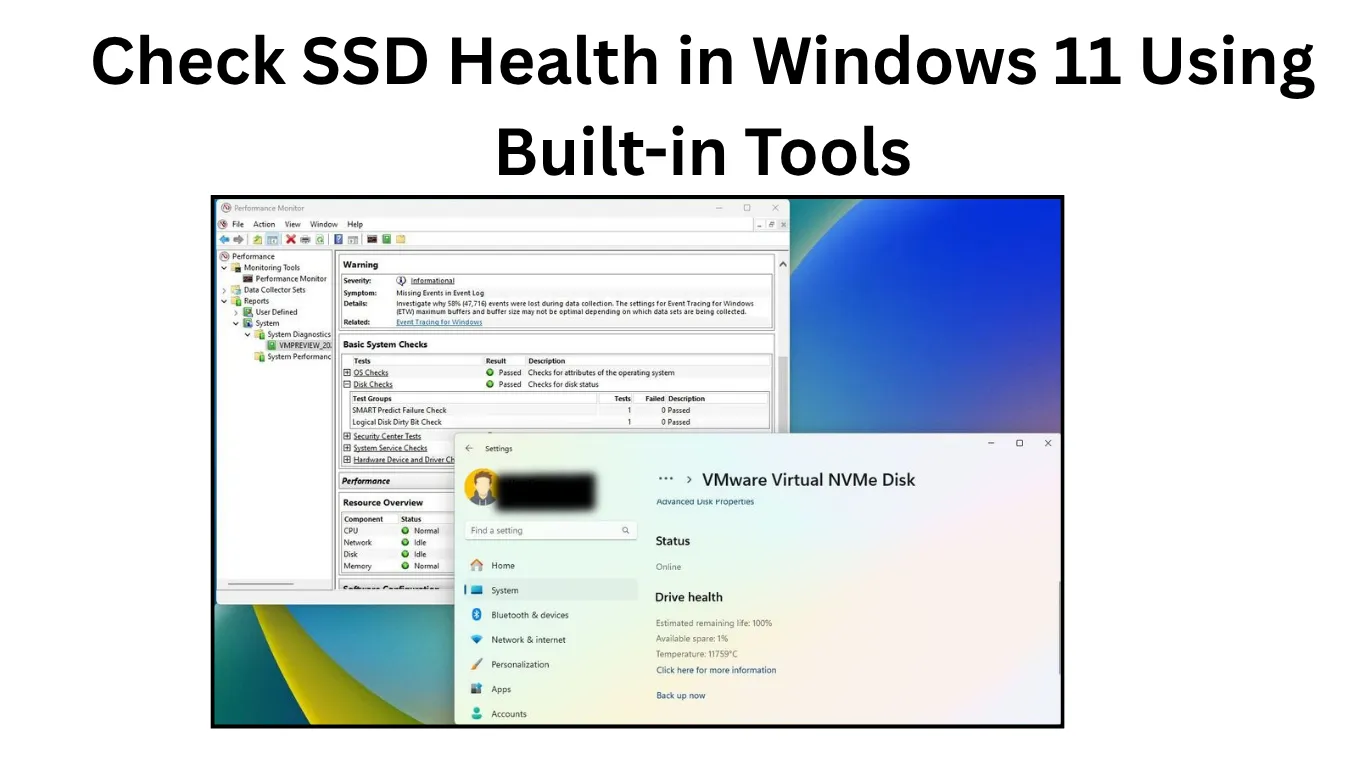
Your SSD may feel fast today, but storage drives slowly wear down with regular use. Every file transfer, Windows update, game installation, and application launch adds a small amount of activity to the drive. Knowing how to Check SSD Health in Windows 11 helps you identify potential problems before they turn into sudden data loss or system slowdowns.
The good news is that you do not always need third-party utilities to monitor your SSD. Windows 11 includes several built-in options that can show drive health information, detect storage problems, and provide useful details about your hardware.
This guide explains how to check SSD health using Windows 11 built-in tools, including the Settings app, PowerShell commands, Command Prompt utilities, and Windows security features. It also covers what the results mean and when you should consider replacing your SSD.
Why Checking SSD Health Matters in Windows 11
Unlike traditional hard drives, SSDs do not have moving parts. This makes them faster, quieter, and more resistant to physical damage. However, SSDs still have a limited number of write cycles because flash memory cells gradually wear out.
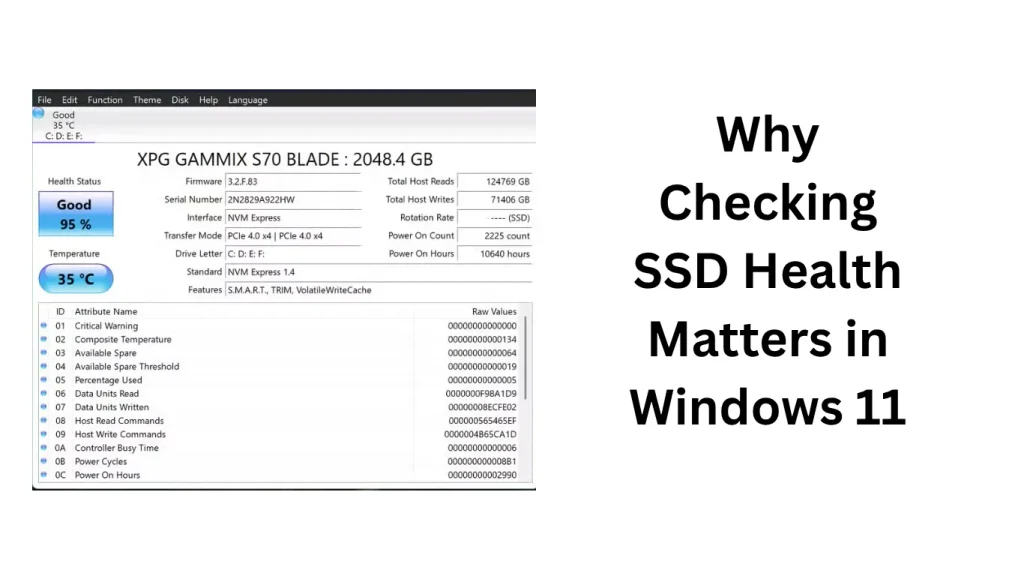
Regularly checking SSD Health in Windows 11 Using Built-in Tools can help you:
- Detect SSD degradation before failure
- Monitor remaining drive lifespan
- Identify overheating issues
- Troubleshoot unexpected slowdowns
- Protect important files with early warnings
For example, a gaming PC may appear normal until large game files suddenly take longer to load. An office laptop may start freezing during file operations. Checking SSD health can reveal whether storage wear is the actual cause.
How Windows 11 Measures SSD Health
Before checking your drive status, it helps to understand what Windows is looking at.
Modern SSDs use a technology called SMART (Self-Monitoring, Analysis, and Reporting Technology). SMART collects internal drive information such as:
- Drive temperature
- Total data written
- Remaining endurance
- Error reports
- Overall health status
Manufacturers calculate SSD lifespan differently, so health percentages may vary between brands. A drive showing 80% health does not mean it will fail immediately. It means the SSD has consumed approximately 20% of its rated endurance.
Check SSD Health in Windows 11 Using Built-in Tools
Windows 11 provides multiple ways to check SSD health. Some methods offer simple status information, while others provide technical details for advanced users.
Method 1: Check SSD Health Using Windows 11 Settings
The easiest method is available directly inside the Windows Settings app. This feature works best with newer SSDs that properly report health information through Windows.
Steps to check SSD health from Settings:
- Press Windows + I to open Settings.
- Select System from the left menu.
- Click Storage.
- Select Advanced storage settings.
- Click Disks & volumes.
- Select your SSD from the list.
- Click Properties.
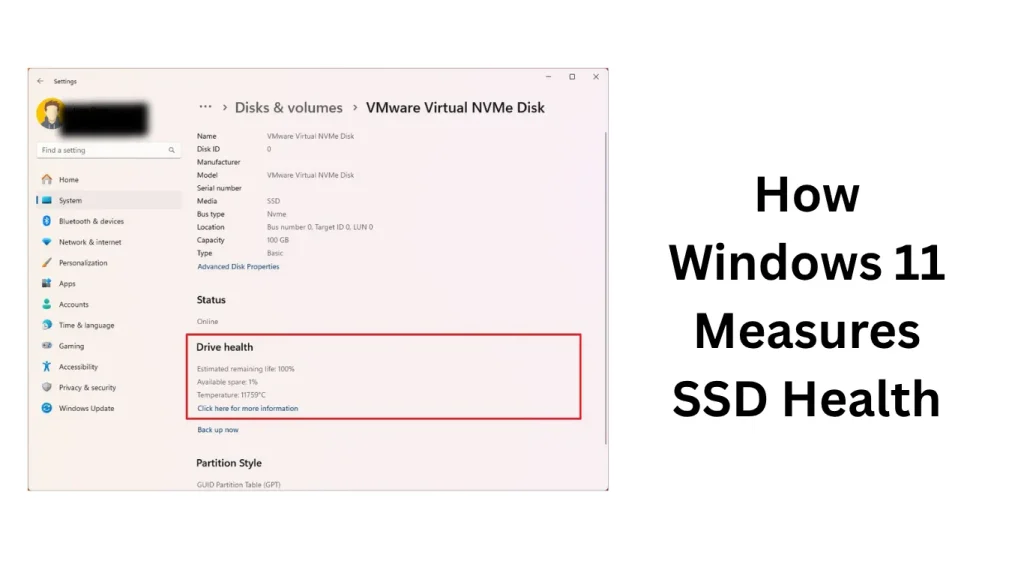
Windows may display information such as:
- Drive health status
- Available capacity
- Temperature information
- Remaining life estimate
If Windows reports that your drive health is good, your SSD is currently operating normally.
Important note:
This feature is available mainly for newer NVMe SSDs. Some SATA SSDs may not display health information even when they are working correctly.
Method 2: Check SSD Health Using PowerShell
PowerShell is one of the most reliable built-in methods for checking storage information in Windows 11. It does not require installing additional software.
Steps:
- Press Windows + X.
- Select Terminal (Admin).
- Click Yes when User Account Control appears.
- Type the following command:
Get-PhysicalDisk- Press Enter.
Windows will display details about connected drives.
Look for the following columns:
- HealthStatus
- OperationalStatus
- MediaType
A healthy SSD usually shows:
- HealthStatus: Healthy
- OperationalStatus: OK
- MediaType: SSD
For more detailed information:
Run:
Get-PhysicalDisk | Select FriendlyName, MediaType, HealthStatus, OperationalStatusThis provides a cleaner view of your SSD condition.
Method 3: Use Command Prompt and WMIC to Check SSD Status
Older Windows tools can still provide basic drive health information.
Steps:
- Press Windows + S.
- Search for Command Prompt.
- Select Run as administrator.
- Enter:
wmic diskdrive get status- Press Enter.
Possible results:
- OK – Windows does not detect a SMART failure.
- Pred Fail – The drive may be close to failure.
Windows 11 compatibility note:
Microsoft has started moving away from WMIC in newer Windows versions. Some Windows 11 installations may show a message that WMIC is deprecated or unavailable. If this happens, use PowerShell instead.
WMIC also provides only a basic health result. It does not show detailed SSD lifespan information.
Method 4: Check SSD Health Using Windows 11 Performance Monitor
Windows Performance Monitor can help identify storage-related performance problems.
Steps:
- Press Windows + R.
- Type:
perfmon- Press Enter.
- Expand Data Collector Sets or Monitoring Tools.
- Review storage-related performance counters.
This method is more useful for IT administrators and power users who want to monitor SSD behavior over time.
It does not provide a simple health percentage like manufacturer tools do.
Method 5: Use Windows Error Checking Tool
Windows includes a built-in disk checking feature that can detect file system problems.
Steps:
- Open File Explorer.
- Select This PC.
- Right-click your SSD.
- Choose Properties.
- Open the Tools tab.
- Under Error checking, click Check.
This checks for file system errors.
However, remember:
CHKDSK does not measure SSD lifespan or wear level.
It fixes logical file system issues, not hardware degradation.
How to Check SSD Health in Windows 11 Using Built-in Tools: Troubleshooting Common Issues
Sometimes Windows may not display SSD health information. This does not always mean your SSD is failing.
Windows Does Not Show SSD Health Information
Possible reasons include:
- Older SATA SSD
- Missing firmware support
- Storage controller limitations
- External USB SSD connection
Try:
- Updating SSD firmware from the manufacturer
- Checking BIOS storage settings
- Connecting the SSD directly instead of through a USB adapter
PowerShell Shows Unknown Health Status
If PowerShell displays an unknown status, Windows may not be receiving SMART information correctly.
Possible fixes:
- Restart your computer.
- Install pending Windows updates.
- Update motherboard chipset drivers.
- Check the SSD manufacturer’s diagnostic software.
SSD Health Is Low But Drive Works Normally
A reduced health percentage is not an immediate failure warning.
For example:
- 90-100% health: Excellent condition
- 70-90% health: Normal wear
- Below 50% health: Monitor more frequently
- Very low health: Consider replacement planning
Actual failure depends on workload, temperature, and SSD design.
Built-in Windows Tools vs Third-Party SSD Monitoring Software
Windows 11 built-in tools are useful for quick checks, but they have limitations.
| Feature | Windows Built-in Tools | Third-Party SSD Tools |
|---|---|---|
| Basic health status | Yes | Yes |
| Temperature monitoring | Limited | Usually better |
| Wear percentage | Limited | Usually available |
| Firmware updates | No | Often available |
| Manufacturer diagnostics | No | Yes |
Examples of manufacturer tools include:
- Samsung Magician
- Crucial Storage Executive
- Western Digital Dashboard
These applications are not required for everyday users but can provide deeper information.
Tips to Extend SSD Lifespan
Checking SSD health is useful, but preventing unnecessary wear is even better.
Keep Enough Free Space
Avoid filling your SSD completely. Keeping around 10-20% free space helps maintain performance because the drive needs room for background management tasks.
Enable TRIM
Windows 11 normally enables TRIM automatically.
To check:
- Open Terminal (Admin).
- Run:
fsutil behavior query DisableDeleteNotifyIf the result is:
DisableDeleteNotify = 0TRIM is enabled.
Avoid Unnecessary Drive Defragmentation
Windows automatically handles SSD optimization. Do not manually run traditional defragmentation tools on SSDs.
Windows uses the Optimize Drives feature to send TRIM commands instead.
When Should You Replace an SSD?
A failing SSD can sometimes provide warning signs, including:
- Frequent blue screen errors
- Files becoming corrupted
- Extremely slow file transfers
- Windows freezing during disk activity
- Health warnings from Windows or SSD software
If your SSD stores important files, do not wait until failure happens. Create a backup and plan a replacement.
A drive showing a health warning should be treated seriously because SSD failures can happen suddenly.
Conclusion: Keep an Eye on Your SSD Before Problems Appear
Learning how to Check SSD Health in Windows 11 is a simple maintenance habit that can prevent unpleasant surprises. Windows built-in tools like Settings, PowerShell, and storage utilities provide enough information for most users to monitor their drives.
For everyday checking, the Settings app and PowerShell commands are the easiest options. Advanced users can combine Windows tools with manufacturer utilities for deeper monitoring.
Your SSD is one of the most important components in your computer. A few minutes spent checking its condition can help protect your files, improve troubleshooting, and extend the useful life of your system.
Also Read: Linux Desktop PCs Cross 5% Market Share: Is Windows 11 Really the Worst OS Microsoft Made?
FAQ Section
How do I check SSD health in Windows 11 without software?
You can check SSD health in Windows 11 without installing software by using built-in tools like Settings > System > Storage > Advanced storage settings > Disks & volumes or PowerShell commands such as Get-PhysicalDisk.
Does Windows 11 have a built-in SSD health checker?
Yes. Windows 11 includes built-in SSD monitoring features, especially for supported NVMe drives. It can show health status, temperature, and estimated remaining life in supported hardware.
What PowerShell command checks SSD health?
Open Windows Terminal as administrator and run:
Get-PhysicalDisk
The command displays health and operational status information for connected drives.
How often should I check my SSD health?
For normal users, checking every few months is enough. Users who frequently edit videos, run virtual machines, or handle large amounts of data should check more often.
Does a low SSD health percentage mean the drive will fail soon?
No. A lower health percentage indicates wear, not immediate failure. However, very low health combined with errors or performance problems is a sign that replacement planning is needed.
Also Read: