
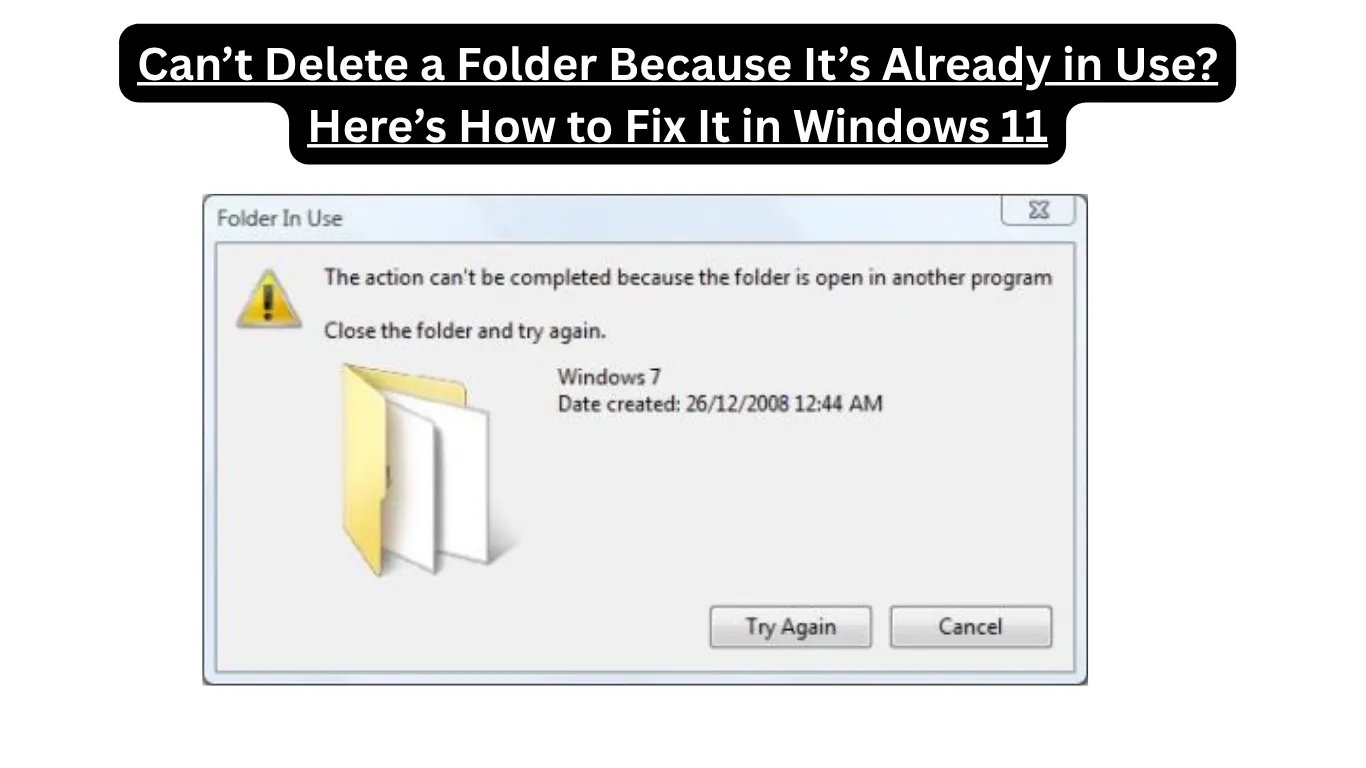
If you can’t delete a folder because it’s already in use, you’re definitely not alone. This frustrating Windows 11 issue usually appears when a background process, app, or system service is still accessing the folder. Even after closing every visible program, Windows may continue showing messages like “The action can’t be completed because the folder is open in another program.”
For many users, this error happens while deleting game files, temporary folders, downloads, or old software directories. Fortunately, there are several proven ways to solve it without reinstalling Windows or losing your data.
In this guide, you’ll learn why this happens, how it relates to common Windows 11 problems, and the best troubleshooting methods to permanently fix it.
Common Known Issues in Windows 11
Windows 11 introduced a cleaner interface and better productivity features, but users still face a variety of issues. One of the most common complaints is file and folder management errors.
Here are some widely reported Windows 11 problems:
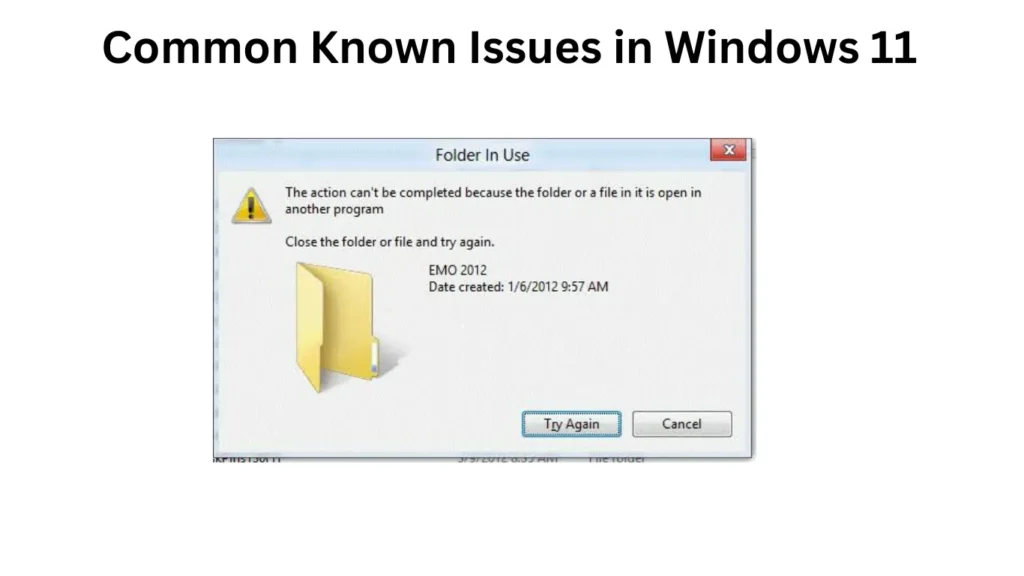
- Folders refusing to delete
- Slow File Explorer performance
- Random freezing during file transfers
- Driver conflicts after updates
- Gaming stutters and crashes
- Windows Update installation failures
- Excessive RAM usage in background apps
The “folder already in use” error often connects to these broader system problems. For example, a buggy process running in the background may lock the folder and prevent deletion.
Why Windows Says the Folder Is Already in Use
Before jumping into fixes, it helps to understand what causes the issue.
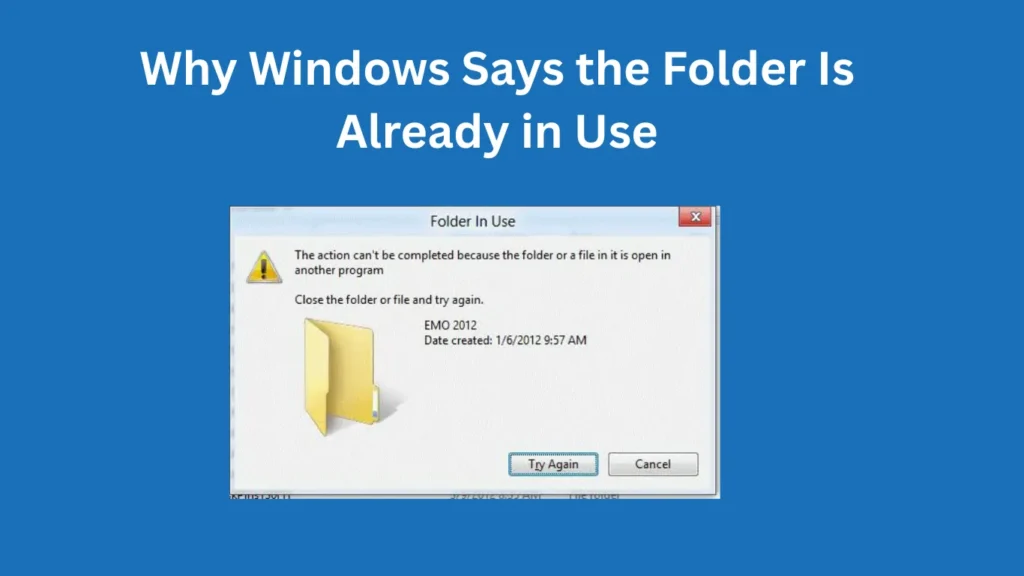
Usually, Windows blocks deletion when:
- A program is currently using the folder
- File Explorer hasn’t released the process
- Antivirus software is scanning the directory
- A background Windows service is locking files
- OneDrive or cloud syncing apps are active
- Hidden temporary processes remain open
For example, if you recently edited a video stored in a folder, your editing software may still be using cached files even after you close the app.
Similarly, gamers often encounter this problem when uninstalling game mods or deleting Steam folders.
Performance Problems
Performance issues in Windows 11 can directly contribute to file lock errors.
When the system slows down or memory usage spikes, background tasks may fail to close correctly. This leaves files and folders “stuck” in active use.
Signs of Performance Problems
You may notice:
- File Explorer freezing
- High CPU usage
- Slow right-click menus
- Delayed folder opening
- Random desktop refreshes
These symptoms usually indicate overloaded system resources or corrupted system processes.
Quick Performance Fixes
Try these solutions first:
Restart Windows Explorer
- Press
Ctrl + Shift + Esc - Open Task Manager
- Find Windows Explorer
- Right-click and select Restart
This simple step often releases locked folders instantly.
Clear Temporary Files
Temporary files sometimes cause indexing conflicts.
Go to:
Settings > System > Storage > Temporary Files
Delete unnecessary cached data to improve responsiveness.
Disable Startup Apps
Too many startup programs can overload Windows.
Open:
Task Manager > Startup Apps
Disable apps you don’t need running automatically.
Gaming Issues
Gaming-related folders are among the hardest to delete in Windows 11.
Many modern games use anti-cheat systems and background launchers that continue running after you exit the game.
Common culprits include:
- Steam
- Epic Games Launcher
- Riot Vanguard
- EA App
- Xbox Game Services
If you try deleting game folders while these services are active, Windows will block the action.
How Gamers Can Fix the Issue
Fully Close Game Launchers
Don’t just close the window.
Instead:
- Open Task Manager
- End all related game launcher processes
- Stop background services if necessary
Boot Into Safe Mode
Safe Mode loads only essential Windows services.
To enter Safe Mode:
- Open Settings
- Go to
System > Recovery - Select Advanced Startup
- Restart into Safe Mode
Once inside Safe Mode, deleting stubborn folders becomes much easier.
Use Command Prompt
Advanced users can force-delete folders using CMD.
Example:
rmdir /s /q "C:\FolderName"Be careful when using this command because deleted files cannot be recovered easily.
Driver Compatibility Problems
Driver conflicts are another hidden cause of locked folders.
Outdated drivers may cause File Explorer instability or improper hardware communication.
This commonly affects:
- Graphics drivers
- Storage drivers
- USB drivers
- Printer software
For example, external hard drives sometimes keep folders locked because storage drivers fail to release file handles correctly.
How to Fix Driver Issues
Update Drivers
Open:
Device Manager
Then update:
- Display adapters
- Disk drives
- Storage controllers
Remove Corrupted Drivers
If the problem started after a recent driver installation:
- Open Device Manager
- Right-click the device
- Select Uninstall Device
- Restart Windows
Windows will reinstall clean drivers automatically.
Windows Update Errors
Windows updates can sometimes create temporary system bugs that interfere with folder permissions.
Users often report deletion problems immediately after major updates.
Common Update-Related Symptoms
- Files becoming read-only
- Missing administrator permissions
- Folder access denied errors
- Explorer crashes
How to Repair Windows Update Problems
Run Windows Troubleshooter
Go to:
Settings > System > Troubleshoot > Other Troubleshooters
Run:
- Windows Update Troubleshooter
- Search and Indexing Troubleshooter
Repair Corrupted System Files
Use these built-in commands:
sfc /scannowThen:
DISM /Online /Cleanup-Image /RestoreHealthThese tools repair corrupted Windows system files that may cause folder lock issues.
How to Fix Windows 11 Issues
Now let’s combine everything into a practical troubleshooting checklist.
1. Restart Your PC
It sounds basic, but restarting clears temporary file locks.
2. Close All Related Apps
Check Task Manager carefully for hidden background processes.
3. Pause OneDrive Syncing
Cloud syncing apps frequently lock folders.
Right-click OneDrive and pause syncing temporarily.
4. Use Resource Monitor
Windows includes a built-in tool for finding locked files.
Steps:
- Open Start Menu
- Search for Resource Monitor
- Go to the CPU tab
- Use the search box under “Associated Handles”
- Type the folder name
Windows will show which process is locking the folder.
5. Change Folder Permissions
Sometimes ownership problems prevent deletion.
Take Ownership
- Right-click folder
- Open Properties
- Go to Security
- Click Advanced
- Change Owner to your account
Apply changes and try deleting again.
6. Use Third-Party Unlock Tools
Trusted tools like LockHunter or Process Explorer can identify locked processes instantly.
However, always download software from official sources.
Is Windows 11 Stable in 2026?
Windows 11 has improved significantly since its original release. Microsoft has fixed many early bugs and optimized overall performance.
Still, occasional issues remain — especially on older hardware or heavily customized gaming PCs.
In 2026, Windows 11 is generally considered stable for:
- Daily productivity
- Gaming
- Content creation
- Professional work
However, stability depends heavily on:
- Updated drivers
- Regular Windows updates
- Healthy storage devices
- Minimal software conflicts
Users who maintain their systems properly usually experience far fewer folder lock problems.
Best Practices to Prevent Folder Deletion Errors
Prevention is always easier than troubleshooting later.
Here are some smart habits to follow:
- Keep Windows updated
- Avoid force-closing applications
- Use reliable antivirus software
- Restart your PC regularly
- Remove unused startup apps
- Keep drivers current
- Avoid running too many background tools
These simple maintenance steps improve overall system stability dramatically.
Also Read: PC Crashes Randomly Multiple Times a Day — Here’s Why It’s Happening (and How to Fix It)
Final Verdict
Getting the message that you can’t delete a folder because it’s already in use can be incredibly frustrating, especially when you’re trying to free up storage or remove unwanted files. Thankfully, the issue is usually caused by locked background processes, driver conflicts, cloud syncing apps, or Windows Explorer glitches.
The good news is that most users can solve the problem quickly using Task Manager, Safe Mode, Resource Monitor, or built-in repair commands like SFC and DISM.
Windows 11 continues improving in 2026, but occasional file management issues still happen — especially on systems with heavy gaming software or outdated drivers.
If you found this guide helpful, visit solvingdad.com for more practical Windows fixes, troubleshooting tutorials, and easy-to-follow tech solutions.
Also Read: Windows Update Not Working Due to Corrupted Files Error? Here’s How to Fix It in Windows 11
FAQs
Why does Windows 11 say a folder is already in use?
Windows 11 displays this error when a program, background service, or system process is actively using files inside the folder.
How do I force delete a folder in Windows 11?
You can use Command Prompt with the following command:
rmdir /s /q "FolderPath"
Make sure no applications are using the folder before running the command.
Can antivirus software prevent folder deletion?
Yes. Antivirus programs sometimes lock files temporarily during scans, preventing deletion until the scan completes.
Is Safe Mode the best way to delete locked folders?
Safe Mode is one of the most effective methods because it loads only essential Windows services and minimizes software conflicts.
Why can’t I delete Steam or game folders?
Gaming launchers and anti-cheat systems often continue running in the background, locking game files even after the game closes.
Does updating drivers help fix folder issues?
Yes. Outdated or corrupted drivers can cause File Explorer instability and file lock problems. Updating drivers often resolves the issue.
Can corrupted Windows updates cause deletion errors?
Yes. Some Windows updates may temporarily affect permissions, File Explorer behavior, or system processes that manage files and folders.