
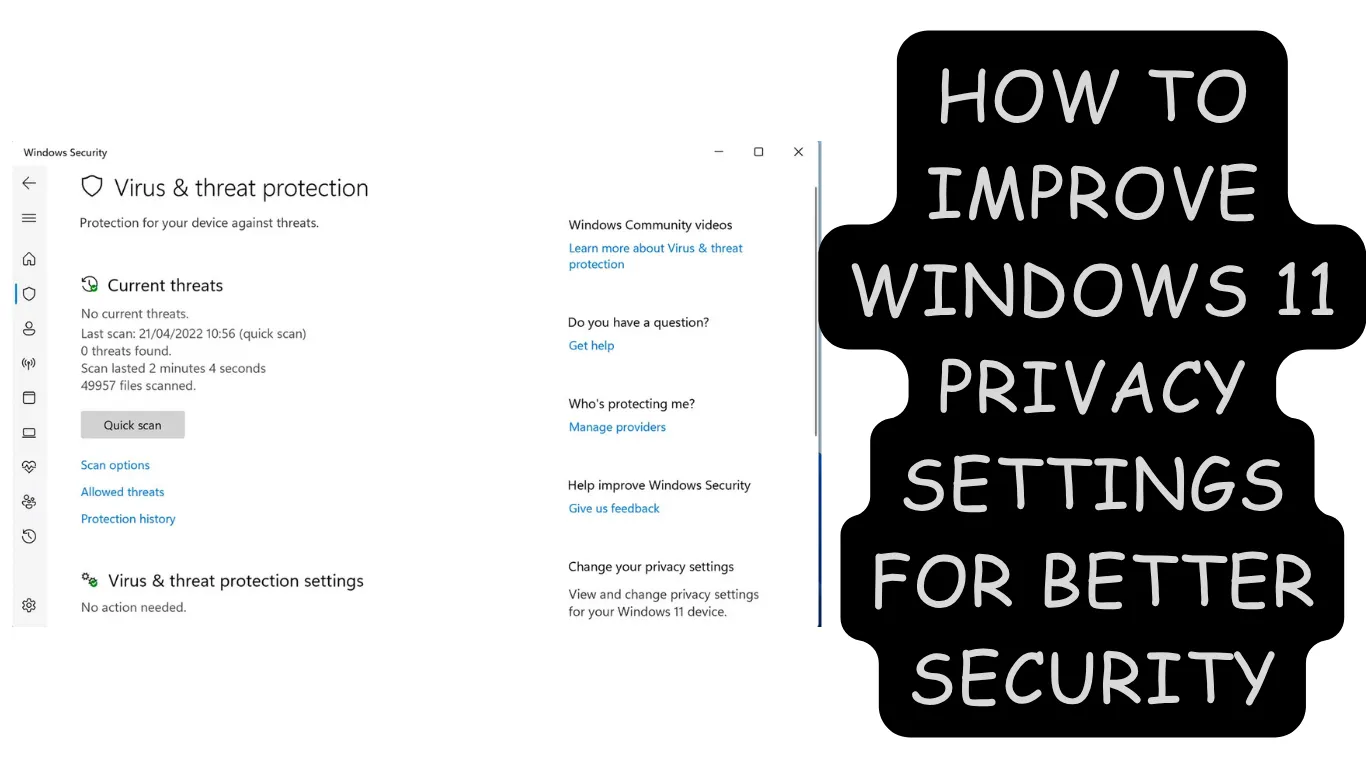
Windows 11 includes many built-in security features, but its default privacy settings are designed to balance convenience, personalization, and data collection. For users who want more control over their system, learning How to Improve Windows 11 Privacy Settings for Better Security can help reduce unnecessary data sharing, limit app permissions, and create a more private computing environment.
Microsoft has added more transparency and controls compared with older Windows versions, but many important privacy options are spread across different areas of the Settings app. A few minutes spent adjusting these settings can prevent apps from accessing sensitive information, reduce unwanted recommendations, and improve overall security.
This guide explains the most important Windows 11 privacy settings to change, where to find them, which options are safe to disable, and what advanced users can do for additional protection.
Why Windows 11 Privacy Settings Matter
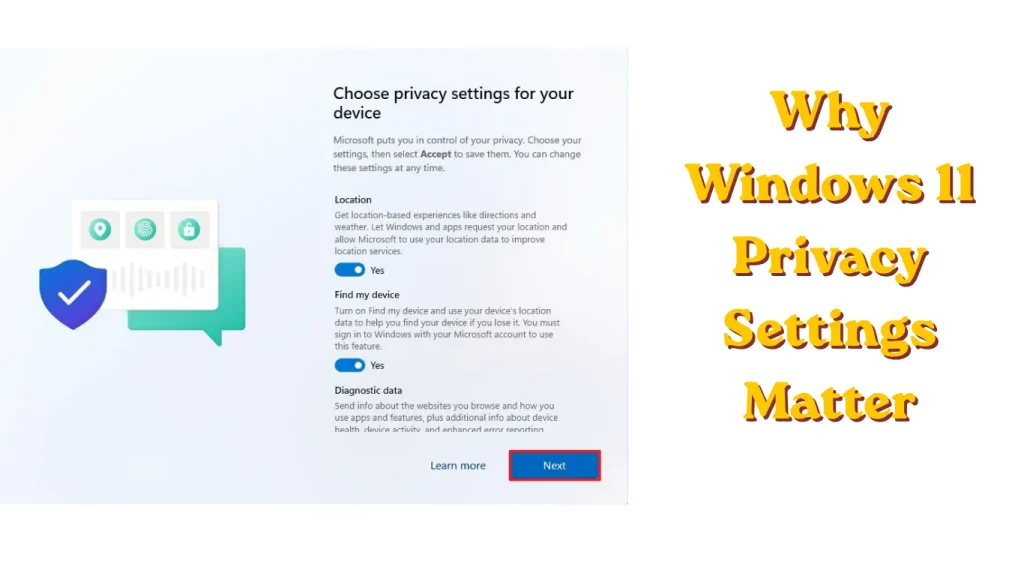
Windows 11 collects certain diagnostic and usage information to improve system reliability, security updates, and feature recommendations. Some data collection is necessary for services such as Windows Update, malware protection, and troubleshooting.
However, many users prefer limiting optional data sharing because:
- Apps may request access to your camera, microphone, location, or files.
- Advertising features can use activity data for personalization.
- Background apps may collect information even when not actively used.
- Cloud-based features may sync more data than some users expect.
Improving privacy does not mean disabling every Windows service. The goal is to create a balance between security, usability, and control.
How to Improve Windows 11 Privacy Settings for Better Security
The best approach is to review privacy settings one category at a time. Windows 11 provides built-in controls that allow you to decide what information apps and Microsoft services can access.
Before making major changes, create a restore point, especially if you plan to modify advanced settings such as Group Policy or the Registry.
To create a restore point:
- Press Windows + S and search for Create a restore point.
- Open the System Properties window.
- Select your system drive.
- Click Create.
- Enter a description and save the restore point.
1. Review Windows 11 Diagnostic Data Settings
One of the first privacy settings to check is diagnostic data collection.
Windows 11 sends required diagnostic data to Microsoft to help maintain security and reliability. Optional diagnostic data provides additional information about feature usage and system behavior.
To adjust these settings:
- Open Settings using Windows + I.
- Select Privacy & security.
- Click Diagnostics & feedback.
- Review the available options.
Recommended changes:
- Turn off Send optional diagnostic data.
- Disable Improve inking and typing if you do not use these features.
- Disable Tailored experiences if you do not want personalized recommendations.
Keep in mind that completely disabling diagnostic data is not available in standard Windows 11 Home or Pro editions. Enterprise editions provide additional controls through organizational policies.
Also Read: How to Set Up Windows 11 Security Features Like Firewall & BitLocker
Manage Windows 11 App Permissions for Better Privacy
Apps installed from the Microsoft Store or other sources often request permissions that they do not always need.
For example, a simple photo editor may request access to your location or microphone. Reviewing these permissions reduces unnecessary exposure.
Control Camera and Microphone Access
Camera and microphone permissions are among the most important privacy settings.
Follow these steps:
- Open Settings.
- Go to Privacy & security.
- Under App permissions, select:
- Camera
- Microphone
- Turn off access for apps that do not need these features.
A useful habit is checking these permissions after installing new software. Some applications enable access automatically during setup.
Restrict Location Tracking
Location services allow Windows and apps to provide weather updates, maps, and location-based recommendations.
To manage location access:
- Open Settings.
- Navigate to Privacy & security.
- Select Location.
- Disable Location services if you do not use location-based features.
You can also control location access individually for each application.
For example, keeping location enabled for Maps while blocking access for unrelated desktop applications provides better privacy without losing useful features.
Disable Advertising ID for Personalized Ads
Windows 11 includes an advertising ID that allows apps to provide personalized advertisements.
To disable it:
- Open Settings.
- Select Privacy & security.
- Open General.
- Turn off:
Let apps show me personalized ads by using my advertising ID
This does not remove all advertisements from Windows, but it prevents apps from using this identifier for targeted advertising.
Turn Off Activity History and Tracking Features
Windows 11 can store activity information to improve search and productivity features.
To manage activity history:
- Open Settings.
- Go to Privacy & security.
- Select Activity history.
- Disable:
- Store my activity history on this device
- Send my activity history to Microsoft
You can also clear existing activity data from this page.
This setting is especially useful for shared computers where multiple people use the same Windows account.
Improve Windows Search Privacy Settings
Windows Search can index files, emails, and other content to provide faster results.
Some users prefer limiting indexing because it may include personal files.
To adjust search permissions:
- Open Settings.
- Select Privacy & security.
- Choose Searching Windows.
Review:
- Search indexing options
- Cloud content search settings
- Microsoft account search permissions
You can disable cloud search integration if you do not want Windows Search displaying results from connected Microsoft services.
Control Background App Activity in Windows 11
Background apps can continue running even when you are not actively using them.
While Windows 11 does not provide the same universal background app toggle found in older versions, many applications have individual controls.
To manage app activity:
- Open Settings.
- Select Apps.
- Choose Installed apps.
- Click the three-dot menu beside an application.
- Select Advanced options.
- Adjust Background apps permissions where available.
Disabling unnecessary background activity can improve privacy and slightly reduce battery usage on laptops.
Strengthen Microsoft Account Privacy
A Microsoft account connects Windows features such as OneDrive, Microsoft Store, and cloud synchronization.
Review your account privacy dashboard regularly.
Check:
- Connected devices
- Activity history
- App permissions
- Stored personal information
Users who prefer maximum local control can create a local Windows account instead.
To add a local account:
- Open Settings.
- Go to Accounts.
- Select Other users.
- Choose Add account.
- Select I don’t have this person’s sign-in information.
- Choose Add a user without a Microsoft account.
Note: Some Windows 11 features work best with a Microsoft account, so switching may reduce access to cloud services.
Use Windows Security Privacy Features
Privacy and security are closely connected. A private system is still vulnerable if malware can access your files.
Windows 11 includes built-in security tools:
- Microsoft Defender Antivirus
- SmartScreen protection
- Firewall controls
- Device security features
To review security settings:
- Open Settings.
- Select Privacy & security.
- Click Windows Security.
Check:
- Virus & threat protection
- Firewall & network protection
- App & browser control
- Device security
Keeping these features enabled is usually recommended unless you use a trusted alternative security solution.
Advanced Privacy Changes for Windows 11 Pro Users
Power users and IT administrators can apply additional privacy restrictions using Group Policy.
Disable Telemetry Through Group Policy
Available mainly in Windows 11 Pro, Enterprise, and Education editions:
- Press Windows + R.
- Type:
gpedit.msc- Press Enter.
Navigate to:
Computer Configuration
> Administrative Templates
> Windows Components
> Data Collection and Preview Builds
Open:
Allow Diagnostic Data
Configure the available privacy level according to your requirements.
Important:
- Group Policy Editor is not available in Windows 11 Home.
- Incorrect policy changes can affect Windows features.
- Business environments should test policies before deployment.
Registry-Based Privacy Tweaks (Advanced Users Only)
Some privacy settings can also be changed through Registry Editor.
However, Registry modifications carry risk because incorrect values can cause system problems.
Before editing:
- Create a restore point.
- Export the Registry key you plan to change.
- Avoid downloading random privacy scripts from unknown websites.
For most users, Windows Settings and Group Policy provide safer options.
Recommended Windows 11 Privacy Checklist
Use this quick checklist to improve privacy:
- Disable optional diagnostic data.
- Review camera and microphone permissions.
- Limit location access.
- Turn off advertising ID.
- Disable unnecessary activity history storage.
- Review cloud search settings.
- Remove unused applications.
- Keep Windows Security enabled.
- Install Windows updates regularly.
- Review privacy settings after major feature updates.
Common Privacy Mistakes Windows 11 Users Make
Installing “Privacy Optimizer” Tools Without Checking Them
Many third-party privacy tools make aggressive changes that can break Windows features.
Some disable important services such as:
- Windows Update components
- Defender features
- Microsoft Store functionality
Manual configuration is usually safer.
Blocking Every Microsoft Service
Completely disabling Microsoft services may create problems with:
- Security updates
- Driver installation
- System troubleshooting
A better strategy is reducing unnecessary collection while keeping essential protection features active.
Ignoring App Permissions
Many users adjust Windows settings once and never check again.
New applications can introduce new permissions, so reviewing them every few months is a good practice.
Conclusion: Take Control of Your Windows 11 Privacy
Learning How to Improve Windows 11 Privacy Settings for Better Security does not require complicated tools or risky modifications. Most privacy improvements can be completed directly from the Windows Settings app.
Start with the basics: review app permissions, reduce unnecessary data sharing, disable unwanted tracking features, and keep Windows security protections active.
Privacy is not about making Windows unusable. It is about choosing which features you trust and controlling what information your computer shares.
Also Read: What Security Features Are Enhanced in Windows 11?
FAQ Section
Does Windows 11 track everything I do?
No. Windows 11 collects certain diagnostic and usage information, but users can control many data-sharing options through Settings > Privacy & security.
How do I stop Windows 11 from collecting diagnostic data?
Go to:
Settings > Privacy & security > Diagnostics & feedback
Then disable optional diagnostic data and related personalization settings.
Should I disable all Windows 11 privacy settings?
No. Some features support security, updates, and troubleshooting. Disable unnecessary tracking while keeping important security services enabled.
Are Windows 11 privacy tools safe to use?
Built-in Windows privacy settings are generally safer than third-party tools. Privacy utilities can make aggressive changes that may affect system stability.
Does Windows 11 Pro have better privacy controls than Home?
Yes. Windows 11 Pro, Enterprise, and Education editions provide additional management features such as Group Policy settings for administrators.