
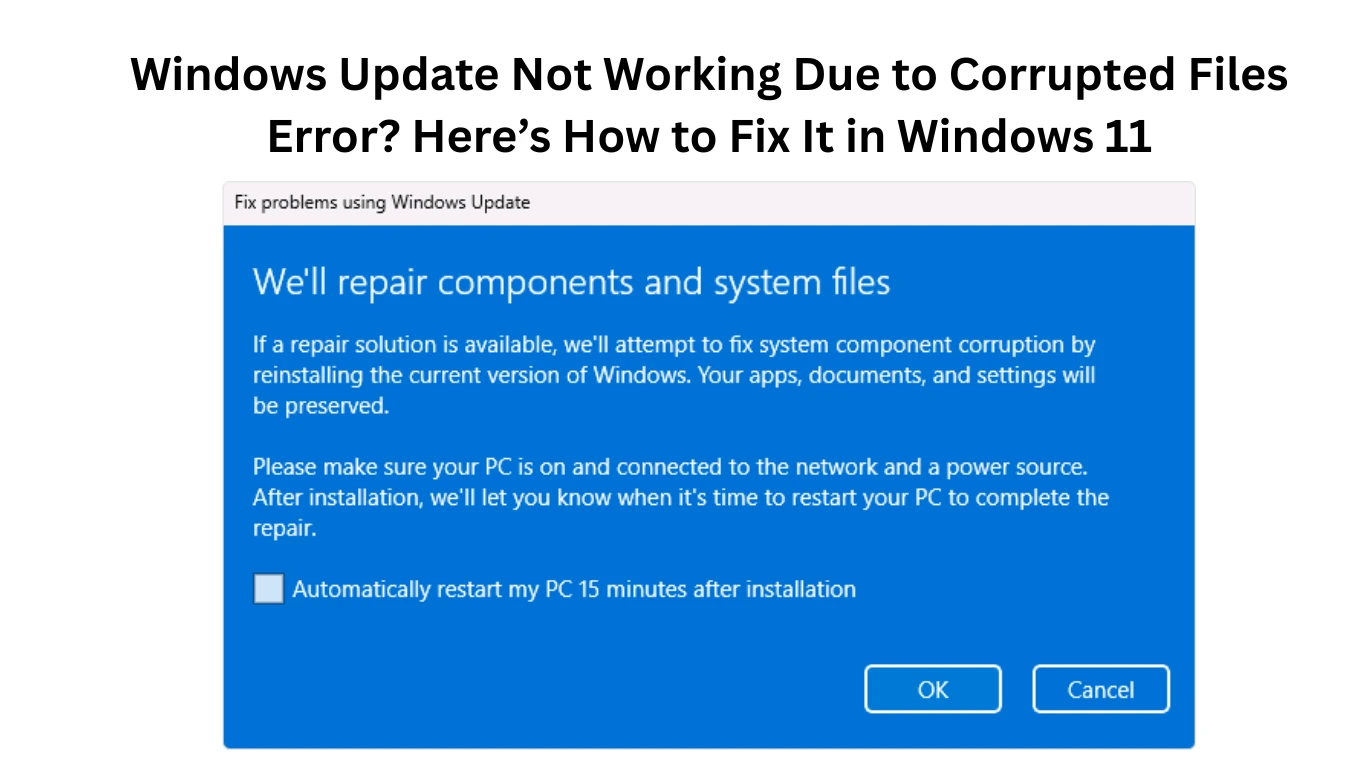
Windows Update not working corrupted files error is one of the most frustrating problems Windows 11 users face today. You try to install the latest update, but instead of improving your system, Windows throws cryptic messages like “corrupted system files detected,” “installation failed,” or endless update loops.
If this sounds familiar, you’re not alone.
Many Windows 11 users experience update failures after interrupted installations, driver conflicts, damaged system files, or storage issues. The good news is that most of these problems can be fixed without reinstalling Windows.
In this guide, you’ll learn the most common Windows 11 issues related to corrupted update files, practical troubleshooting methods, and expert solutions to restore your PC to full health.
Common Known Issues in Windows 11
Windows 11 has improved significantly since launch, but users still encounter several recurring problems. Some are minor annoyances, while others can directly affect system stability and updates.
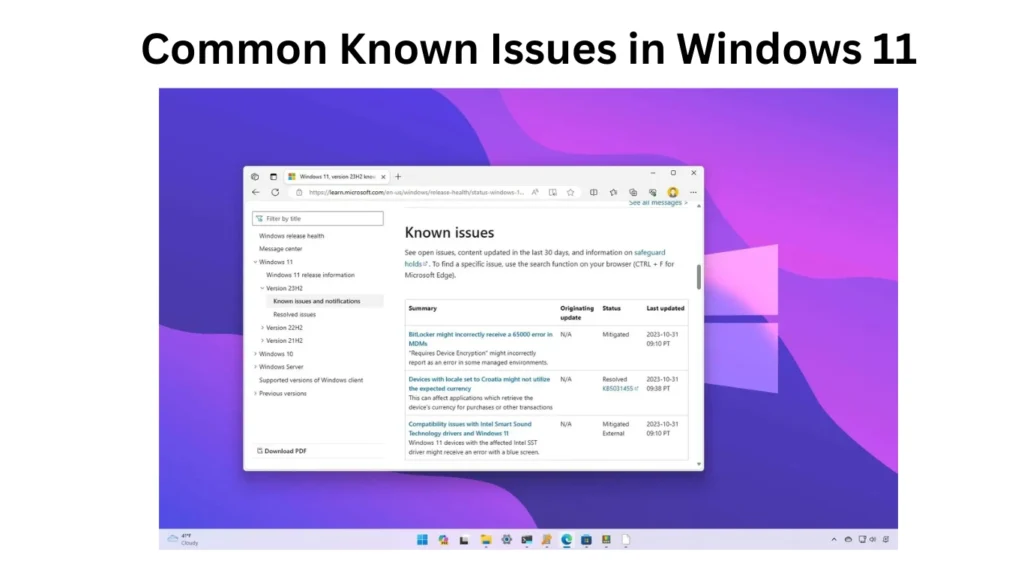
Here are the most common issues users report:
- Windows Update installation failures
- Corrupted system files
- Slow startup performance
- Driver incompatibility after updates
- Gaming stutters and FPS drops
- Blue Screen of Death (BSOD)
- Audio or Bluetooth problems
- Random freezing after cumulative updates
One of the biggest complaints remains update-related errors caused by corrupted files. These issues often appear after forced shutdowns, interrupted updates, malware infections, or unstable drivers.
Why Corrupted Files Break Windows Updates
Windows updates rely on healthy system files to install correctly. When essential files become damaged or missing, the update process fails.
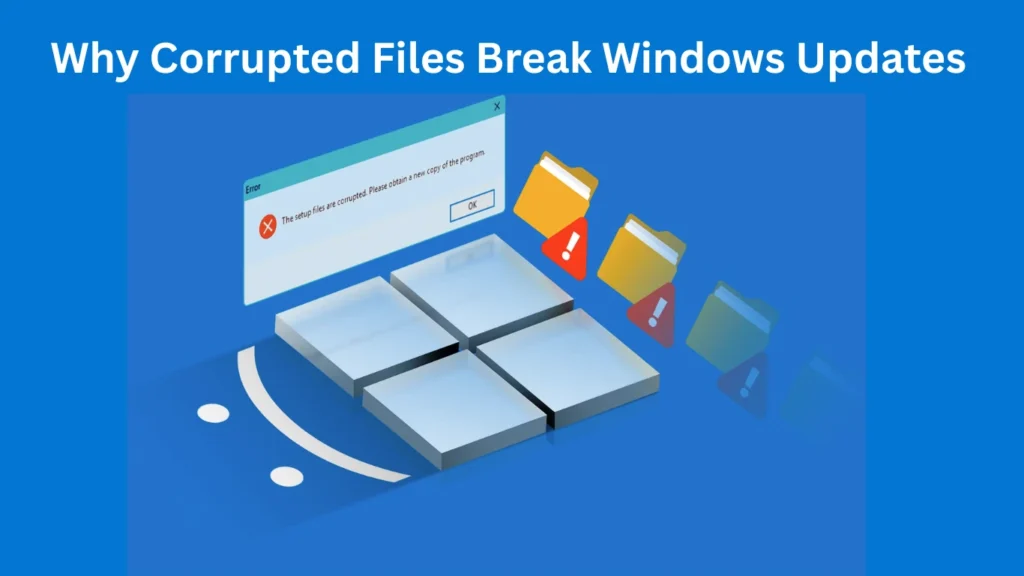
Common causes include:
Interrupted Updates
If your PC loses power or restarts unexpectedly during installation, update components may become corrupted.
Damaged Windows Components
The Windows Update cache sometimes stores incomplete or broken files that prevent future updates.
Malware or Third-Party Software
Antivirus tools and malware can interfere with system files and block update services.
Storage or Disk Errors
Bad sectors on SSDs or HDDs may damage Windows files over time.
For example, imagine downloading a 4GB update and your internet disconnects halfway through. Windows may save incomplete data, leading to corrupted update packages that repeatedly fail during installation.
Performance Problems in Windows 11
Many users notice performance issues immediately after a failed update.
Symptoms often include:
- Slow boot times
- High CPU usage
- Laggy File Explorer
- Freezing taskbar
- Delayed app launches
Corrupted files can overload background services and create instability across the system.
Quick Performance Fixes
Try these solutions first:
Restart Windows Explorer
- Press
Ctrl + Shift + Esc - Open Task Manager
- Find Windows Explorer
- Right-click → Restart
Disable Startup Apps
Too many startup applications can worsen update-related slowdowns.
Go to:
Settings > Apps > Startup
Disable unnecessary apps to improve boot performance.
Free Up Storage Space
Windows updates require sufficient free disk space.
Aim for at least:
- 20GB free on system drive
- Temporary files cleaned regularly
Use:
- Storage Sense
- Disk Cleanup
- Temporary File Removal
Gaming Issues After Windows Updates
Gamers often experience issues after problematic Windows updates.
Common complaints include:
- FPS drops
- Game crashes
- Input lag
- Stuttering
- GPU driver conflicts
Sometimes corrupted update files interfere with graphics drivers or DirectX components.
How to Fix Gaming Problems
Update GPU Drivers
Download the latest drivers directly from:
- NVIDIA
- AMD
- Intel
Avoid relying solely on Windows Update for graphics drivers.
Disable Xbox Game Bar
Game Bar occasionally causes background conflicts.
Go to:
Settings > Gaming > Xbox Game Bar
Turn it off temporarily.
Verify Game Files
Platforms like Steam and Epic Games allow integrity checks for damaged game files.
Example:
If Fortnite crashes after a Windows update, verifying files may replace corrupted DirectX or game assets automatically.
Driver Compatibility Problems
Driver conflicts are another major cause of update failures.
After Windows installs a new cumulative update, older drivers may stop functioning properly.
Affected hardware often includes:
- Printers
- Wi-Fi adapters
- Bluetooth devices
- Audio cards
- GPUs
Signs of Driver Issues
You may notice:
- Devices disappearing
- Audio crackling
- Random disconnects
- “Unknown device” errors
Best Solutions
Roll Back Drivers
- Open Device Manager
- Right-click device
- Select Properties
- Open Driver tab
- Choose Roll Back Driver
Reinstall Drivers
Completely uninstall problematic drivers before reinstalling updated versions from the manufacturer website.
Windows Update Errors and Corrupted File Fixes
Now let’s focus on the core issue: fixing Windows Update not working due to corrupted files.
These methods work for most Windows 11 systems.
How to Fix Windows 11 Issues
Run Windows Update Troubleshooter
Windows includes a built-in repair tool.
Steps:
- Open Settings
- Go to System → Troubleshoot
- Select Other Troubleshooters
- Run Windows Update troubleshooter
This tool automatically detects common update problems.
Use SFC Scan to Repair Corrupted Files
The System File Checker scans and repairs damaged system files.
Open Command Prompt as Administrator and run:
sfc /scannowThis process may take several minutes.
If corrupted files are found, Windows will attempt to repair them automatically.
Use DISM Repair Tool
If SFC cannot repair everything, use DISM.
Run these commands one by one:
DISM /Online /Cleanup-Image /CheckHealthDISM /Online /Cleanup-Image /ScanHealthDISM /Online /Cleanup-Image /RestoreHealthThese commands download healthy Windows components directly from Microsoft servers.
Clear Windows Update Cache
Sometimes update files themselves become corrupted.
To clear the cache:
Step 1: Stop Update Services
Open Command Prompt as Admin:
net stop wuauserv
net stop bits
Step 2: Delete Cache Files
Navigate to:
C:\Windows\SoftwareDistributionDelete all files inside the folder.
Step 3: Restart Services
net start wuauserv
net start bits
Then try updating again.
Check Your Disk for Errors
Disk corruption can damage Windows files repeatedly.
Run:
chkdsk /f /rYou may need to restart your PC for the scan to begin.
Reset Windows Update Components
Advanced users can manually reset all update services and components.
This often fixes persistent update loops and failed installations.
However, always create a restore point before making major system changes.
Preventing Future Corrupted File Errors
Once your PC is stable again, follow these best practices:
- Avoid force shutdowns during updates
- Keep at least 20% disk space free
- Use reliable antivirus software
- Update drivers regularly
- Create restore points before major updates
- Use SSD health monitoring tools
These habits significantly reduce the risk of future corruption.
Also Read: Is It Still Safe to Use Windows 10 After Support Ended?
Is Windows 11 Stable in 2026?
Overall, Windows 11 is far more stable in 2026 compared to its initial release.
Microsoft has improved:
- Update reliability
- Driver compatibility
- Gaming optimization
- Security patches
- Performance consistency
However, no operating system is perfect.
Large feature updates can still introduce bugs, especially on older hardware or systems with outdated drivers.
For most users, Windows 11 is now stable enough for:
- Gaming
- Professional work
- Content creation
- Everyday productivity
The key is maintaining your system properly and addressing update errors early before they become major problems.
Also Read: PC Crashes Randomly Multiple Times a Day — Here’s Why It’s Happening (and How to Fix It)
Final Verdict
Dealing with the Windows Update not working corrupted files error can feel overwhelming at first, but most issues are fixable with the right troubleshooting steps.
Whether the problem comes from damaged system files, incompatible drivers, failed updates, or disk corruption, tools like SFC, DISM, and Windows Troubleshooter can often restore your PC without requiring a full reinstall.
The most important thing is not to ignore repeated update failures. Small corruption issues can eventually lead to performance problems, gaming instability, or even system crashes.
By keeping your drivers updated, maintaining healthy storage, and following preventive maintenance practices, you can keep Windows 11 running smoothly for years.
For more practical Windows fixes, troubleshooting tutorials, and tech guides, visit solvingdad.com regularly and stay ahead of common PC problems.
FAQs
Why does Windows Update keep failing with corrupted files?
Windows Update failures usually happen because important system files or update components are damaged. Interrupted installations, malware, or storage errors are common causes.
Can corrupted files slow down Windows 11?
Yes. Corrupted system files can increase CPU usage, cause freezing, slow startup times, and trigger application crashes.
Is SFC or DISM better for fixing corrupted files?
SFC is usually the first tool to try. DISM is more advanced and repairs deeper Windows image corruption when SFC cannot fix everything.
How do I know if my Windows Update cache is corrupted?
Signs include repeated update failures, stuck download percentages, installation loops, or error codes like:
0x80073712
0x800f081f
0x80070002
Will reinstalling Windows fix corrupted update files?
Yes, a clean Windows installation can resolve severe corruption issues. However, most users can fix the problem using SFC, DISM, and cache reset methods first.
Are Windows 11 updates safe in 2026?
Most Windows 11 updates are stable and secure in 2026. However, occasional bugs and compatibility issues still occur, especially on unsupported or outdated hardware.