
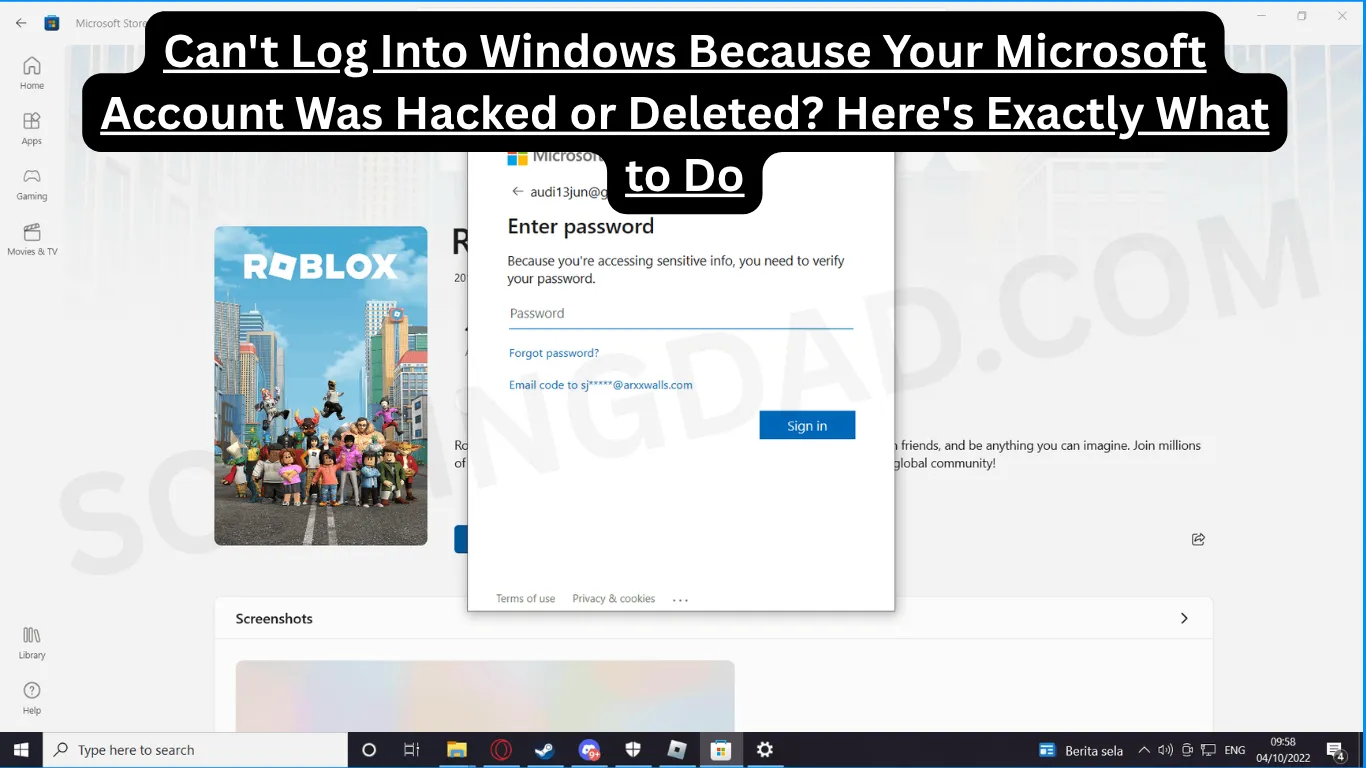
If you can’t log into Windows because your Microsoft account was hacked or deleted, you’re not alone — and you’re not stuck. This is one of the most frustrating situations a PC user can face: you turn on your computer, try to sign in, and suddenly the account tied to your entire Windows installation is gone or compromised. Your files, your settings, your work — all seemingly locked behind a digital wall.
But here’s the good news: there are real, working solutions. Whether your account was hijacked by a bad actor or deleted by mistake, you can get back in. Let’s walk through everything step by step.
Why This Happens: Understanding the Problem First
Before jumping to fixes, it helps to understand why this happens. Microsoft accounts are tied to an email address — usually Outlook, Hotmail, or even Gmail. If that email gets hacked, the attacker can change your password, locking you out of both your email and your Windows PC in one move.
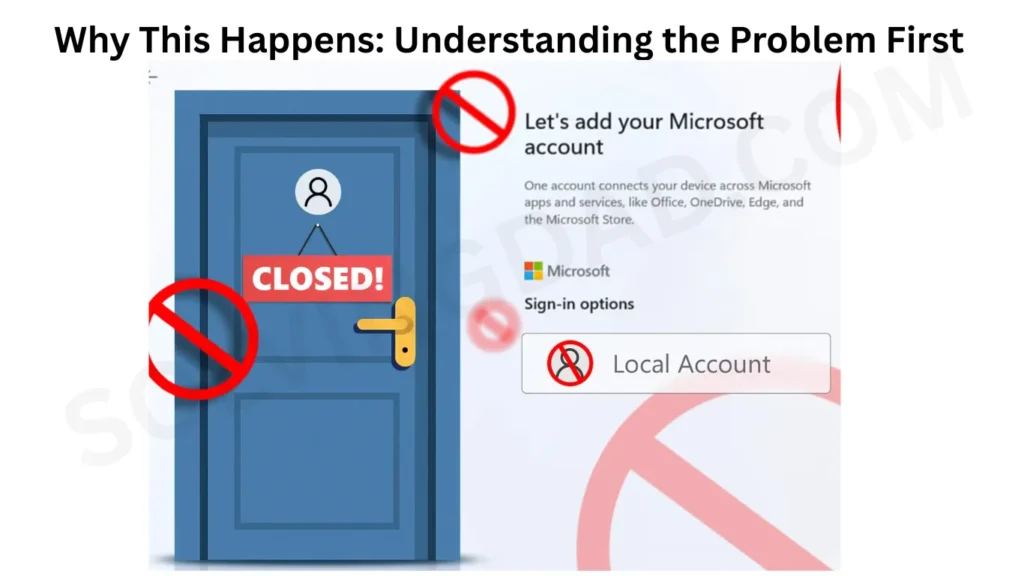
In other cases, Microsoft may suspend or delete accounts for:
- Inactivity (accounts unused for more than 2 years can be deleted)
- Terms of service violations
- Billing issues on Microsoft 365 subscriptions
- The account being merged or migrated incorrectly
Whatever the cause, the result is the same: you’re sitting at your login screen going nowhere.
Step 1 — Try to Recover Your Microsoft Account First
Before attempting anything on the PC itself, try to recover the account from another device (phone, tablet, or a friend’s computer). This is the cleanest fix.
Go to: account.live.com/password/reset
Here you can:
- Reset your password via a recovery email or phone number
- Use a security code sent to a trusted device
- Fill out Microsoft’s account recovery form if you no longer have access to your recovery options
The account recovery form asks you details like the last password you remember, the date you created the account, and recent purchases. Be as detailed as possible — Microsoft’s review team uses this to verify your identity.
Pro tip: If you still have an older device that was signed into the account and isn’t locked, check if it still has an active session. You may be able to change account details from there.
Step 2 — Boot Into Safe Mode to Access Your PC
If you can’t wait for Microsoft’s recovery team (which can take 24–48 hours), you can still get into your computer through Safe Mode with a local administrator account.
Here’s how:
- Force your PC to restart 3 times in a row by holding the power button mid-boot. Windows will enter Automatic Repair mode.
- Go to Troubleshoot → Advanced Options → Startup Settings → Restart
- Press F4 to boot into Safe Mode
In Safe Mode, Windows sometimes offers a built-in local admin account. If that’s available, you can use it to create a new local user account and regain access to your files.
Step 3 — Switch to a Local Account (The Permanent Fix)
Once you’re inside — either via Safe Mode, a recovery drive, or another user account — the smartest long-term move is to switch from a Microsoft account to a local account. This way, your login is no longer dependent on an external service that can be hacked or disabled.
To do this:
- Open Settings → Accounts → Your Info
- Click “Sign in with a local account instead”
- Set a username and password of your choice
- Restart and log in with your new local credentials
Your files and apps remain intact. You just lose syncing features like OneDrive and Settings Backup — which honestly isn’t a huge deal for most people.
Step 4 — Use a Windows 10/11 Installation USB (When All Else Fails)
If you’re fully locked out with no Safe Mode access and no other user accounts, you’ll need a Windows recovery USB drive — created from another computer.
To create one:
- Download the Media Creation Tool from Microsoft’s official site
- Create a bootable USB (8GB minimum)
- Boot your PC from the USB
From the recovery environment, you can:
- Reset your PC while keeping your personal files
- Access the Command Prompt to reset local account passwords
- Use System Restore to roll back to a point when you could still log in
Using Command Prompt from the recovery environment, you can also enable the hidden Administrator account:
net user administrator /active:yesThen restart, log in as Administrator, and either recover your data or set up a new account.
Step 5 — What to Do If the Account Was Permanently Deleted
If Microsoft has confirmed the account is deleted and unrecoverable, the situation changes a bit. However, your files are still on your hard drive — they’re not gone.
Here’s the path forward:
- Boot from a USB and access the Command Prompt
- Enable the hidden Administrator account (as shown above)
- Log in as Administrator
- Navigate to
C:\Users\[YourOldUsername]to access your old files - Copy what you need to an external drive
- Create a new local account and start fresh — or create a new Microsoft account and link the PC to it
This approach saves your data even when the account itself is gone.
How to Prevent This From Happening Again
Now that you’re back in (or well on your way), let’s make sure this never happens again.
Secure your Microsoft account:
- Enable two-factor authentication (2FA) on your Microsoft account immediately
- Add a backup recovery phone number and email
- Use a strong, unique password (a password manager helps)
- Periodically check
account.microsoft.comto review active sessions
On the Windows side:
- Always keep a local account as a backup alongside your Microsoft account
- Store critical files in an external drive or offline backup — not just OneDrive
- Note down your BitLocker recovery key if your drive is encrypted (it’s linked to your Microsoft account)
That last point is crucial. If your drive is BitLocker-encrypted and your Microsoft account is gone, you may lose access to your data permanently without the recovery key. Don’t let that happen.
Common Mistakes People Make in This Situation (Can’t Log Into Windows)
It’s worth calling out a few things people try that don’t work — or make things worse:
- Reinstalling Windows right away — this deletes your files. Always try recovery options first.
- Using third-party “password crackers” — these are usually malware. Avoid them.
- Ignoring the Microsoft recovery form — many people give up after one try. Fill it out carefully and submit again with more detail.
- Forgetting about BitLocker — if your drive is encrypted, you need that recovery key before doing anything drastic.
Is Windows 11 More Vulnerable to This Issue?
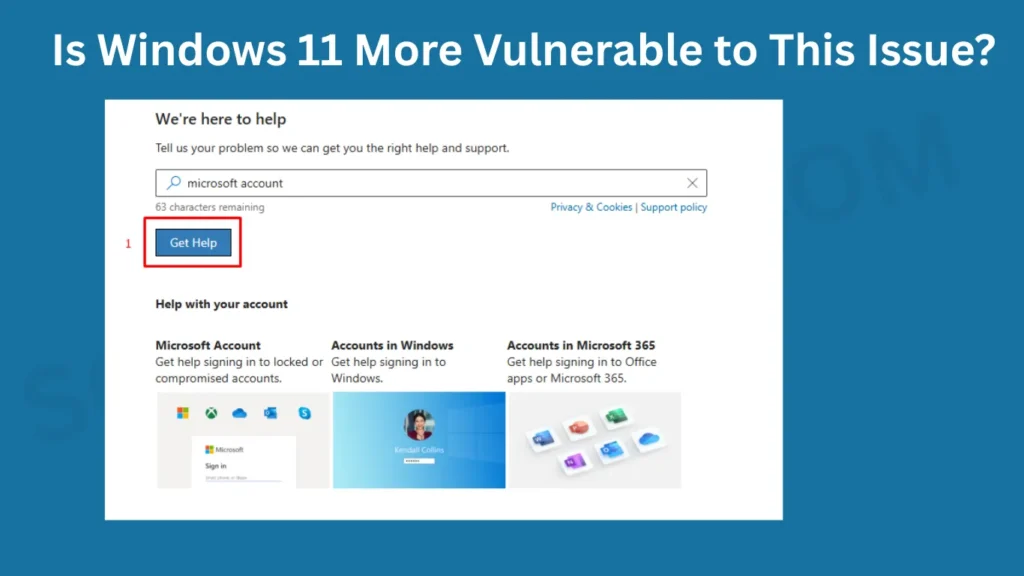
Windows 11 pushes users harder toward Microsoft accounts during setup, making this problem more common than it was on Windows 7 or 8. The good news is that Microsoft has improved its account recovery process over the years.
However, Windows 11 also introduced stricter BitLocker defaults on new devices, which means more people than ever are at risk of losing encrypted data if their Microsoft account goes away. It’s one more reason to back up your BitLocker recovery key separately.
Final Verdict
Getting locked out of Windows because your Microsoft account was hacked or deleted is stressful — but it’s fixable. Start with Microsoft’s own account recovery tools, then work your way through Safe Mode and recovery USB options if needed. The key is to stay calm, follow the steps in order, and avoid drastic actions like reinstalling Windows until you’ve exhausted safer options.
And once you’re back in, take 10 minutes to secure your account properly. Future-you will be genuinely grateful.
Frequently Asked Questions (FAQ)
Can I log into Windows 10 without a Microsoft account?
Yes, absolutely. Windows 10 and 11 both support local accounts that don’t require a Microsoft email at all. You can switch to a local account in Settings → Accounts, or create one fresh using a recovery USB if you’re currently locked out.
What happens to my files if my Microsoft account is deleted?
Your files stored locally on your hard drive are not deleted when a Microsoft account is removed. They remain in your user folder (C:\Users\YourName). Only files stored exclusively on OneDrive may be inaccessible until you recover or recreate the account.
How long does Microsoft account recovery take?
Microsoft’s account recovery review typically takes 24 to 72 hours after submitting the account recovery form. In some cases it can take longer. Fill out the form with as much accurate detail as possible to speed up the process.
Can a hacker permanently lock me out of Windows using my Microsoft account?
Yes, if a hacker changes the password and recovery options on your Microsoft account, they can effectively lock you out of a Windows PC that uses that account to sign in. This is why enabling two-factor authentication is so important — it stops attackers even if they have your password.
What is the Windows hidden Administrator account and how do I use it?
Windows has a built-in Administrator account that is disabled by default. You can enable it from a recovery environment using the Command Prompt command net user administrator /active:yes. Once enabled, it appears as a login option on the sign-in screen and gives you full access to the system — useful for account recovery.
Will resetting my PC delete my files?
It depends on the option you choose. When you reset Windows, you’re given the choice to “Keep my files” or “Remove everything.” Always choose “Keep my files” if you want to preserve your documents, photos, and downloads. Apps and settings will be removed, but personal data stays.
What should I do if I can’t remember any details for the Microsoft account recovery form?
Try to gather as much information as possible: the approximate account creation date, any devices you’ve used, previous passwords, Microsoft 365 subscriptions, or recent purchases through the Microsoft Store. The more detail you provide, the better your chances. If all else fails, creating a new local account and accessing your old files via the Administrator account is the practical next step.
For more practical Windows fixes, step-by-step tech guides, and solutions written in plain English, head over to solvingdad.com — your go-to resource for solving everyday tech problems.