
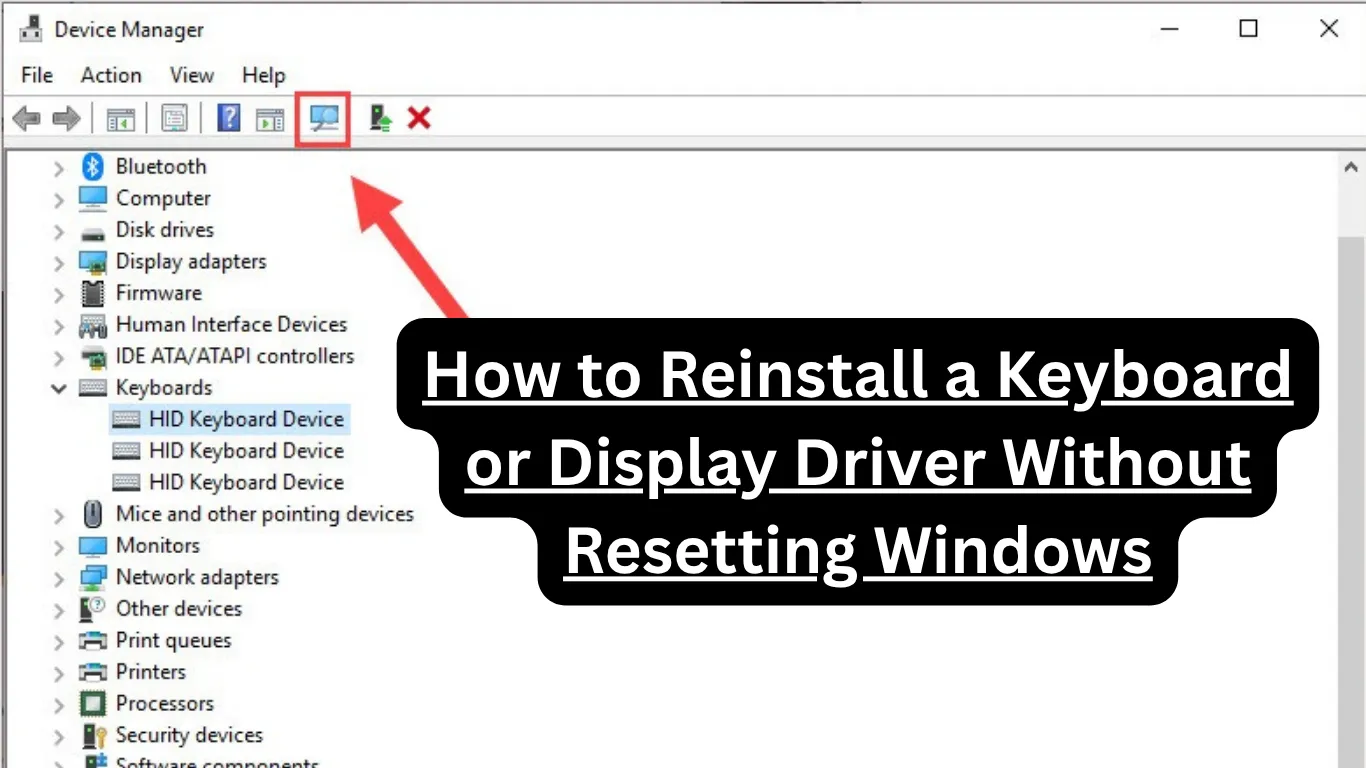
Reinstall a Keyboard or Display Driver Without Resetting Windows (Driver Problems): If you’ve been searching for how to reinstall a keyboard or display driver without resetting Windows, you’re not alone — and the good news is, you absolutely don’t need to go nuclear on your system to fix this. A corrupted or outdated driver can make your screen go blank, cause your keyboard to stop responding, or leave you staring at a flickering mess. But a full Windows reset? That’s almost always overkill.
I’ve been through this exact frustration — keyboard suddenly dead after a Windows Update, display driver crashing mid-presentation. It’s annoying, but it’s fixable. Let me walk you through what’s happening and exactly how to solve it, step by step.
Common Known Issues in Windows 11 That Point to Driver Problems
Before jumping into solutions, it helps to understand why driver problems happen in the first place — especially on Windows 11.
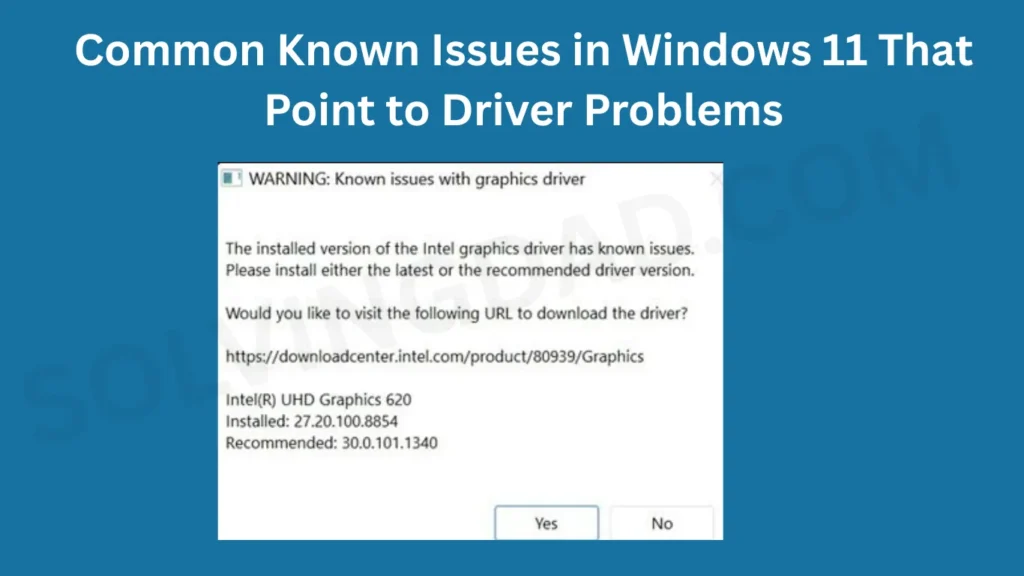
Windows 11 has had a rocky relationship with drivers since its launch. Microsoft frequently pushes updates through Windows Update that can silently overwrite or corrupt third-party drivers. Here are the most common signs that your keyboard or display driver has gone sideways:
- Keyboard not detected after a Windows Update or restart
- Black or blank screen at login, with the cursor still visible
- Display resolution stuck at a low, stretched setting
- Flickering screen or random crashes to a black screen
- Keyboard input lag or keys not registering in certain apps
- “Display driver stopped responding and has recovered” error popup
Sound familiar? Then a driver reinstall — not a full system reset — is almost certainly the right move.
Performance Problems Caused by Bad Drivers
A faulty display driver doesn’t just mess with your visuals. It can tank your overall PC performance in ways that feel completely unrelated.
For example, a broken GPU driver can cause your CPU usage to spike because Windows falls back to software rendering. Suddenly, your browser lags, video calls stutter, and even basic tasks feel sluggish.
Similarly, a corrupted keyboard driver can cause a high interrupt rate in Task Manager, quietly eating up CPU cycles in the background. Most people never connect the dots between a “slow PC” and a driver issue — they just assume their machine is aging.
The fix is usually quick, though. A clean driver reinstall resets everything back to a stable state without touching your files, apps, or settings.
Gaming Issues Linked to Display Driver Failures
Gamers, listen up — if your games are crashing, stuttering, or throwing DirectX errors, your display driver is the first place to look.
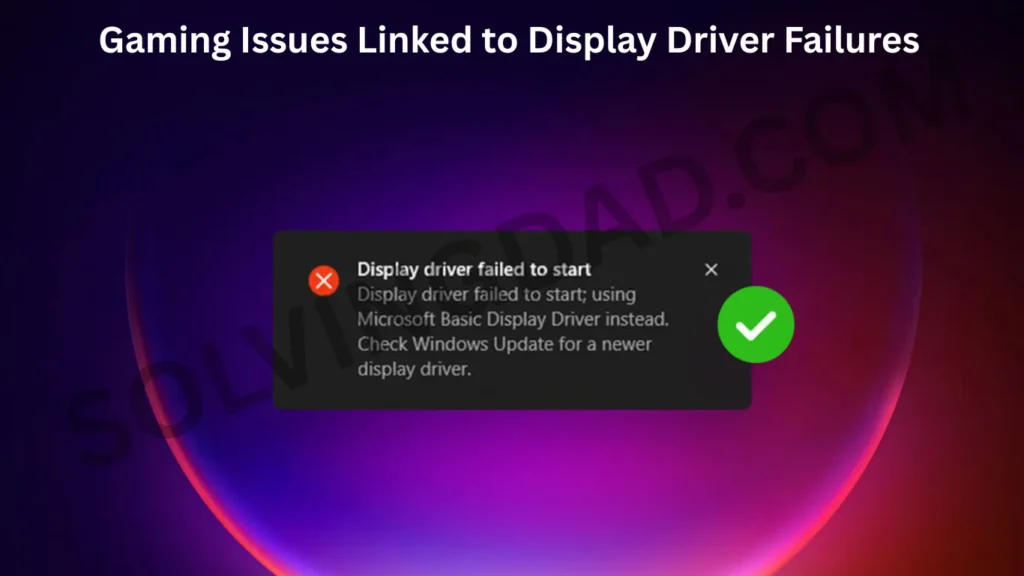
A partial or corrupted GPU driver installation is one of the most common reasons for:
- Game crashes with error codes like
DXGI_ERROR_DEVICE_HUNG - Black screen crashes mid-session, especially after alt-tabbing
- Dropped frame rates that don’t respond to in-game settings
- Shader compilation failures on newer titles
Here’s the thing: game launchers like Steam, Xbox App, and Epic Games Launcher all rely on the display driver being fully functional. If even one core driver file is corrupted, the whole chain breaks.
Reinstalling the GPU driver — cleanly, without a system reset — is almost always the first recommended fix in gaming communities for good reason.
Driver Compatibility Problems in Windows 11
Windows 11 introduced stricter hardware compatibility requirements, and that’s created a new class of driver headaches.
Some older keyboards and display adapters technically work on Windows 11 but use legacy driver models (WDM vs. WDDM, for instance) that clash with how Windows 11 handles hardware abstraction. The result? Intermittent failures, devices that disappear from Device Manager, or drivers that install but don’t actually function.
Additionally, if you’ve upgraded from Windows 10 to Windows 11 rather than doing a fresh install, some driver metadata from the old OS can linger and conflict with new driver packages. This is one of the most overlooked causes of persistent driver issues.
The solution in these cases is a clean uninstall followed by a fresh driver installation — not a Windows reset.
Windows Update Errors That Break Drivers
Microsoft’s Windows Update occasionally ships driver updates that are simply broken. It’s not common, but it happens — and when it does, it tends to happen to a lot of people at once.
Some well-documented examples include:
- Updates that rolled out a flawed Intel display driver, causing black screens on boot
- Cumulative updates that wiped custom keyboard remapping drivers
- Security patches that broke HID (Human Interface Device) compatibility for wireless keyboards
If your driver problem started right after a Windows Update, the culprit is almost certainly that update. In these cases, you’ll want to uninstall the specific update and roll back or reinstall the driver manually.
How to Fix Windows 11 Driver Issues — Step by Step
Here’s the complete process to reinstall your keyboard or display driver without resetting Windows. Follow these steps carefully.
Step 1: Open Device Manager
Press Windows + X and select Device Manager from the menu. This is your control center for all hardware drivers.
Step 2: Find Your Keyboard or Display Driver
- For keyboard: Expand Keyboards and right-click your keyboard device
- For display: Expand Display adapters and right-click your GPU (e.g., NVIDIA GeForce, AMD Radeon, Intel Iris)
Step 3: Uninstall the Driver
Select Uninstall device. A dialog box will appear — make sure to check “Delete the driver software for this device” if the option appears. This ensures the old driver files are fully removed.
For display drivers (especially NVIDIA and AMD), it’s strongly recommended to use a dedicated tool called Display Driver Uninstaller (DDU). Here’s why: Windows sometimes keeps cached driver files even after a Device Manager uninstall. DDU wipes them completely for a truly clean slate.
How to use DDU:
- Download DDU from the official Wagnardsoft website
- Boot into Safe Mode (press F8 during startup or go to Settings > Recovery > Advanced Startup)
- Run DDU and select “Clean and restart”
- Windows will boot with a generic display driver
Step 4: Reinstall the Driver
Now install the fresh driver. You have two options:
Option A — Let Windows do it automatically: Right-click your device in Device Manager and select “Update driver” > “Search automatically for drivers.” Windows will download and install the best available driver.
Option B — Install manually from the manufacturer: This is the more reliable route. Download the latest driver directly from:
- NVIDIA: nvidia.com/Download
- AMD: amd.com/en/support
- Intel: intel.com/content/www/us/en/download-center
- Keyboard OEM: Check your keyboard brand’s official support page (Logitech, Corsair, Razer, etc.)
Run the installer, restart when prompted, and you’re done.
Also Read: How to Use Windows 11 Without a Microsoft Account (Local Account Setup Guide)
Step 5: Verify Everything Is Working
After restarting, open Device Manager again and confirm there are no yellow warning icons next to your device. Test your keyboard input and check that your display resolution is back to its native setting.
Is Windows 11 Stable in 2026?
Honestly? Yes — mostly. Windows 11 has matured significantly since its rocky 2021 launch. Microsoft has addressed many of the driver compatibility issues, improved the update rollback process, and expanded hardware support considerably.
That said, driver-related problems haven’t disappeared entirely. Windows Update still occasionally pushes problematic driver updates, and older peripherals can still run into compatibility snags. The key difference in 2026 is that the recovery process is faster and better documented than it used to be.
For most users running modern hardware — from the last three to five years — Windows 11 is stable, capable, and worth staying on. The driver reinstall process outlined above works reliably and rarely requires more than 15–20 minutes to complete.
Also Read: Can’t Delete a Folder Because It’s Already in Use? Here’s How to Fix It in Windows 11
Final Verdict
Reinstalling a keyboard or display driver without resetting Windows is not only possible — it’s the smarter, faster fix in almost every situation. A full Windows reset deletes your apps, settings, and sometimes files. A driver reinstall fixes the actual problem in minutes.
Whether you’re dealing with a black screen, a ghost keyboard, a gaming crash, or a sluggish PC, the step-by-step process above will get you back on track. And if the issue comes back after reinstalling, that’s a signal to look deeper — at Windows Update history, device compatibility, or potential hardware failure.
FAQs
Can I reinstall a display driver without Safe Mode?
Yes, in most cases you can reinstall a display driver without entering Safe Mode. However, if your screen is flickering severely or Windows keeps crashing during the uninstall, Safe Mode gives you a stable environment to work in. For NVIDIA and AMD users, running Display Driver Uninstaller (DDU) in Safe Mode is the recommended best practice for a clean removal.
Will reinstalling a driver delete my files or programs?
No. Reinstalling a keyboard or display driver does not affect your personal files, installed apps, or Windows settings. Drivers are low-level software components that communicate between hardware and the OS — uninstalling and reinstalling them only resets that communication layer, nothing else.
How do I reinstall my keyboard driver if the keyboard isn’t working at all?
If your keyboard is completely unresponsive, use a USB mouse to navigate to Device Manager. Right-click the keyboard entry under the “Keyboards” section, select “Uninstall device,” then restart. Windows will attempt to reinstall the driver automatically on reboot. Alternatively, plug in a different USB keyboard to use as a temporary input device while you reinstall the driver for your primary keyboard.
Why does my display driver keep crashing after reinstalling?
Recurring display driver crashes after a reinstall usually point to one of three things: a hardware problem with the GPU (overheating or a failing card), a corrupted Windows system file (run sfc /scannow in Command Prompt), or a conflicting application like an overclocking tool. Try a clean DDU uninstall, reinstall the latest stable driver version (not the newest beta), and monitor GPU temperatures using a tool like HWiNFO.
What is the difference between updating a driver and reinstalling it?
Updating a driver installs a newer version on top of the existing one, which can sometimes carry over corrupted files. Reinstalling a driver completely removes the old installation first and then installs fresh files — making it a more thorough fix. If “Update driver” didn’t solve your problem, a full uninstall and clean reinstall is always the next logical step.
How do I know which version of my display driver is installed?
Open Device Manager, expand “Display adapters,” right-click your GPU, and select “Properties.” Go to the “Driver” tab — you’ll see the driver version and date listed there. You can cross-reference this with the latest version on the manufacturer’s website to see if you’re running an outdated or potentially problematic build.
Does reinstalling a driver fix input lag on keyboards?
It can, yes. Input lag caused by a software driver issue — such as a corrupted HID driver or a USB polling rate conflict — is often resolved by a clean driver reinstall. However, if the lag persists after reinstalling, check for USB hub conflicts, try plugging the keyboard into a different port, and make sure no background software is intercepting keyboard input.
You don’t need to be a tech expert to do this. You just need the right guide.
For more straightforward, no-nonsense tech solutions just like this one, head over to solvingdad.com — where we break down complex fixes into steps that actually make sense.