
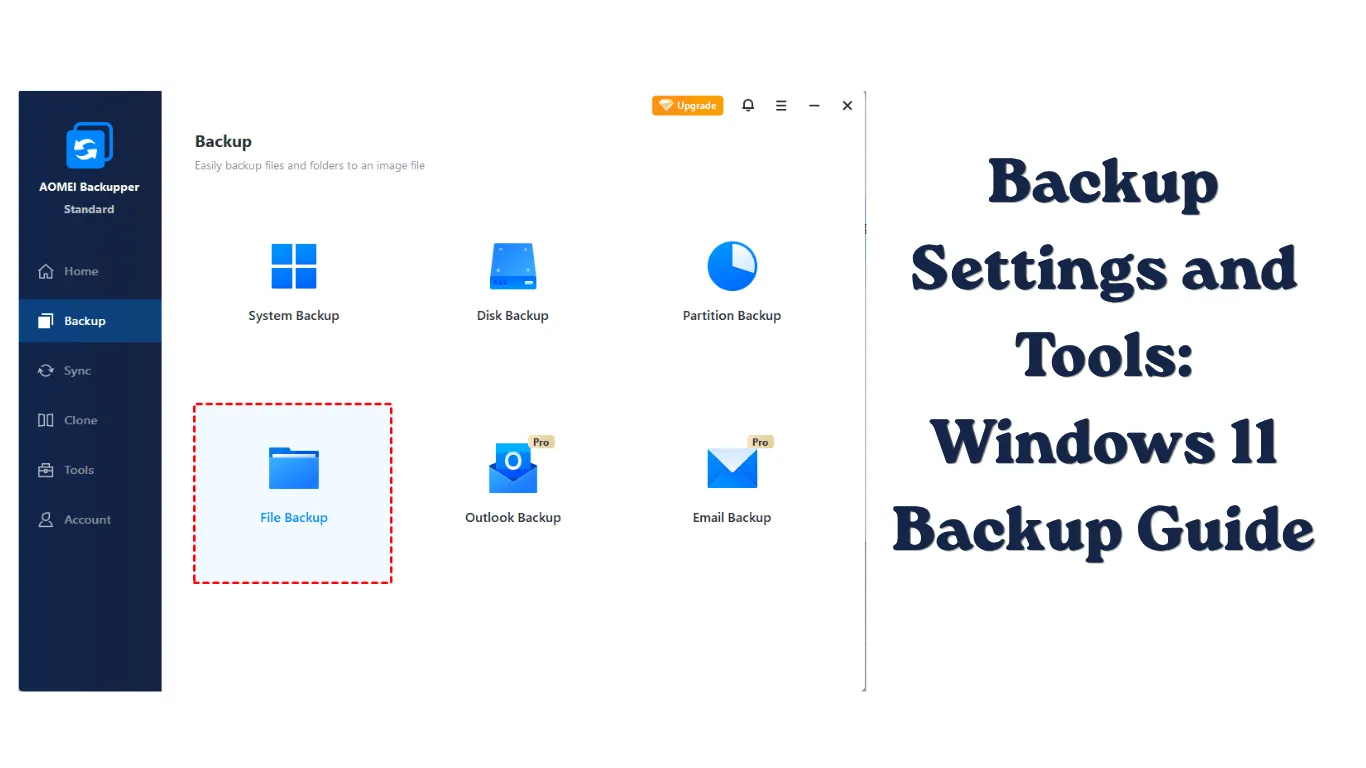
A failed drive, ransomware attack, accidental deletion, or a corrupted Windows update can erase years of important files in minutes. That is why understanding the right Backup Settings and Tools in Windows 11 is essential for every user, whether you store family photos, work documents, game saves, or business files.
Windows 11 includes several built-in backup options, but they are spread across different areas of the operating system. Some protect personal files, while others help you recover the entire system after a serious failure. In this guide, you will learn how to configure Windows 11 backup features, choose the right storage method, and create a backup strategy that actually works when you need it.
Why Windows 11 Backup Settings Matters
Many users think backups are only necessary when a computer starts showing signs of failure. Unfortunately, that approach usually comes too late.
A modern backup plan protects against situations like:
- SSD or HDD failure
- Malware and ransomware infections
- Accidental file deletion
- Failed Windows updates
- Lost or stolen laptops
- Hardware upgrades and migrations
A good backup system should not only store your files but also make recovery simple. A backup that takes hours to create but cannot be restored properly is not very useful.
Windows 11 offers several built-in options, including:
- OneDrive cloud backup
- File History
- Windows Backup app
- System image backups
- Recovery drives
- Third-party backup software
Each option serves a different purpose.
Best Backup Settings and Tools in Windows 11
1. Configure Windows Backup App for Cloud Protection
Windows 11 includes the Windows Backup app, which connects your important settings and files with your Microsoft account.
It can help back up:
- Desktop folders
- Documents
- Pictures
- Windows settings
- App preferences
- Wi-Fi network information
To open Windows Backup:
- Press Windows + I to open Settings.
- Go to Accounts.
- Select Windows backup.
- Turn on the backup options you need.
The Windows Backup app works best for users who regularly use Microsoft services. It is especially useful when moving to a new Windows 11 computer because many settings can automatically sync after signing in.
However, it is not a complete system backup solution. It does not create an exact copy of your Windows installation.
2. Use OneDrive Folder Backup for Important Files
For everyday users, OneDrive is one of the simplest Windows 11 backup solutions.
OneDrive can automatically protect common folders:
- Desktop
- Documents
- Pictures
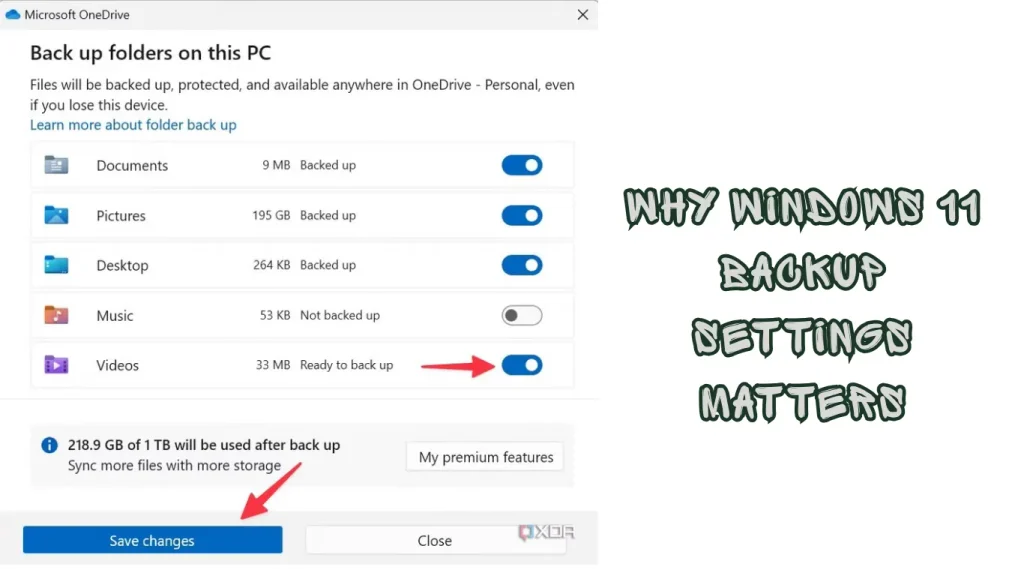
To enable folder backup:
- Click the OneDrive cloud icon in the taskbar notification area.
- Select Settings.
- Open the Sync and backup tab.
- Click Manage backup.
- Choose the folders you want to protect.
- Select Start backup.
Once enabled, files saved in these folders sync to your Microsoft account.
This setup is useful for users who work across multiple devices. For example, if your laptop fails, you can sign into another Windows PC and access your synced files.
Important limitation
OneDrive is synchronization, not a traditional backup.
If you delete a file from your synced folder, the deletion may also sync. For critical files, keep an additional offline backup.
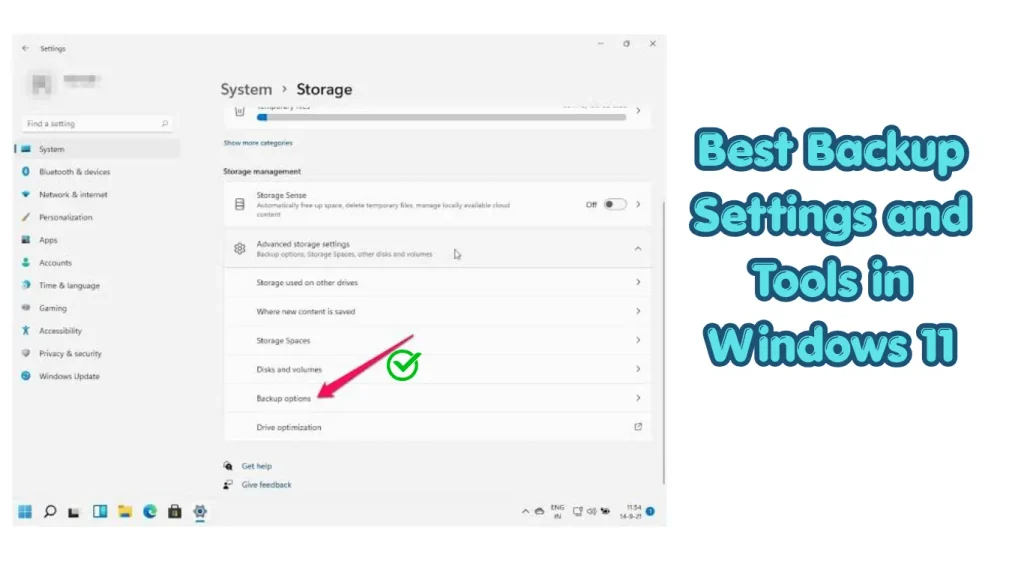
3. Enable File History for Local File Backups
File History is a classic Windows backup feature that saves previous versions of files to an external drive or network location.
It is useful when you need to restore an older version of a document.
How to set up File History in Windows 11
- Connect an external USB drive.
- Open Control Panel.
- Select System and Security.
- Click File History.
- Choose Turn on.
To change backup frequency:
- Open File History.
- Select Advanced settings.
- Adjust:
- Save copies of files
- Keep saved versions
You can restore files by:
- Searching for Restore your files with File History from Start.
- Browsing available versions.
- Selecting Restore.
File History limitations
Microsoft has moved many backup features toward the Settings app and OneDrive. Some Windows 11 installations may not highlight File History prominently, but the Control Panel option is still available.
4. Create a System Image Backup
A system image creates a complete copy of your Windows installation, including:
- Windows files
- Installed programs
- System settings
- Drivers
This is useful if your main drive fails and you need to restore the entire computer.
Creating a system image backup
- Open Control Panel.
- Go to System and Security.
- Select Backup and Restore (Windows 7).
- Click Create a system image.
- Choose a destination:
- External hard drive
- DVD
- Network location
- Follow the backup wizard.
This tool is a legacy Windows feature, but it remains available in Windows 11.
For most users, a system image should be used alongside regular file backups rather than as the only backup method.
5. Create a Windows 11 Recovery Drive
A recovery drive helps you troubleshoot or reinstall Windows when the operating system cannot start normally.
You need:
- A USB drive with enough storage space
- Administrator access
Steps to create a recovery drive
- Press Windows + S.
- Search for Recovery Drive.
- Select Create a recovery drive.
- Approve the administrator prompt.
- Follow the wizard.
Microsoft recommends selecting Back up system files to the recovery drive if available.
A recovery drive is not a replacement for a personal file backup. It helps repair Windows but does not automatically protect your documents.
Recommended Windows 11 Backup Settings for Different Users
The best setup depends on how you use your PC.
Everyday Home Users
Recommended setup:
- Enable OneDrive folder backup
- Keep File History enabled
- Use an external drive monthly
Example:
A user storing family photos should keep cloud copies through OneDrive and a separate external drive backup.
Gamers
Gamers should consider backing up:
- Save game folders
- Screenshots
- Configuration files
- Mod folders
Many games use cloud saves, but not every game supports them.
Check important game folders manually before reinstalling Windows.
Power Users and IT Administrators
A stronger setup includes:
- Daily file backups
- Weekly system images
- Recovery USB drive
- Offline backup storage
Businesses should also consider centralized backup solutions with monitoring and retention policies.
Step-by-Step: Create a Reliable Windows 11 Backup Plan (Backup Settings)
A simple backup routine can prevent most data-loss problems.
Step 1: Identify Important Data
List the files you cannot replace:
- Documents
- Photos
- Videos
- Projects
- Password manager exports
- Work files
Avoid wasting backup space on temporary downloads or cache folders.
Step 2: Choose Backup Locations
Use multiple storage types:
- Cloud storage for accessibility
- External drives for offline copies
- Network storage for advanced setups
A common approach is the 3-2-1 backup rule:
- 3 copies of your data
- 2 different storage types
- 1 copy stored separately
Step 3: Schedule Automatic Backups
Manual backups are often forgotten.
Configure:
- OneDrive automatic syncing
- File History schedules
- Backup software schedules
Automation removes the need to remember every backup task.
Step 4: Test Your Backup
A backup is only valuable if restoration works.
Test by:
- Restoring a sample file
- Checking backup folders
- Confirming cloud synchronization
Many users discover backup problems only after losing important data.
Common Windows 11 Backup Problems and Fixes (Backup Settings)
File History Is Not Working
Try these fixes:
- Confirm the external drive is connected.
- Restart the File History Service.
- Check available storage space.
- Remove and reconnect the backup drive.
You can also run:
services.mscand verify related Windows services are running.
OneDrive Backup Is Not Syncing
Check:
- Internet connection
- Microsoft account login
- OneDrive storage availability
Reset OneDrive if needed:
- Press Windows + R.
- Enter:
%localappdata%\Microsoft\OneDrive\OneDrive.exe /reset- Press Enter.
Backup Drive Is Not Detected
Possible causes:
- Faulty USB cable
- Drive letter conflict
- File system issues
Open Disk Management:
- Press Windows + X.
- Select Disk Management.
- Check whether the drive appears.
Avoid formatting a drive before confirming it does not contain important data.
Should You Use Third-Party Backup Software (Backup Settings)?
Windows built-in tools work well for basic protection, but advanced users may prefer third-party applications.
Third-party backup tools may provide:
- Incremental backups
- Disk cloning
- Better scheduling
- Encryption
- Cloud integration
Before installing any backup software, verify that it supports Windows 11 and creates recovery media.
Avoid unknown free backup programs because some include unwanted software or unreliable restore features.
Security Tips for Windows 11 Backups
A backup can become a target for attackers.
Follow these practices:
- Encrypt sensitive backups
- Keep one backup disconnected from your PC
- Use strong Microsoft account security
- Enable two-factor authentication
- Do not keep all backups connected permanently
An external drive connected 24/7 can also be encrypted by ransomware.
Also Read: How to Set Up Windows 11 Security Features Like Firewall & BitLocker
Conclusion
The best Backup Settings and Tools strategy in Windows 11 combines convenience and reliability. OneDrive protects frequently used files, File History keeps previous versions, and system images help recover from major failures.
Do not rely on a single backup method. A combination of cloud storage, an external drive, and occasional recovery testing provides much stronger protection.
The most important step is simply starting. A backup created today can save hours, days, or even years of lost work later.
FAQ Section
Does Windows 11 have a built-in backup tool?
Yes. Windows 11 includes several backup options, including Windows Backup, OneDrive folder backup, File History, Recovery Drive, and the Backup and Restore (Windows 7) system image tool.
What is the best backup setting for Windows 11?
For most users, enabling OneDrive folder backup combined with an external drive using File History provides a balanced backup setup.
Does Windows 11 automatically back up files?
Windows 11 does not automatically back up all files by default. You must enable features like OneDrive backup or File History manually.
Can I create a full Windows 11 backup?
Yes. You can create a system image using Control Panel → System and Security → Backup and Restore (Windows 7). This creates a complete copy of your system.
How often should I back up my Windows 11 PC?
Important files should be backed up daily or continuously using automatic tools. Full system backups can usually be created weekly or monthly depending on how often your computer changes.