
Windows 11 Start Menu Not Opening is one of the most frustrating problems users face after updates, driver changes, or system errors. The Start Menu is the heart of Windows — it helps you open apps, search files, access settings, and shut down your computer. When it stops working, even simple tasks become difficult.
The good news? You don’t need advanced technical skills to fix this issue. In this beginner-friendly guide, you’ll learn simple, safe, and step-by-step solutions to restore your Start Menu quickly. Every method below is tested and easy to follow, even if you are not a computer expert.
Why Is the Windows 11 Start Menu Not Opening?
Before fixing the issue, it’s helpful to understand what causes it. Usually, the problem happens due to:
- Corrupted system files
- Windows update bugs
- Explorer process crashes
- Broken user profile
- Background app conflicts
- Outdated graphics or system drivers
- Search or Start Menu services failing
Sometimes the Start Menu freezes completely, while in other cases it simply doesn’t respond when clicked.
Also Read: How to Fix “No Internet, Secured” Error in Windows 11 (2025 Guide)
Fix 1: Restart Windows Explorer (Quickest Solution)
If your Windows 11 Start Menu Not Opening problem appeared suddenly, restarting Windows Explorer often fixes it instantly.
Steps:
- Press Ctrl + Shift + Esc to open Task Manager.
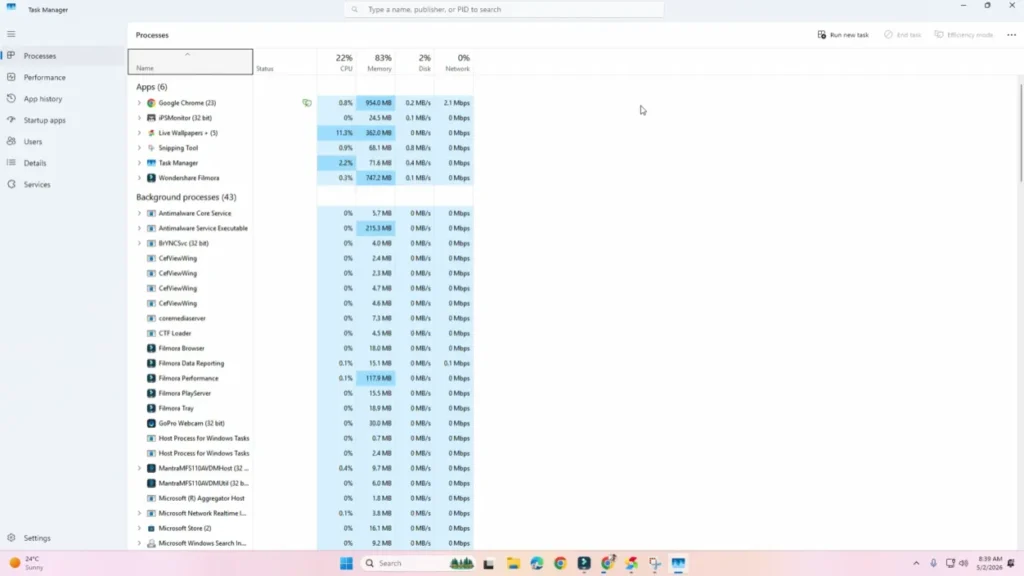
- Scroll down and find Windows Explorer.
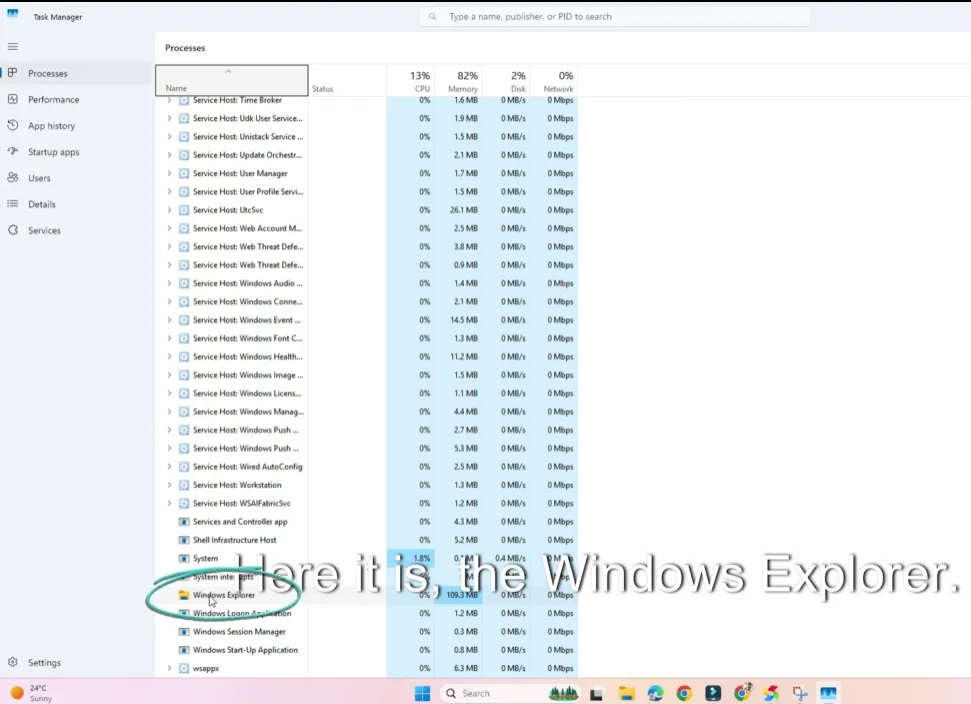
- Right-click it.
- Click Restart.
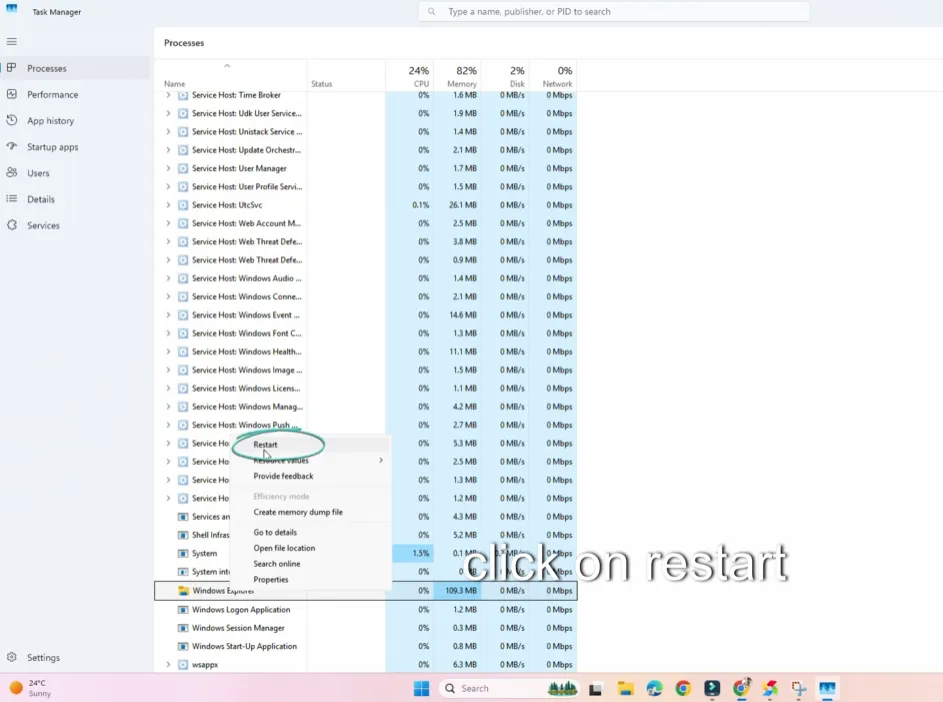
Your screen may flicker for a moment — this is normal. Now try opening the Start Menu again.
👉 This works because Explorer controls the desktop interface, including the taskbar and Start Menu.
Fix 2: Restart Your Computer Properly
Many users skip a proper restart and only shut down their PC.
Correct way:
- Press Ctrl + Alt + Delete.
- Click the Power icon.
- Select Restart.
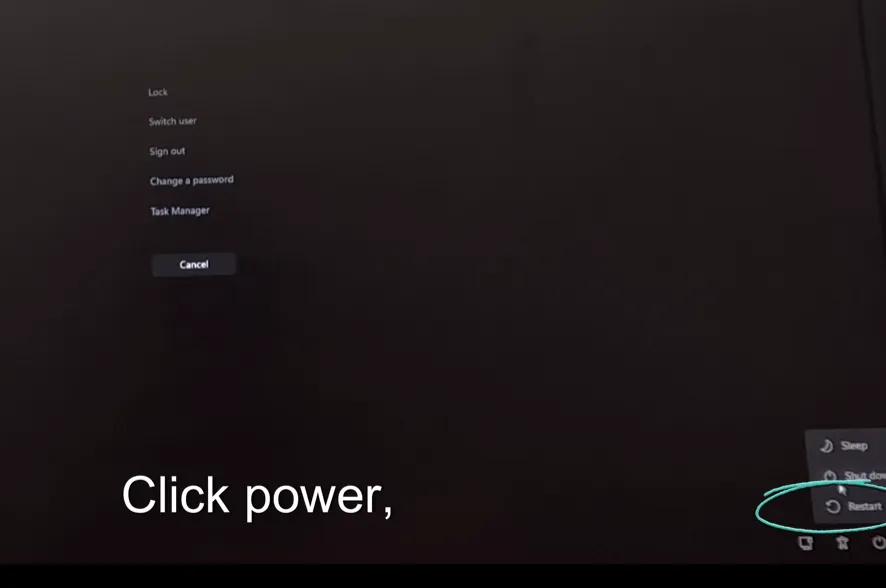
A restart clears temporary system glitches that may cause the Start Menu to stop responding.
Fix 3: Run System File Checker (SFC Scan)
Corrupted system files are a major reason behind the Windows 11 Start Menu Not Opening issue.
Steps:
- Press Windows + X.
- Select Windows Terminal (Admin).
- Type:
sfc /scannow
- Press Enter.
- Wait until the scan reaches 100%.
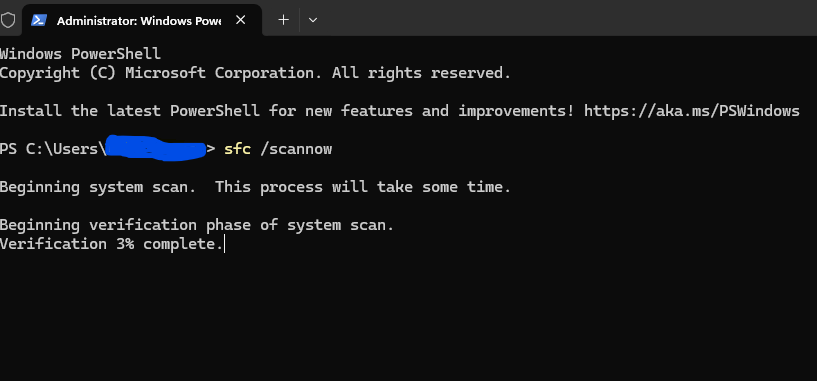
Windows will automatically repair damaged files.
Fix 4: Use DISM Command to Repair Windows Image
If SFC doesn’t fix the problem, use DISM.
Steps:
Open Windows Terminal (Admin) and run:
DISM /Online /Cleanup-Image /RestoreHealth
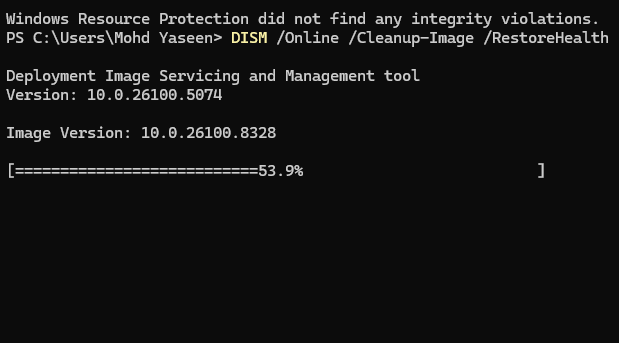
This command repairs deeper system corruption affecting Windows features like the Start Menu.
After completion, restart your PC.
Fix 5: Re-register the Start Menu Using PowerShell
Sometimes the Start Menu apps become unregistered after updates.
Steps:
- Press Ctrl + Shift + Esc → Task Manager.
- Click File → Run new task.
- Type powershell.
- Tick Create this task with administrative privileges.
- Paste this command:
Get-AppxPackage Microsoft.Windows.ShellExperienceHost | Foreach {Add-AppxPackage -DisableDevelopmentMode -Register "$($_.InstallLocation)\AppXManifest.xml"}
- Press Enter.
This rebuilds the Start Menu components.
Fix 6: Check for Windows Updates
Microsoft frequently releases fixes for bugs causing the Windows 11 Start Menu Not Opening error.
Steps:
- Open Settings using Windows + I.
- Go to Windows Update.
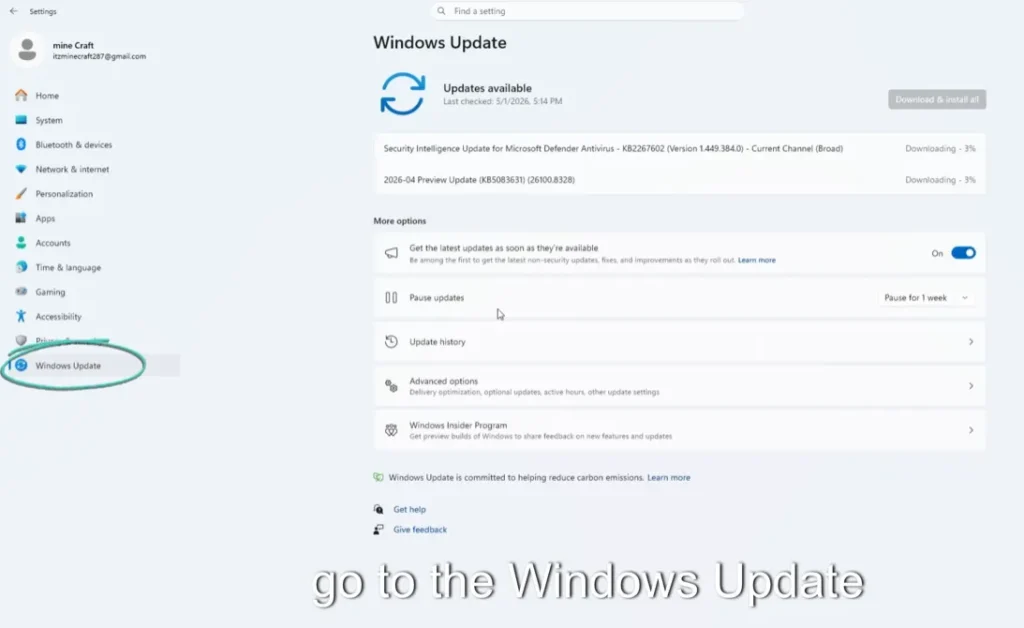
- Click Check for updates.
- Install all available updates.
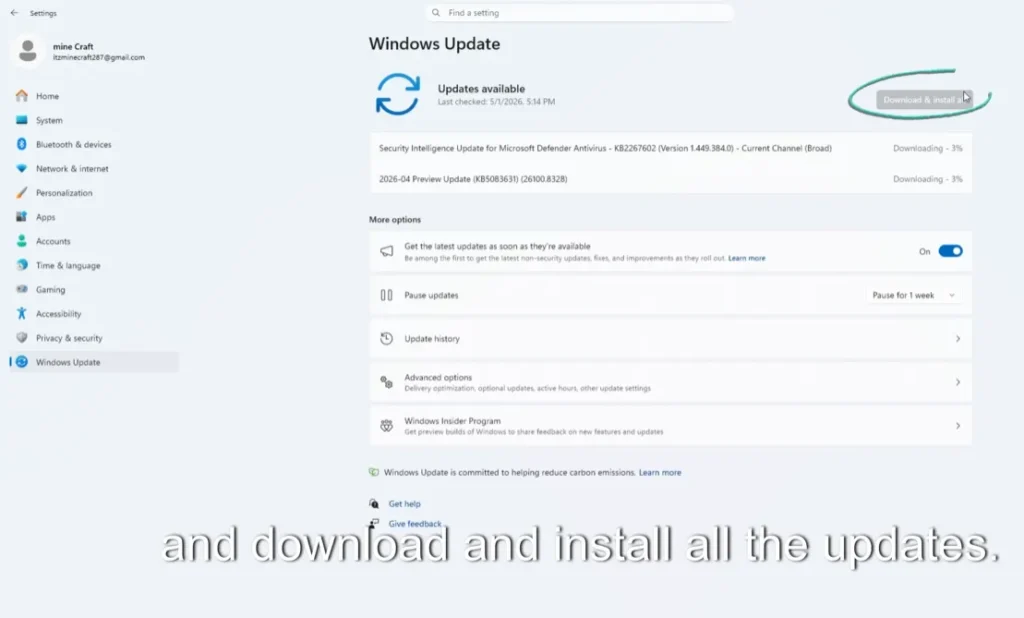
Restart your PC afterward.
Fix 7: Create a New User Account
If your user profile is corrupted, the Start Menu may stop working.
Steps:
- Open Settings.
- Go to Accounts → Other users.
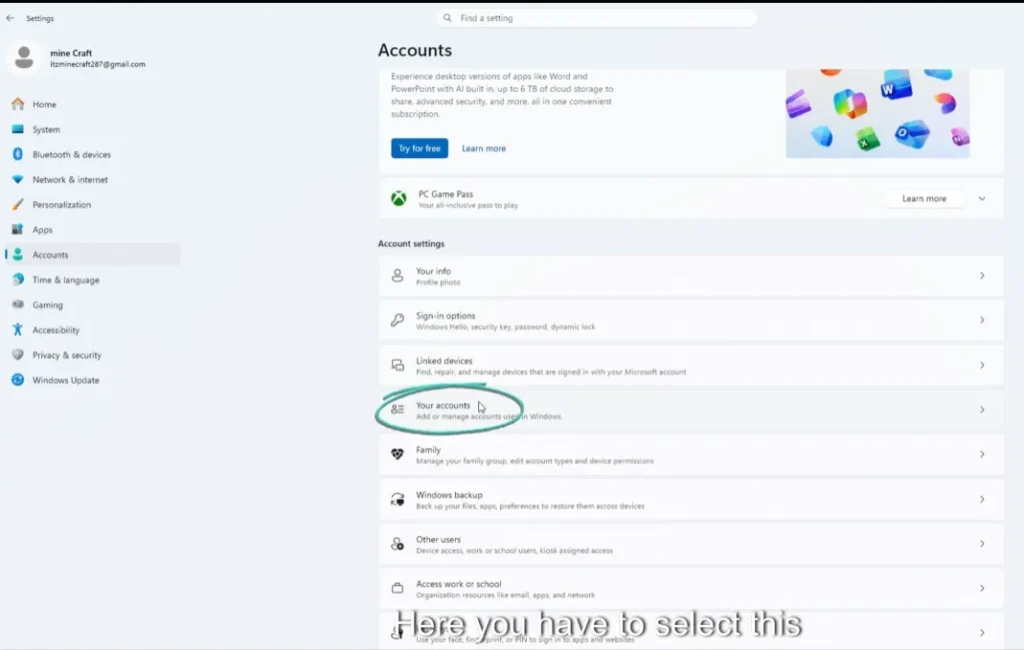
- Click Add account.
- Create a new local account.
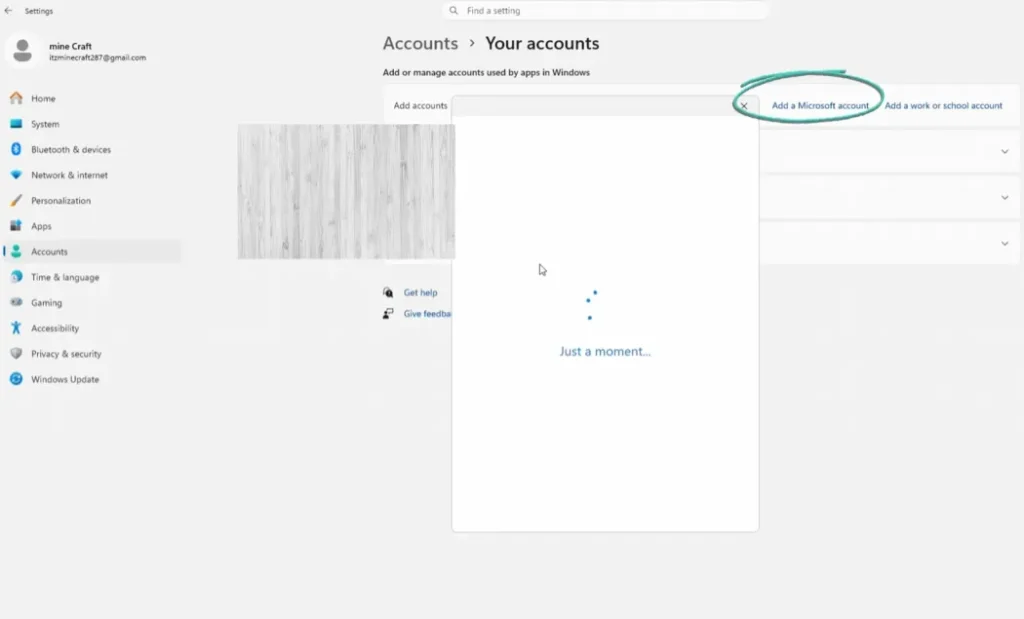
Log into the new account and check if the Start Menu works.
If it does, your old profile is likely damaged.
Fix 8: Disable Third-Party Startup Apps
Some optimization or customization software conflicts with Windows UI.
Steps:
- Open Task Manager.
- Go to Startup apps tab.
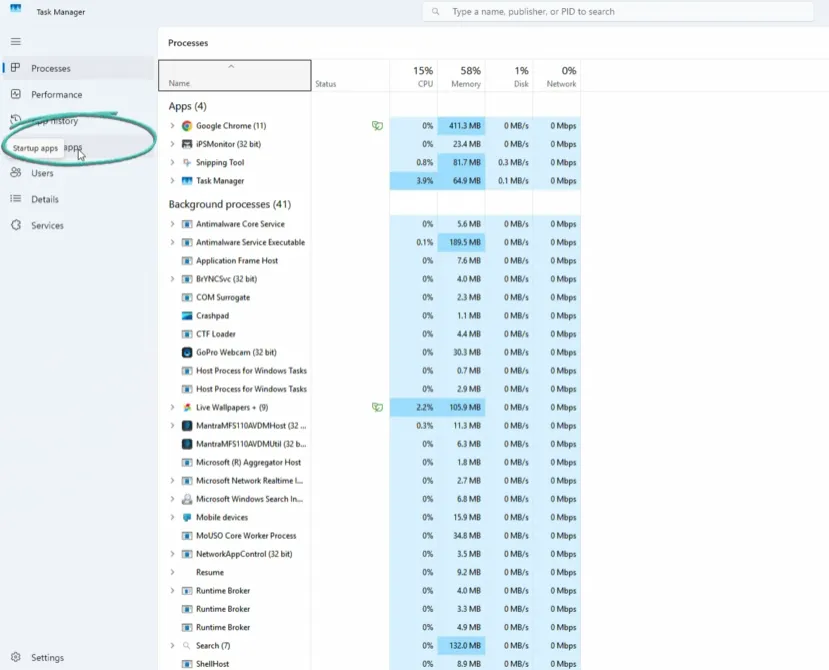
- Disable unnecessary programs.
- Restart your computer.
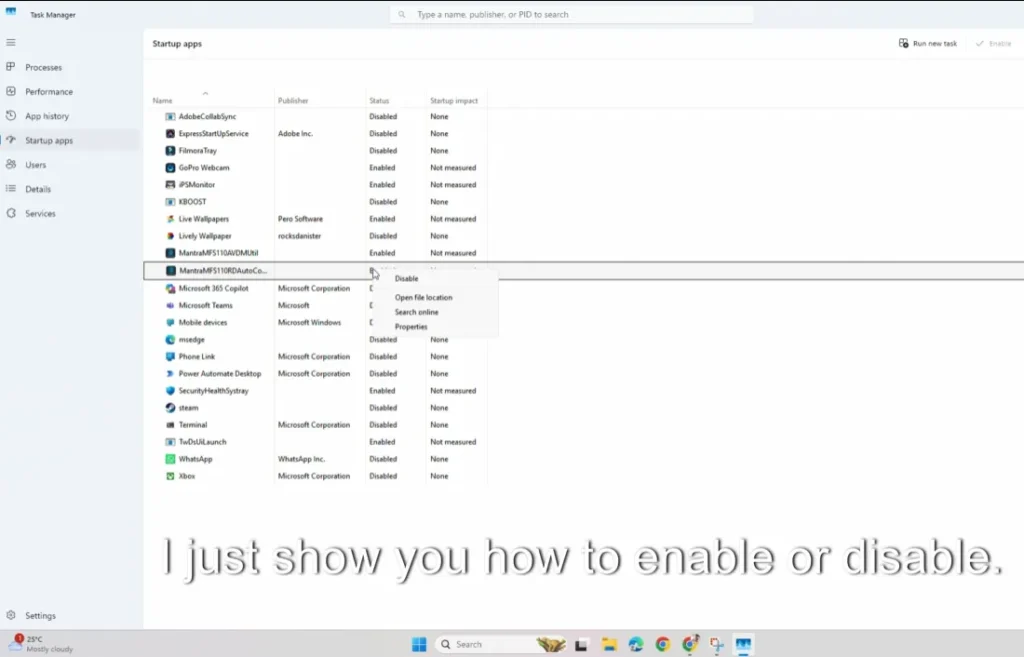
This often resolves Start Menu freezing issues.
Fix 9: Restart Start Menu Services
Certain background services must run correctly.
Steps:
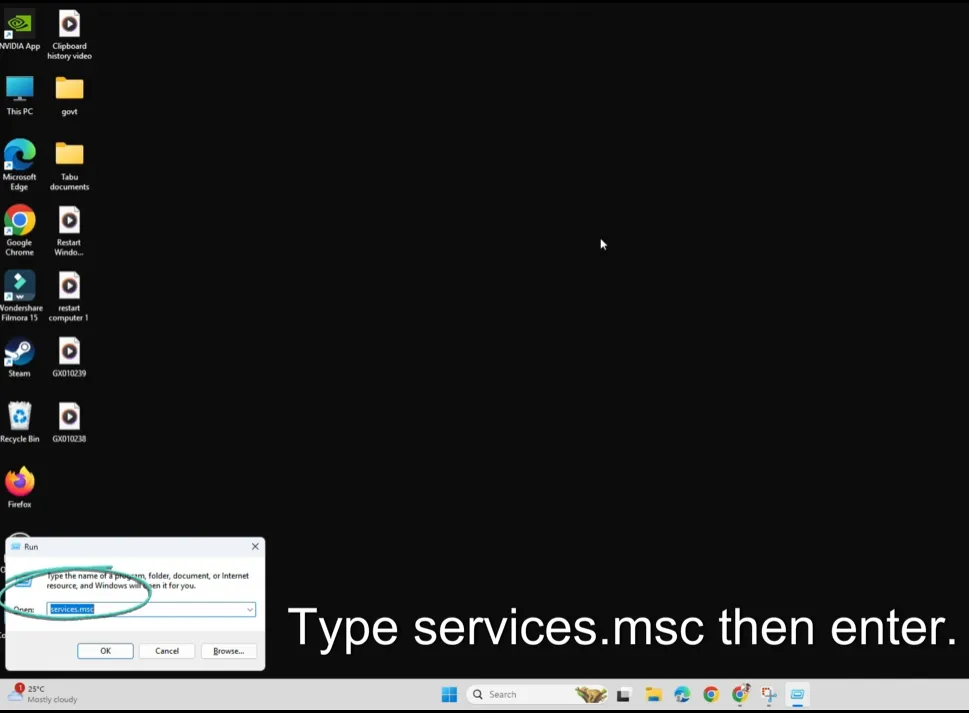
- Press Windows + R.
- Type:
services.msc
- Locate:
- Windows Search
- User Manager
- Right-click → Restart.
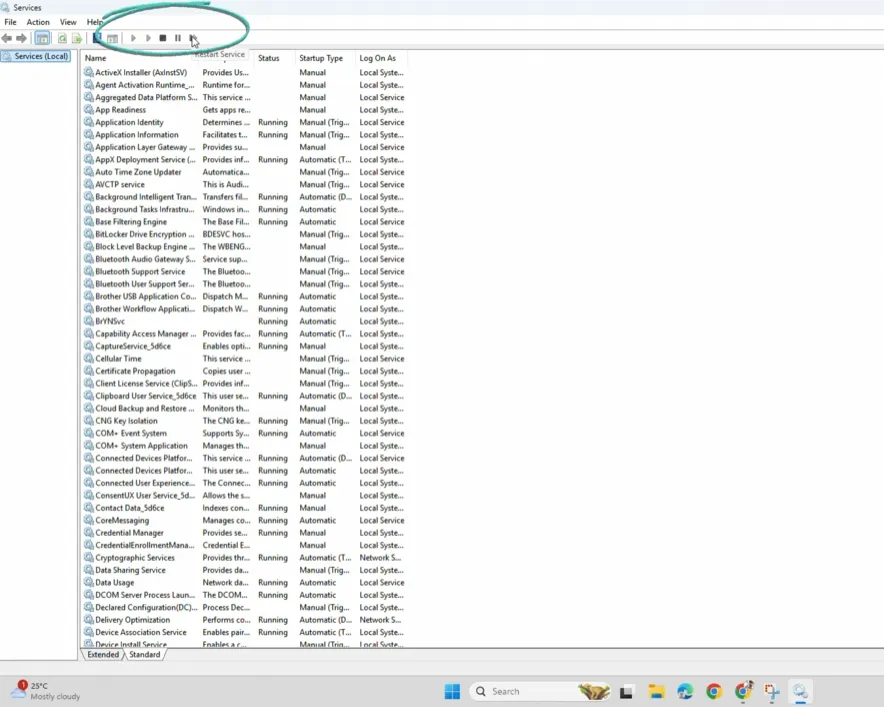
Now test the Start Menu again.
Fix 10: Reset Windows (Last Option)
If nothing works, resetting Windows fixes almost all system issues.
Steps:
- Open Settings.
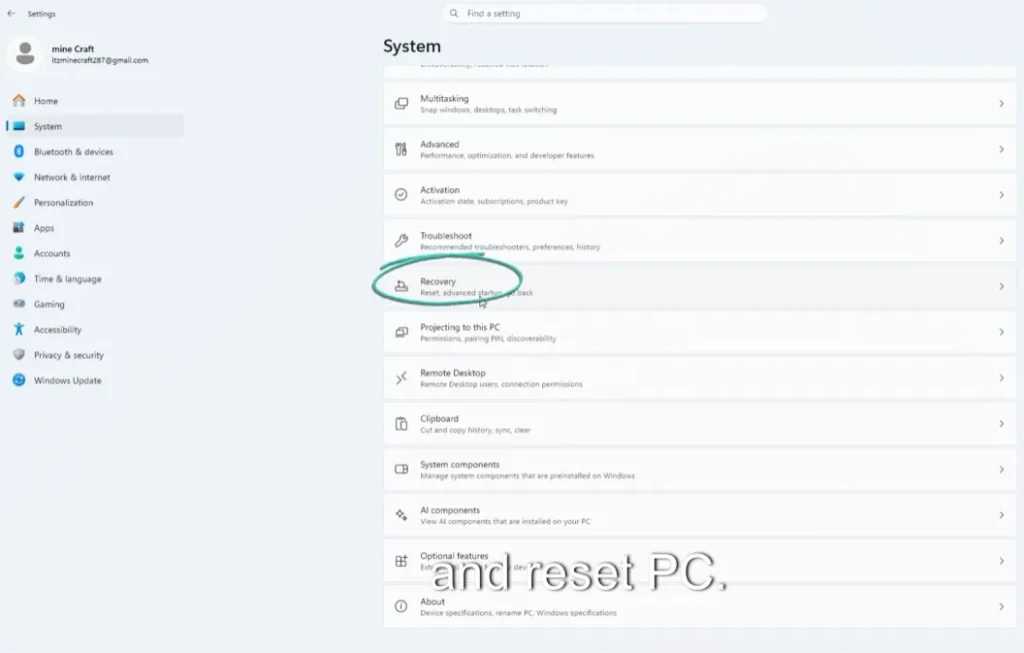
- Go to System → Recovery.
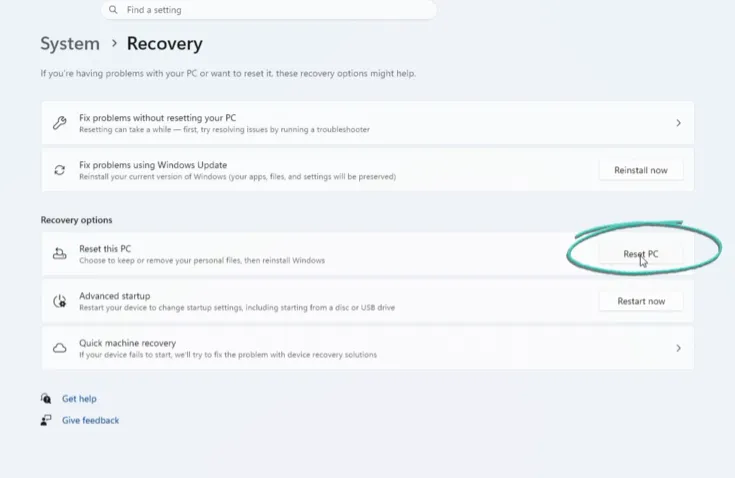
- Click Reset this PC.
- Choose Keep my files.
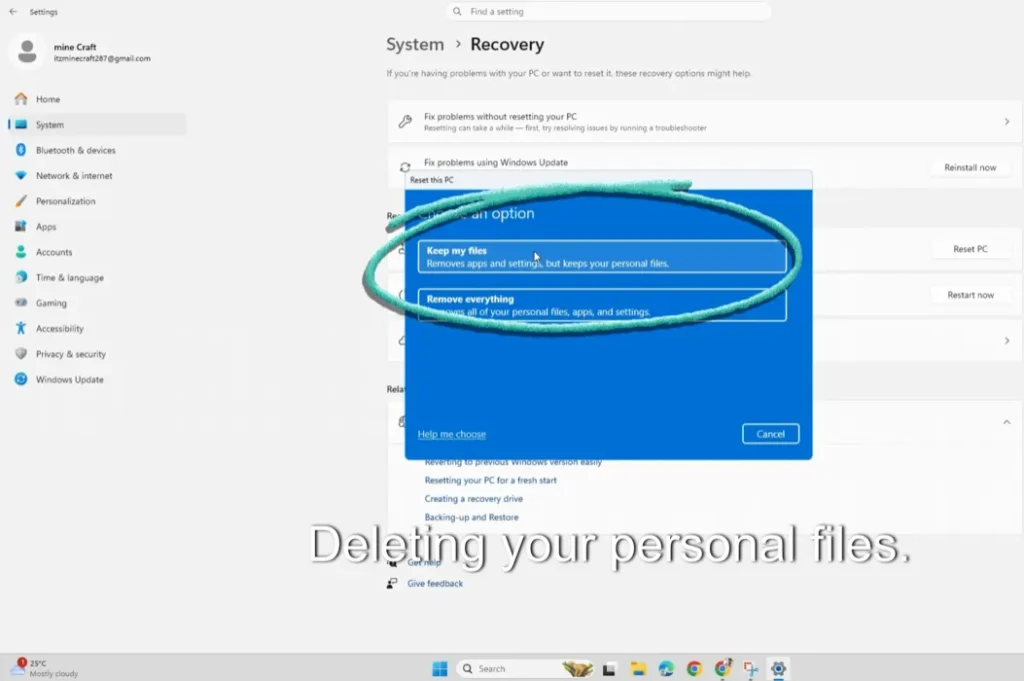
This reinstalls Windows without deleting personal data.
SEO Optimization Tips (For Readers & Bloggers)
If you run a PC smoothly, productivity increases — and understanding common Windows problems helps you troubleshoot faster.
This guide focuses on beginner solutions because most users search for quick, easy fixes rather than technical explanations.
Also Read: Windows 11 Startup Slow? 12 Proven Tweaks to Speed Up Boot Time
Frequently Asked Questions (FAQs)
Why is my Start Menu not opening in Windows 11?
Usually due to corrupted system files, update bugs, or Explorer crashes. Restarting Explorer or running SFC scan fixes it in most cases.
Can a Windows update break the Start Menu?
Yes. Some updates temporarily cause interface issues, which are later fixed through patches.
Is it safe to use PowerShell commands?
Yes, if you follow trusted guides. The commands mentioned above only repair Windows components.
Will resetting Windows delete my files?
If you choose Keep my files, your personal data remains safe.
How do I know if my user profile is corrupted?
If the Start Menu works in a new account but not your old one, your profile is likely damaged.
Final Thoughts
The Windows 11 Start Menu Not Opening problem may look serious, but in most cases it can be fixed within minutes using simple troubleshooting steps. Start with quick solutions like restarting Windows Explorer, then move toward system scans and updates if needed.
The key is to follow each step patiently. You don’t need professional repair services — most users can solve this issue at home.
If you found this guide helpful, consider bookmarking SolvingDad.com for more beginner-friendly Windows fixes and troubleshooting tutorials designed to make your computer life easier.
Also Read: