
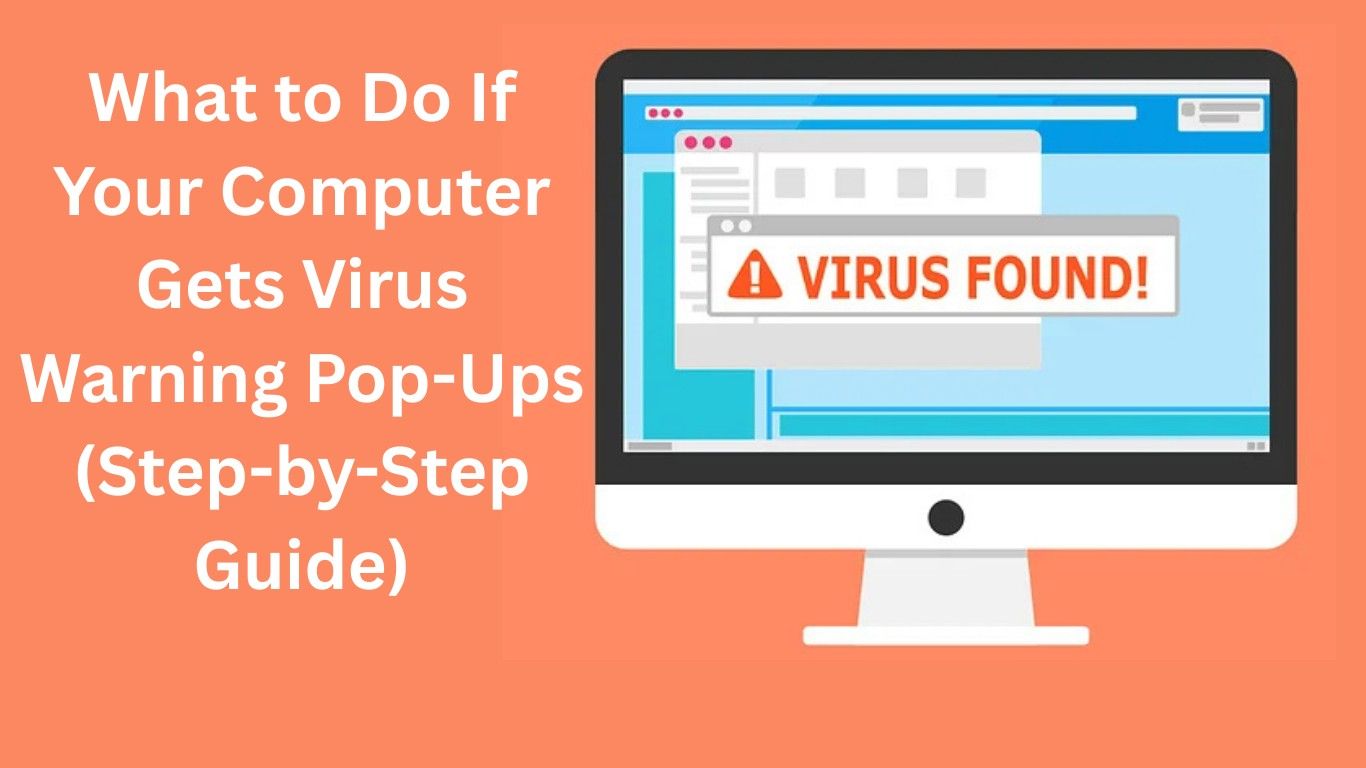
What to Do If Your Computer Gets Virus Warning Pop-Ups is one of the most common problems faced by Windows users today. Suddenly, scary alerts appear on your screen saying “Your PC is infected!”, “Virus detected – Call support now!”, or “Immediate action required”. These pop-ups can confuse even experienced users, and beginners often panic and click the wrong buttons.
If you are seeing virus warning pop-ups, do not panic. In most cases, these alerts are fake, created to scare you into installing harmful software or calling scam numbers. In this step-by-step guide, you’ll learn exactly what to do if your computer gets virus warning pop-ups, how to remove them safely, and how to prevent them in the future.
Why Do Virus Warning Pop-Ups Appear on Your Computer?
Before fixing the issue, it’s important to understand why it happens.
Common Reasons for Virus Warning Pop-Ups
- Visiting unsafe or fake websites
- Clicking on misleading ads or download buttons
- Installing free software from untrusted sources
- Allowing browser notifications from scam websites
- Outdated Windows or browser security settings
Most virus warning pop-ups are browser-based scams, not real virus detections.
Also Read: What are the Applications of Computer Graphics?
How to Identify Fake Virus Warning Pop-Ups
Knowing whether a warning is real or fake can save your computer.
Signs of Fake Virus Pop-Ups
- The message appears inside a web browser (Chrome, Edge, Firefox)
- It asks you to call a phone number immediately
- It forces fullscreen mode and won’t close easily
- It uses brand names like Microsoft, Windows, or McAfee incorrectly
- Poor grammar or exaggerated threats like “Data will be deleted in 5 minutes”
👉 Important: Microsoft and Windows never display virus warnings with phone numbers.
Also Read: HOW TO PROTECT YOURSELF FROM MALWARE WHEN USING WINDOWS COMPUTER?
Step 1: Do NOT Click Anything on the Pop-Up
The first rule when dealing with virus warning pop-ups:
❌ Do Not:
- Click “OK”, “Cancel”, or “Scan Now”
- Call any number shown
- Download suggested software
Even clicking “X” can sometimes trigger malicious scripts.
Step 2: Force Close Your Browser Safely
If your browser is stuck or fullscreen:
How to Force Close Browser
- Press Ctrl + Shift + Esc
- Open Task Manager
- Select your browser (Chrome / Edge / Firefox)
- Click End Task
This safely shuts down the pop-up without interacting with it.
Step 3: Reopen Browser in Safe Mode (Without Restoring Tabs)
When reopening your browser:
- Choose “No” if asked to restore previous tabs
- This prevents the pop-up page from reopening
If the pop-up keeps coming back, continue with the next steps.
Step 4: Remove Suspicious Browser Extensions
Browser extensions are a major cause of repeated virus warnings.
How to Remove Malicious Extensions
- Open browser settings
- Go to Extensions
- Remove:
- Unknown extensions
- Extensions you didn’t install
- Anything related to ads, coupons, or “security alerts”
Restart your browser after removal.
Step 5: Turn Off Spam Browser Notifications
Many fake virus alerts come through browser notifications.
Disable Notifications (Chrome / Edge)
- Go to Settings
- Open Privacy & Security
- Click Site Settings
- Open Notifications
- Remove suspicious websites from “Allowed”
This step alone fixes the issue for many users.
Step 6: Run a Full Virus Scan Using Windows Security
Now let’s check if your PC actually has malware.
How to Scan with Windows Defender
- Open Windows Security
- Click Virus & Threat Protection
- Select Scan Options
- Choose Full Scan
- Click Scan Now
Windows Defender is powerful and enough for most users.
Step 7: Remove Adware Using a Trusted Malware Scanner
If pop-ups persist, adware might be installed.
Recommended Action
- Use a reputable malware removal tool
- Avoid cracked or unknown antivirus software
- Scan and remove detected threats
⚠️ Never install antivirus software promoted by pop-ups.
Step 8: Check Installed Programs in Control Panel
Some fake software installs itself silently.
What to Do
- Open Control Panel
- Go to Programs & Features
- Uninstall:
- Unknown programs
- Recently installed suspicious software
- Fake “PC Cleaner” or “Security Tools”
Restart your computer afterward.
Step 9: Update Windows and Your Browser
Outdated systems are easier targets for scam pop-ups.
Keep Updated
- Install latest Windows Updates
- Update your browser to the latest version
- Enable automatic updates for security patches
How to Prevent Virus Warning Pop-Ups in the Future
Prevention is better than cure.
Safety Tips
- Avoid clicking flashy ads and fake download buttons
- Download software only from official websites
- Never allow notification access to unknown sites
- Use a standard user account instead of admin
- Keep Windows Security always enabled
Also Read: WHAT IS COMPUTER SCIENCE ENGINEERING?
Is My Data at Risk If I See Virus Warning Pop-Ups?
In most cases, no data is stolen unless:
- You downloaded software
- Entered personal details
- Called scam support numbers
If none of these happened, your system is likely safe.
FAQs – Virus Warning Pop-Ups
Q1. Are virus warning pop-ups real?
Most virus warning pop-ups are fake and browser-based scams designed to scare users.
Q2. Can Windows Defender remove pop-up viruses?
Yes, Windows Defender can remove most malware and adware if updated and used properly.
Q3. Should I install antivirus software shown in pop-ups?
No. Never install software recommended by pop-ups. Use trusted security tools only.
Q4. Why do virus pop-ups keep coming back?
This usually happens due to browser notifications, malicious extensions, or installed adware.
Q5. Will resetting my browser fix virus pop-ups?
Yes, resetting your browser often removes pop-ups caused by extensions and settings changes.
Final Words
What to Do If Your Computer Gets Virus Warning Pop-Ups is a problem that looks scary but is usually easy to fix when handled correctly. By following this step-by-step guide, you can safely remove fake alerts, protect your system, and avoid falling into online scams.
If you want more beginner-friendly Windows and computer fixes, keep visiting SolvingDad.com — where problems get solved the simple way.
Also Read: