
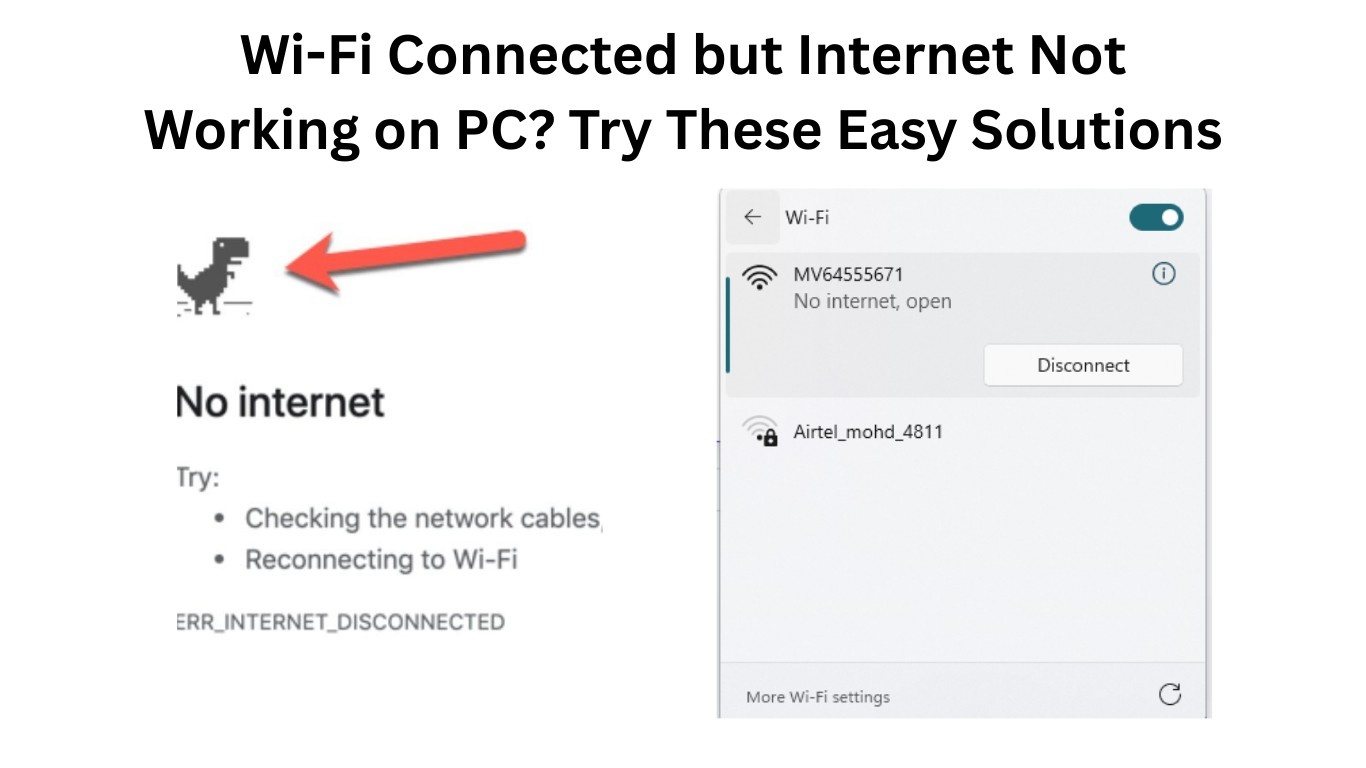
Wi-Fi connected but internet not working on PC is one of the most frustrating problems Windows users face today. Your computer shows full Wi-Fi bars, yet websites won’t load, apps stay offline, and even Windows updates fail. If you’re a normal user who doesn’t understand technical jargon, don’t worry — this guide is written in simple, step-by-step language to help you fix the issue easily.
In this article, you’ll learn why this problem happens, how to diagnose it properly, and the most effective solutions that actually work on Windows 10 and Windows 11.
Why Is Wi-Fi Connected but Internet Not Working on PC?
Before fixing the issue, it’s important to understand what’s going wrong. When your PC connects to Wi-Fi but has no internet, it usually means:
- Your router is connected, but your ISP (Internet Service Provider) is not providing internet
- Your PC network settings are misconfigured
- DNS or IP address problems are blocking access
- Outdated or corrupted network drivers
- Antivirus or firewall is interfering with the connection
The good news? Most of these issues can be fixed without calling a technician.
Also Read: How to Fix “No Internet, Secured” Error in Windows 11 (2025 Guide)
Step 1: Check Internet on Other Devices (Very Important)
First, check if the problem is only on your PC or on all devices.
- Connect your phone to the same Wi-Fi
- Try opening Google or YouTube
What this tells you:
- ✅ Internet works on phone → Problem is with your PC
- ❌ Internet not working anywhere → Router or ISP issue
If the internet is down on all devices, restart your router and contact your ISP. If only your PC is affected, continue below.
Step 2: Restart Your PC and Router (Don’t Skip This)
This may sound basic, but it solves the issue in many cases.
Restart router properly:
- Turn off the router
- Unplug power cable
- Wait 60 seconds
- Plug it back and turn it on
Now restart your PC and check if the Wi-Fi connected but internet not working on PC issue is fixed.
Step 3: Run Windows Network Troubleshooter
Windows has a built-in tool that automatically detects common problems.
How to run it:
- Right-click Wi-Fi icon in taskbar
- Click Troubleshoot problems
- Follow on-screen instructions
If Windows fixes something, restart your PC and test internet again.
Step 4: Disable and Re-Enable Wi-Fi Adapter
Sometimes the network adapter gets stuck.
Steps:
- Press Windows + R, type
ncpa.cpl, press Enter - Right-click Wi-Fi
- Click Disable
- Wait 10 seconds
- Right-click again → Enable
This refreshes the connection and often resolves the problem.
Step 5: Reset Network Using Command Prompt (Most Effective Fix)
This is one of the best solutions for “Wi-Fi connected but internet not working on PC”.
Follow carefully:
- Search CMD
- Right-click → Run as administrator
- Type the following commands one by one:
netsh winsock reset
netsh int ip reset
ipconfig /release
ipconfig /renew
ipconfig /flushdns
- Restart your PC
This resets all network components and fixes DNS/IP conflicts.
Step 6: Change DNS Settings (Highly Recommended)
Faulty DNS servers are a common reason for no internet access.
How to change DNS:
Also Read: What is DSL Internet? Decoding the Digital Subscriber Line Technology
- Open Control Panel
- Go to Network & Internet → Network Connections
- Right-click Wi-Fi → Properties
- Double-click Internet Protocol Version 4 (IPv4)
- Select Use the following DNS server addresses
- Enter:
- Preferred DNS: 8.8.8.8
- Alternate DNS: 8.8.4.4
- Click OK and restart
These are Google’s secure DNS servers and work reliably.
Step 7: Update or Reinstall Network Drivers
Outdated drivers can cause Wi-Fi issues after Windows updates.
Update driver:
- Press Windows + X → Device Manager
- Expand Network adapters
- Right-click Wi-Fi adapter
- Click Update driver
Reinstall driver (if update fails):
- Right-click adapter → Uninstall device
- Restart PC
- Windows will reinstall automatically
Step 8: Temporarily Disable Antivirus or Firewall
Some third-party antivirus programs block internet access.
- Temporarily disable antivirus
- Check if internet starts working
- If yes, add network exceptions or switch antivirus
Enable protection again after testing.
Step 9: Reset Network Settings (Last Option)
If nothing works, reset the entire network.
Steps:
- Open Settings
- Go to Network & Internet
- Click Advanced network settings
- Select Network reset
- Restart PC
This removes all saved Wi-Fi networks, so keep your password ready.
Common Mistakes to Avoid
- Restarting only PC, not router
- Ignoring driver updates
- Using random “network booster” apps
- Resetting Windows without trying network reset
Also Read: Best Free Utilities Every Windows User Should Install in 2025
FAQs – Wi-Fi Connected but Internet Not Working on PC
Q1. Why does my Wi-Fi show connected but no internet?
This usually happens due to DNS issues, IP conflicts, outdated drivers, or router/ISP problems.
Q2. Will changing DNS fix internet problems?
Yes, switching to Google DNS often fixes browsing and connection issues instantly.
Q3. Does Windows update cause Wi-Fi problems?
Sometimes. A driver conflict after updates can cause internet issues, which can be fixed by updating or reinstalling drivers.
Q4. Is network reset safe?
Yes. It only resets network settings and does not delete personal files.
Q5. Should I call a technician?
Not immediately. Try all steps in this guide first — most users fix the issue themselves.
Final Words
If your Wi-Fi connected but internet not working on PC, don’t panic. This is a common Windows issue, and in most cases, it can be fixed in under 10 minutes using the steps above. Bookmark this guide on SolvingDad.com so you always have a trusted solution when technology misbehaves.
Also Read: