
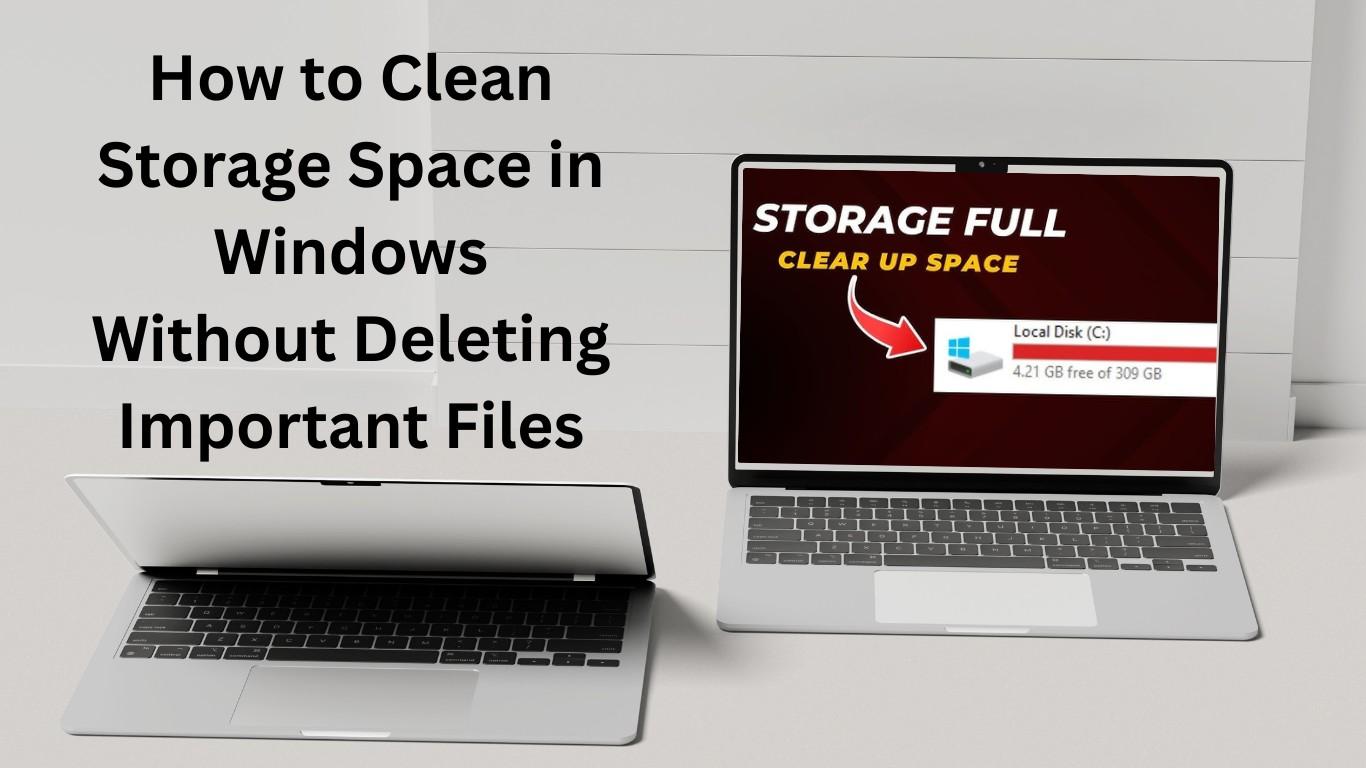
How to clean storage space in Windows without deleting important files is one of the most common problems faced by Windows 10 and Windows 11 users today. Over time, Windows slowly fills up with junk files, temporary data, system cache, update leftovers, and unnecessary background files — all of which eat up storage without you even realizing it.
If your computer shows “Low Disk Space” warnings, runs slower than usual, or fails to install updates, then learning how to clean storage space in Windows without deleting important files is essential. The good news is that Windows already provides powerful built-in tools to free up space safely — no technical skills required.
In this step-by-step guide, I’ll show you safe, proven, and beginner-friendly methods to clean your Windows storage without touching your personal data like documents, photos, videos, or software.
Why Windows Storage Gets Full Automatically
Before learning how to clean storage space in Windows without deleting important files, it’s important to understand what actually fills up your disk:
- Temporary system files
- Windows Update cache
- Old Windows installation files
- App cache and logs
- Browser cache and downloads
- Recycle Bin files
- Error reporting files
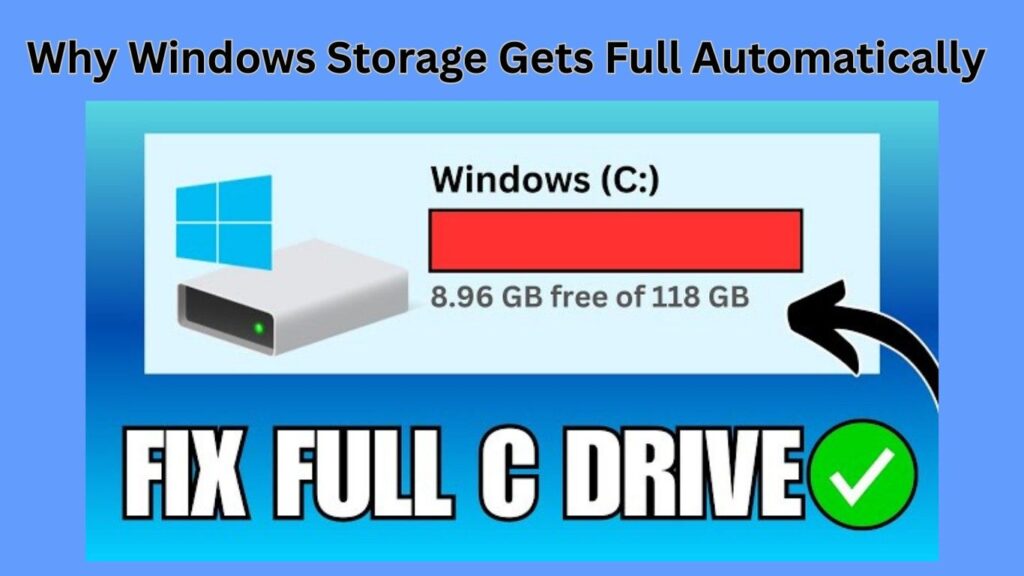
Most users never see these files, but together they can consume 10–30 GB or more of storage.
Also Read: How do I clean up my slow computer Windows 11?
Method 1: Use Windows Storage Sense (Safest Option)
Storage Sense is Microsoft’s built-in feature designed specifically to clean storage space without deleting important files.
Steps to Enable Storage Sense
- Press Windows + I to open Settings
- Go to System → Storage
- Turn Storage Sense ON
- Click on Storage Sense settings
Recommended Safe Settings
- ✔ Delete temporary files my apps aren’t using
- ✔ Delete files in Recycle Bin older than 30 days
- ❌ Do NOT enable automatic deletion from Downloads
Storage Sense focuses only on junk and system files, making it one of the safest ways to clean Windows storage.
Method 2: Clean Temporary Files Manually
This method directly supports how to clean storage space in Windows without deleting important files because Windows clearly shows what will be removed.
Steps
- Open Settings → System → Storage
- Click Temporary files
- Wait for Windows to calculate files
- Select:
- Temporary files
- Thumbnails
- Windows error reports
- Update cleanup
- Click Remove files
⚠️ Important:
Do NOT select “Downloads” unless you have checked the folder manually.
Method 3: Use Disk Cleanup Tool (Classic & Powerful)
Disk Cleanup is an old but extremely effective tool for cleaning system files safely.
Steps
- Press Windows + S
- Search Disk Cleanup
- Select your main drive (C:)
- Click Clean up system files
- Check:
- Windows Update Cleanup
- Temporary Windows installation files
- System error memory dump files
- Recycle Bin
This tool alone can free 5–20 GB without deleting personal files.
Method 4: Remove Old Windows Update Files
Windows keeps update backup files even after successful updates. These files are 100% safe to remove.
Use either:
- Disk Cleanup → Windows Update Cleanup
- Or Temporary Files → Update Cleanup
This is a must-do step in how to clean storage space in Windows without deleting important files.
Method 5: Clear Browser Cache (Chrome, Edge, Firefox)
Browsers store large cache files that can grow into multiple GBs.
Safe Cache Cleaning
- Open browser settings
- Clear:
- Cached images and files
- Do NOT clear:
- Passwords
- Autofill data
Clearing cache improves speed and frees storage safely.
Method 6: Find Large Files Without Deleting Them
Instead of deleting, you can identify and move large files to an external drive or cloud.
Steps
- Open Settings → Storage
- Click Show more categories
- Check:
- Videos
- Documents
- Apps
This helps manage space without deleting important files.
Method 7: Uninstall Unused Apps (Not Personal Files)
Apps consume storage quietly.
Steps
- Go to Settings → Apps → Installed apps
- Sort by Size
- Uninstall apps you no longer use
Your documents and data remain untouched.
Method 8: Empty Recycle Bin Properly
Deleted files stay in Recycle Bin and still consume space.
- Right-click Recycle Bin
- Click Empty Recycle Bin
If needed, review files before deleting.
How Much Space Can You Recover Safely?
By following all steps in this guide on how to clean storage space in Windows without deleting important files, most users recover:
- 10–40 GB on average
- Improved system performance
- Faster updates and boot time
Also Read: How to Remove Stubborn Malware from Windows 11 (Step-by-Step Safe Guide)
What You Should NEVER Delete
To stay safe, never delete:
- Windows folder manually
- Program Files folder
- User folders blindly
- Registry entries
- Random system files
Stick to built-in tools for best results.
Frequently Asked Questions (FAQs)
Q1. Can I clean storage space in Windows without losing files?
Yes. Using Storage Sense, Disk Cleanup, and Temporary Files removes only junk and system cache — not personal data.
Q2. Is Disk Cleanup safe for Windows 10 and 11?
Absolutely. Disk Cleanup is a Microsoft-approved tool and safe when used correctly.
Q3. How often should I clean Windows storage?
Once every 1–2 months is ideal for most users.
Q4. Does clearing cache improve computer speed?
Yes. It frees space and can improve system responsiveness.
Q5. Should I use third-party cleaner apps?
Not necessary. Windows built-in tools are more than enough and safer.
Final Thoughts
Learning how to clean storage space in Windows without deleting important files is a must-know skill for every Windows user. With the right tools and safe methods, you can reclaim massive storage, boost performance, and extend your PC’s life — all without risking your data.
If you want more simple, trustworthy Windows guides, keep visiting SolvingDad.com — where technology is explained the easy way.