
Windows 11 Safe Mode Not Working is a frustrating problem that many users face when trying to troubleshoot system errors, remove malware, or fix startup issues. Safe Mode is designed to load Windows with only essential drivers and services, allowing you to diagnose problems easily. But when Safe Mode itself refuses to open, it can feel like you’re stuck with no way to repair your PC.
The good news is that this issue is usually caused by simple configuration errors, corrupted system files, or startup conflicts — and you can fix it without reinstalling Windows.
In this complete guide, you’ll learn step-by-step solutions to fix Windows 11 Safe Mode problems quickly and safely. This article is written especially for beginners, but advanced users will also find powerful troubleshooting methods.
What Is Safe Mode in Windows 11?
Safe Mode is a diagnostic startup option that loads Windows with:
- Minimal drivers
- Basic system services
- No third-party startup apps
- Limited graphical interface
You normally use Safe Mode when:
- Windows crashes repeatedly
- Drivers cause blue screen errors
- Malware blocks normal startup
- System updates break performance
If Windows 11 Safe Mode Not Working, it usually means something is interfering with boot configuration or recovery options.
Common Reasons Why Windows 11 Safe Mode Is Not Working
Before fixing the issue, it helps to understand the causes:
- Corrupted system files
- Broken boot configuration data (BCD)
- Fast Startup conflicts
- Disabled recovery environment
- Failed Windows updates
- Malware or third-party software interference
- Incorrect system settings
Knowing the cause helps you apply the right solution faster.
Also Read: Windows 11 Update Error 0x800f0922 – Simple Step-by-Step Fix
Method 1: Use Advanced Startup Instead of Keyboard Shortcut
Many users try pressing F8 or Shift + F8, but these shortcuts rarely work in modern PCs because Windows boots too quickly.
Steps:
- Open Settings
- Go to System → Recovery
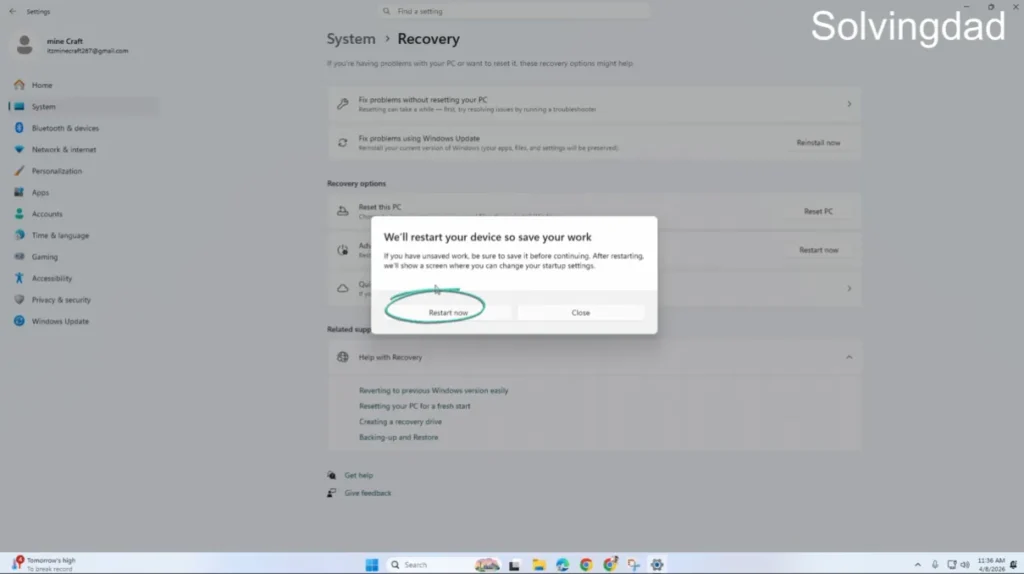
- Under Advanced Startup, click Restart Now
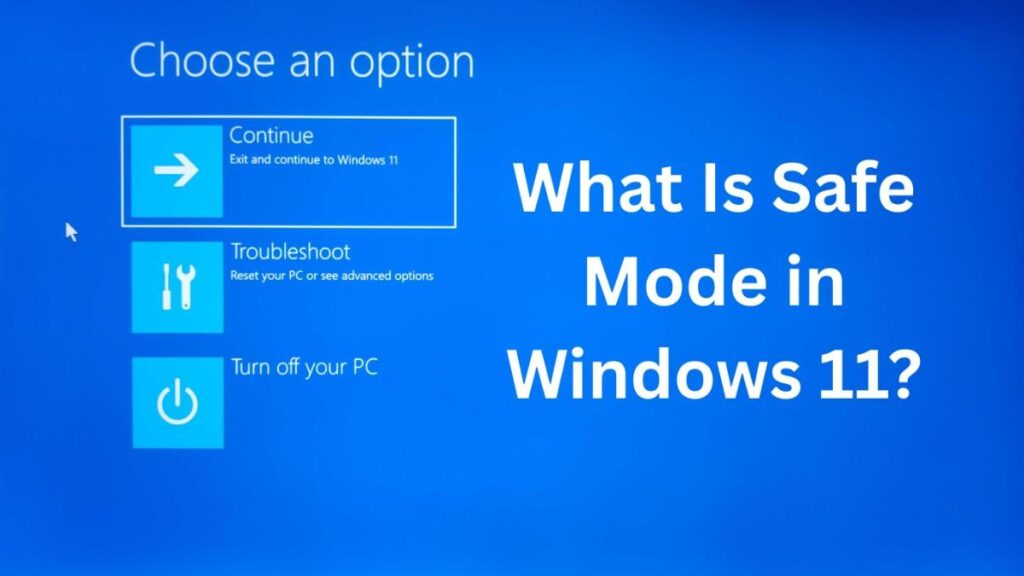
- Select:
- Troubleshoot
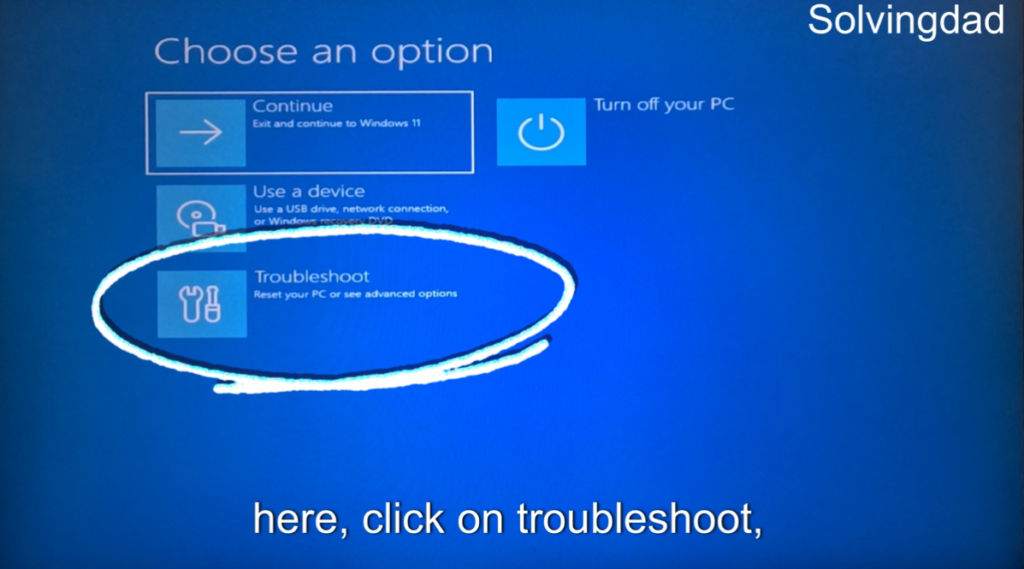
- Advanced Options
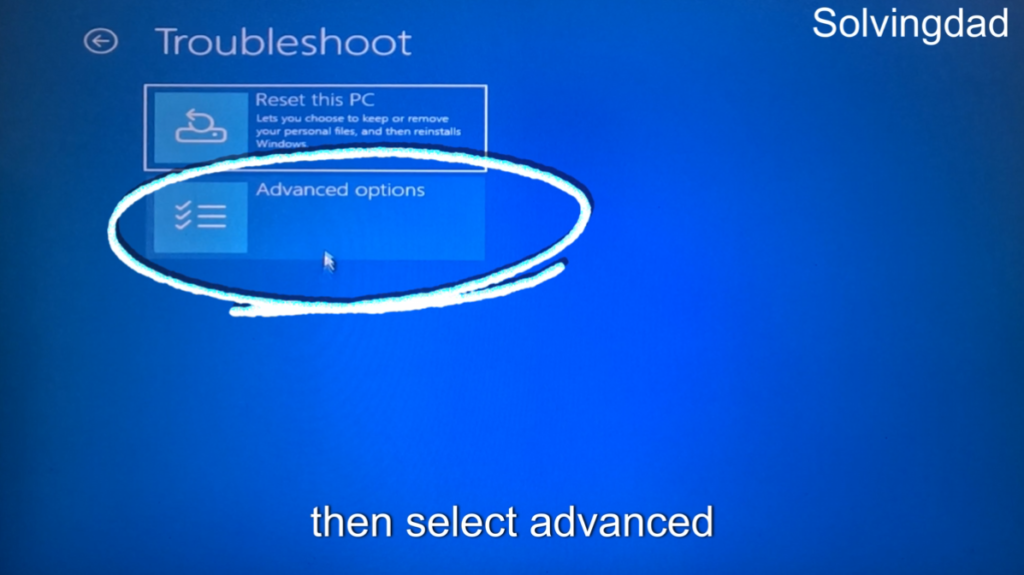
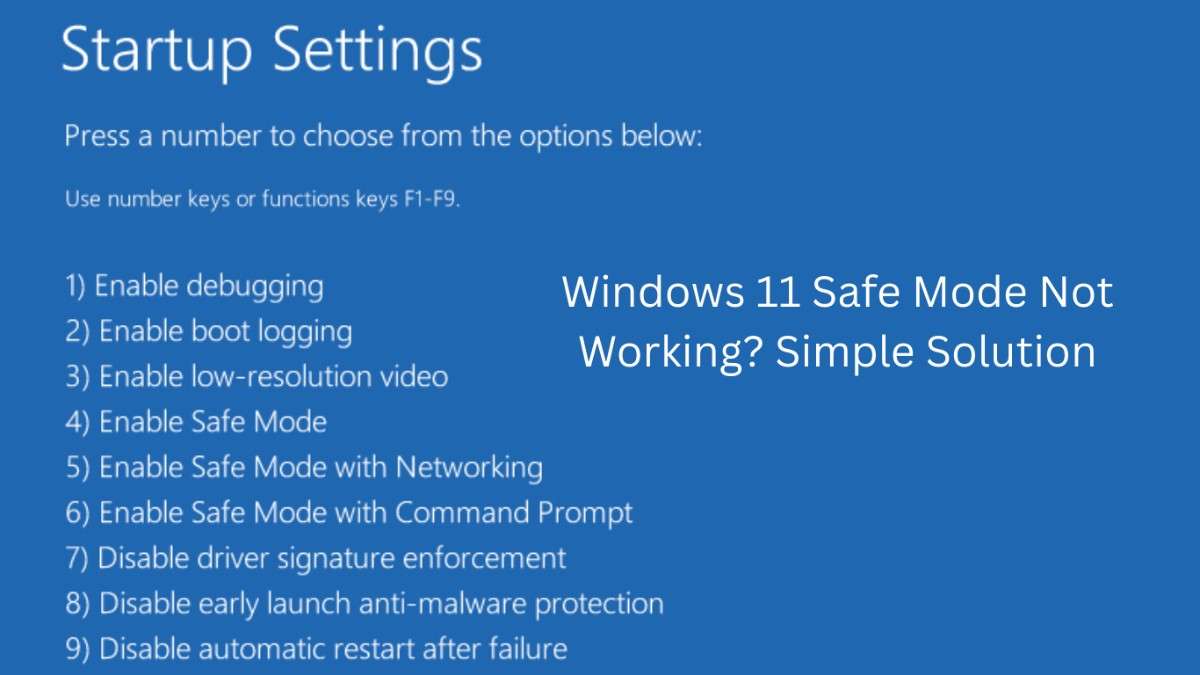
- Startup Settings
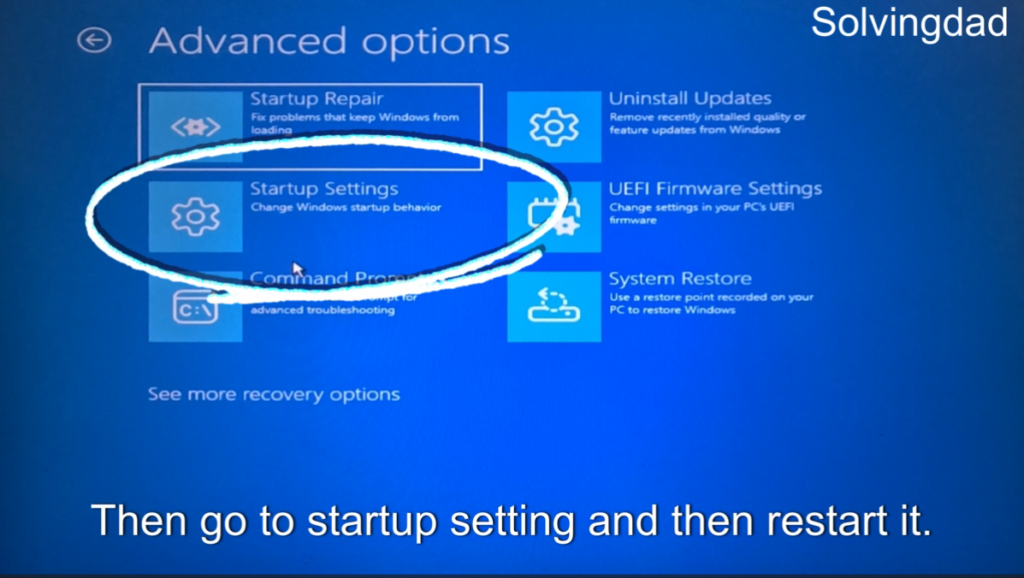
- Click Restart
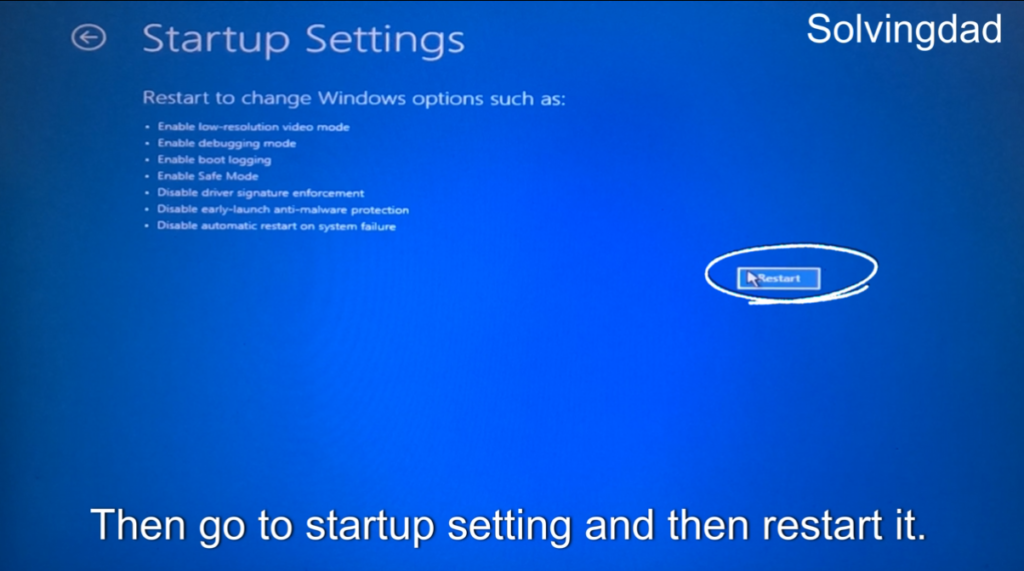
- Press 4 or F4 for Safe Mode
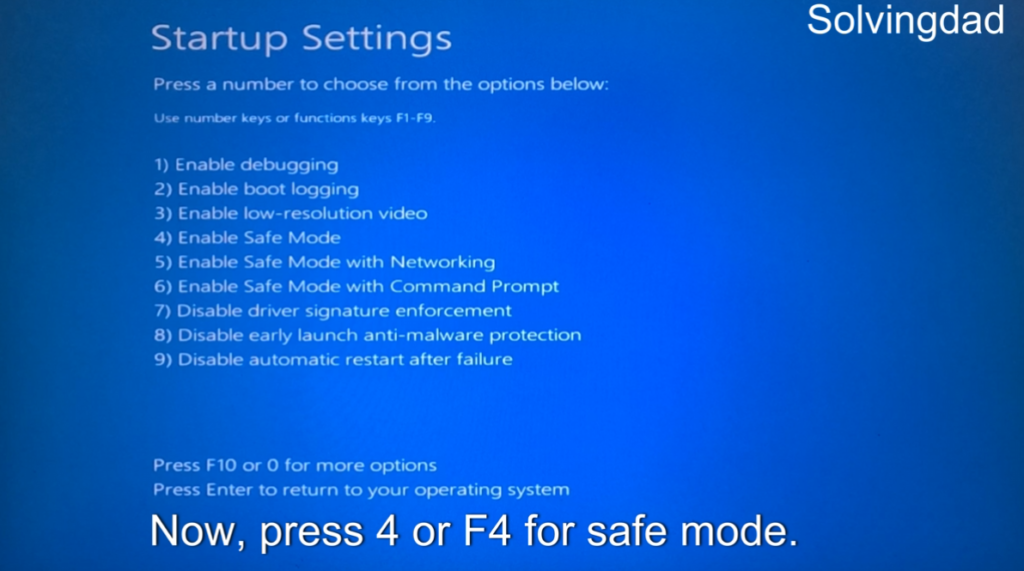
👉 This is the most reliable way if Windows still boots normally.
Also Read: Windows 11 Screen Flickering Randomly? Try These Fixes
Method 2: Enable Safe Mode Using System Configuration (MSConfig)
If Windows loads but Safe Mode doesn’t trigger, manually enable it.
Steps:
- Press Windows + R
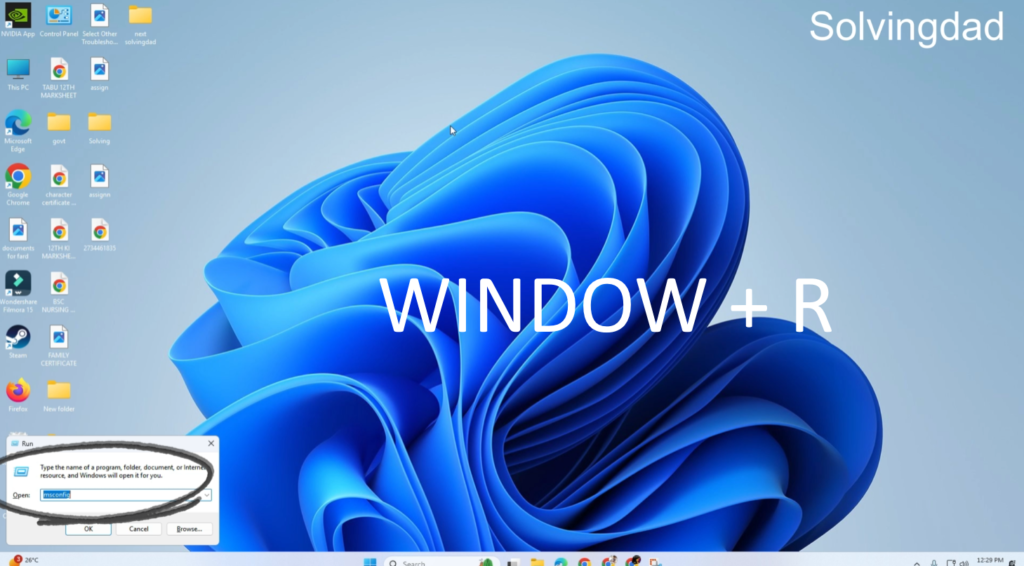
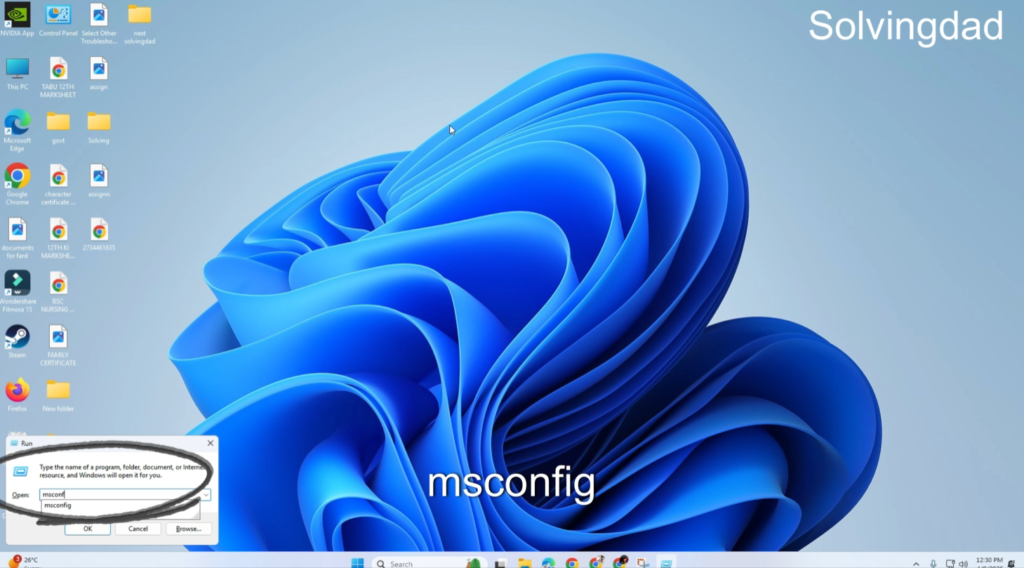
- Type:
msconfig
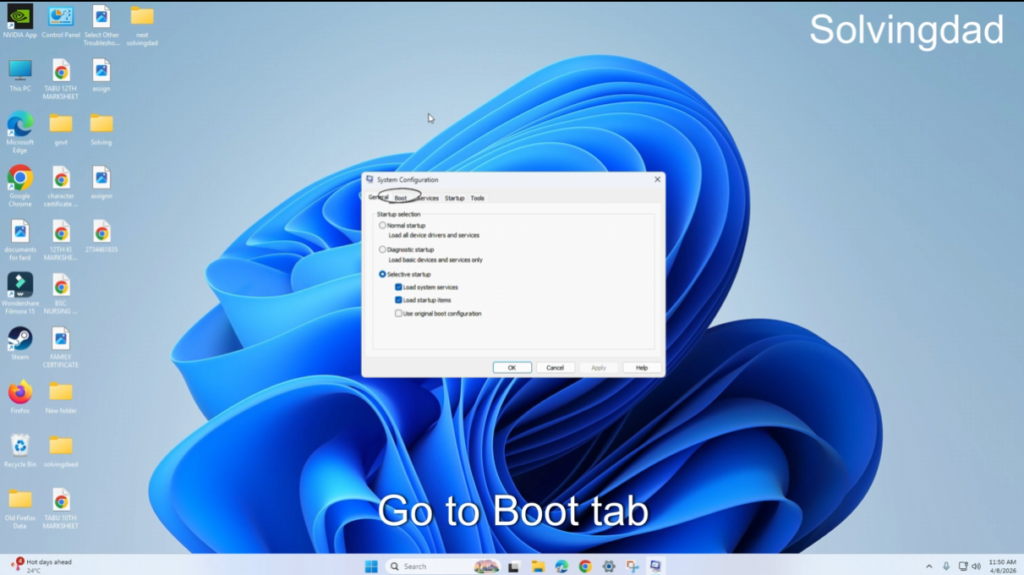
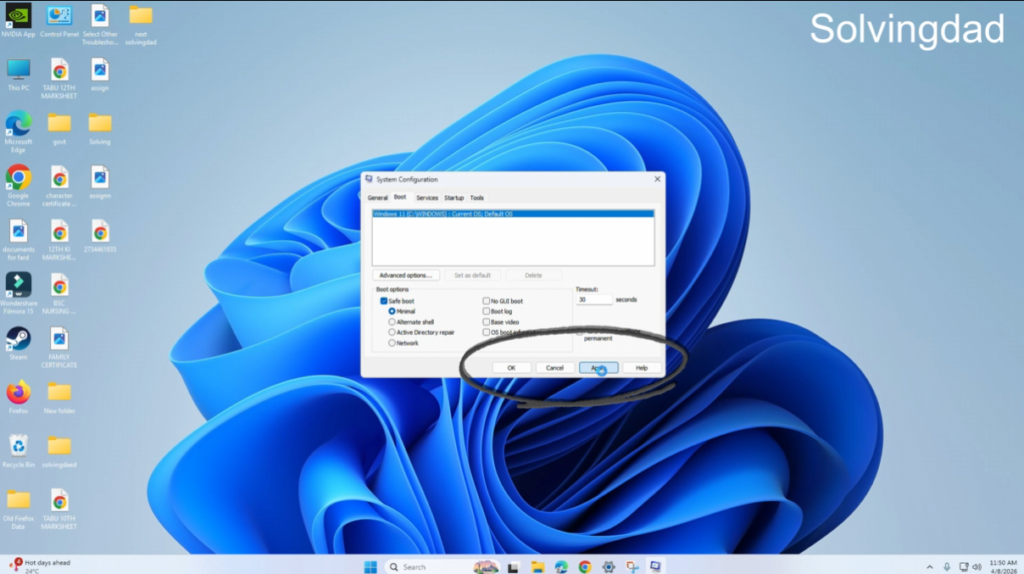
- Open the Boot tab
- Check Safe boot
- Select Minimal
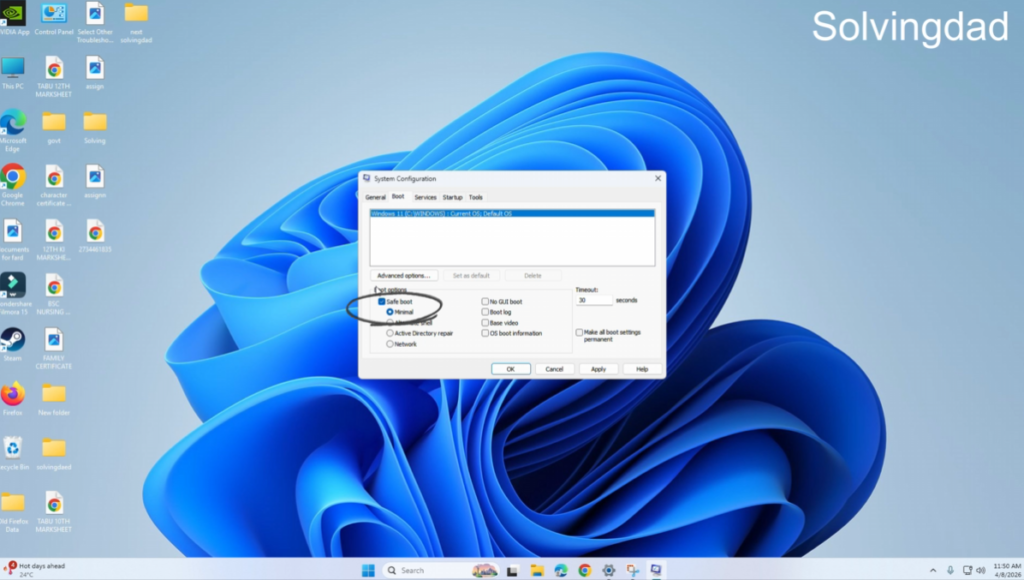
- Click Apply → OK
- Restart your PC
Your system should now boot directly into Safe Mode.
⚠️ Important: Disable Safe Boot later using the same steps to return to normal startup.
Method 3: Repair Corrupted System Files (Most Effective Fix)
One major reason for Windows 11 Safe Mode Not Working is damaged system files.
Run SFC Scan
- Open Command Prompt as Administrator
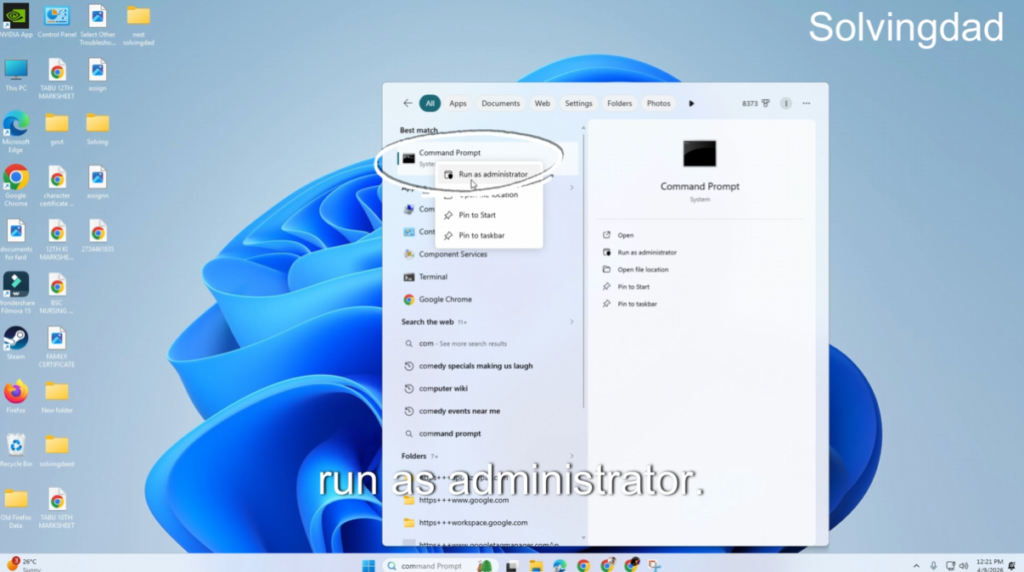
- Type:
sfc /scannow - Press Enter
- Wait for the scan to finish

This tool automatically repairs missing or corrupted files.
Run DISM Repair (Advanced Fix)
If SFC doesn’t work:
DISM /Online /Cleanup-Image /RestoreHealth
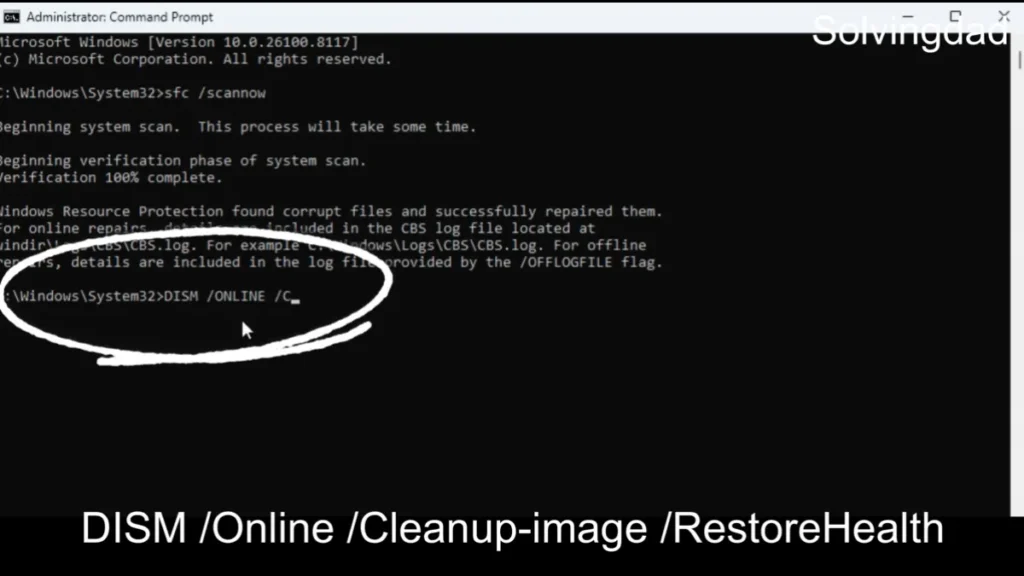
Restart your PC after completion and try Safe Mode again.
Method 4: Rebuild Boot Configuration Data (BCD)
If boot files are corrupted, Safe Mode options may disappear completely.
Steps:
- Open Command Prompt as Administrator
- Run commands one by one:
bootrec /fixmbr
bootrec /fixboot
bootrec /scanos
bootrec /rebuildbcd
- Restart your PC
This rebuilds Windows startup configuration and restores Safe Mode access.
Method 5: Enable Windows Recovery Environment (WinRE)
Sometimes Safe Mode fails because recovery tools are disabled.
Check Status:
Open Command Prompt (Admin) and type:
reagentc /info
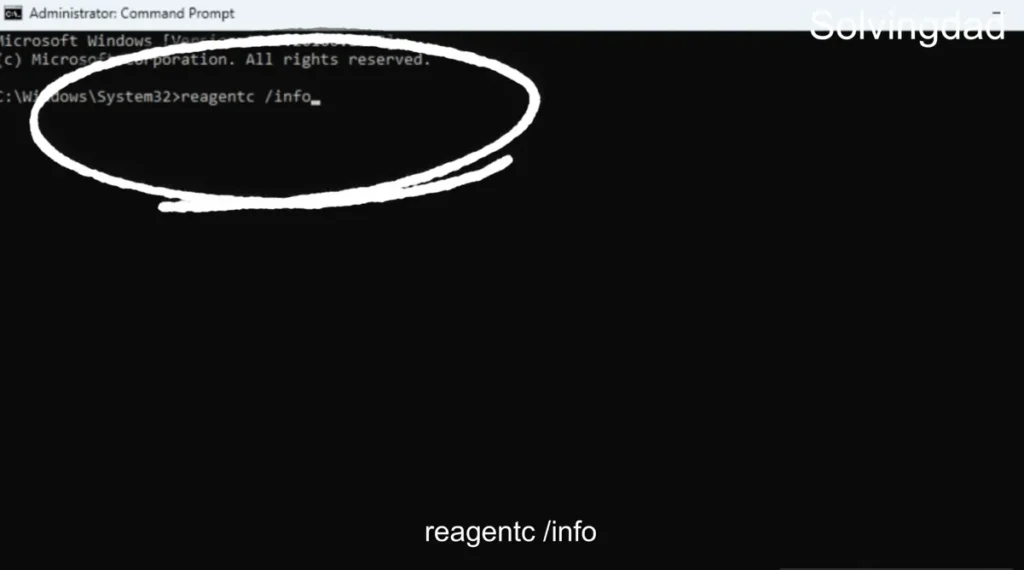
If it shows Disabled, enable it:
reagentc /enable
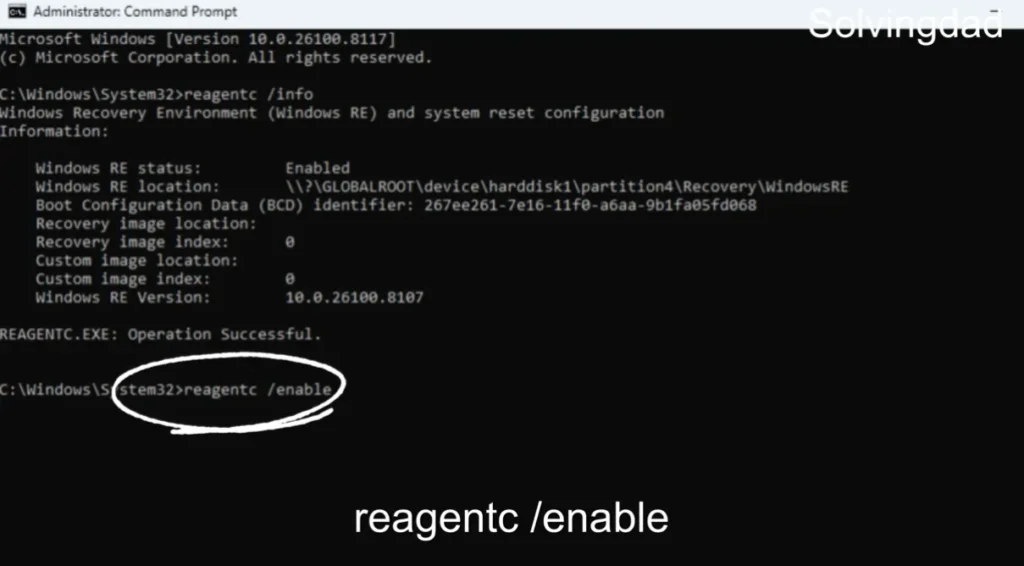
Restart and try Advanced Startup again.
Method 6: Disable Fast Startup
Fast Startup can prevent Safe Mode from loading properly.
Steps:
- Open Control Panel
- Go to Power Options

- Click Choose what power buttons do

- Select Change settings currently unavailable

- Uncheck Turn on fast startup

- Save changes and restart
Many users fix Safe Mode issues instantly with this step.
Method 7: Remove Problematic Updates
Sometimes a recent update breaks boot options.
Steps:
- Go to Settings → Windows Update
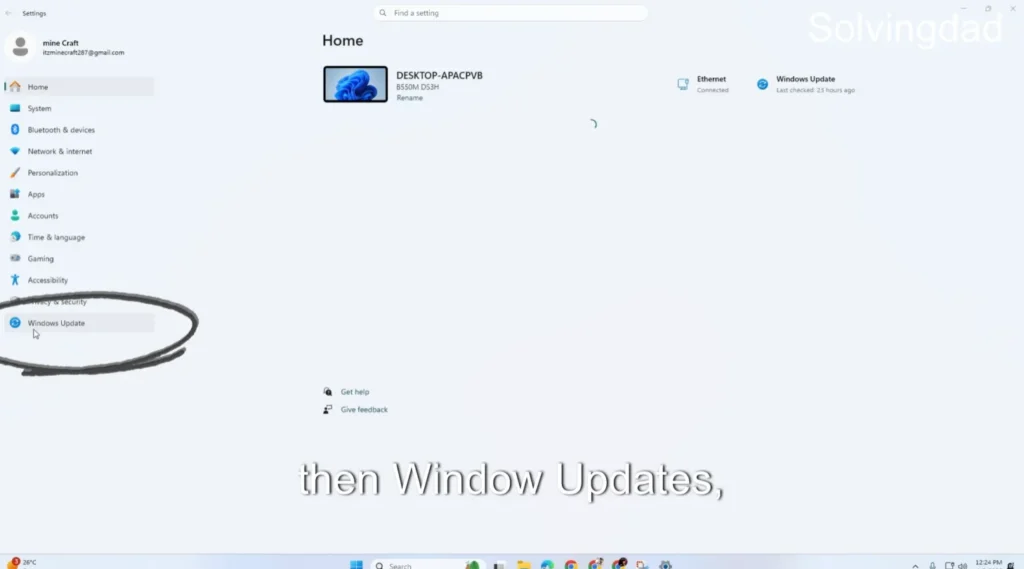
- Open Update History
- Click Uninstall Updates
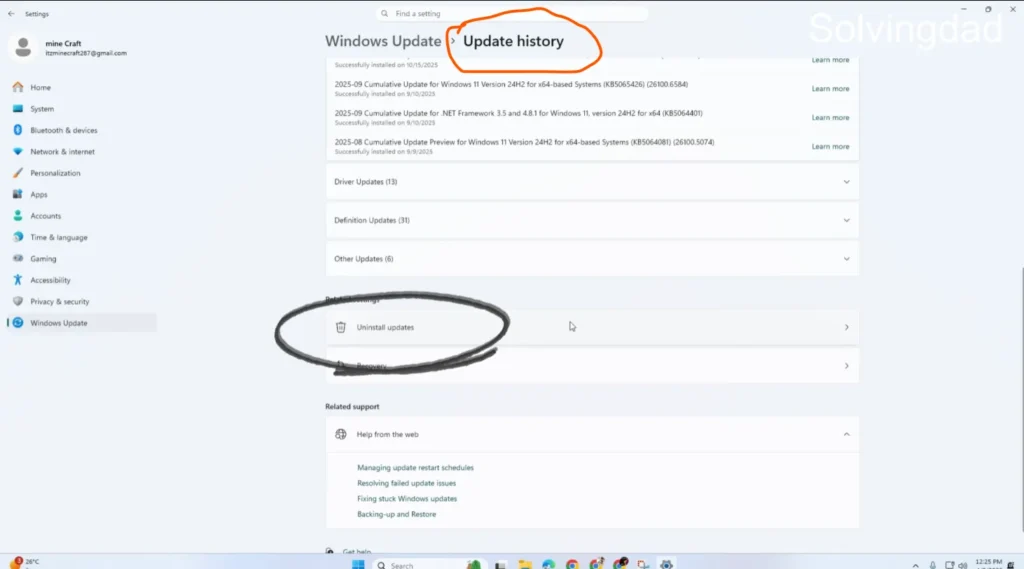
- Remove the latest update
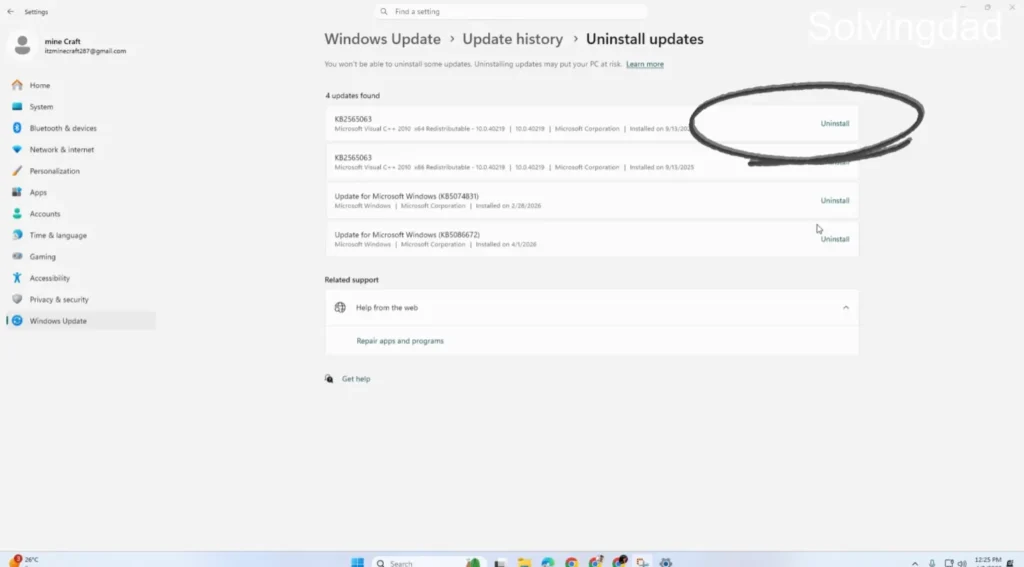
- Restart PC
Now check whether Safe Mode works.
Method 8: Try Safe Mode via Command Prompt
You can force Safe Mode manually.
Open Command Prompt (Admin):
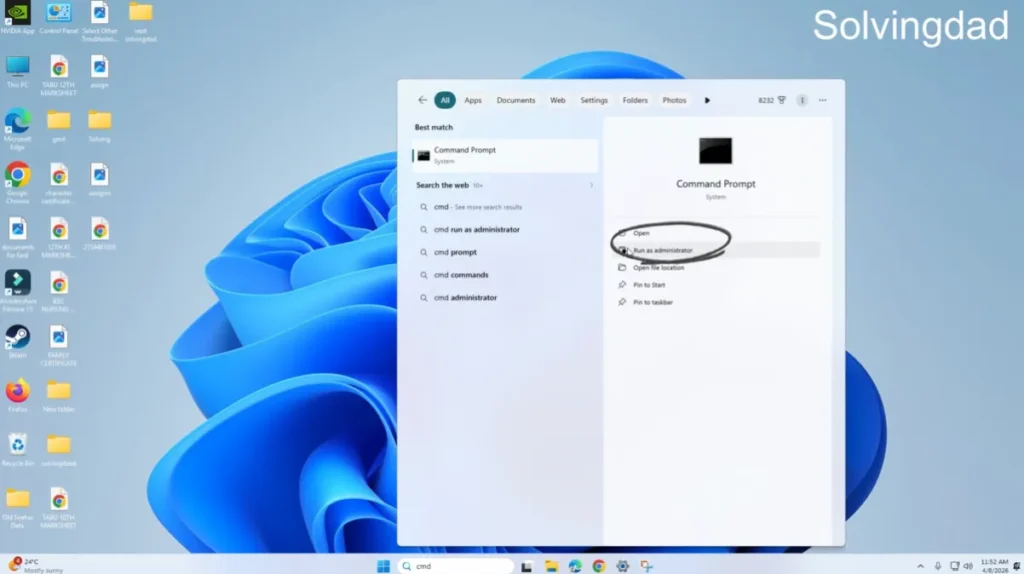
bcdedit /set {current} safeboot minimal
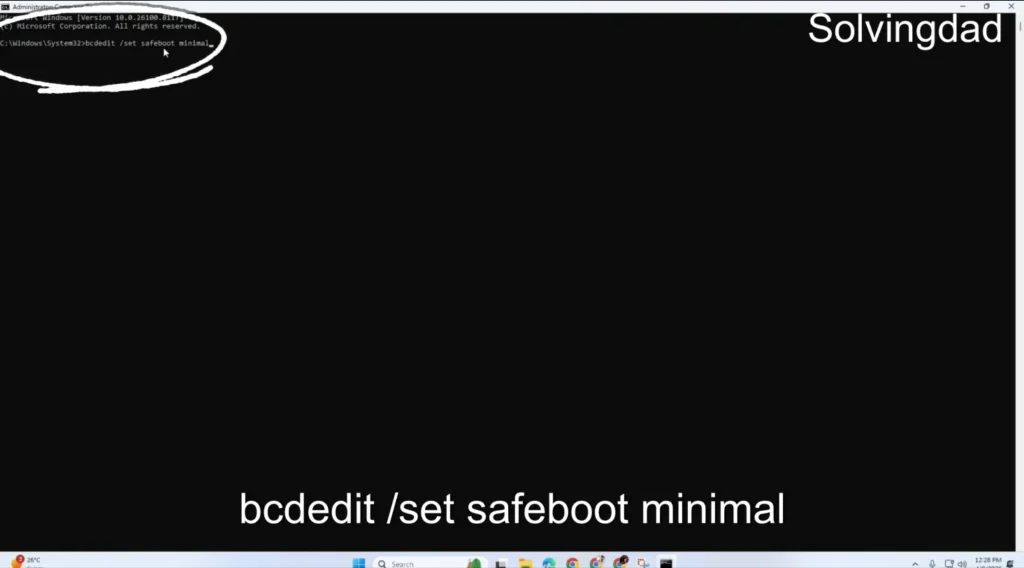
Restart your computer.
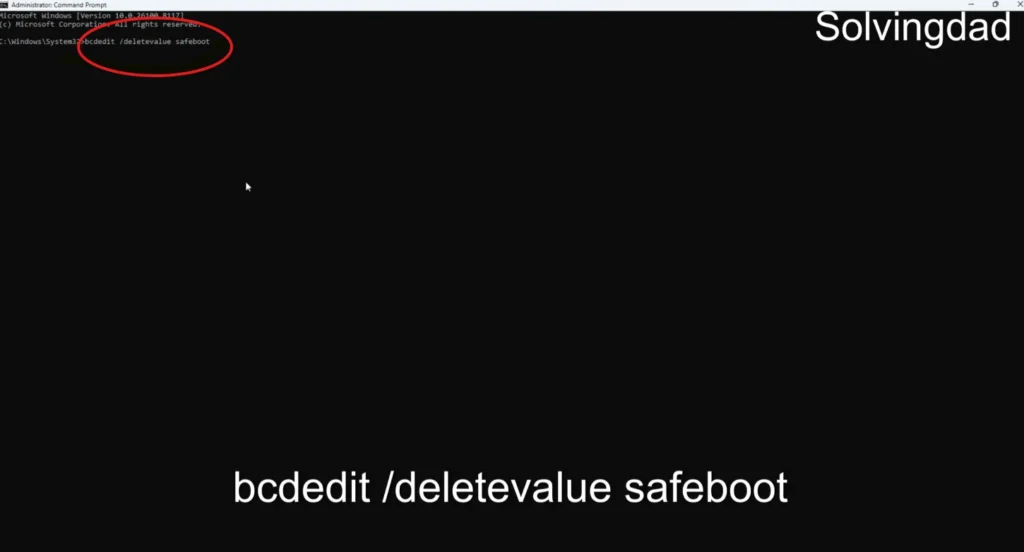
To return to normal mode later:
bcdedit /deletevalue {current} safeboot
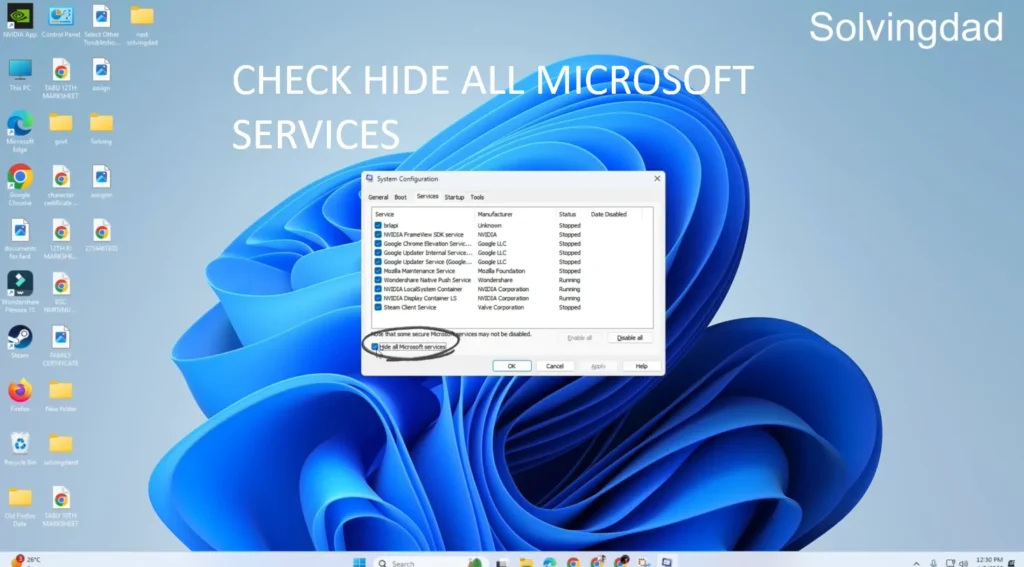
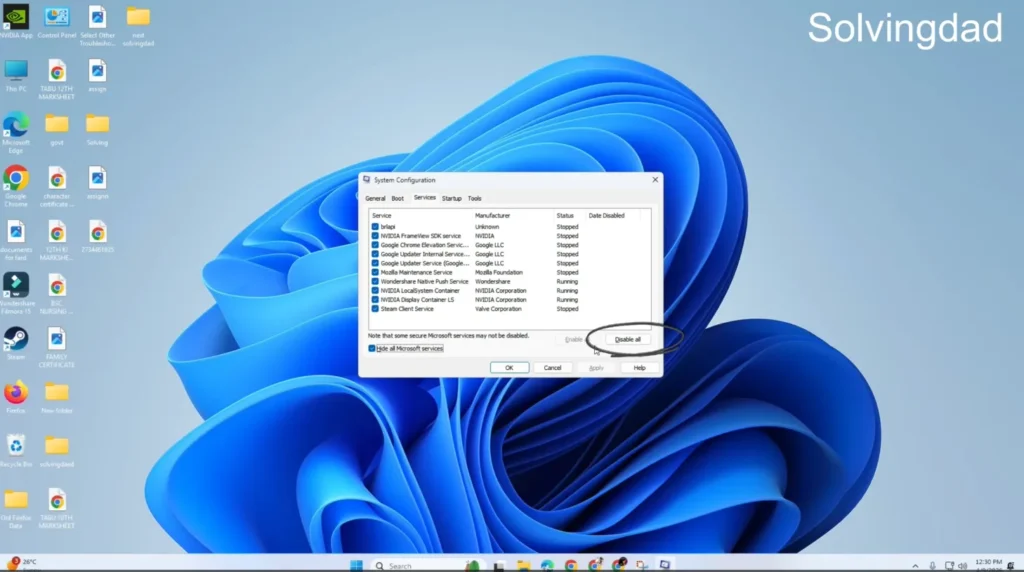
Method 9: Perform a Clean Boot
Third-party apps may block Safe Mode.
Steps:
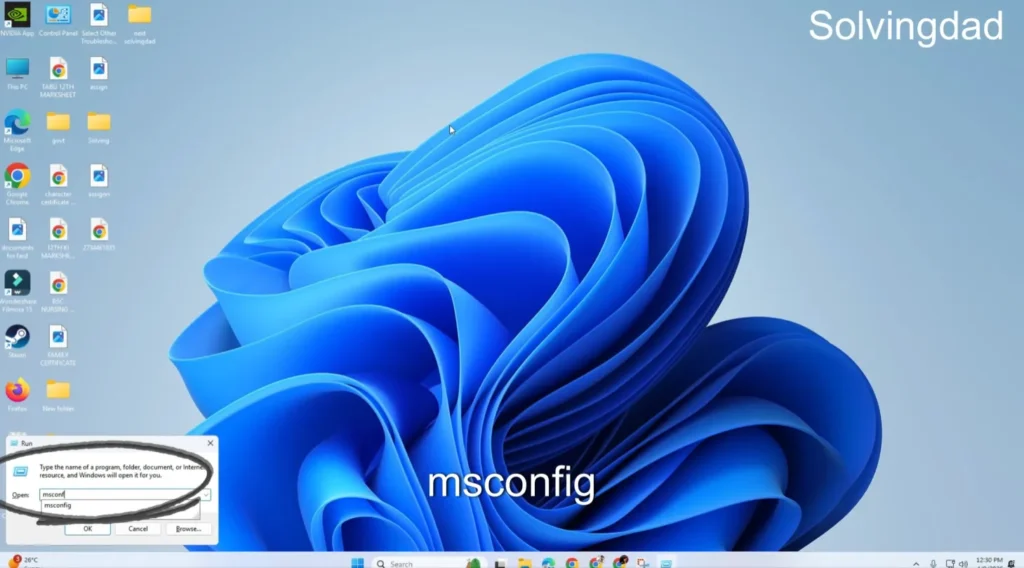
- Press Windows + R

- Type
msconfig
- Go to Services
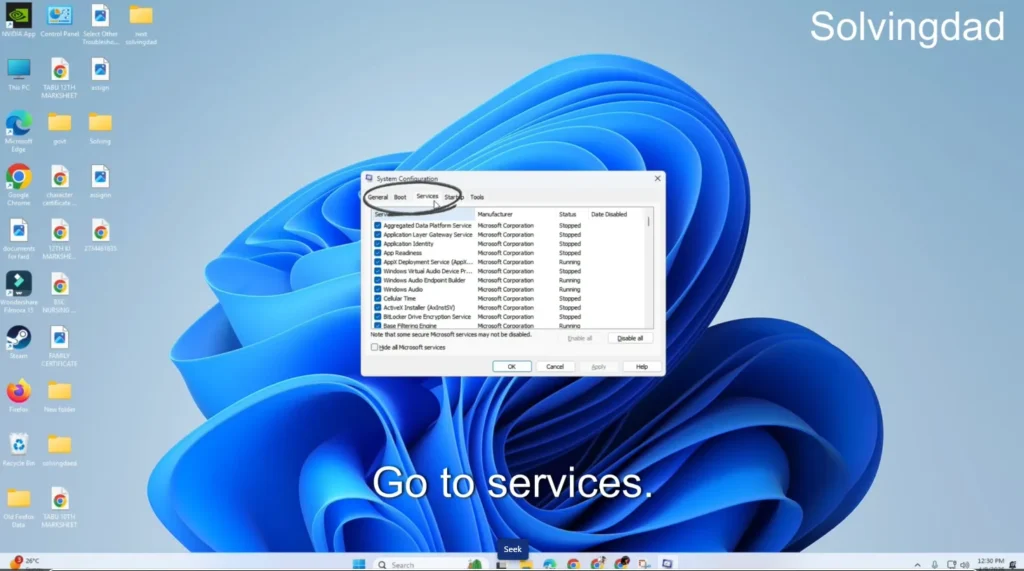
- Check Hide Microsoft services
- Click Disable All
- Restart PC
If Safe Mode works afterward, a background program is causing the issue.
Method 10: Use System Restore (Last Easy Option)
If Safe Mode stopped working recently:
- Open Advanced Startup
- Select System Restore
- Choose a restore point before the issue began
Your system settings will revert without deleting personal files.
When Nothing Works (Final Solution)
If Windows 11 Safe Mode Not Working even after all fixes:
- Use Reset This PC
- Choose Keep My Files
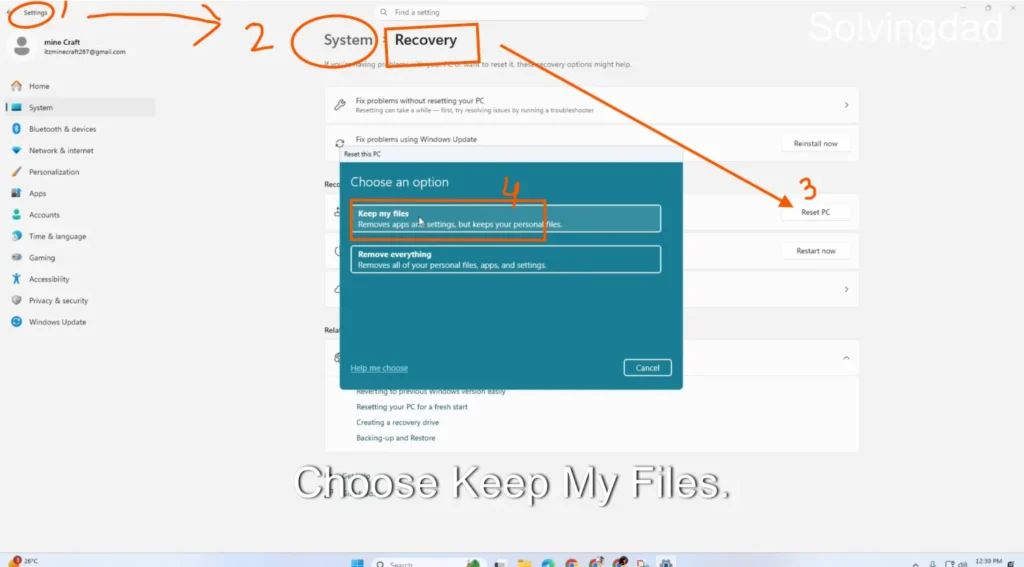
This reinstalls Windows while preserving personal data and often resolves deep system corruption.
Tips to Prevent Safe Mode Problems in Future
- Avoid forced shutdowns
- Keep drivers updated
- Install Windows updates regularly
- Use trusted antivirus software
- Create restore points before major changes
Preventive maintenance reduces boot-related issues significantly.
Frequently Asked Questions (FAQs)
Why can’t I enter Safe Mode in Windows 11?
Usually due to corrupted boot files, disabled recovery environment, or system file damage.
Does Safe Mode delete files?
No. Safe Mode only changes how Windows loads drivers and services.
Why does F8 not work in Windows 11?
Modern PCs boot too fast, so Microsoft disabled traditional F8 Safe Mode access.
Can malware block Safe Mode?
Yes. Some malware prevents Safe Mode to avoid removal, which is why system scans are important.
Is resetting Windows safe?
Yes, especially using Keep My Files, which preserves personal data while fixing system issues.
Final Thoughts
Facing the Windows 11 Safe Mode Not Working problem can feel stressful, especially when you need Safe Mode to fix another issue. Fortunately, in most cases the problem is related to boot configuration, recovery settings, or corrupted files — all of which can be repaired using the methods above.
Start with the simple solutions like Advanced Startup and SFC scan, then move toward boot repair commands if needed. By following this guide step-by-step, you can restore Safe Mode functionality without reinstalling Windows.
If you run a troubleshooting-focused workflow, bookmarking this guide can save hours of frustration in the future.
Also Read: