
Clipboard History Not Working in Windows 11 is a common issue that frustrates many users, especially those who rely on copy-paste workflows for productivity. Clipboard History is one of the most useful features introduced in modern Windows versions because it allows you to store multiple copied items instead of just one. When it stops working, tasks like writing, coding, editing documents, or managing files become slow and inconvenient.
If your clipboard history suddenly stops saving copied content, refuses to open, or shows empty results, don’t worry — this guide will walk you through simple, beginner-friendly solutions that actually work.
This complete step-by-step tutorial will help you restore clipboard history quickly and prevent the problem from happening again.
What Is Clipboard History in Windows 11?
Clipboard History is a built-in feature that stores multiple copied items such as text, links, and images. Instead of pasting only the latest copied content, you can press:
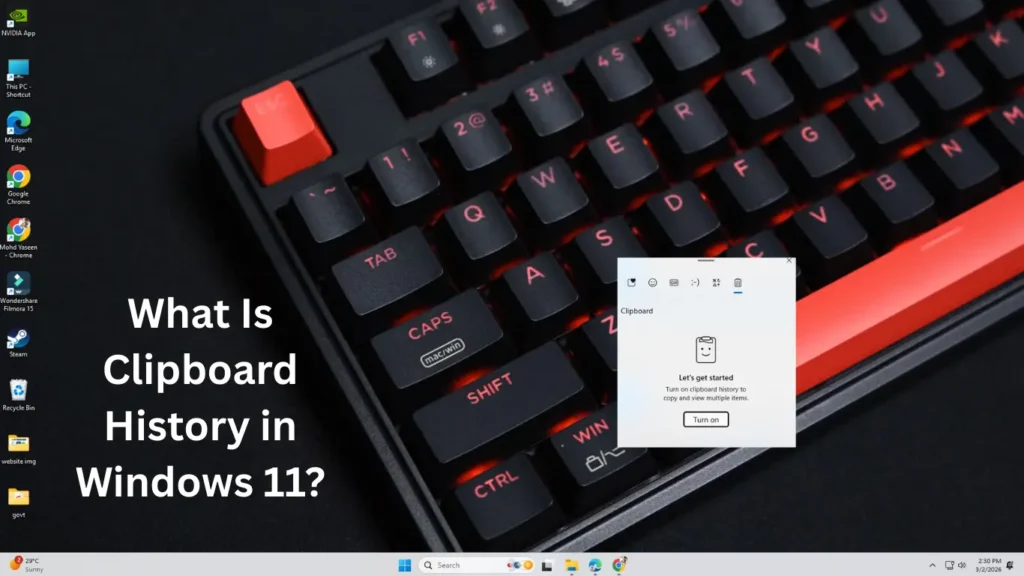
Windows Key + V
to open a panel showing previously copied items.
You can then select any item to paste instantly.
Why Clipboard History Is Useful
- Saves multiple copied texts
- Improves multitasking
- Helps writers, students, and developers
- Syncs clipboard across devices (optional)
When Clipboard History Not Working in Windows 11, the shortcut may not open, copied items may disappear, or syncing may fail.
Common Reasons Clipboard History Stops Working
Before fixing the issue, it helps to understand why it happens.
Here are the most common causes:
- Clipboard History feature is turned off
- Windows services stopped running
- Corrupted system files
- Group Policy restrictions
- Outdated Windows updates
- Third-party clipboard manager conflicts
- Sync settings disabled
- Temporary system glitches
Now let’s fix the problem step by step.
Also Read:
Fix 1: Enable Clipboard History in Settings
Many users discover the feature is simply disabled.
Steps:
- Press Windows + I to open Settings.
- Go to System.
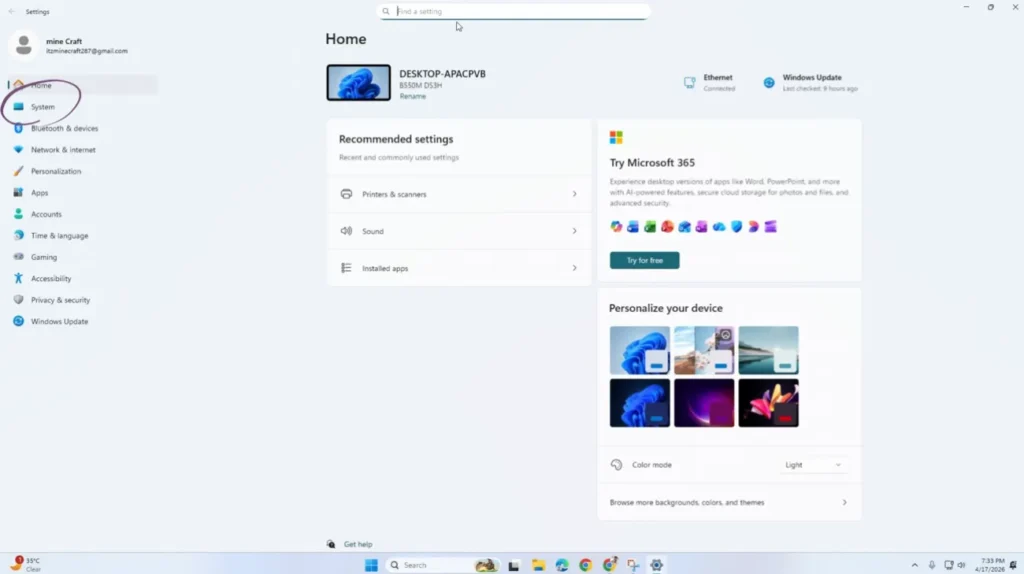
- Click Clipboard.
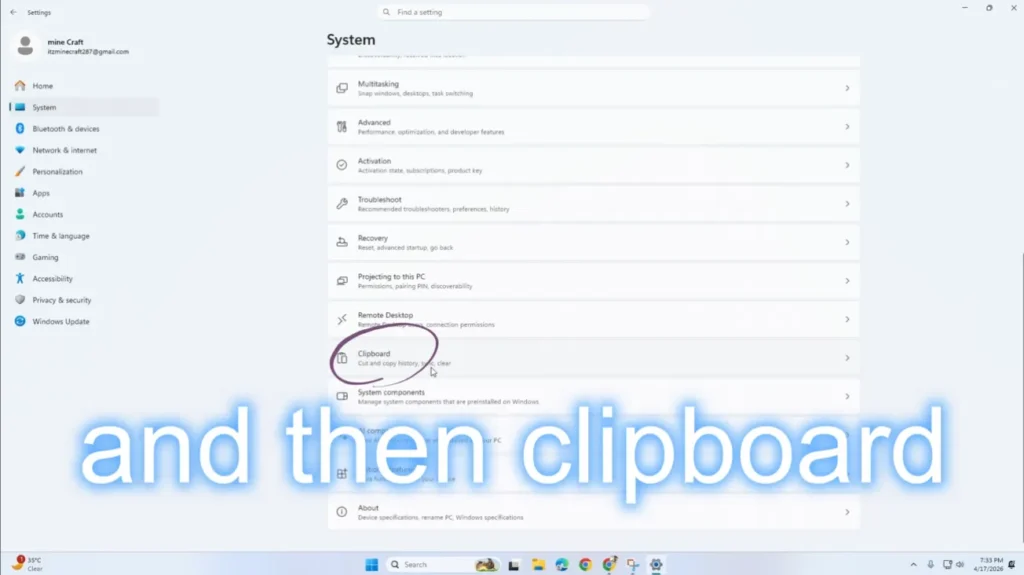
- Turn ON Clipboard history.
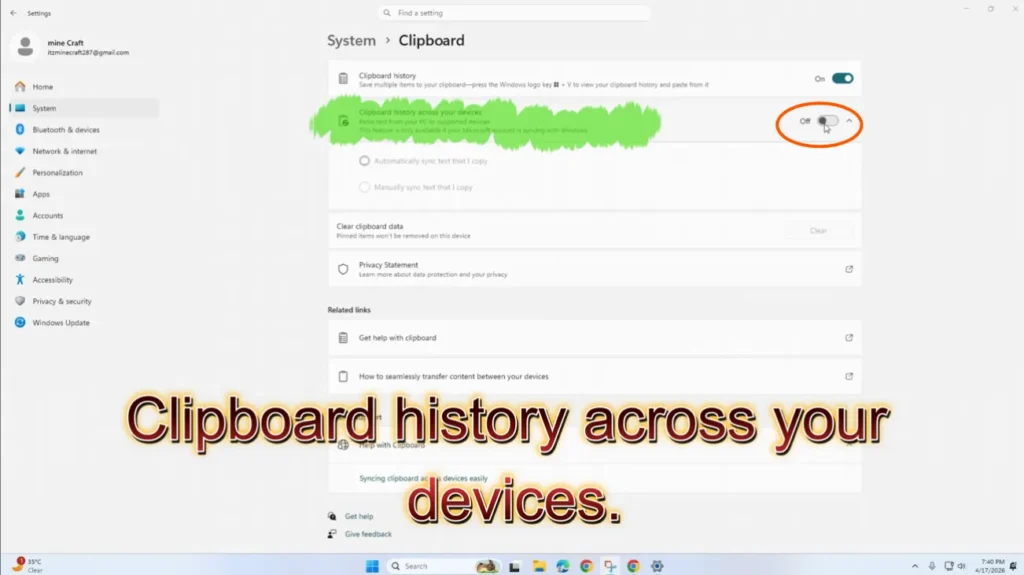
After enabling it, press Windows + V and test again.
✅ This solves the issue in many cases where Clipboard History Not Working in Windows 11 occurs after updates.
Fix 2: Restart Windows Explorer
Windows Explorer controls many background UI functions, including clipboard behavior.
Steps:
- Press Ctrl + Shift + Esc to open Task Manager.
- Find Windows Explorer.
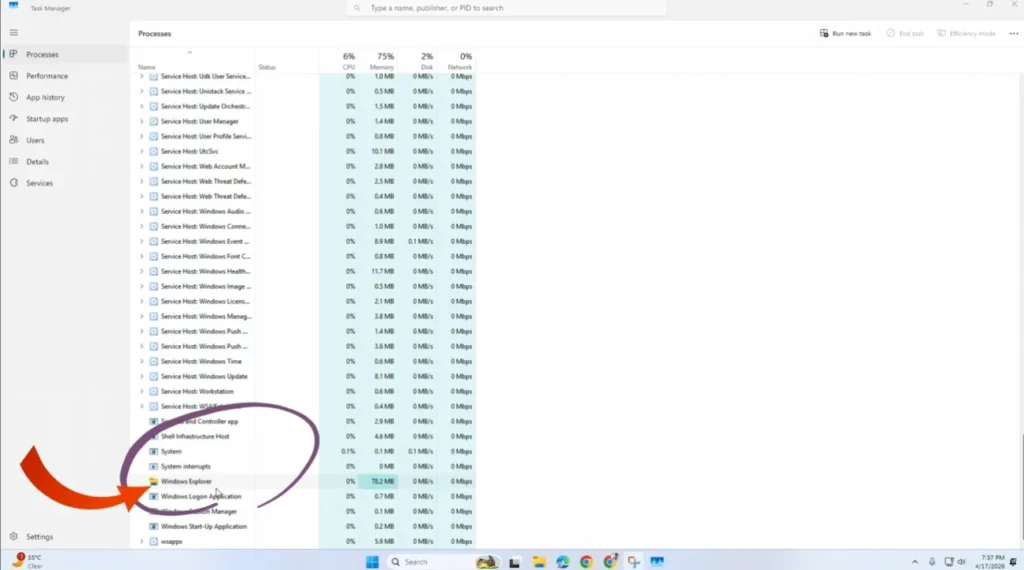
- Right-click it.
- Select Restart.
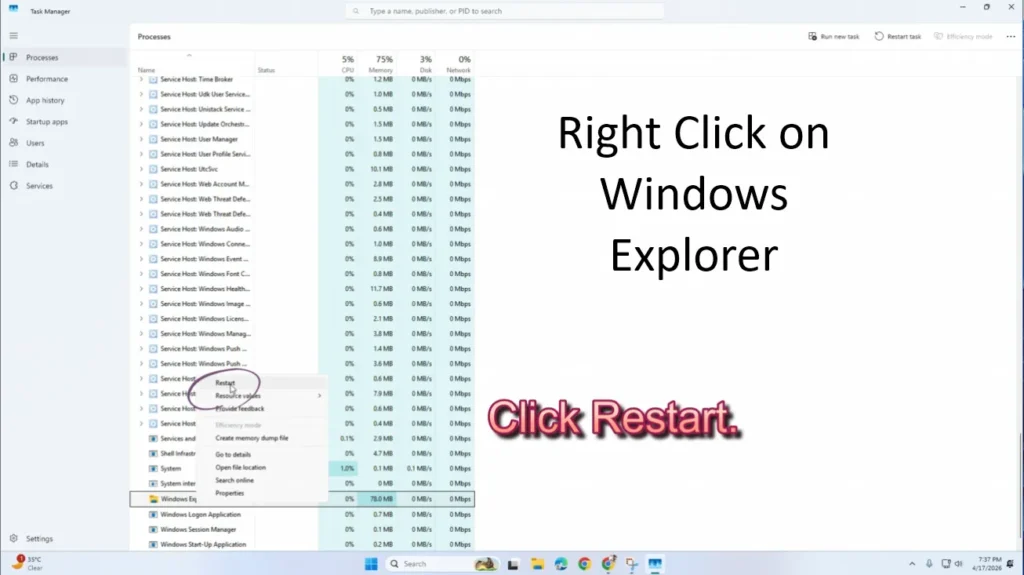
This refreshes system processes without restarting your PC.
Fix 3: Clear Clipboard Data
Corrupted clipboard cache can stop history from functioning properly.
Steps:
- Open Settings.
- Navigate to System → Clipboard.
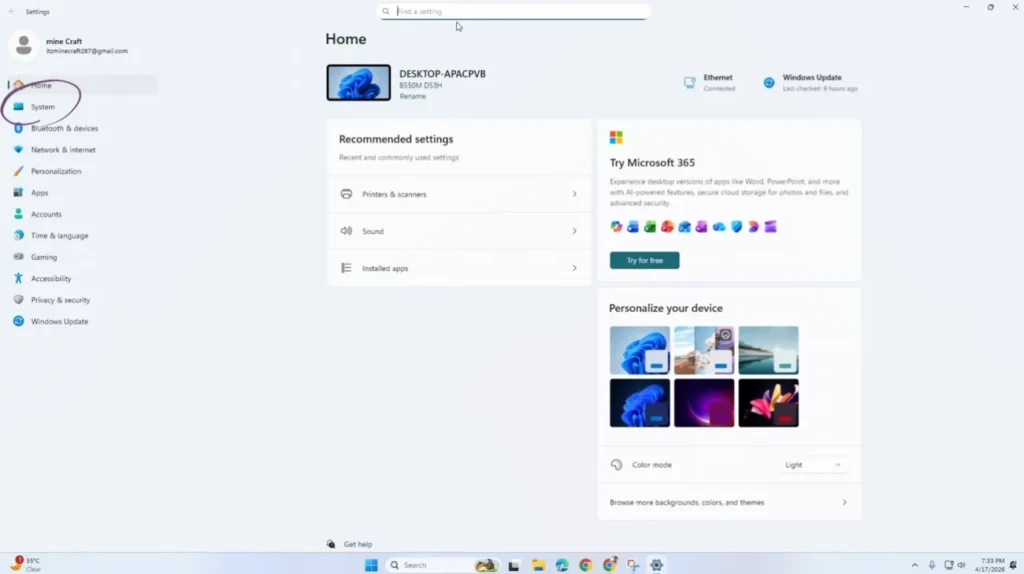
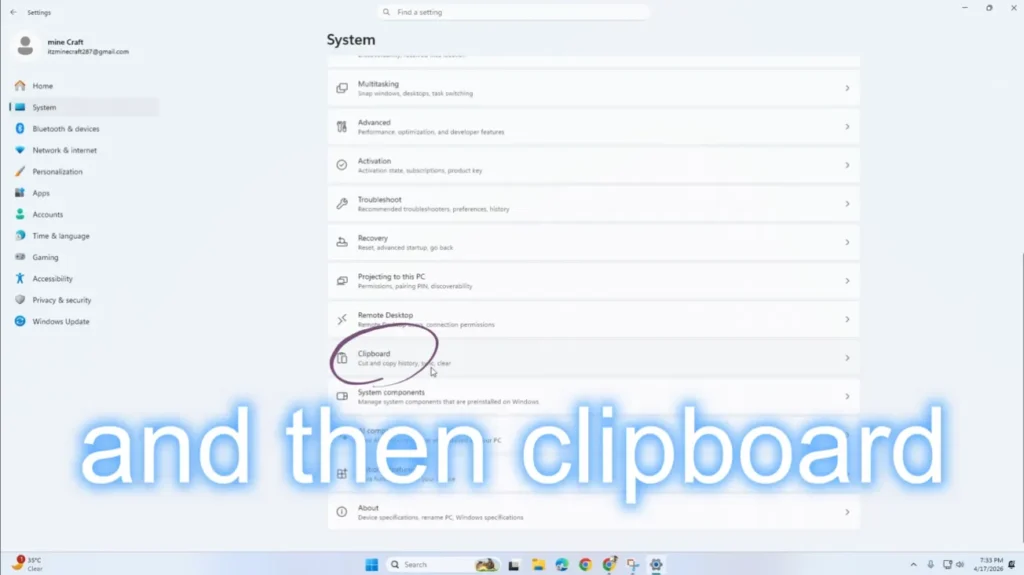
- Under Clear clipboard data, click Clear.
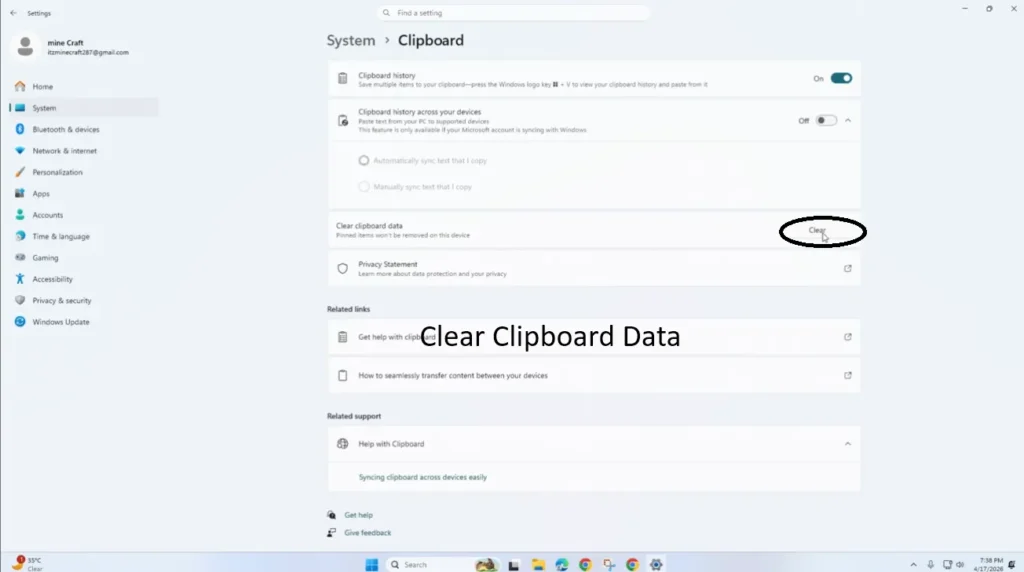
Now copy new text and check if Clipboard History works.
Also Read: How to Fix “No Internet, Secured” Error in Windows 11 (2025 Guide)
Fix 4: Enable Clipboard Sync (Optional but Recommended)
Sometimes clipboard features malfunction when sync settings are misconfigured.
Steps:
- Open Settings → System → Clipboard.
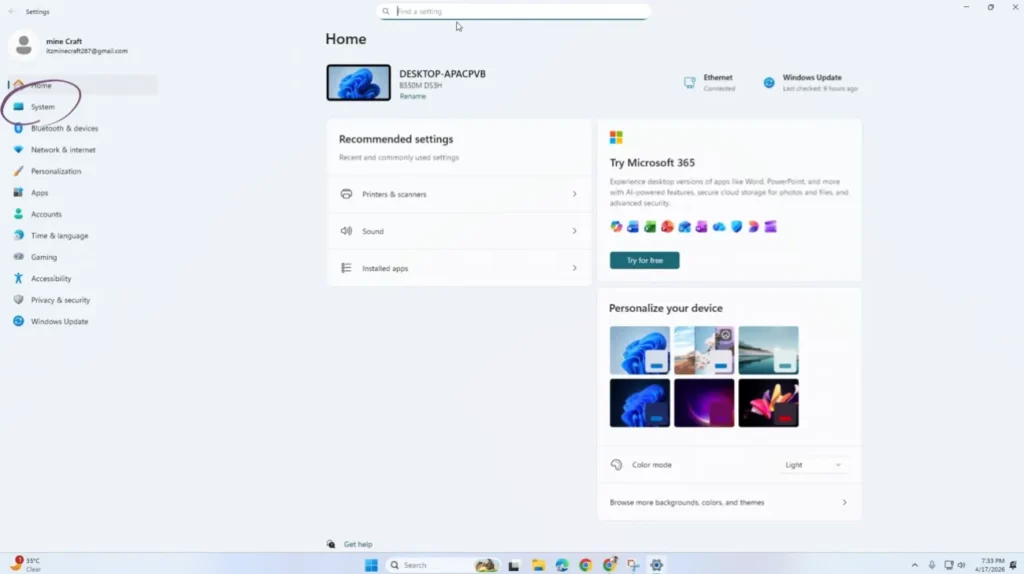
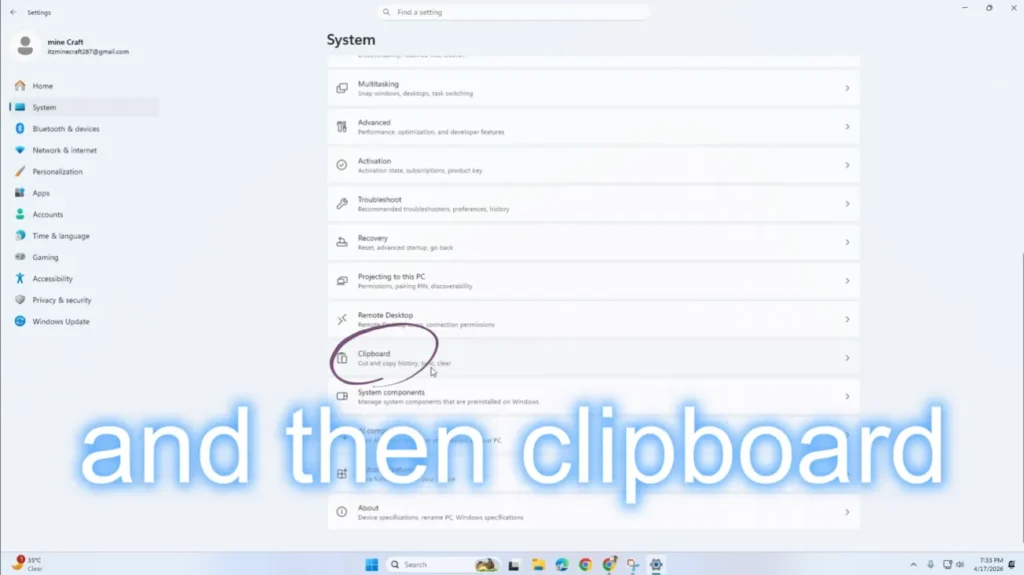
- Enable: Clipboard history
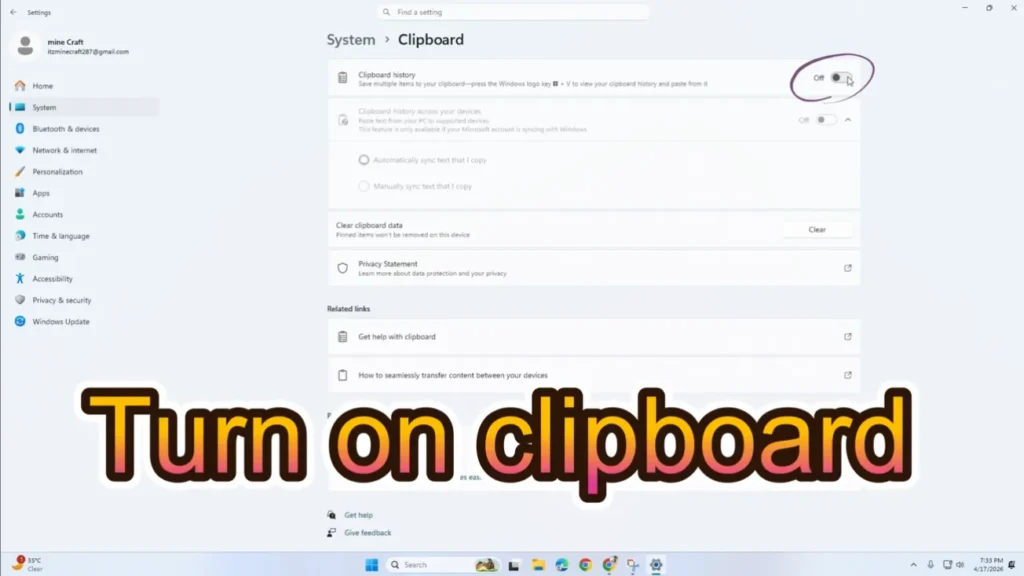
- Sync across devices
Choose:
- Automatically sync text you copy
Even if you don’t use multiple devices, enabling sync often resets clipboard functionality.
Fix 5: Check Group Policy Settings
If you are using Windows Pro or a work PC, clipboard history may be disabled via policy.
Steps:
- Press Windows + R.
- Type
gpedit.mscand press Enter. - Navigate to:
Computer Configuration → Administrative Templates → System → OS Policies
- Find:
- Allow Clipboard History
- Set it to Enabled.
Restart your PC afterward.
Fix 6: Repair Corrupted System Files
Damaged system files are a major reason Clipboard History Not Working in Windows 11.
Run SFC Scan:
- Search Command Prompt.
- Run as Administrator.
- Type:
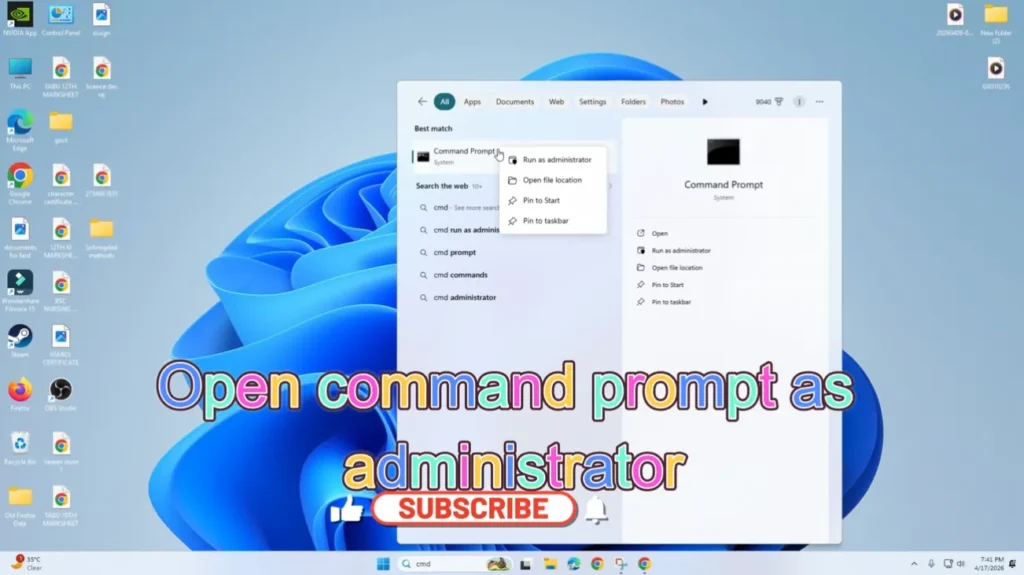
sfc /scannow
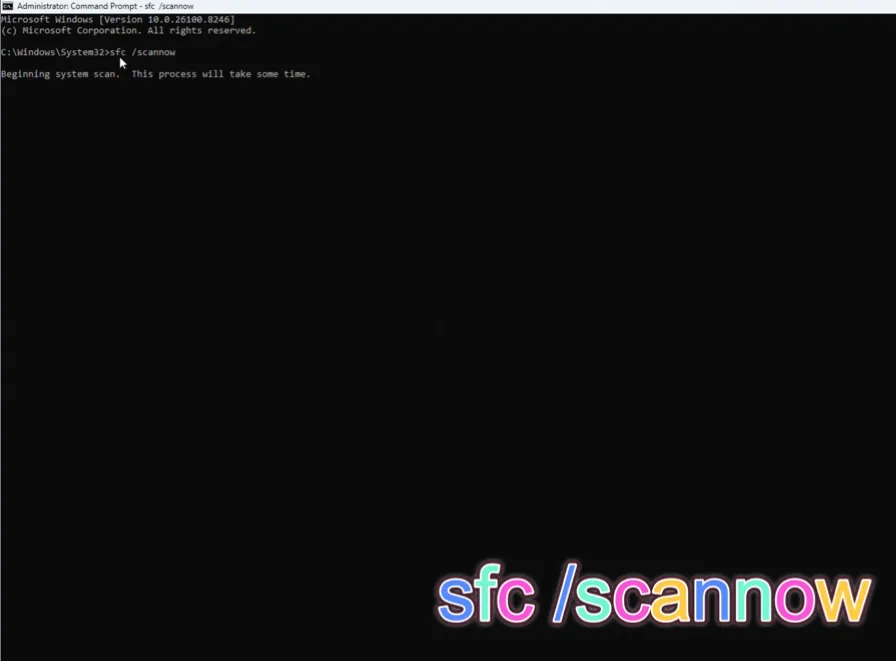
- Press Enter and wait.
This tool automatically repairs corrupted Windows files.
Fix 7: Run DISM Repair Commands
If SFC doesn’t fix the issue, use DISM.
Open Command Prompt (Admin) and run:
DISM /Online /Cleanup-Image /RestoreHealth
This repairs the Windows image itself.
Restart your PC once completed.
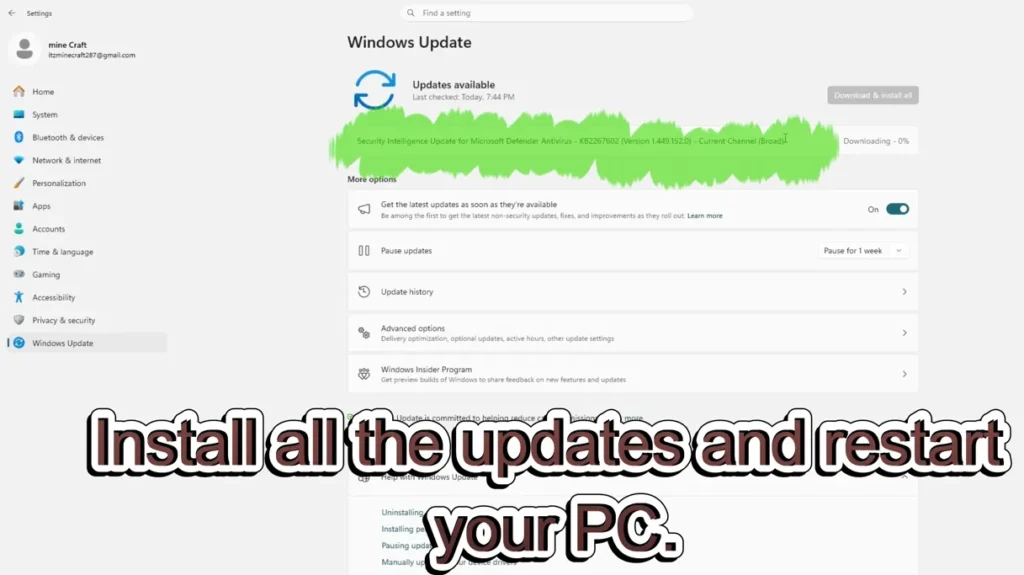
Fix 8: Update Windows 11
Clipboard bugs are often fixed through updates.
Steps:
- Open Settings.
- Go to Windows Update.
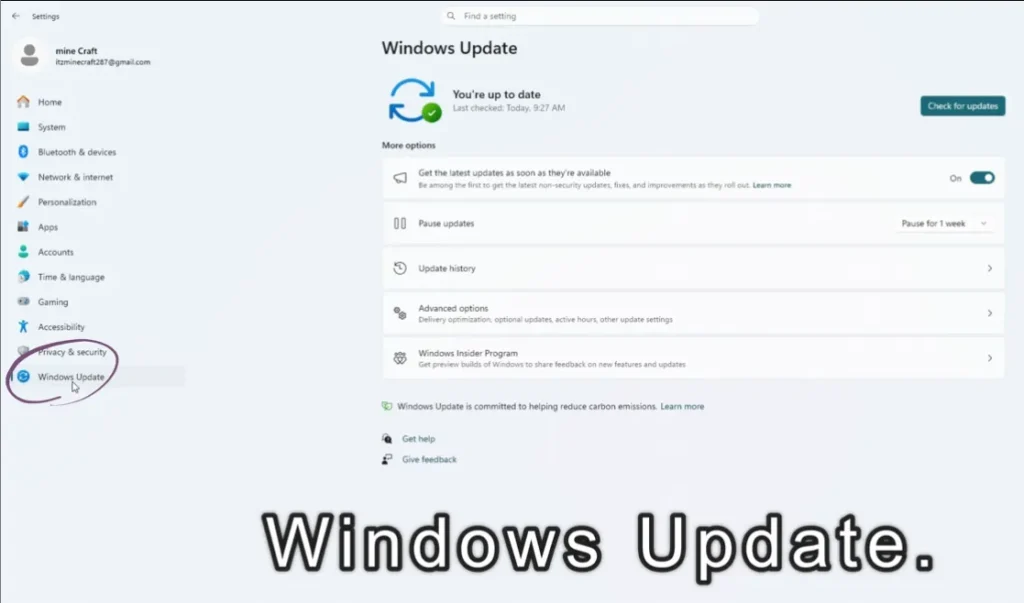
- Click Check for updates.
Install all pending updates and restart.
Fix 9: Disable Third-Party Clipboard Apps
Apps like clipboard managers or optimization tools can conflict with Windows clipboard.
Examples include:
- Clipboard enhancer tools
- System cleaners
- Keyboard utilities
What to do:
- Temporarily uninstall or disable them
- Restart PC
- Test Clipboard History again
Fix 10: Restart Clipboard User Service
Windows runs clipboard operations through background services.
Steps:
- Press Windows + R
- Type
services.msc - Locate clipboard-related services.
- Restart any running clipboard or user services.
This refreshes background communication.
Fix 11: Create a New User Account
If Clipboard History Not Working in Windows 11 persists, your user profile may be corrupted.
Steps:
- Open Settings.
- Go to Accounts → Other Users.
- Add a new user.
- Log into the new account.
If clipboard works there, your original profile is the problem.
Fix 12: Reset Windows Clipboard Using Command
You can manually reset clipboard memory.
- Press Windows + R
- Type:
cmd /c "echo off | clip"
- Press Enter.
This clears clipboard cache instantly.
Pro Tips to Prevent Clipboard Problems
To avoid future issues:
- Keep Windows updated regularly
- Avoid installing multiple optimization tools
- Restart PC occasionally
- Don’t overload clipboard with large images repeatedly
- Enable clipboard sync properly
Small maintenance habits prevent major Windows glitches.
Also Read: Laptop Buying Checklist for Copilot+ Features: RAM, NPU, and Battery Life Explained
FAQs — Clipboard History Not Working in Windows 11
Why does Windows + V not open clipboard history?
Usually because Clipboard History is disabled in Settings or system files are corrupted.
Does Clipboard History work without internet?
Yes. Internet is only required for syncing across devices.
Is Clipboard History available in all Windows 11 versions?
Yes, but some organizational policies may disable it on work PCs.
Can antivirus software block clipboard history?
Rarely, but aggressive security tools may interfere with system processes.
How many items can clipboard history store?
Windows typically stores up to 25 copied items.
Final Thoughts
Facing Clipboard History Not Working in Windows 11 can feel annoying, but the good news is that the problem is usually easy to fix. In most cases, simply enabling clipboard history, restarting Explorer, or repairing system files restores functionality within minutes.
Follow the fixes step by step, starting from the simplest solutions. Once working again, Clipboard History becomes one of the most powerful productivity features in Windows 11 — especially for students, professionals, and content creators.
If this guide helped you, consider bookmarking it so you can quickly troubleshoot future Windows issues.