
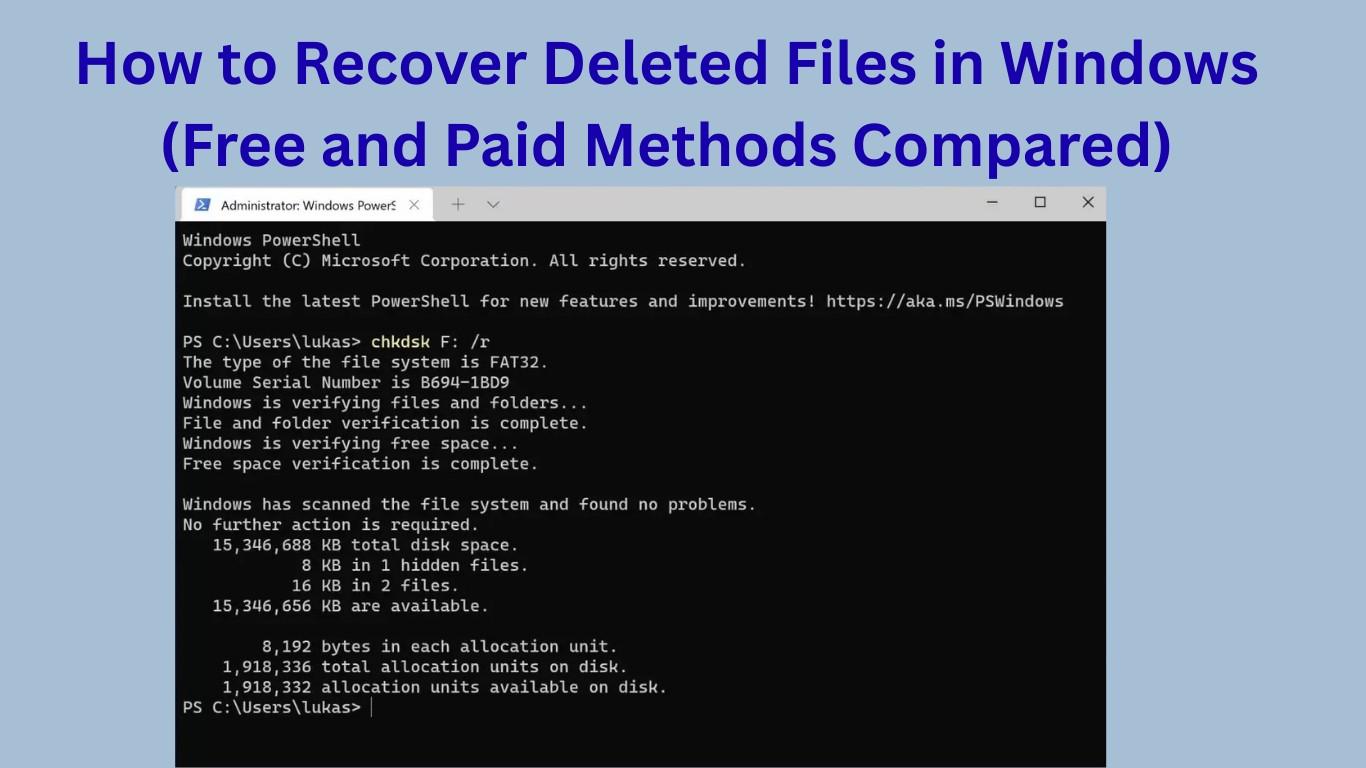
If you’re reading this, chances are you’ve accidentally deleted an important file on your Windows PC and are now wondering how to get it back. Don’t worry—you’re not alone! In this guide, I’ll walk you through how to recover deleted files in Windows, using both free and paid methods. We’ll compare options so you can choose the best one for your situation without getting overwhelmed.
Why Deleted Files Can Still Be Recovered
When you delete a file in Windows, it doesn’t vanish right away. Instead, Windows just marks that space as “available.” Unless the system overwrites that space with new data, your file can still be restored. That’s why the key to successful recovery is acting fast.

Free Methods to Recover Deleted Files in Windows
1. Check the Recycle Bin (Quickest Fix)
The first place to look is the Recycle Bin.
- Double-click the Recycle Bin icon on your desktop.
- Search for your deleted file.
- Right-click the file → click Restore.
If it’s there, congrats! You just saved yourself a lot of trouble.
2. Restore from File History (Windows Built-In Backup)
Windows has a hidden gem called File History. If it’s enabled, you can easily restore older versions of files.
- Type “Restore your files with File History” in the search bar.
- Select the folder that had your deleted file.
- Browse through previous versions and click Restore.
This works great for documents, photos, and important files—provided File History was set up beforehand.
3. Use Previous Versions (Right-Click Restore)
Windows automatically creates restore points if System Protection is enabled.
- Navigate to the folder where the file was located.
- Right-click → Restore previous versions.
- Choose the version you want and restore it.
This option is free and easy but depends on whether Windows had System Protection enabled.
Also Read: How to Fix Wi-Fi Disconnects on Windows Laptops (Step-by-Step Troubleshooting)
Paid Methods to Recover Deleted Files in Windows
Sometimes, free methods just aren’t enough. That’s where professional recovery software comes in handy. These tools scan your hard drive more deeply and can recover files even after formatting.
1. Wondershare Recoverit
- User-friendly and beginner-friendly.
- Supports over 1,000 file types.
- Works on hard drives, SSDs, USB drives, and even crashed systems.
Best for: Users who want a simple, click-and-go solution.
2. EaseUS Data Recovery Wizard
- Powerful scanning modes (quick and deep scan).
- Recovers data from deleted partitions.
- Offers a free trial (up to 2GB of recovery).
Best for: People who accidentally deleted large files or entire folders.
3. Stellar Data Recovery
- Known for its reliability.
- Can recover files from formatted drives.
- Works with external storage devices too.
Best for: Professionals who need reliable recovery for work data.
Also Read: ARM vs x86 Windows Laptops in 2025: Performance, Compatibility, and What You Need to Know
Free vs Paid Recovery Methods: Which Should You Choose?
| Feature | Free Methods | Paid Software |
|---|---|---|
| Ease of Use | Simple & built-in | User-friendly with advanced features |
| Recovery Depth | Limited | Deep scan & higher recovery success |
| Cost | Free | $40–$100 (one-time or subscription) |
| Best For | Recently deleted files | Lost, corrupted, or formatted files |
If your file was just deleted, try the free methods first. If that fails, investing in a paid recovery tool is often worth it—especially if the file is important.
Also Read: Fix: Windows Update Stuck on Black Screen or “Preparing to Configure” (2025)
Tips to Increase Your Chances of Recovery
- Stop using the drive immediately: Avoid saving new files, which can overwrite deleted ones.
- Don’t install recovery software on the same drive: Use another drive or USB to install and run the tool.
- Backup regularly: Enable File History or use an external hard drive/cloud backup.
FAQs: How to Recover Deleted Files in Windows
1. Can I recover permanently deleted files in Windows?
Yes, but you’ll likely need recovery software if the files are not in the Recycle Bin.
Is it safe to use free recovery software?
Most reputable tools are safe, but avoid unknown downloads. Stick to trusted options like EaseUS or Stellar.
Can I recover files after formatting my hard drive?
Yes, paid recovery tools often can, but success depends on how much new data was written after formatting.
How long does recovery take?
It depends on file size and drive condition—anywhere from a few minutes to a couple of hours.
What’s the best way to avoid data loss in the future?
Enable File History, use cloud storage, or create regular backups on an external drive.
Final Thoughts
Now you know exactly how to recover deleted files in Windows using both free and paid methods. My advice? Start with the free options—Recycle Bin, File History, and Previous Versions. If those don’t work, go for a trusted recovery tool like EaseUS or Stellar.
And remember, prevention is always better than cure. Set up automatic backups today so you never have to deal with data loss panic again!
Also Read: