
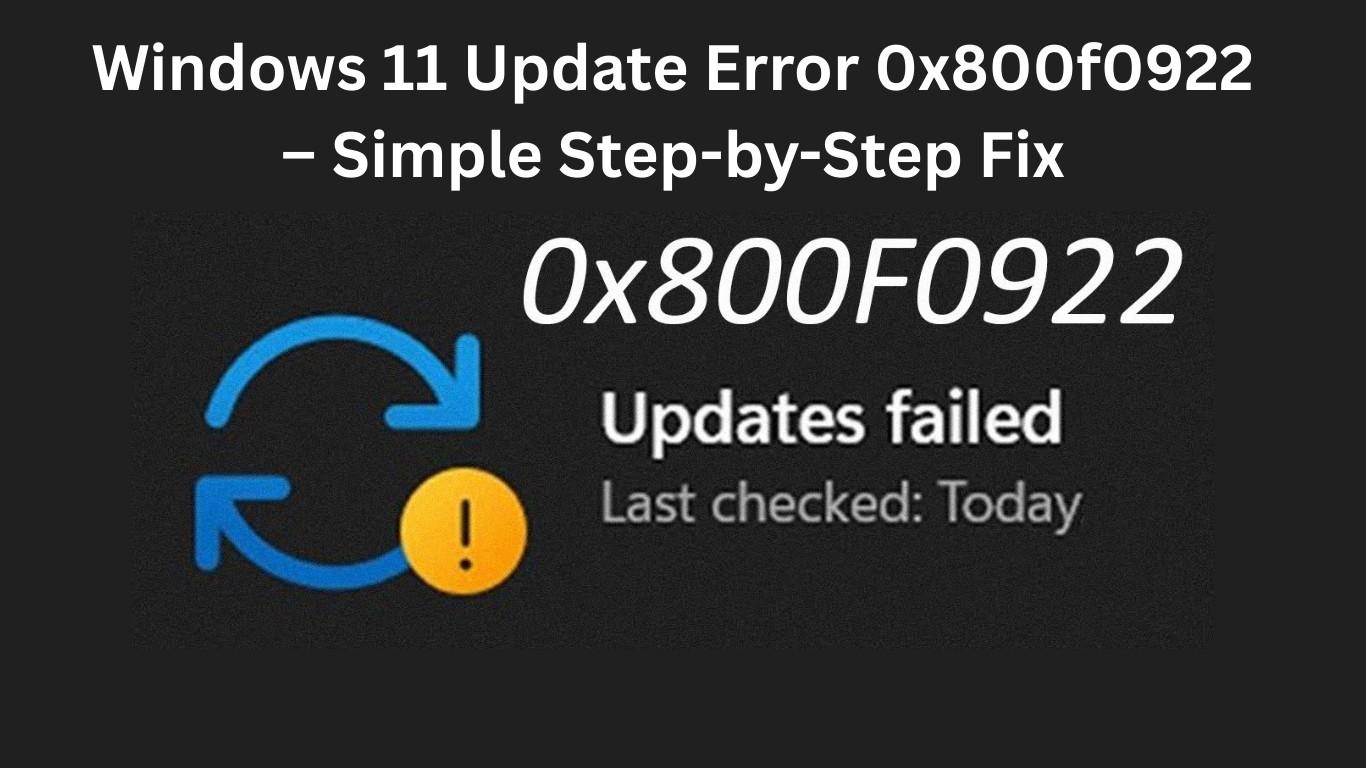
Windows 11 Update Error 0x800f0922 is one of the most frustrating problems users face when trying to install system updates. You click Check for updates, everything downloads normally, and then suddenly the installation fails — often rolling back changes with an error message that gives almost no explanation.
If you’re seeing this error, don’t worry. This guide will walk you through simple, beginner-friendly solutions that actually work. Whether the issue is caused by a network problem, system partition limitation, VPN conflict, or corrupted files, you’ll learn how to fix it step by step.
This article is designed especially for everyday users and follows safe troubleshooting methods you can apply without risking your data.
What Is Windows 11 Update Error 0x800f0922?
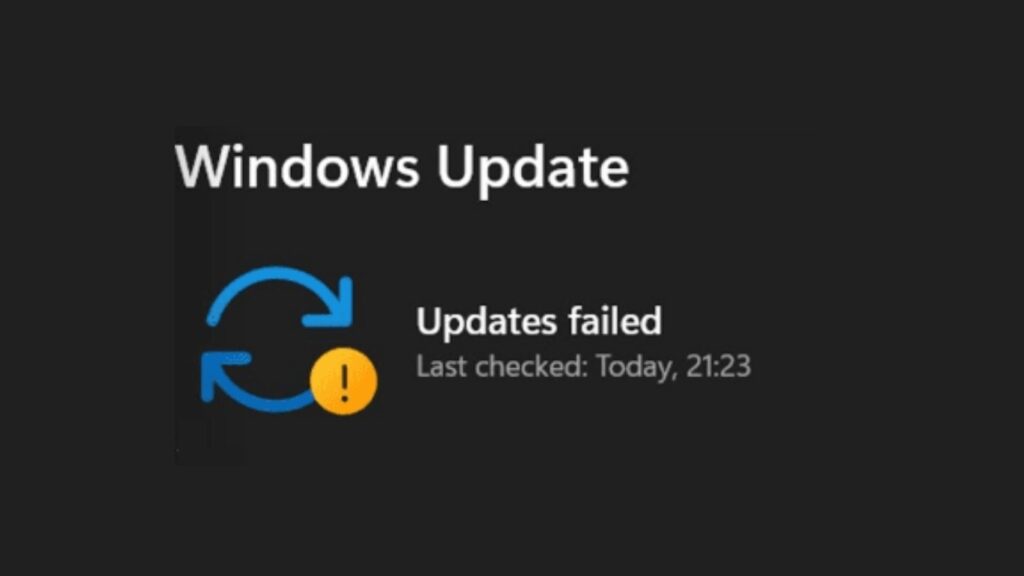
Windows 11 Update Error 0x800f0922 usually appears when Windows fails to connect to update servers or cannot complete required system changes during installation.
Common situations where it appears:
- Installing cumulative updates
- Updating to a new Windows 11 version
- Installing .NET Framework updates
- Security updates failing repeatedly
In most cases, the update downloads successfully but fails during installation, then Windows restores the previous version.
Also Read: Best Free Software Every New Computer User Should Install in 2026
Main Causes of Error 0x800f0922
Understanding the cause helps you fix the issue faster. The most common reasons include:
1. Poor Connection to Microsoft Update Servers
If your PC cannot establish a stable connection, updates fail midway.
2. VPN or Proxy Enabled
VPN services often block communication required for Windows Update authentication.
3. Small System Reserved Partition
Windows needs free space in the hidden system partition to complete updates.
4. Corrupted System Files
Damaged Windows components prevent updates from installing properly.
5. Firewall or Security Software Conflict
Overprotective firewall settings may block update services.
Step-by-Step Fix for Windows 11 Update Error 0x800f0922
Follow these solutions in order. Most users fix the problem within the first few steps.
Fix 1: Check Your Internet Connection
A weak or unstable connection is the simplest cause.
Steps:
- Restart your router.
- Switch from Wi-Fi to Ethernet if possible.
- Disable mobile hotspot connections.
- Try updating again.
Tip: Avoid downloads or streaming while installing updates.
Fix 2: Disable VPN or Proxy Temporarily
VPN services are one of the biggest reasons behind Windows 11 Update Error 0x800f0922.
How to disable VPN:
- Open Settings
- Go to Network & Internet
- Select VPN
- Disconnect any active VPN
Also disable proxy:
- Settings → Network & Internet → Proxy
- Turn OFF automatic proxy setup.
Restart your PC and retry the update.
Fix 3: Run Windows Update Troubleshooter
Windows includes a built-in repair tool that automatically detects update problems.
Steps:
- Open Settings
- Go to System → Troubleshoot
- Click Other troubleshooters
- Run Windows Update
Let the process finish and apply suggested fixes.
Fix 4: Reset Windows Update Components
If update services are stuck, resetting them often resolves the issue.
Steps:
- Search Command Prompt
- Run as Administrator
- Enter commands one by one:
net stop wuauserv
net stop cryptSvc
net stop bits
net stop msiserver
Then rename update folders:
ren C:\Windows\SoftwareDistribution SoftwareDistribution.old
ren C:\Windows\System32\catroot2 catroot2.old
Restart services:
net start wuauserv
net start cryptSvc
net start bits
net start msiserver
Restart your computer and check for updates again.
Fix 5: Repair Corrupted System Files (Very Important)
Corrupted files are a major trigger for Windows 11 Update Error 0x800f0922.
Run SFC Scan:
- Open Command Prompt as Admin
- Type:
sfc /scannow
Wait until verification reaches 100%.
Then run DISM Repair:
DISM /Online /Cleanup-Image /RestoreHealth
This downloads clean system files directly from Windows servers.
Fix 6: Enable .NET Framework
Some updates require .NET Framework features enabled.
Steps:
- Press Windows + R
- Type
optionalfeatures - Enable:
- .NET Framework 3.5
- .NET Framework 4.x Advanced Services
- Click OK and restart PC.
Fix 7: Check System Reserved Partition Space
Advanced but highly effective solution.
Windows updates need space in the hidden System Reserved Partition.
If it’s too small, installation fails with error 0x800f0922.
Quick Solution:
- Use Disk Management to check partition size.
- Minimum recommended free space: 500 MB.
If smaller, you may need a partition manager tool to extend it safely.
Fix 8: Temporarily Disable Antivirus or Firewall
Third-party antivirus programs sometimes block update installation.
Try this safely:
- Disable antivirus temporarily.
- Turn off firewall protection.
- Install update.
- Re-enable protection afterward.
Fix 9: Install Update Manually
If automatic updates keep failing, manual installation works almost every time.
Steps:
- Open Microsoft Update Catalog website.
- Search your update KB number.
- Download the correct version.
- Run installer manually.
This bypasses many background update issues.
Fix 10: Perform an In-Place Upgrade (Last Resort)
If nothing works, repairing Windows without data loss is the best solution.
An in-place upgrade reinstalls Windows while keeping:
- Files
- Apps
- Settings
Download the latest Windows 11 ISO and run setup from inside Windows.
Pro Tips to Prevent Future Update Errors
To avoid seeing Windows 11 Update Error 0x800f0922 again:
- Keep at least 20GB free storage.
- Avoid shutting down during updates.
- Update drivers regularly.
- Don’t use aggressive system cleaner tools.
- Restart PC weekly.
Also Read: Wi-Fi Connected but Internet Not Working on PC? Try These Easy Solutions
Frequently Asked Questions (FAQs)
Is Windows 11 Update Error 0x800f0922 dangerous?
No. It does not harm your PC. It simply prevents updates from installing properly.
Can low disk space cause error 0x800f0922?
Yes. Especially if the System Reserved Partition lacks free space.
Does VPN always cause this error?
Not always, but VPNs frequently block update server communication.
Will resetting Windows Update delete my files?
No. It only refreshes update components.
What is the fastest fix for this error?
Disabling VPN and running SFC + DISM scans solves the issue for most users.
Final Thoughts
Windows 11 Update Error 0x800f0922 may look complicated, but in reality, it usually comes down to connection problems, corrupted files, or system configuration conflicts. By following the step-by-step solutions above, you can resolve the issue safely without reinstalling Windows.
Start with simple fixes like disabling VPN and running the troubleshooter, then move toward advanced repairs if needed. In most cases, your updates will install successfully within minutes.
If you found this guide helpful, consider bookmarking SolvingDad.com for more practical Windows troubleshooting tutorials designed for beginners and advanced users alike.
Also Read: