
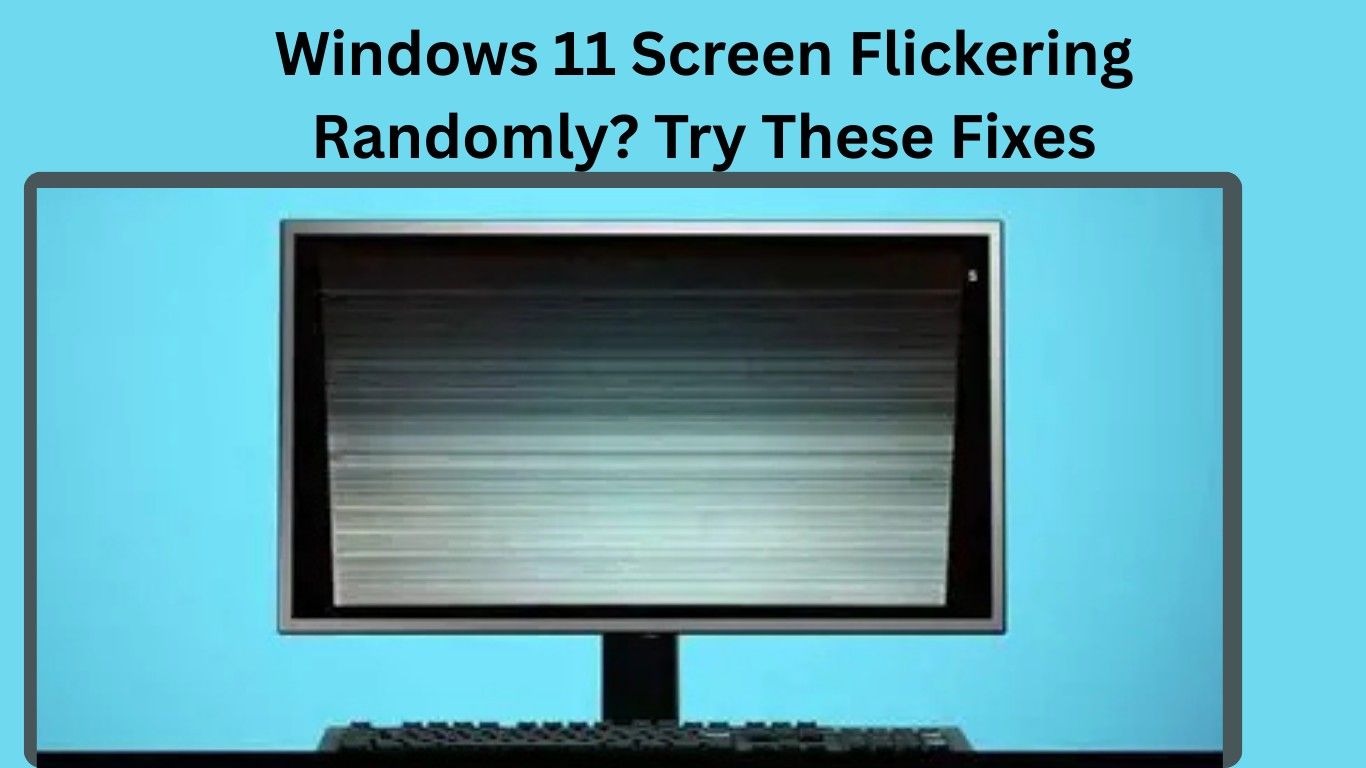
Windows 11 Screen Flickering Randomly is one of the most frustrating problems users face after updates, driver changes, or system configuration issues. Your screen may blink, flash, or refresh unexpectedly while working, gaming, or even when the system is idle. The good news is that this issue is usually software-related and can be fixed without replacing your monitor or laptop.
In this complete guide, you’ll learn why Windows 11 screen flickering randomly happens, how to diagnose the real cause, and step-by-step solutions that beginners can safely follow. This article is written specifically to help you fix the issue permanently while keeping your system stable and optimized.
What Does Screen Flickering in Windows 11 Look Like?
Before fixing the problem, confirm that you’re experiencing actual flickering. Common symptoms include:
- Screen flashing on and off
- Taskbar constantly refreshing
- Apps blinking or resizing automatically
- Display turning black for a second
- Flickering after login or update
- Screen shaking while scrolling
If your Windows 11 screen flickering randomly started recently, it’s usually linked to a driver conflict, refresh rate mismatch, or system feature malfunction.
Main Causes of Windows 11 Screen Flickering Randomly
Understanding the cause helps you apply the correct fix faster.
1. Outdated or Corrupted Graphics Drivers
Graphics drivers control how Windows communicates with your GPU. A broken update often causes display instability.
2. Incorrect Refresh Rate Settings
If your monitor refresh rate doesn’t match supported values, flickering may occur.
3. Faulty Windows Updates
Sometimes updates introduce compatibility issues with display drivers.
4. Problematic Apps
Certain apps — especially screen recorders, overlay tools, or customization software — can trigger flickering.
5. Hardware Acceleration Conflicts
Modern apps use GPU acceleration, which may clash with some systems.
6. Loose Display Connection (Desktop Users)
HDMI or DisplayPort cable issues can also cause random flickering.
Step 1: Check If Task Manager Flickers
This quick test helps identify whether the issue is driver-related.
- Press Ctrl + Shift + Esc to open Task Manager.
- Observe the screen carefully.
Result:
- If Task Manager flickers → Display driver problem.
- If only apps flicker → Software or app conflict.
This small test saves a lot of troubleshooting time.
Fix 1: Update Graphics Driver Properly
The most effective solution for Windows 11 screen flickering randomly is updating or reinstalling your graphics driver.
Method:
- Right-click Start Menu → Device Manager.
- Expand Display adapters.
- Right-click your GPU → Update driver.
- Select Search automatically for drivers.
👉 Restart your PC after updating.
Pro Tip:
If flickering started after an update, try Roll Back Driver instead.
Fix 2: Reinstall Graphics Driver (Clean Installation)
If updating doesn’t help, reinstalling removes corrupted files.
- Open Device Manager.
- Right-click graphics card.
- Select Uninstall device.
- Check Delete driver software (if available).
- Restart PC.
Windows will automatically reinstall a fresh driver.
Fix 3: Change Refresh Rate Settings
Incorrect refresh rate is a hidden cause of flickering.
Steps:
- Go to Settings → System → Display.
- Click Advanced Display.
- Under Refresh Rate, select:
- 60Hz (for most laptops)
- 120Hz/144Hz (for gaming monitors)
Apply changes and check if the issue stops.
Fix 4: Disable Problematic Startup Apps
Some startup programs interfere with display rendering.
- Press Ctrl + Shift + Esc.
- Open Startup Apps tab.
- Disable unnecessary apps.
- Restart your PC.
Focus on disabling:
- Screen recording tools
- GPU tweaking software
- Third-party themes or UI tools
Fix 5: Turn Off Hardware Acceleration
Hardware acceleration can cause Windows 11 screen flickering randomly, especially in browsers.
Disable in Microsoft Edge or Chrome:
- Open browser settings.
- Search Hardware Acceleration.
- Turn it OFF.
- Restart browser.
Many users notice instant improvement after this change.
Fix 6: Update Windows 11 Completely
Microsoft frequently releases patches for display issues.
- Go to Settings → Windows Update.
- Click Check for Updates.
- Install all updates.
- Restart PC.
Even optional updates often contain important driver fixes.
Fix 7: Run System File Checker (SFC Scan)
Corrupted system files can cause graphical instability.
- Open Command Prompt as Administrator.
- Run:
sfc /scannow
- Wait for verification to complete.
- Restart your system.
This repair tool restores damaged Windows components automatically.
Fix 8: Disable Animation Effects
Visual effects sometimes trigger flickering on low or mid-range systems.
- Open Settings → Accessibility → Visual Effects.
- Turn OFF:
- Animation effects
- Transparency effects
This also improves performance.
Fix 9: Check Monitor Cable & Port (Desktop Users)
If you use a desktop PC:
- Reconnect HDMI/DisplayPort cable
- Try a different cable
- Use another monitor port
- Avoid cheap adapters
Hardware instability can mimic software flickering.
Fix 10: Perform a Clean Boot
A clean boot helps detect software conflicts.
- Press Windows + R → type
msconfig. - Open Services tab.
- Check Hide Microsoft services.
- Click Disable All.
- Restart PC.
If flickering stops, a background app is causing the problem.
Bonus Performance Tips (Prevent Future Flickering)
To avoid the Windows 11 screen flickering randomly issue again:
- Keep GPU drivers updated monthly
- Avoid installing unknown optimization tools
- Install Windows updates regularly
- Use original display cables
- Avoid overclocking GPU unnecessarily
Also Read: Windows 10 vs Windows 11 in 2026: Which One Should You Use?
Frequently Asked Questions (FAQs)
Why does my Windows 11 screen flicker randomly after an update?
Updates sometimes install incompatible graphics drivers. Reinstalling or rolling back the driver usually fixes the issue.
Can screen flickering damage my laptop?
No, flickering itself usually doesn’t damage hardware, but ignoring it may worsen driver or system instability.
Is screen flickering a hardware problem?
Most cases are software-related. Only persistent flickering across BIOS or startup screens indicates hardware issues.
Does refresh rate affect flickering?
Yes. An unsupported refresh rate is a common cause of Windows 11 display problems.
Should I reset Windows 11 to fix flickering?
Resetting should be the last option. Most users fix the problem using driver updates or display settings.
Final Thoughts
Experiencing Windows 11 screen flickering randomly can interrupt productivity and make your computer difficult to use, but in most cases, the solution is simpler than expected. Graphics driver issues, refresh rate mismatches, and software conflicts are responsible for the majority of flickering problems.
By following the fixes in this guide step by step, you can restore a stable, smooth display without professional repair or expensive replacements. Start with driver updates, check refresh rate settings, and eliminate conflicting apps — these three solutions alone solve the issue for most users.
If you found this guide helpful, consider bookmarking SolvingDad.com for more beginner-friendly Windows troubleshooting tutorials designed to keep your PC running perfectly.
Also Read: