
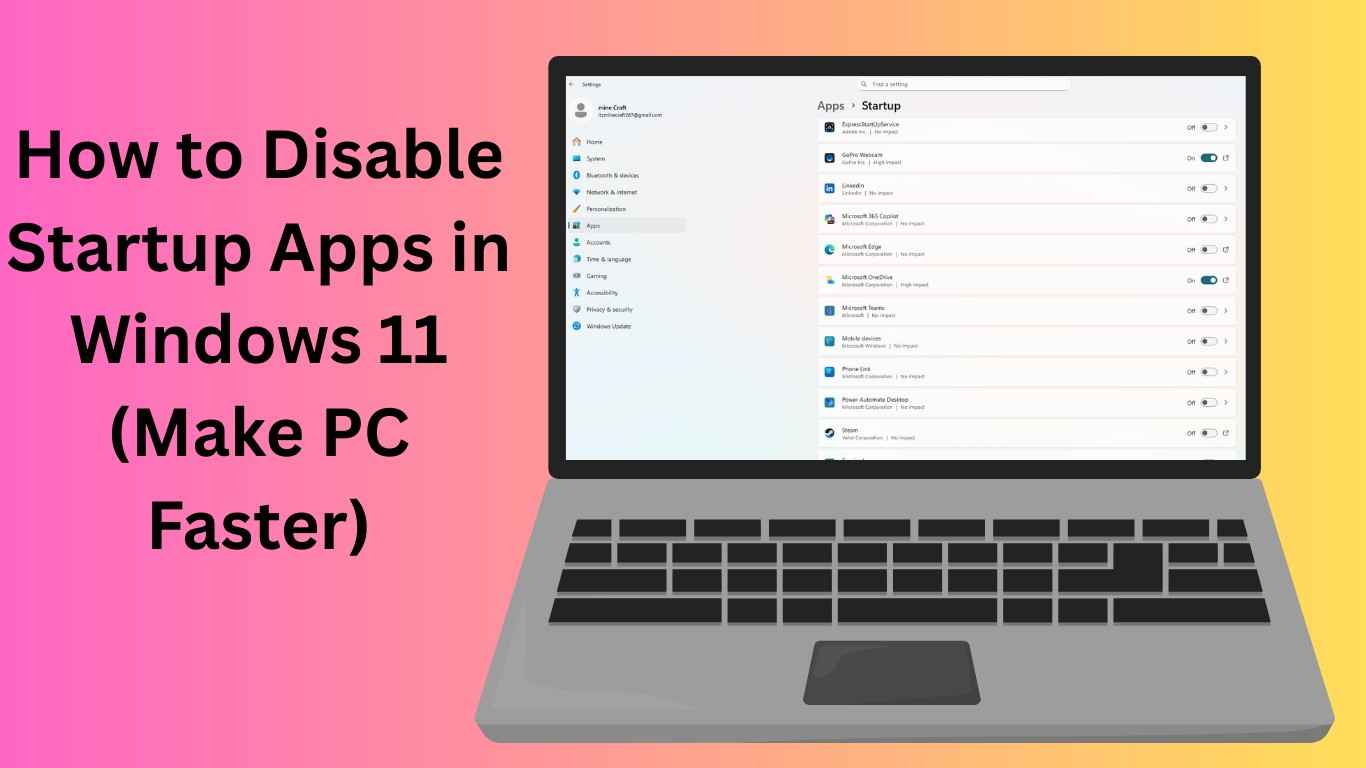
How to Disable Startup Apps in Windows 11 is one of the easiest and most effective ways to speed up a slow computer. If your PC takes too long to boot, freezes after login, or feels sluggish right after startup, the real problem is often unnecessary programs launching automatically in the background.
Many apps install startup permissions without clearly informing users. Over time, these programs consume RAM, CPU power, and disk usage — making even a powerful PC feel slow. The good news? You can fix this in just a few minutes without installing any third-party software.
In this complete guide, you’ll learn how to disable startup apps in Windows 11, why it improves performance, which apps you should keep enabled, and advanced tips to make your system noticeably faster.
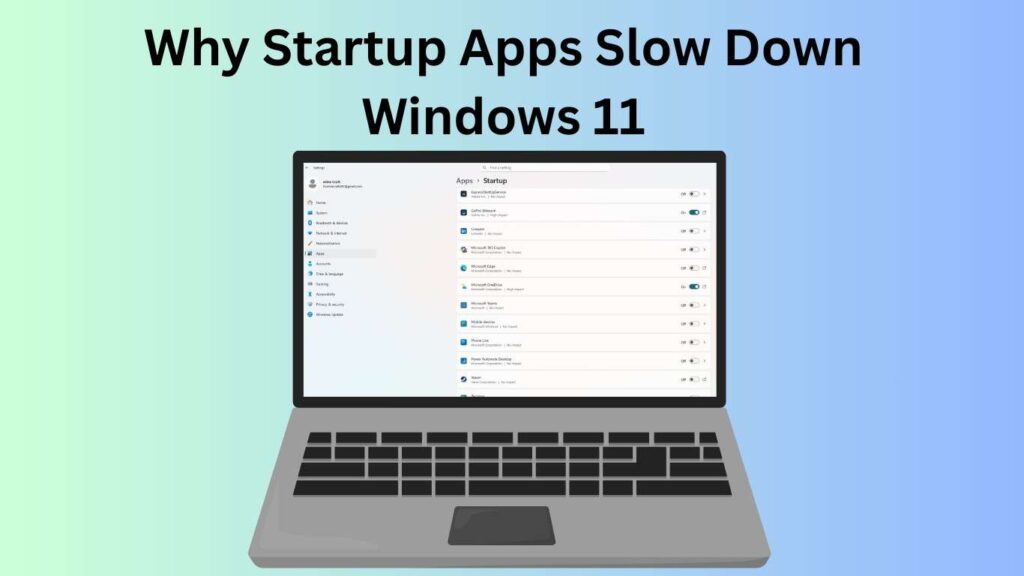
Why Startup Apps Slow Down Windows 11
When Windows starts, it loads essential system services first. After that, startup applications begin launching automatically.
Each startup app:
- Uses system memory (RAM)
- Consumes CPU resources
- Increases boot time
- Runs background processes continuously
If too many apps start together, your PC struggles to keep up — especially on systems with limited RAM or older SSD/HDD drives.
Also Read: How to Safely Download Software Without Getting Viruses (Beginner Guide)
Common Startup Apps That Cause Slowdowns
- Chat applications
- Game launchers
- Cloud storage sync tools
- Auto-updaters
- Media software
- Third-party utilities
Disabling unnecessary startup apps does not uninstall them. It simply prevents them from launching automatically.
Benefits of Disabling Startup Apps
Learning how to disable startup apps in Windows 11 provides immediate performance improvements:
- Faster boot time
- Faster login experience
- Reduced background CPU usage
- Improved gaming performance
- Better battery life on laptops
- Less system lag
Many users notice speed improvements instantly after cleaning startup programs.
Method 1: Disable Startup Apps Using Task Manager (Best Method)
This is the fastest and safest way.
Step-by-Step Instructions
- Press Ctrl + Shift + Esc to open Task Manager.
- If it opens in compact view, click More Details.
- Go to the Startup Apps tab.
- You will see a list of programs.
- Check the Startup Impact column.
- Right-click the app you want to disable.
- Click Disable.
That’s it — the app will no longer start automatically.
Also Read: Windows 10 vs Windows 11 in 2026: Which One Should You Use?
Understanding Startup Impact
- High Impact → Major slowdown during startup
- Medium Impact → Moderate resource usage
- Low Impact → Minimal effect
Focus on disabling High and Medium impact apps first.
Method 2: Disable Startup Apps Using Windows Settings
Another simple way to manage startup programs.
Steps:
- Press Windows + I to open Settings.
- Go to Apps → Startup.
- You’ll see a list of installed applications.
- Toggle OFF the apps you don’t want running at startup.
This method is beginner-friendly and visually easier to understand.
Which Startup Apps Should You Disable?
Not every startup app should be turned off. Some are important for system functionality.
✅ Safe to Disable
- Music players
- Game launchers
- Zoom or chat apps
- Adobe updater services
- Streaming apps
- Third-party utilities
⚠️ Keep Enabled
- Windows Security notifications
- Touchpad drivers
- Graphics drivers
- Audio software
- Cloud backup (if you rely on automatic sync)
If unsure, disable one app at a time and test performance.
Advanced Method: Disable Startup Programs from Startup Folder
Windows also stores startup shortcuts in a hidden folder.
Steps:
- Press Windows + R.
- Type:
shell:startup - Press Enter.
- Delete unnecessary shortcuts from this folder.
Removing items here stops them from launching during login.
Method 4: Disable Startup Apps Using System Configuration (Advanced Users)
This method gives deeper control.
- Press Windows + R
- Type msconfig
- Open the Services tab
- Check Hide all Microsoft services
- Disable unwanted third-party services
⚠️ Do not disable Microsoft services unless you understand their function.
Extra Tips to Make Windows 11 Even Faster
Disabling startup apps is powerful, but combining it with these tweaks gives the best results.
1. Disable Background Apps
Go to:
Settings → Apps → Installed Apps → Advanced Options → Background permissions → Never
2. Turn Off Startup Notifications
Many apps wake up just to send alerts.
3. Enable Storage Sense
Automatically removes temporary files.
4. Update Windows Regularly
Updates often include performance improvements.
5. Use SSD Instead of HDD
Startup speed dramatically improves with SSD storage.
Pro Tip: Measure Startup Improvement
After disabling apps:
- Restart your PC.
- Open Task Manager.
- Check Last BIOS Time (Startup tab).
You’ll notice reduced boot time after optimization.
Mistakes to Avoid
When learning how to disable startup apps in Windows 11, avoid these common errors:
- Disabling driver-related software
- Turning off security services
- Disabling everything at once
- Using unknown optimization tools
Always make changes gradually.
Is Disabling Startup Apps Safe?
Yes — completely safe.
You are not deleting programs or files. Apps can still be opened manually anytime. If something stops working, simply re-enable it in Task Manager.
Why Windows 11 Enables So Many Startup Apps
Many applications add themselves to startup to:
- Check updates automatically
- Sync data continuously
- Improve launch speed
While convenient for developers, it often harms system performance for users.
Taking manual control ensures your PC runs efficiently.
Also Read: Best Free Software Every New Computer User Should Install in 2026
Best Startup Optimization Strategy (Recommended)
For best performance:
- Disable all non-essential apps.
- Restart PC.
- Use system normally for a day.
- Re-enable only apps you truly need.
This creates a clean and optimized startup environment.
Real Performance Improvements You Can Expect
After disabling startup apps, users commonly experience:
- Boot time reduced by 30–70%
- Less fan noise
- Faster browser opening
- Better multitasking
- Smoother gaming
Even mid-range PCs feel significantly faster.
Frequently Asked Questions (FAQs)
Does disabling startup apps improve performance?
Yes. It reduces background resource usage and speeds up boot time significantly.
Can I re-enable startup apps later?
Absolutely. Open Task Manager → Startup Apps and click Enable anytime.
Will disabling startup apps uninstall programs?
No. The apps remain installed and work normally when opened manually.
How many startup apps should be enabled?
Ideally fewer than 5 essential programs for best performance.
Why is my PC still slow after disabling startup apps?
Other causes may include low RAM, outdated drivers, malware, or full storage.
Final Thoughts
Knowing how to disable startup apps in Windows 11 is one of the simplest yet most powerful performance optimizations available. Most slow PC problems come from background programs launching automatically — not from hardware limitations.
By carefully managing startup applications, you give your system more resources to focus on what actually matters: speed, productivity, and smooth performance.
If your Windows 11 PC feels slow, start here. A few small changes today can make your computer feel brand new again.
Also Read: