
Explorer.exe Keeps Crashing in Windows 11 is one of the most frustrating problems users face because it directly affects the desktop, taskbar, Start menu, and file browsing experience. When File Explorer crashes repeatedly, your screen may flicker, icons disappear, or the taskbar reload again and again — making your PC almost unusable.
If you are dealing with this issue, don’t worry. This beginner-friendly guide will walk you through simple, safe, and proven solutions to fix Explorer crashes permanently. You don’t need advanced technical skills — just follow the steps carefully.
What Is Explorer.exe in Windows 11?
Before fixing the issue, let’s understand the basics.
Explorer.exe is the Windows process responsible for:
- Desktop interface
- Taskbar and Start menu
- File Explorer windows
- Right-click context menus
- File navigation
When Explorer.exe stops working, Windows reloads the interface automatically, which causes continuous crashing loops.
Why Explorer.exe Keeps Crashing in Windows 11
There isn’t just one cause. Usually, the problem happens due to system conflicts or corrupted components.
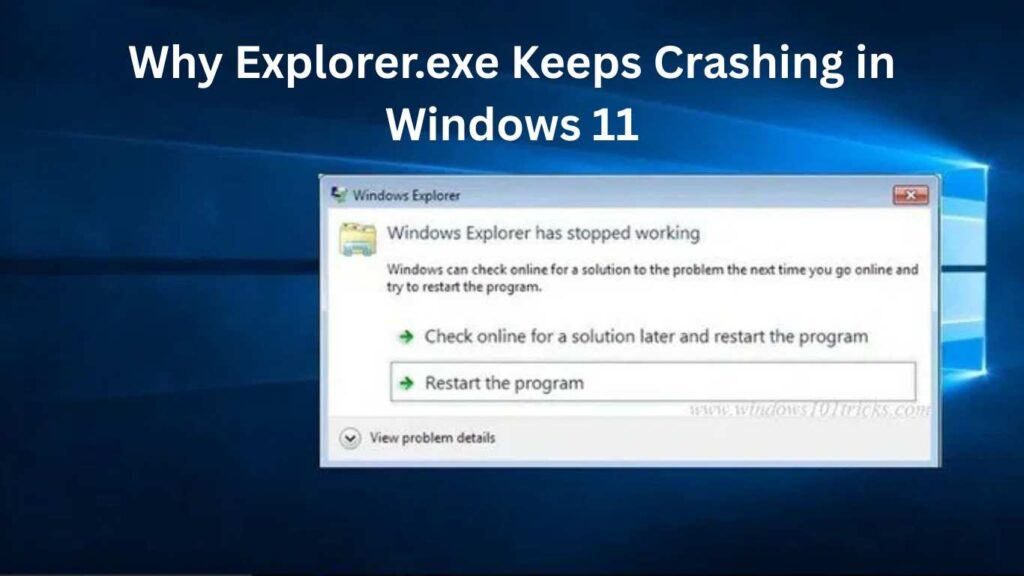
Common reasons include:
- Corrupted system files
- Faulty Windows updates
- Broken context menu extensions
- Outdated graphics drivers
- Malware or unwanted software
- Damaged user profile
- RAM or disk errors
The good news? Most users can fix it within 15–30 minutes.
Also Read: Difference Between SSD and HDD Explained for Normal Users (Which Is Better?)
Fix 1: Restart Windows Explorer Properly (Quick Fix)
Sometimes Explorer crashes because of temporary glitches.
Steps:
- Press Ctrl + Shift + Esc to open Task Manager.
- Find Windows Explorer.
- Right-click it.
- Click Restart.
✅ This refreshes the Windows interface without restarting the PC.
If Explorer.exe keeps crashing in Windows 11 after restarting, move to the next fix.
Fix 2: Clear File Explorer Cache
Corrupted cache files are a very common reason beginners face this issue.
Steps:
- Open File Explorer Options (search from Start).
- Under the General tab:
- Click Clear beside Privacy.
- Click Apply → OK.
Restart your PC and check again.
Fix 3: Run System File Checker (SFC Scan)
Damaged system files often cause Explorer crashes.
Steps:
- Search Command Prompt.
- Right-click → Run as Administrator.
- Type:
sfc /scannow
- Press Enter and wait.
This scan repairs corrupted Windows files automatically.
👉 After completion, restart your computer.
Fix 4: Use DISM Repair Command
If SFC doesn’t fully fix the issue, use DISM.
Steps:
Open Command Prompt as Administrator and run:
DISM /Online /Cleanup-Image /RestoreHealth
This downloads healthy system components and replaces damaged ones.
Many users notice that Explorer.exe keeps crashing in Windows 11 stops after this repair.
Fix 5: Update Graphics Driver
Explorer heavily depends on GPU rendering. Outdated drivers can cause crashes.
Steps:
- Press Windows + X → Device Manager.
- Expand Display adapters.
- Right-click your graphics card.
- Select Update driver.
Choose Search automatically.
✅ Restart after updating.
Fix 6: Disable Third-Party Context Menu Extensions
Some software adds right-click options that break Explorer.
Common offenders:
- Archive tools
- Old customization software
- File converters
Easy Method:
- Perform a Clean Boot:
- Press Windows + R
- Type
msconfig
- Go to Services tab.
- Check Hide Microsoft services.
- Click Disable All.
- Restart PC.
If crashes stop, a third-party app is causing the issue.
Fix 7: Check for Windows Updates
Microsoft frequently releases patches for Explorer bugs.
Steps:
- Open Settings.
- Go to Windows Update.
- Click Check for updates.
Install everything available and reboot.
Fix 8: Create a New User Account
A corrupted user profile can trigger repeated crashes.
Steps:
- Settings → Accounts → Other users.
- Click Add account.
- Create a local account.
- Log into the new profile.
If Explorer works normally, your old profile is damaged.
Fix 9: Scan for Malware
Malicious programs sometimes inject themselves into Explorer.exe.
Use:
- Windows Security (built-in antivirus)
Steps:
- Open Windows Security.
- Go to Virus & threat protection.
- Select Full Scan.
Remove any detected threats.
Fix 10: Check Disk for Errors
Hard disk corruption can also crash Explorer.
Steps:
Open Command Prompt as Admin and run:
chkdsk C: /f /r
Press Y and restart PC.
Windows will repair disk errors automatically.
Advanced Fix: Reset Windows Without Losing Files
If Explorer.exe keeps crashing in Windows 11 even after all fixes, resetting Windows may help.
Steps:
- Settings → System → Recovery.
- Click Reset this PC.
- Choose Keep my files.
This reinstalls Windows while keeping personal data safe.
Pro Tips to Prevent Explorer Crashes
To avoid future problems:
- Avoid installing unknown customization tools
- Keep drivers updated regularly
- Don’t force shutdown frequently
- Clean temporary files weekly
- Install Windows updates consistently
Small maintenance habits keep Windows stable long term.
Also Read: Wi-Fi Connected but Internet Not Working on PC? Try These Easy Solutions
Frequently Asked Questions (FAQs)
Why does Explorer.exe keep restarting automatically?
Usually due to corrupted system files, faulty drivers, or third-party extensions interfering with Windows Explorer.
Is Explorer.exe a virus?
No. Explorer.exe is a core Windows process. However, malware can disguise itself using a similar name, so scanning your PC is important.
Can low RAM cause Explorer crashes?
Yes. Insufficient memory or high background usage can make Explorer unstable.
Will resetting Windows fix Explorer crashes?
Yes, in most severe cases resetting Windows while keeping files resolves deep system corruption.
How do I know which app is causing Explorer to crash?
Perform a Clean Boot. If crashes stop, re-enable apps one by one to find the culprit.
Final Words
If Explorer.exe keeps crashing in Windows 11, it may look like a serious problem, but in most cases it’s caused by repairable system issues. By following the fixes above — starting from simple restarts to system repairs — you can restore your PC’s stability without visiting a technician.
Start with the quick fixes first, and move step-by-step. Most beginners solve the problem before reaching the advanced methods.
Also read: