
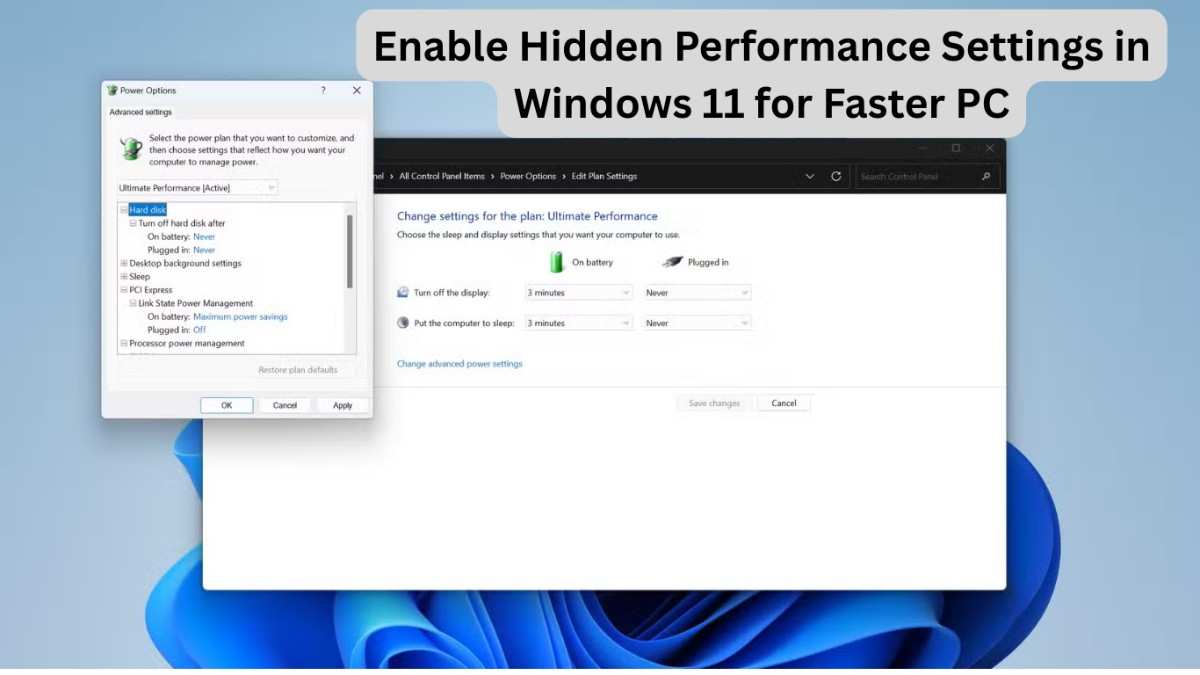
Enable Hidden Performance Settings in Windows 11 for Faster PC — if your computer feels slow, laggy, or unresponsive, you might be surprised to learn that Windows 11 already includes several powerful performance options that remain hidden by default. These settings are designed to balance visuals, battery life, and compatibility, but they often prevent your PC from reaching its full speed potential.
In this complete guide, you’ll learn how to safely unlock and optimize hidden performance settings in Windows 11 for faster PC performance without installing risky software or upgrading hardware. Whether you use your computer for work, gaming, editing, or daily browsing, these tweaks can significantly improve responsiveness and overall system speed.
Why Windows 11 Hides Performance Settings
Microsoft designs Windows 11 to work smoothly across millions of devices — from low-power laptops to high-end desktops. Because of this, many advanced performance controls are disabled or hidden to:
- Preserve battery life
- Maintain visual aesthetics
- Reduce system crashes for beginners
- Ensure compatibility with older hardware
However, power users and everyday users alike can safely enable these options to gain better performance.
Also Read: Windows 11 Update Error 0x800f0922 – Simple Step-by-Step Fix
Benefits of Enabling Hidden Performance Settings in Windows 11 for Faster PC
Before applying tweaks, here’s what you can expect:
✅ Faster boot times
✅ Reduced lag while multitasking
✅ Improved gaming performance
✅ Faster file explorer response
✅ Better CPU and RAM usage
✅ Smoother animations (or optional removal)
These optimizations focus on improving system efficiency rather than removing essential Windows features.
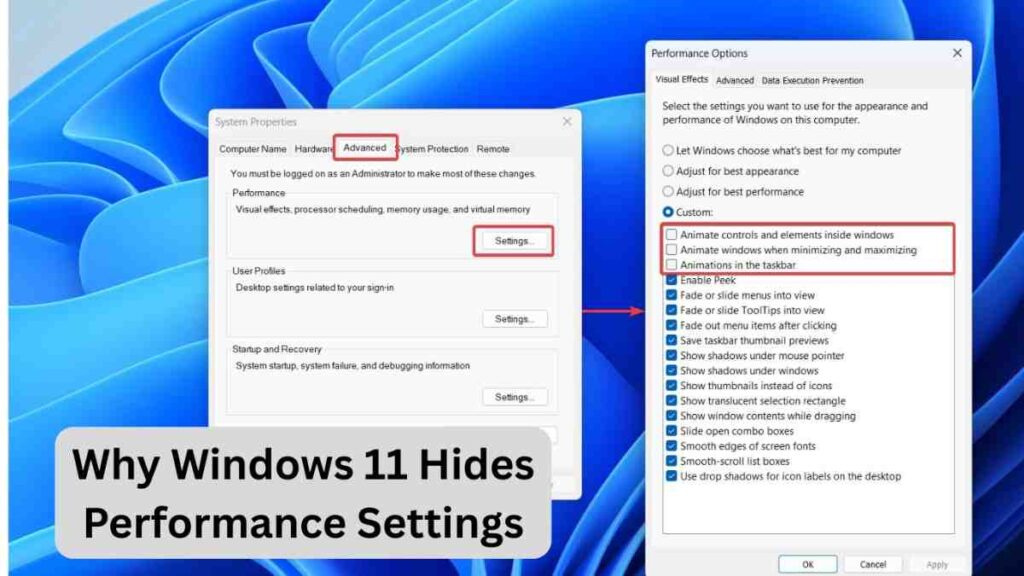
1. Unlock Advanced Performance Options (Visual Effects)
Windows animations and transparency consume system resources, especially on mid-range PCs.
Steps:
- Press Windows + R
- Type
sysdm.cpland press Enter - Open the Advanced tab
- Under Performance, click Settings
You will see multiple visual effect options.
Best Setting for Speed:
Select:
👉 Adjust for best performance
Or manually disable:
- Animate windows when minimizing
- Fade animations
- Shadow effects
- Transparent glass effects
This single change can instantly make Windows feel faster.
Also Read: Windows 11 Screen Flickering Randomly? Try These Fixes
2. Enable Ultimate Performance Power Plan (Hidden Feature)
One of the most powerful hidden tweaks is the Ultimate Performance power mode, originally designed for workstations.
How to Enable:
- Open Command Prompt as Administrator
- Paste this command:
powercfg -duplicatescheme e9a42b02-d5df-448d-aa00-03f14749eb61
- Open:
- Settings → System → Power & Battery
- Select Ultimate Performance
Why It Helps
This mode removes aggressive power-saving limits and allows hardware to run at maximum capability — ideal for desktops and plugged-in laptops.
3. Disable Startup Apps for Instant Speed Boost
Many applications secretly launch during startup, slowing down boot time.
Steps:
- Press Ctrl + Shift + Esc
- Open Task Manager
- Go to Startup Apps
- Disable unnecessary programs
Disable apps like:
- Updaters
- Game launchers
- Messaging apps you rarely use
This is one of the easiest ways to enable hidden performance settings in Windows 11 for faster PC startup.
4. Turn Off Background Apps
Background apps constantly consume RAM and CPU.
How to Disable:
- Go to Settings
- Click Apps → Installed Apps
- Select an app
- Open Advanced Options
- Set Background permissions to Never
Reducing background activity improves multitasking speed significantly.
5. Optimize Virtual Memory (Hidden RAM Boost)
Virtual memory acts as extra RAM using disk space.
Steps:
- Search Advanced System Settings
- Under Performance → Settings
- Open Advanced tab
- Click Change under Virtual Memory
Recommended Setting:
- Uncheck automatic management
- Set Custom Size:
- Initial size: 1.5× RAM
- Maximum size: 3× RAM
Example:
If you have 8GB RAM → set 12000MB to 24000MB.
This improves performance during heavy workloads.
6. Disable Transparency Effects
Windows 11 transparency looks modern but uses GPU resources.
Steps:
- Settings → Personalization → Colors
- Turn OFF Transparency Effects
Result:
- Faster menu opening
- Reduced GPU load
- Improved responsiveness
7. Enable Storage Sense for Automatic Cleanup
Hidden junk files slow down system performance over time.
Enable Storage Sense:
- Settings → System → Storage
- Turn ON Storage Sense
This automatically removes:
- Temporary files
- Cache data
- Old updates
Keeping storage clean helps Windows run faster.
8. Disable Unnecessary Windows Services (Advanced Users)
Some services run even if you never use them.
Steps:
- Press Windows + R
- Type
services.msc
You may safely set these to Manual (if unused):
- Fax
- Remote Registry
- Xbox services (non-gamers)
- Print Spooler (no printer users)
⚠️ Only disable services you understand.
9. Optimize Windows Search Indexing
Search indexing improves file search but can slow slower PCs.
Adjust Settings:
- Open Indexing Options
- Click Modify
- Remove folders you rarely search
Less indexing = faster background performance.
10. Turn On Hardware-Accelerated GPU Scheduling
This hidden graphics option reduces latency.
Steps:
- Settings → System → Display
- Graphics → Default Graphics Settings
- Enable Hardware-accelerated GPU scheduling
Best for:
- Gamers
- Video editors
- High-resolution users
11. Disable Widgets and Unused Features
Widgets constantly refresh data in the background.
Disable Widgets:
- Right-click Taskbar
- Taskbar settings
- Turn OFF Widgets
You can also disable:
- Teams Chat
- News feeds
- Copilot (if unused)
12. Keep Drivers and Windows Updated
Hidden performance improvements often arrive through updates.
Check regularly:
- Windows Update
- Graphics drivers
- Chipset drivers
Updated drivers improve stability and speed.
Pro Tip: Combine These Tweaks for Maximum Speed
Individually, each setting gives a small improvement. Combined, they can make your system feel dramatically faster — almost like upgrading hardware.
Best combination:
- Ultimate Performance Mode
- Reduced visual effects
- Disabled startup apps
- Optimized virtual memory
Common Mistakes to Avoid
❌ Installing random “PC booster” software
❌ Disabling critical Windows services blindly
❌ Using registry tweaks from unknown sources
❌ Over-cleaning system files
Manual optimization is always safer and more effective.
Who Should Use These Performance Tweaks?
These optimizations are ideal for:
- Students using older laptops
- Gamers wanting higher FPS
- Content creators
- Office users handling multitasking
- Anyone experiencing slow Windows performance
FAQs — Enable Hidden Performance Settings in Windows 11 for Faster PC
Are hidden performance settings safe to enable?
Yes. All settings mentioned are built into Windows 11 and safe when followed correctly.
Will enabling Ultimate Performance damage my laptop?
No, but it may increase battery usage. Use it mainly when plugged in.
Do these tweaks improve gaming performance?
Yes. Reduced background processes and better power management can increase FPS and reduce stutter.
Can I revert the changes later?
Absolutely. Every setting can be restored to default anytime.
Do I need third-party software for optimization?
No. Windows already provides powerful built-in optimization tools.
Final Thoughts
Learning how to enable hidden performance settings in Windows 11 for faster PC performance is one of the smartest ways to improve speed without spending money on upgrades. Windows 11 includes powerful optimization tools — they’re simply not enabled by default.
By adjusting visual effects, activating Ultimate Performance mode, controlling background apps, and optimizing memory usage, you can transform a slow system into a fast and responsive machine.
If your PC has been feeling sluggish lately, try these steps today — you may be surprised how much performance Windows 11 was holding back.
Also Read: