
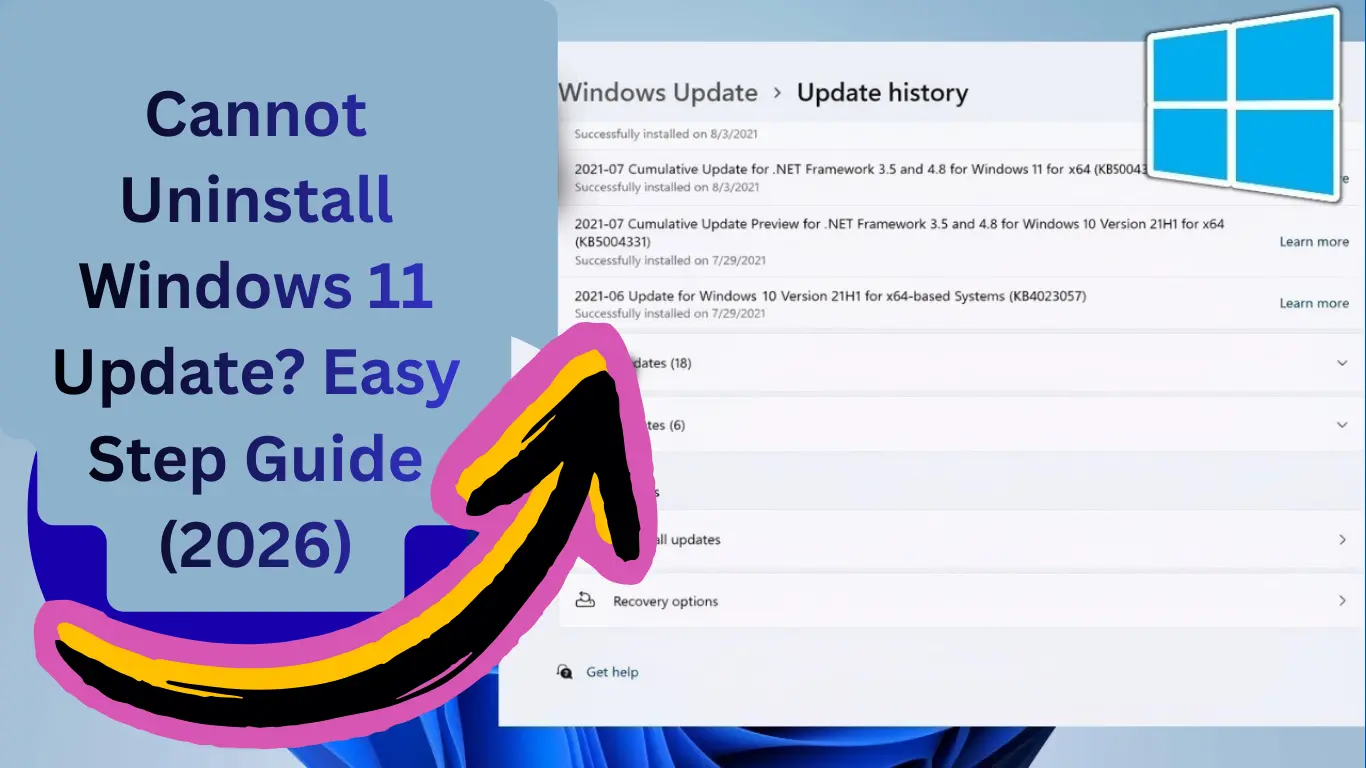
Cannot Uninstall Windows 11 Update is a common problem many users face after installing a new Windows update that causes slow performance, app crashes, driver issues, or unexpected system errors. Microsoft regularly releases updates to improve security and performance, but sometimes these updates create compatibility problems instead of fixing them.
If you are stuck because you cannot uninstall Windows 11 update, don’t worry — this complete 2026 guide will walk you through safe, step-by-step solutions that actually work. Even beginners can follow these methods without risking personal files or system damage.
Why You Cannot Uninstall Windows 11 Update
Before fixing the issue, it’s important to understand why Windows sometimes blocks update removal.
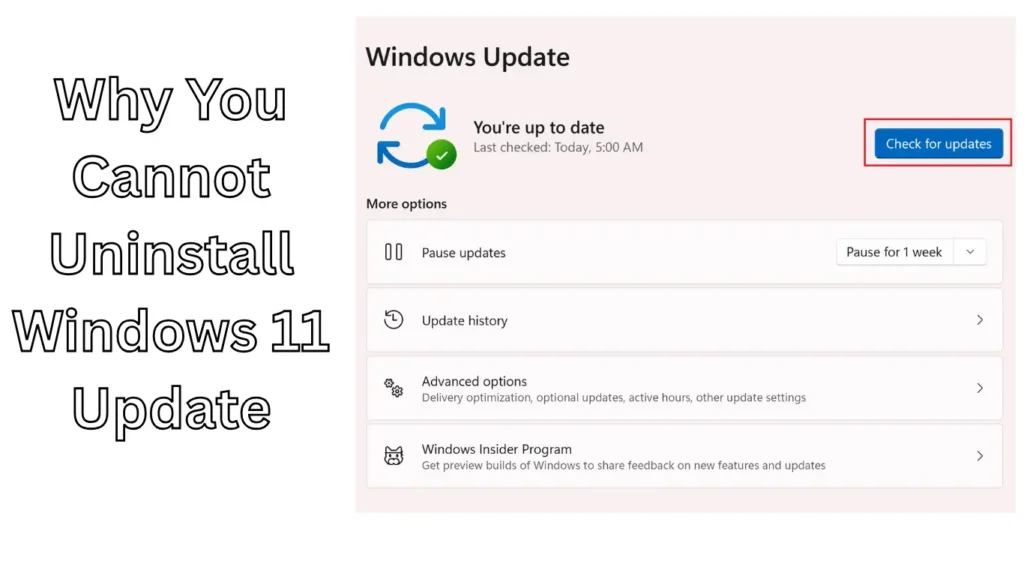
Here are the most common reasons:
- The update is marked as a mandatory security update
- The uninstall option is greyed out
- System files are corrupted
- The rollback period has expired (usually 10 days)
- Windows Update services are stuck
- Update already merged into a newer cumulative update
Knowing the cause helps you choose the correct solution faster.
Check If the Update Can Normally Be Removed
First, verify whether Windows allows uninstalling the update through standard settings.
Steps:
- Press Windows + I to open Settings.
- Go to Windows Update.
- Click Update History.
- Select Uninstall Updates.
- Choose the latest update.
- Click Uninstall.
👉 If the uninstall button works — problem solved.
But if you cannot uninstall Windows 11 update, continue with the fixes below.
Also Read: Best Free Software Every New Computer User Should Install in 2026
Method 1: Uninstall Update Using Advanced Startup (Best Fix)
Sometimes Windows blocks uninstalling updates while running normally.
Follow these steps:
- Open Settings
- Go to System → Recovery
- Click Restart Now under Advanced Startup
- Select:
- Troubleshoot
- Advanced Options
- Uninstall Updates
You will see two options:
- Uninstall latest quality update
- Uninstall latest feature update
Choose the recent update causing problems.
✅ This method works in most cases because Windows runs in recovery mode.Method 1: Uninstall Update Using Advanced Startup (Best Fix)
Sometimes Windows blocks uninstalling updates while running normally.
Follow these steps:
- Open Settings
- Go to System → Recovery
- Click Restart Now under Advanced Startup
- Select:
- Troubleshoot
- Advanced Options
- Uninstall Updates
You will see two options:
- Uninstall latest quality update
- Uninstall latest feature update
Choose the recent update causing problems.
✅ This method works in most cases because Windows runs in recovery mode.
Method 2: Use Command Prompt (Powerful Method)
If Settings fails, Command Prompt gives more control.
Step 1: Open Admin Command Prompt
- Search CMD
- Right-click → Run as Administrator
Step 2: View Installed Updates
Type:
wmic qfe list brief /format:table
You’ll see installed updates with KB numbers.
Step 3: Remove the Update
wusa /uninstall /kb:XXXXXXX
(Replace XXXXXXX with the KB number.)
Example:
wusa /uninstall /kb:5034123
Restart your PC afterward.
Method 3: Use Safe Mode to Remove Updates
If your PC freezes or crashes after updating, Safe Mode helps.
Steps:
- Hold Shift + Restart
- Go to:
- Troubleshoot → Advanced Options → Startup Settings
- Press 4 to boot into Safe Mode
- Open Control Panel → Programs → Installed Updates
- Remove the problematic update.
Safe Mode loads minimal drivers, allowing removal when normal mode fails.
Also Read: Laptop Battery Draining Fast? Simple Settings to Fix It in Windows 10 & 11
Method 4: Use DISM Tool (Advanced Fix)
If you still cannot uninstall Windows 11 update, the DISM tool can remove packages directly.
Open Admin Command Prompt and run:
dism /online /get-packages
Find the update package name.
Then uninstall:
dism /online /remove-package /packagename:PACKAGE_NAME
⚠️ Be careful when using DISM — remove only the problematic update.
Method 5: Perform System Restore (Very Effective)
If uninstall options are missing, restoring Windows to a previous state works perfectly.
Steps:
- Search Create a restore point
- Click System Restore
- Select a restore point before the update
- Follow on-screen instructions.
✅ Your files stay safe, but system changes revert.
Method 6: Roll Back to Previous Windows Version
If the issue started after a major feature update:
- Open Settings
- Go to System → Recovery
- Click Go Back
Note:
- Available only within 10 days after upgrade.
Method 7: Reset Windows Update Components
Sometimes updates cannot uninstall because update services are corrupted.
Run these commands in Admin CMD:
net stop wuauserv
net stop bits
net stop cryptsvc
net stop msiserver
Then restart them:
net start wuauserv
net start bits
net start cryptsvc
net start msiserver
Restart your PC and try uninstalling again.
Method 8: Hide Problematic Update (Prevent Reinstallation)
After fixing the issue, Windows may reinstall the same update automatically.
To stop this:
- Pause updates temporarily.
- Use Microsoft’s update hide tool.
- Disable automatic driver updates temporarily.
This prevents repeated problems.
Also Read: How to Remove Stubborn Malware from Windows 11 (Step-by-Step Safe Guide)
Common Problems After Failed Update Removal
Users often report:
- Black screen after restart
- Slow boot time
- Missing drivers
- Apps not opening
Quick Fix:
Run System File Checker:
sfc /scannow
This repairs damaged Windows files automatically.
Pro Tips to Avoid Future Update Problems
✔ Create restore points before updates
✔ Avoid installing updates immediately on release day
✔ Keep drivers updated
✔ Maintain at least 20GB free storage
✔ Backup important files regularly
Waiting a few days before installing updates often prevents major issues.
Also Read: Laptop Buying Checklist for Copilot+ Features: RAM, NPU, and Battery Life Explained
FAQs — Cannot Uninstall Windows 11 Update
Why is uninstall update option greyed out in Windows 11?
Some updates are permanent security updates or merged into newer builds, which prevents removal through normal settings.
Is it safe to uninstall Windows updates?
Yes, if the update causes performance or compatibility problems. Always create a restore point first.
What happens if I cannot uninstall Windows 11 update?
You can use Advanced Startup, Command Prompt, or System Restore to remove it safely.
Will uninstalling updates delete my files?
No. Personal files remain safe. Only system changes are reversed.
How do I stop Windows from reinstalling the same update?
Pause updates or hide the specific update using Microsoft tools.
Final Words
Facing a situation where you cannot uninstall Windows 11 update can feel frustrating, especially when your PC suddenly becomes slow or unstable. Fortunately, Windows provides multiple recovery and removal methods — you just need to use the right one.
Start with Advanced Startup uninstall, then move to Command Prompt or System Restore if needed. These proven solutions work for most users in 2026 without requiring technical expertise.
By following this guide, you can safely regain control of your PC and keep Windows running smoothly again.
Also Read: