
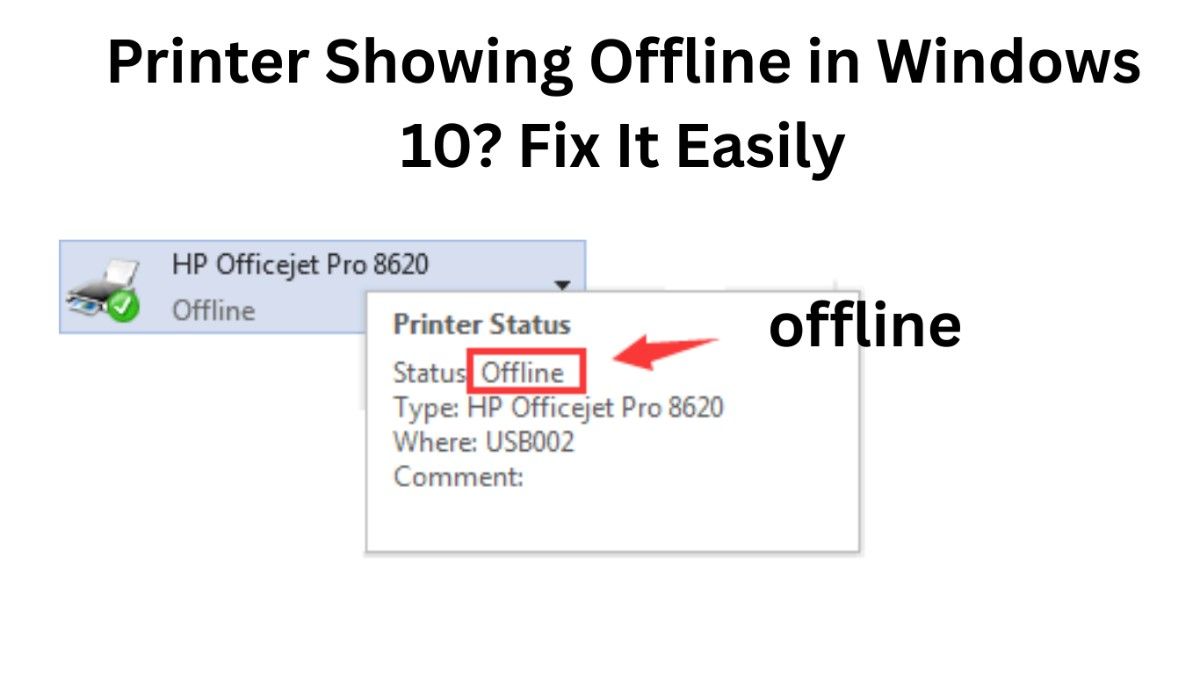
Printer Showing Offline in Windows 10 is one of the most frustrating problems users face when trying to print important documents. You click Print, everything looks normal, but your printer refuses to respond and displays an “Offline” status. The good news is that this issue is usually caused by simple settings, connection problems, or driver glitches — and you can fix it yourself in minutes.
In this complete step-by-step guide, you’ll learn why the printer shows offline, how to fix it permanently, and how to prevent the issue from happening again. This guide is beginner-friendly and designed especially for home users, students, and office workers.
Why Is My Printer Showing Offline in Windows 10?
Before fixing the issue, it’s important to understand the causes. When a printer showing offline in Windows 10 appears, Windows cannot communicate properly with the printer.
Common reasons include:
- Printer disconnected from Wi-Fi or USB
- Wrong printer set as default
- Print Spooler service errors
- Outdated or corrupted drivers
- Enabled “Use Printer Offline” mode
- Network IP address conflicts
- Pending stuck print jobs
Most of these problems can be solved without technical knowledge.
Also Read: Windows 11 Update Error 0x800f0922 – Simple Step-by-Step Fix
Fix 1: Restart Printer and Computer (Quick Solution)
This simple step fixes many temporary glitches.
Steps:
- Turn OFF your printer.
2. Shut down your computer.
3. Unplug the printer power cable for 60 seconds.
4. Restart your PC.
5. Turn the printer back ON.
Now check if the printer showing offline in Windows 10 problem disappears.
👉 Why this works: Restarting clears temporary communication errors between devices.
Fix 2: Set Printer as Default
Sometimes Windows sends print commands to another device.
Steps:
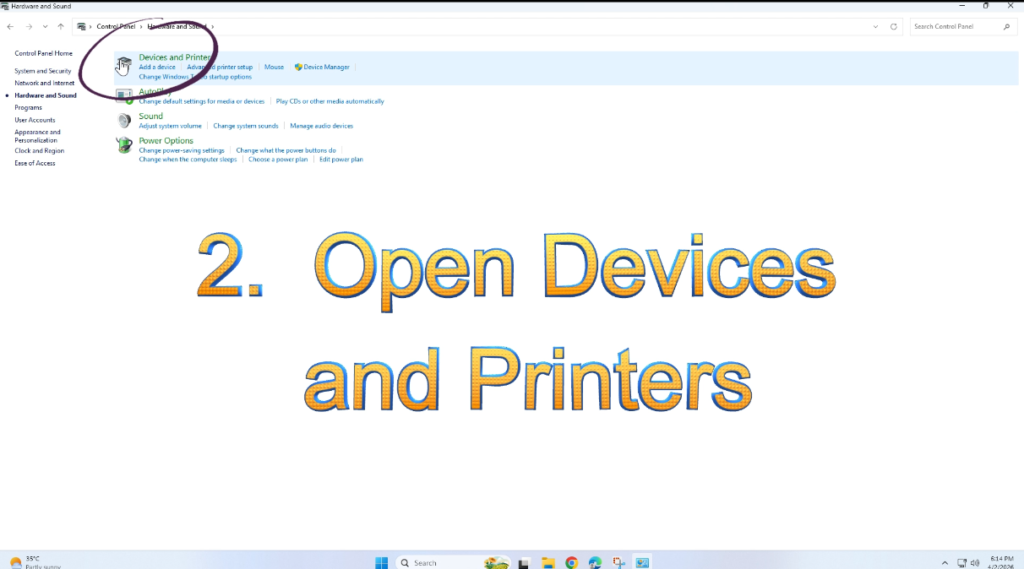
- Open Control Panel
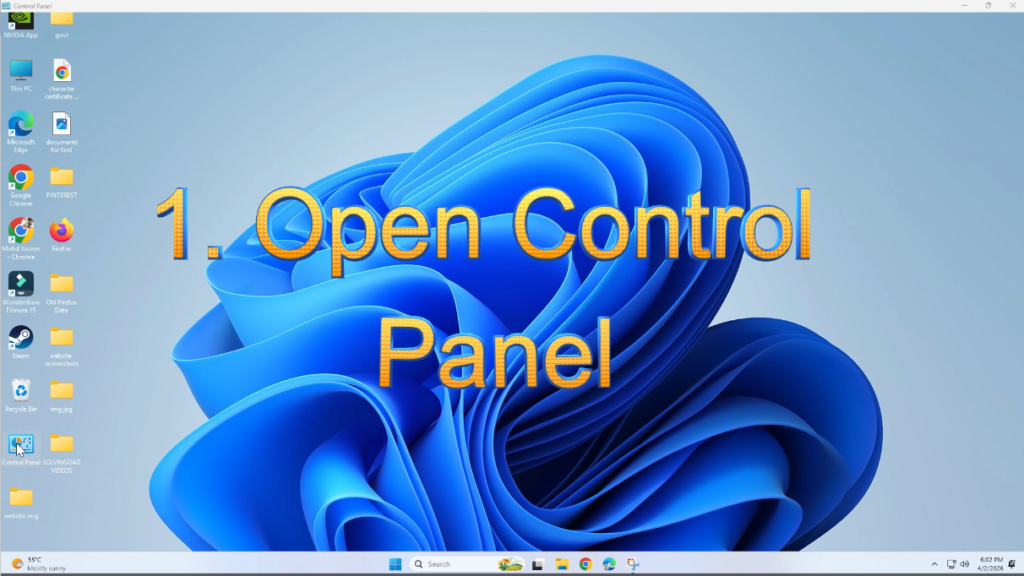
2. Go to Devices and Printers
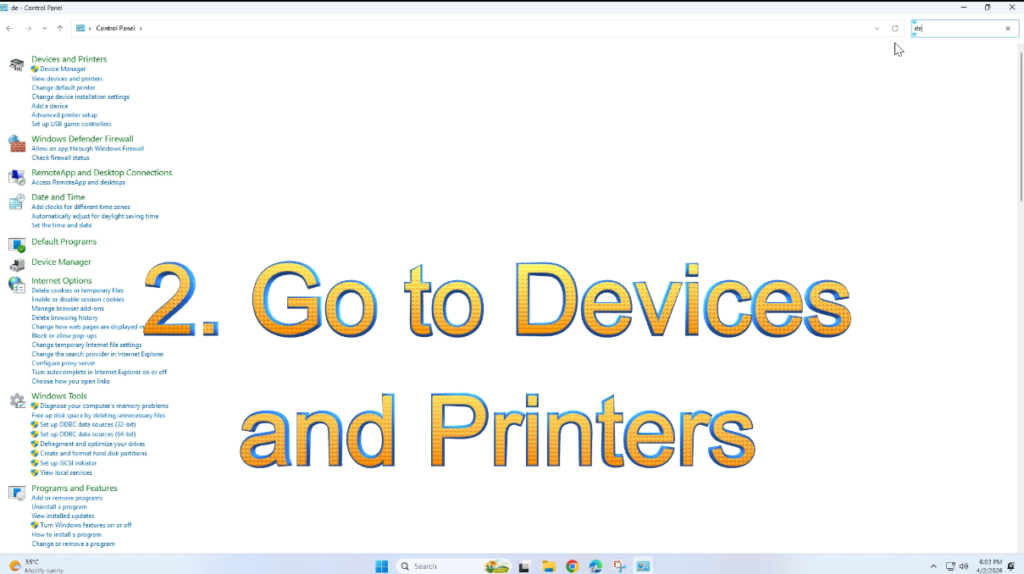
3. Right-click your printer.
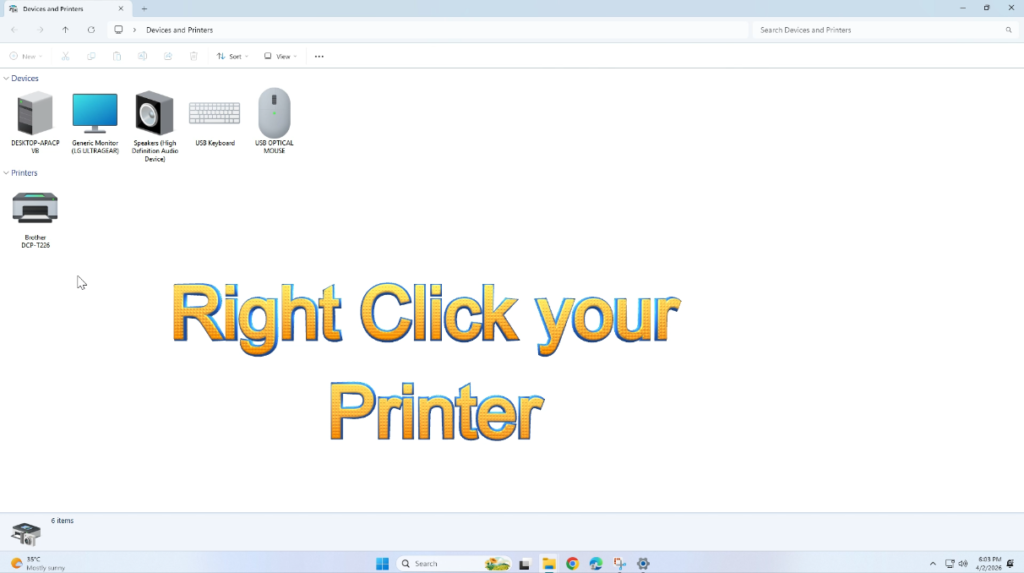
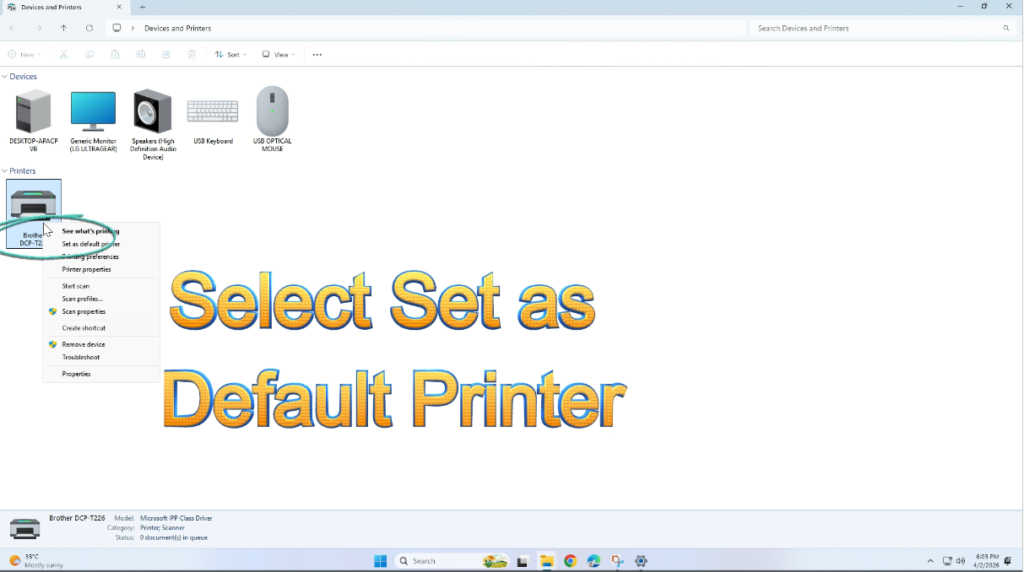
4. Select Set as Default Printer
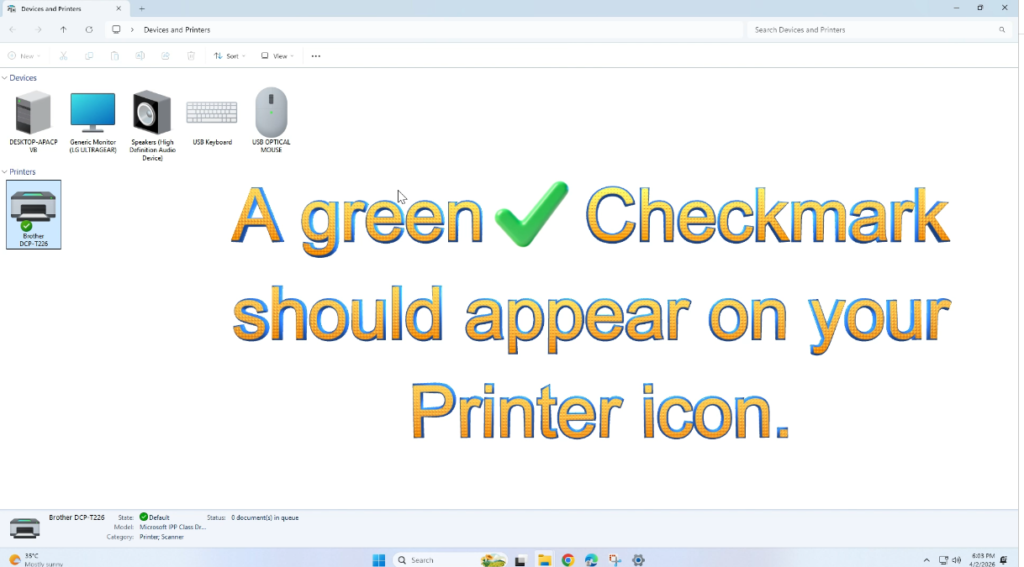
5. A green checkmark should appear on your printer icon.
If your printer still shows offline, move to the next fix.
Also Read: Windows 11 Screen Flickering Randomly? Try These Fixes
Fix 3: Disable “Use Printer Offline” Mode
Windows may accidentally enable offline mode.
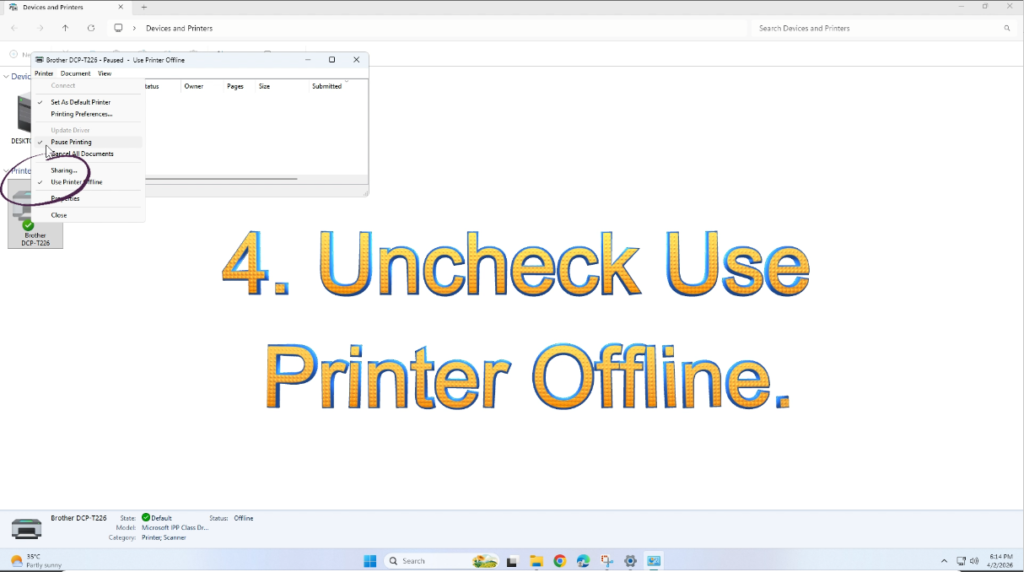
Steps:
- Open Devices and Printers
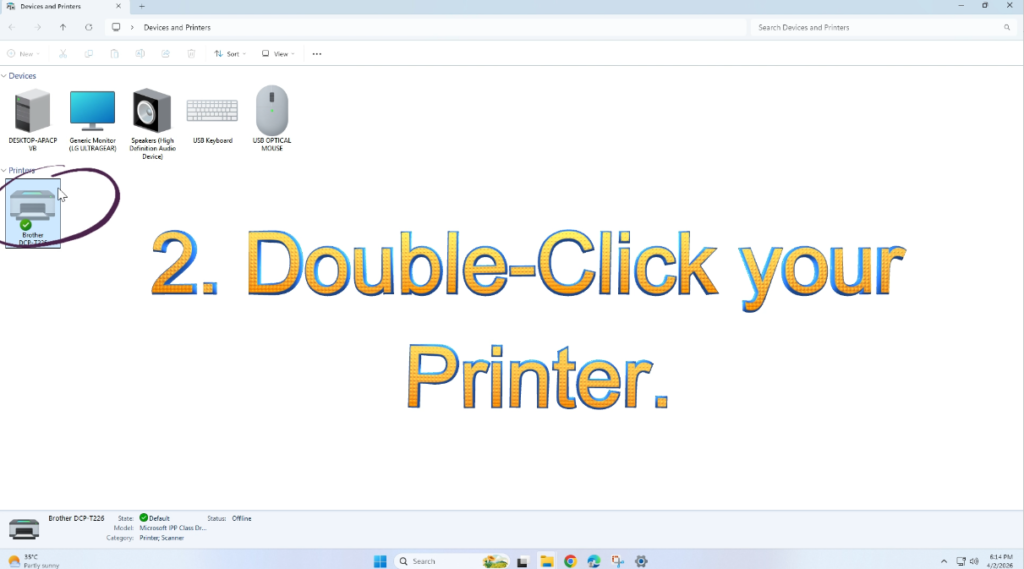
2. Double-click your printer.
3. Click Printer from the top menu.
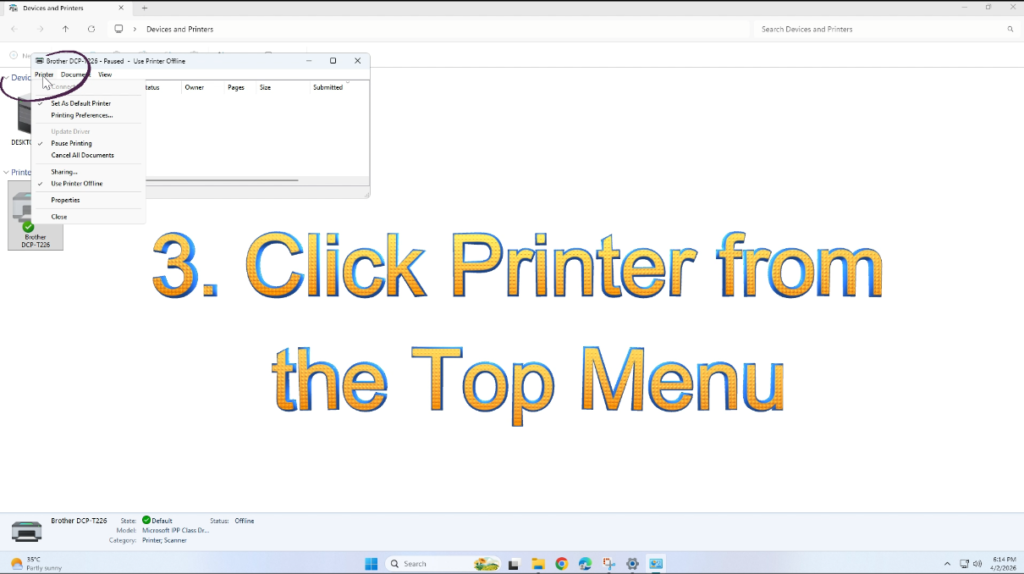
4. Uncheck Use Printer Offline
5. Also uncheck Pause Printing if enabled.
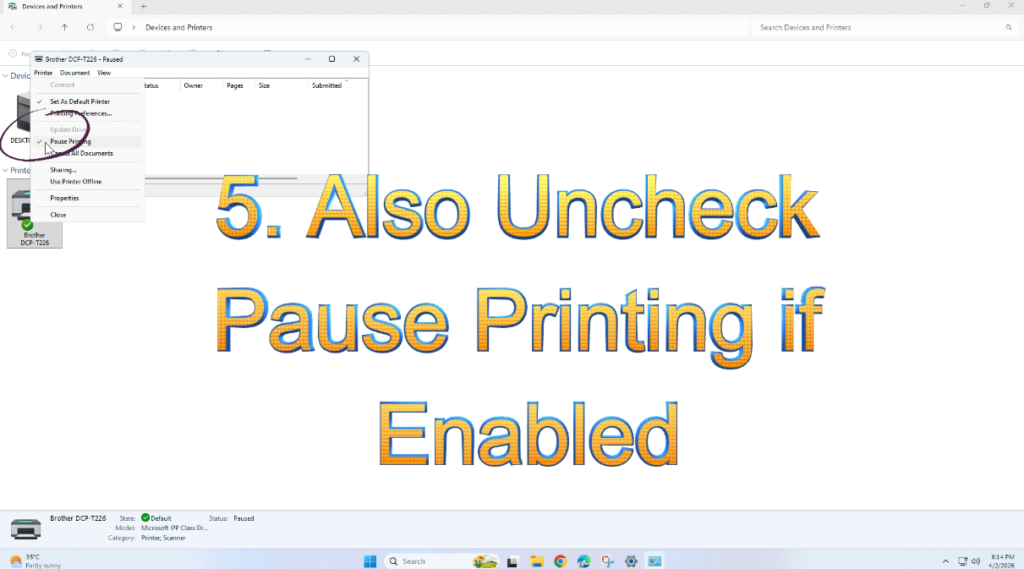
This is one of the most common reasons behind the printer showing offline in Windows 10 issue.
Fix 4: Restart Print Spooler Service
The Print Spooler manages printing tasks. If it crashes, your printer appears offline.
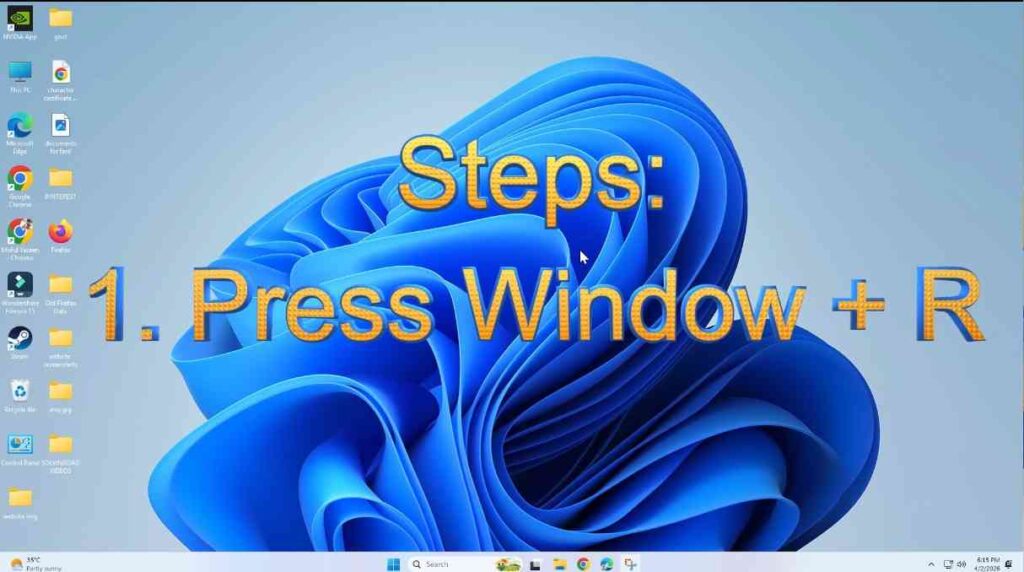
Steps:
- Press Windows + R
2. Type services.msc and press Enter
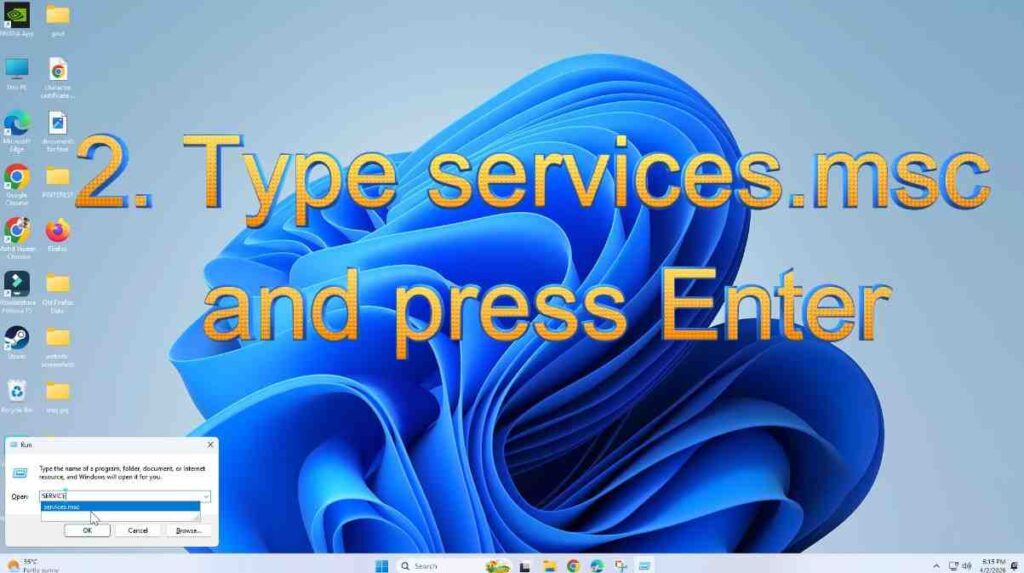
3. Find Print Spooler
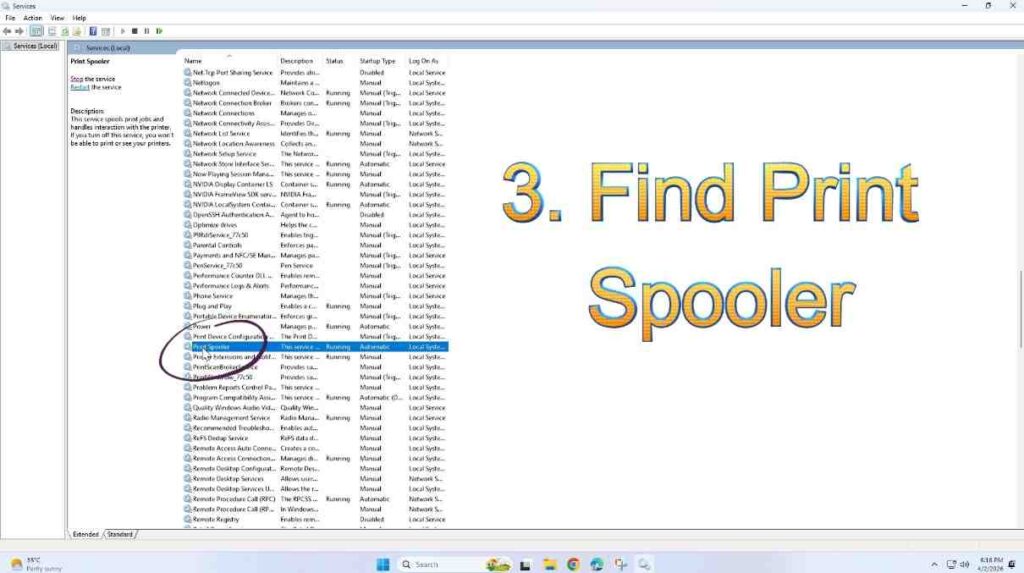
4. Right-click → Select Restart
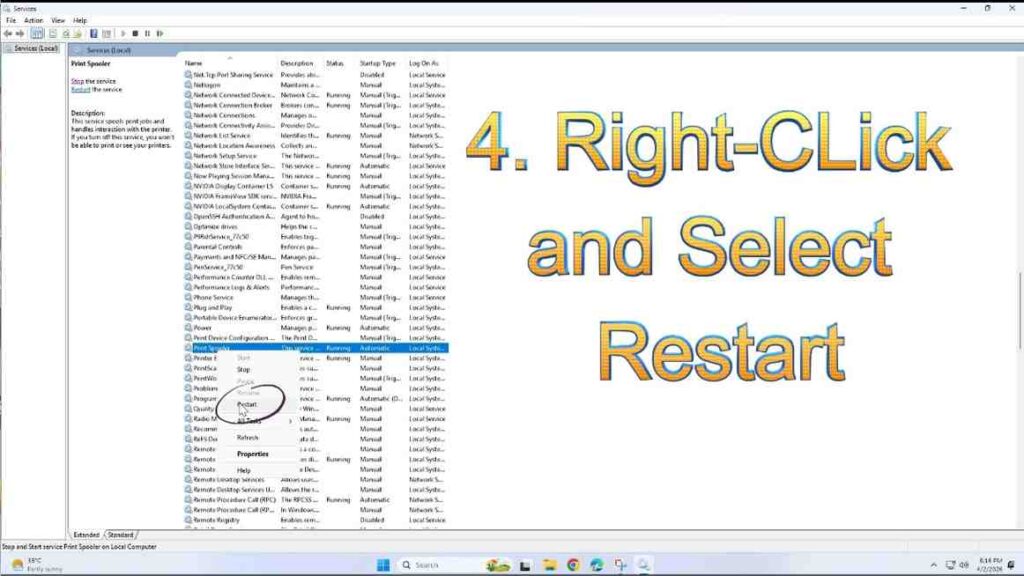
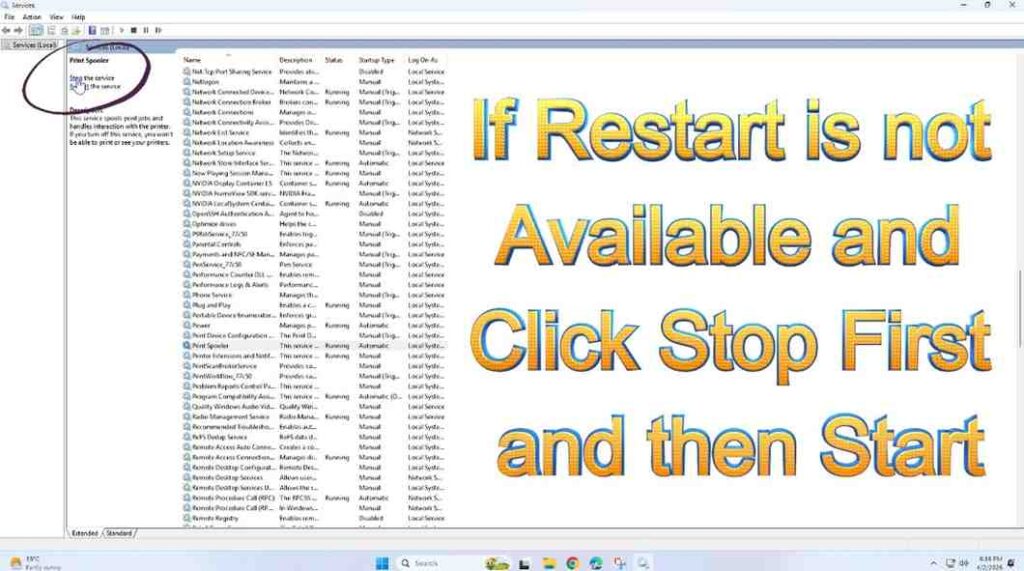
If Restart is not available:
- Click Stop first
- Then click Start
Now try printing again.
Fix 5: Check Printer Connection
A weak connection often causes offline errors.
For USB Printers:
- Reconnect the USB cable.
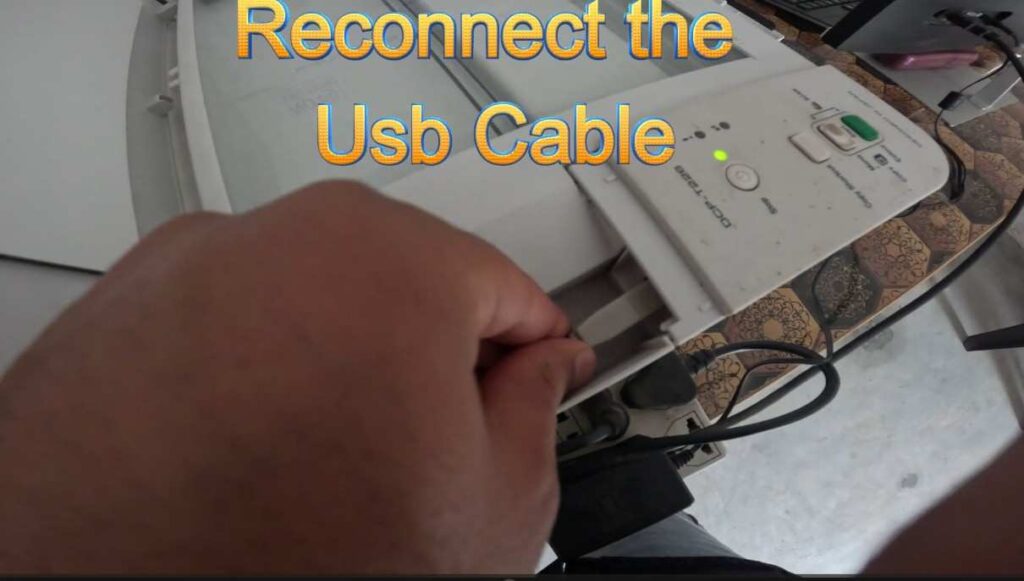
- Try another USB port.
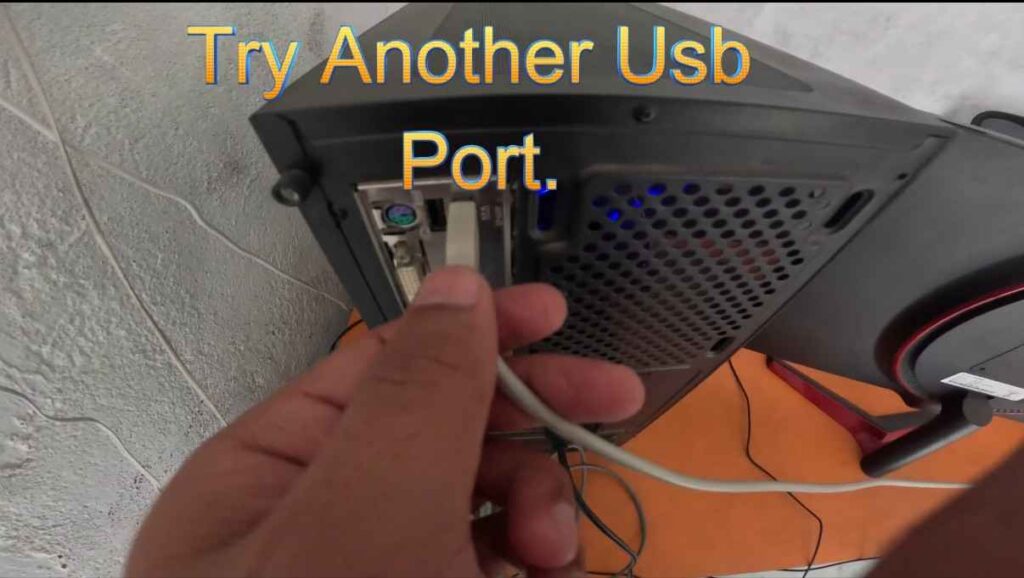
- Avoid using damaged cables.
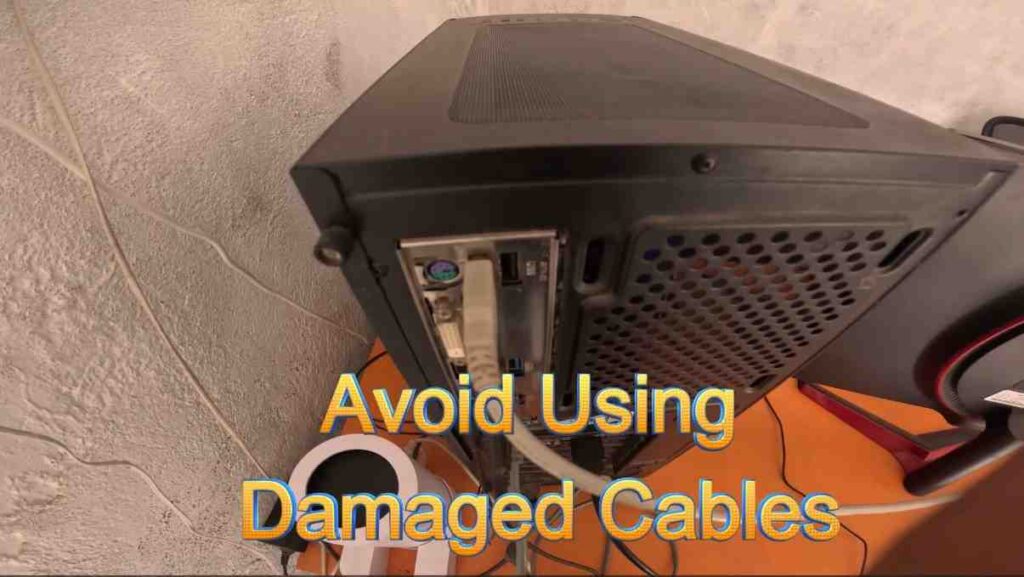
For Wi-Fi Printers:
- Ensure printer and PC are connected to the same Wi-Fi network.
- Restart your router.
- Move printer closer to the router.
Connection stability is critical to resolving the printer showing offline in Windows 10 problem.
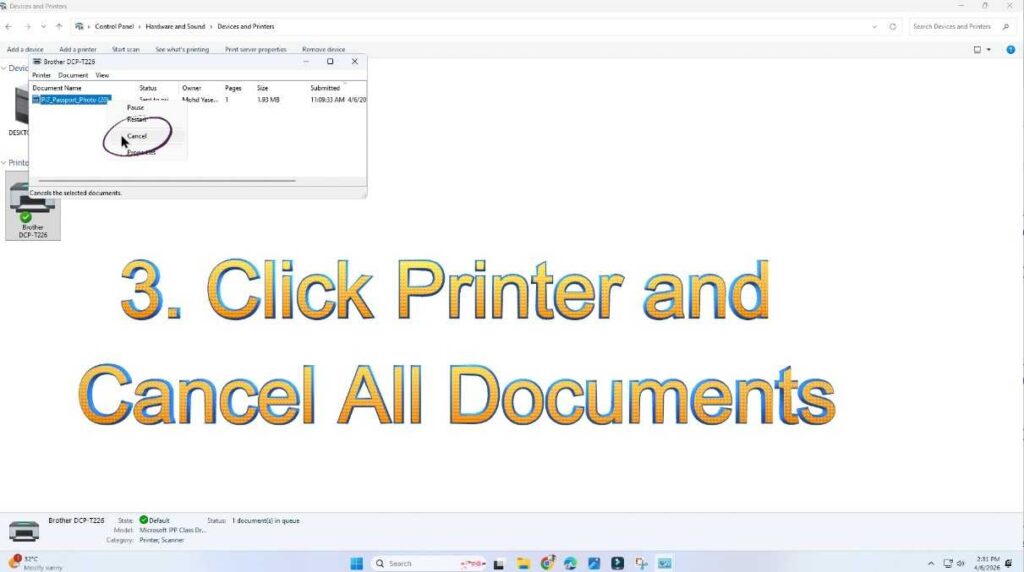
Fix 6: Clear Stuck Print Queue
A blocked print job can freeze communication.
Steps:
- Open Devices and Printers
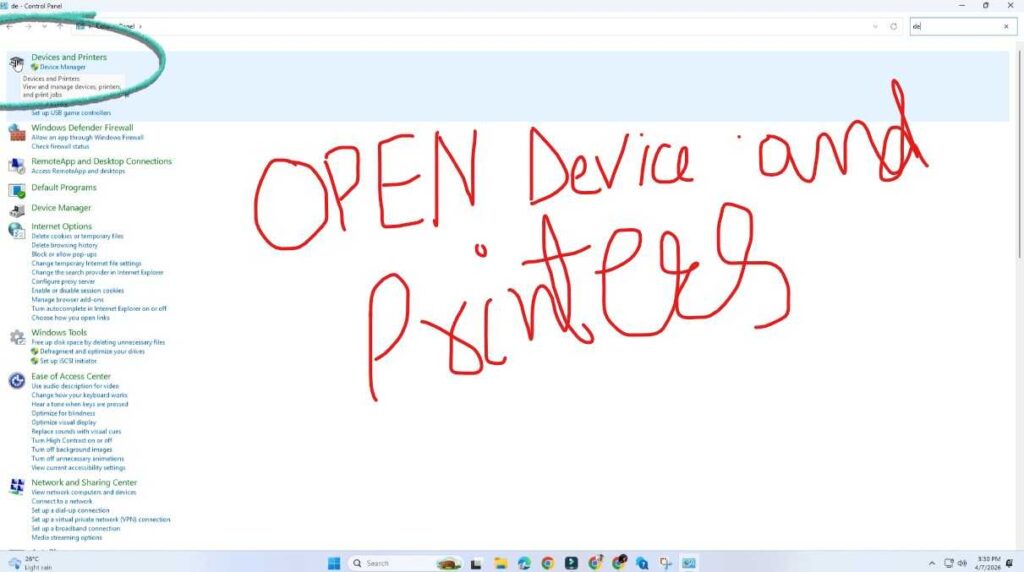
2. Double-click your printer
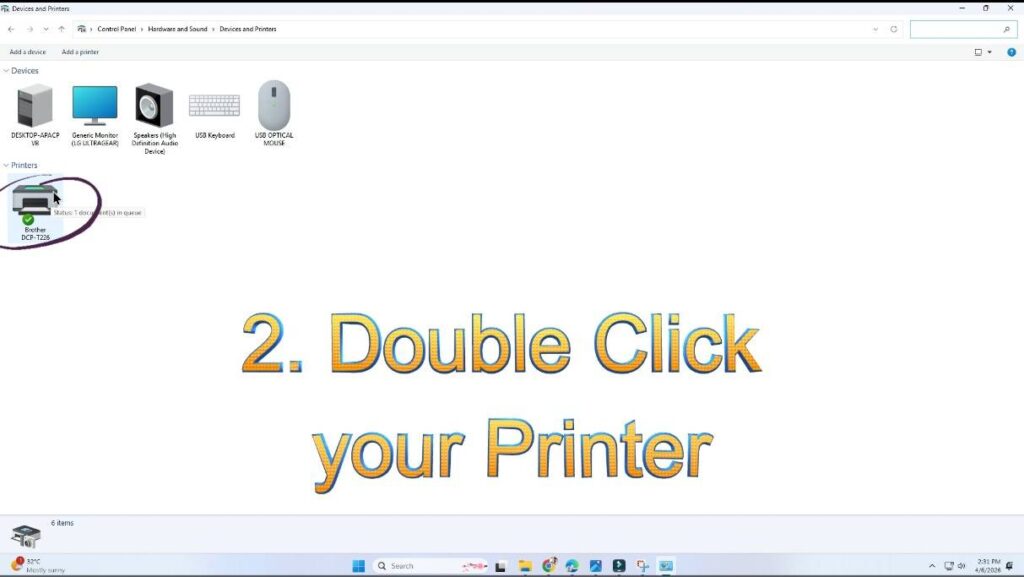
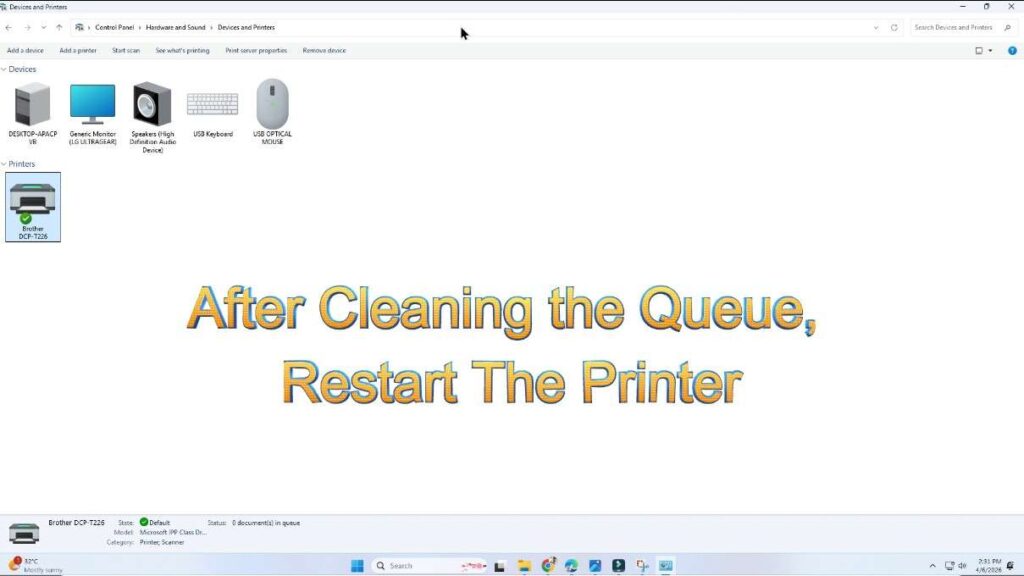
3. Click Printer → Cancel All Documents
After clearing the queue, restart the printer.
Fix 7: Update or Reinstall Printer Drivers
Outdated drivers are a major cause of offline status.
Update Driver:
- Right-click Start Menu
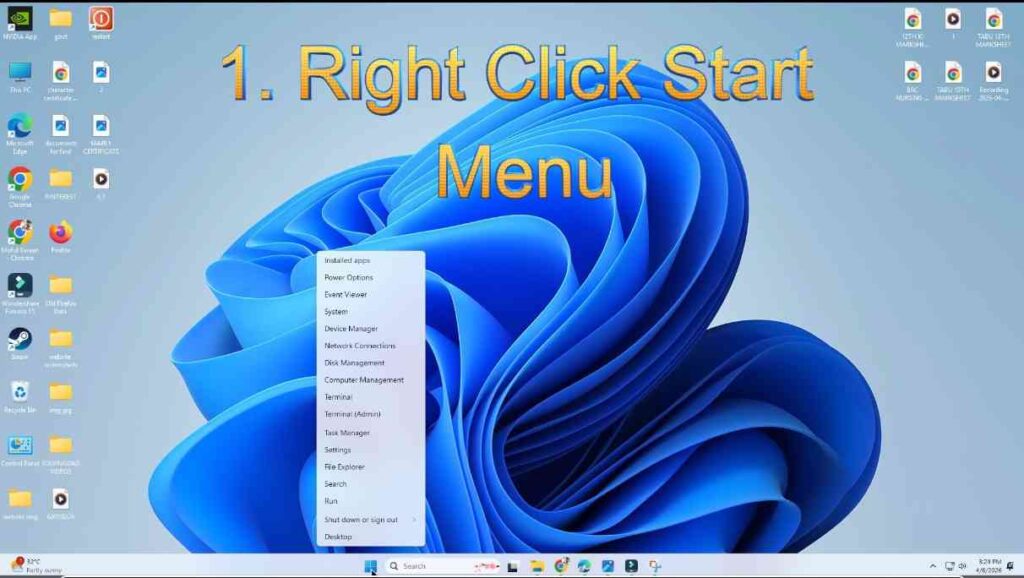
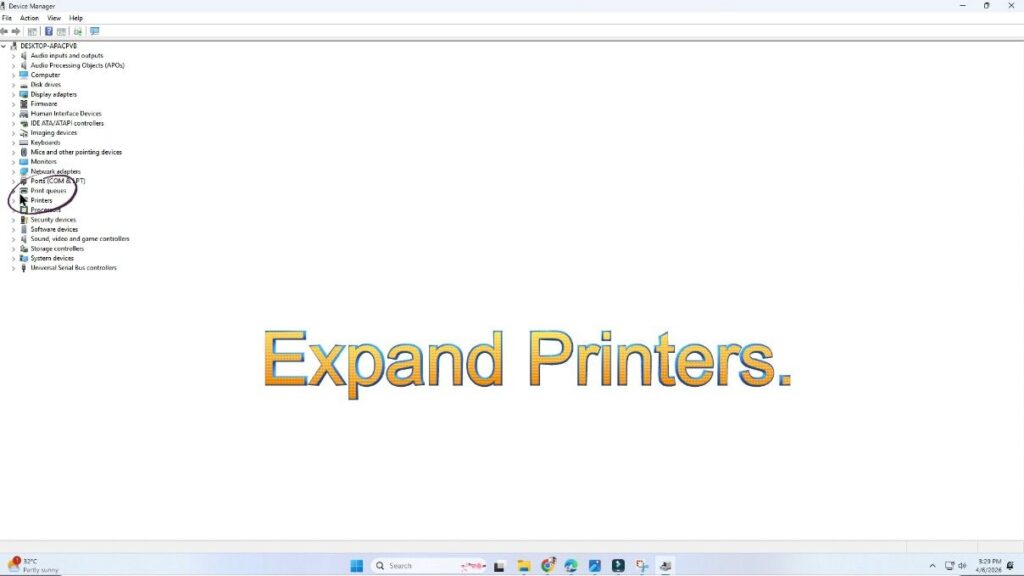
2. Open Device Manager
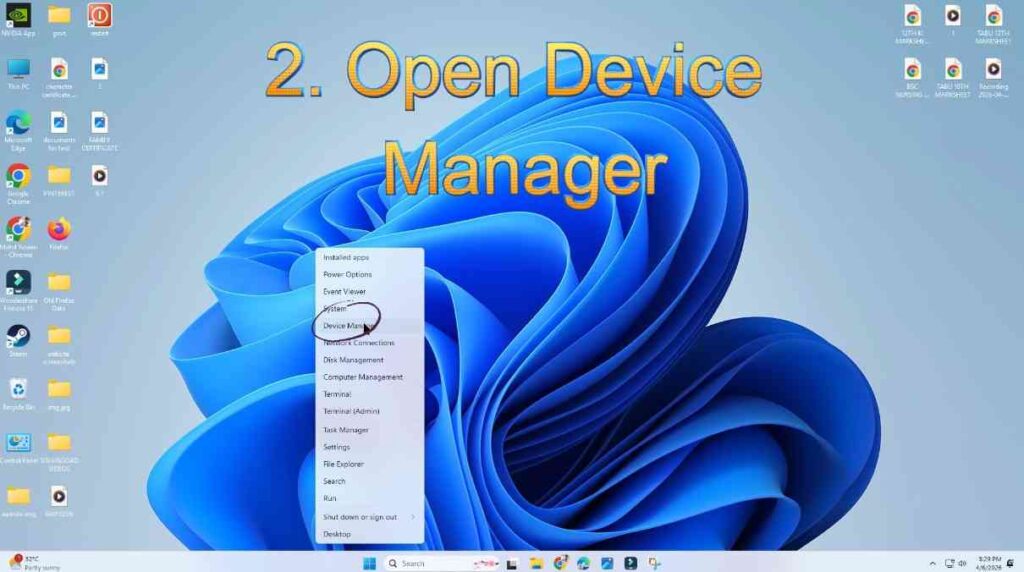
3. Expand Printers
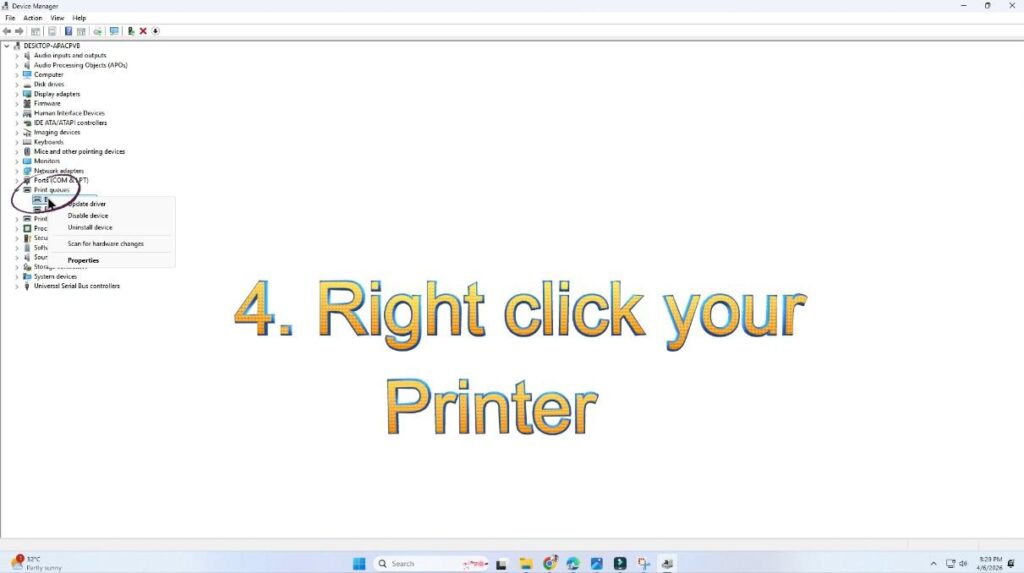
4. Right-click your printer
5. Select Update Driver
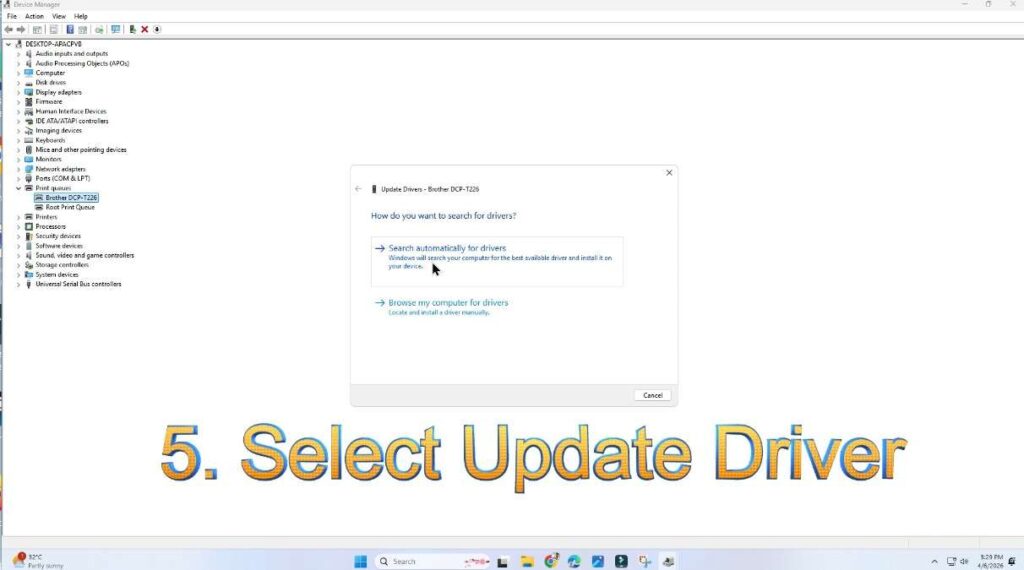
Reinstall Driver (Recommended):
- Go to Devices and Printers
- Remove your printer
- Restart PC
- Add printer again using Add a Printer
Fresh drivers often instantly fix the printer showing offline in Windows 10 error.
Fix 8: Assign a Static IP Address (Advanced but Powerful)
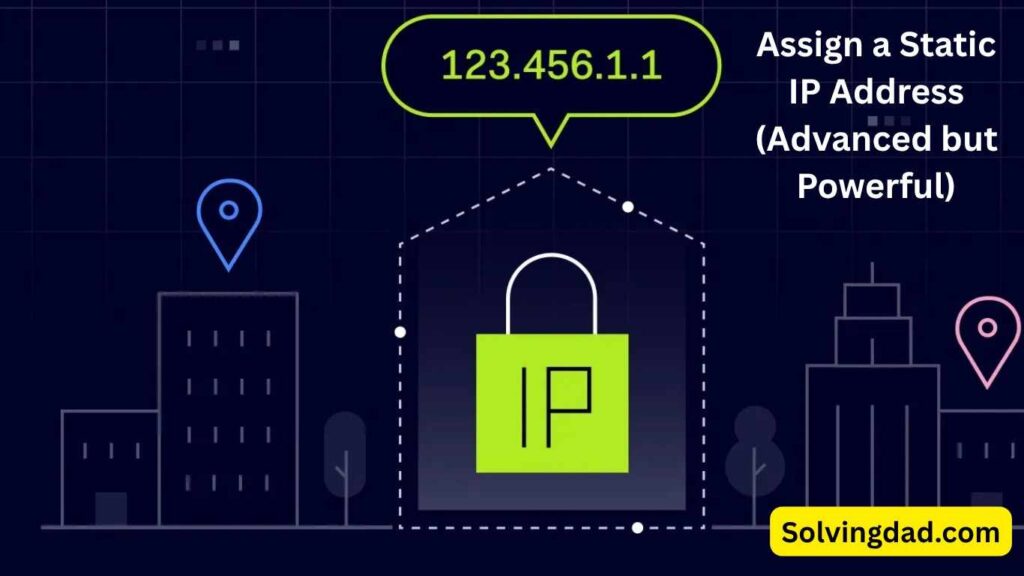
Network printers sometimes change IP addresses automatically.
Basic Idea:
- Set a permanent IP address for the printer through router settings or printer web interface.
This prevents Windows from losing connection after router restarts.
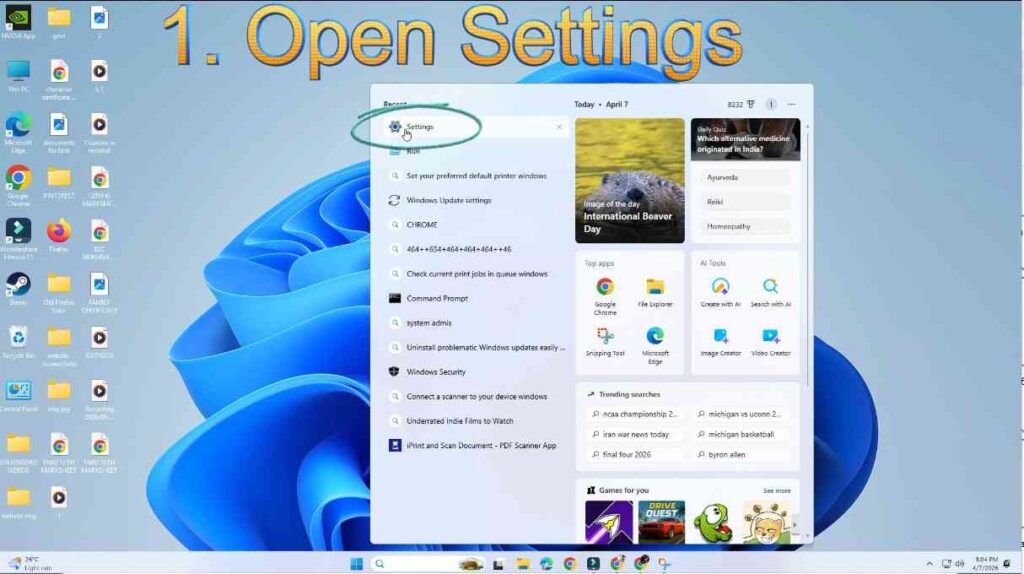
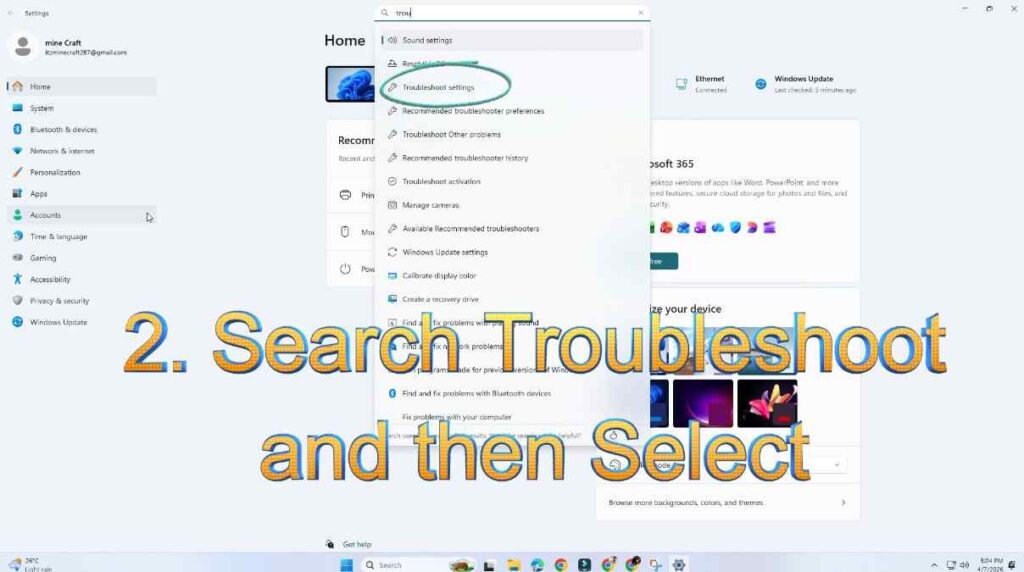
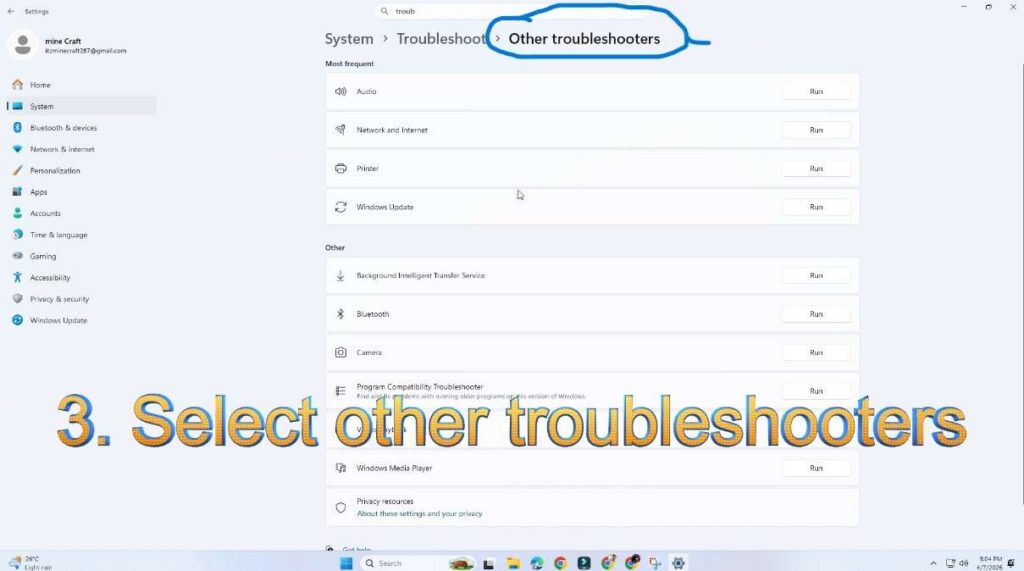
Fix 9: Run Windows Printer Troubleshooter
Windows includes an automatic repair tool.
Steps:
- Open Settings
2. Search Troubleshoot and then Select
3. Click Additional troubleshooters
4. Choose Printer and Run
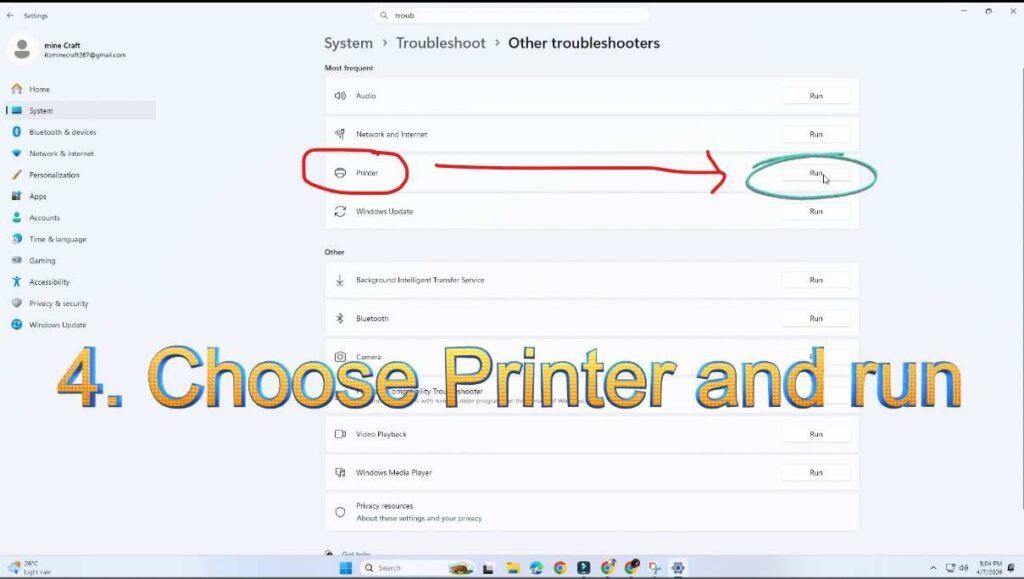
It automatically detects configuration issues related to printer showing offline in Windows 10.
Fix 10: Disable SNMP Status (Advanced Fix)
Sometimes Windows incorrectly detects printer status.
Steps:
- Open Devices and Printers
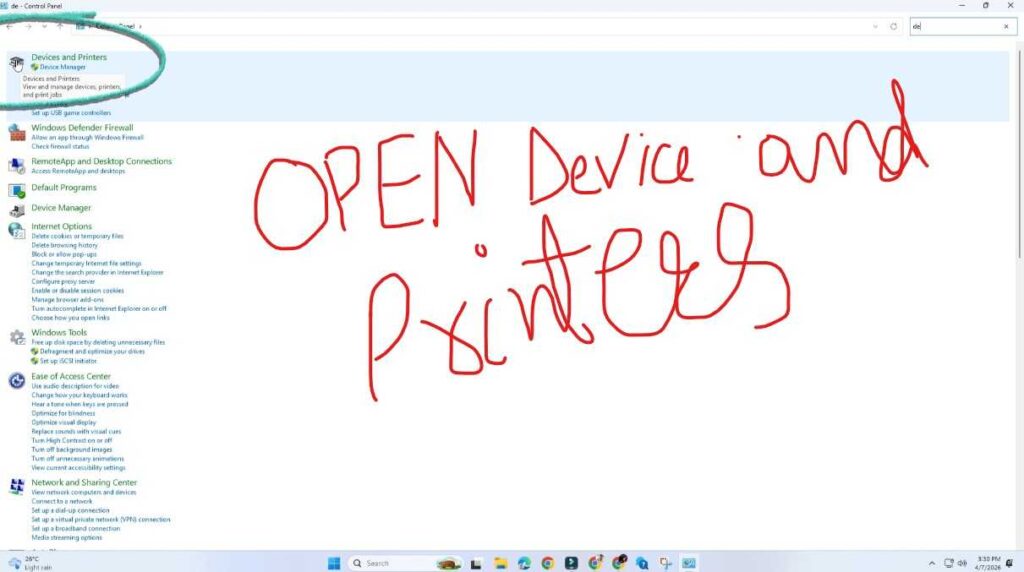
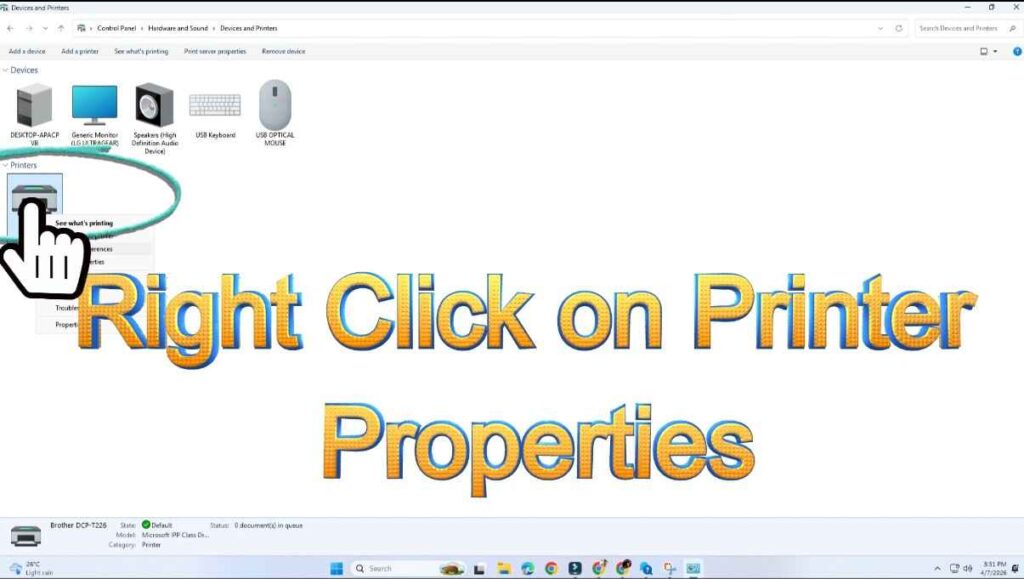
2. Right-click printer → Printer Properties
3. Go to Ports tab
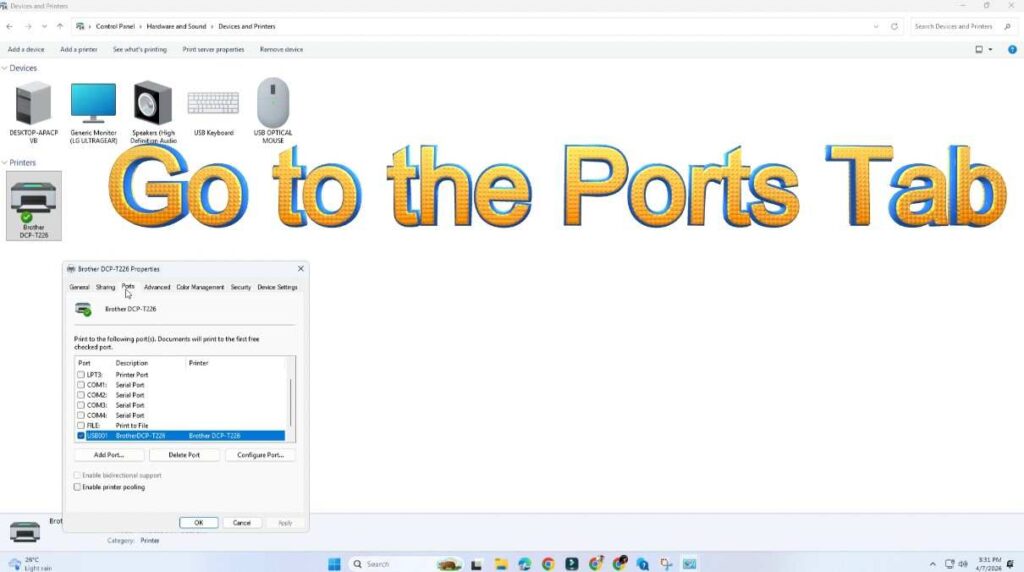
4. Click Configure Port
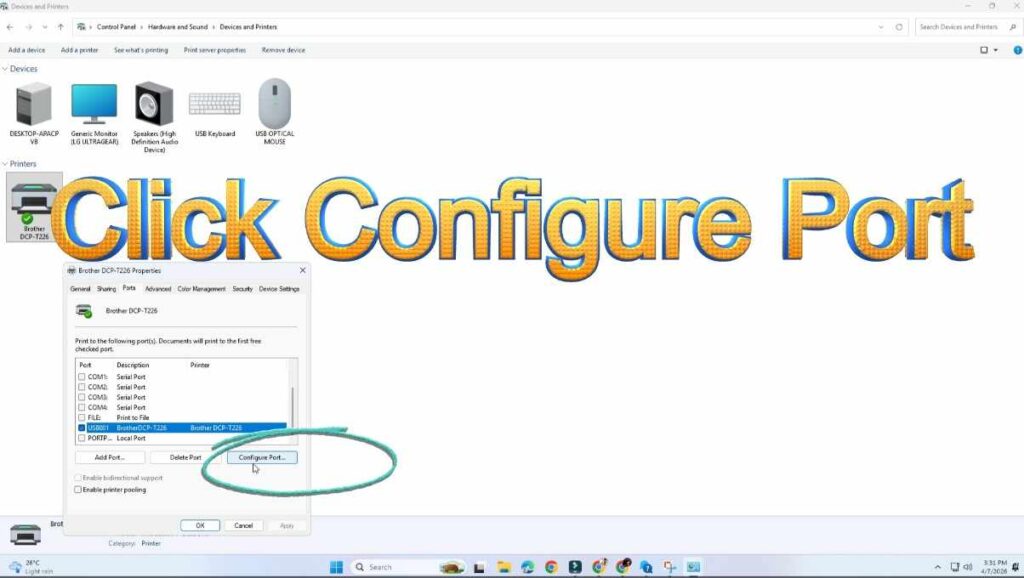
5. Uncheck SNMP Status Enabled
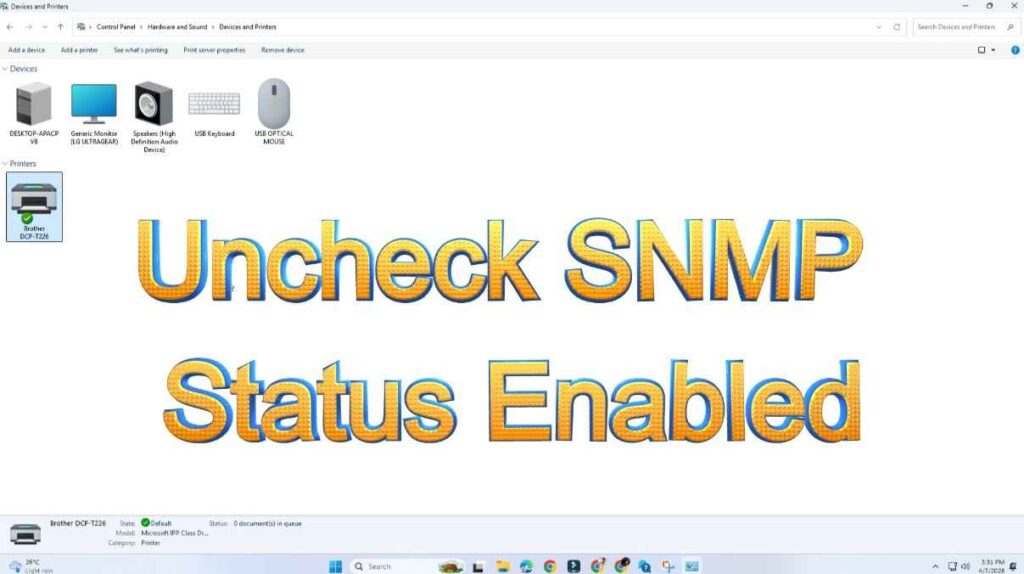
6. Click OK
Many network printer users report this permanently solves offline errors.
Pro Tips to Prevent Printer Offline Issues
To avoid facing the printer showing offline in Windows 10 issue again:
- Keep Windows updated
- Install official drivers only
- Avoid sleep mode for network printers
- Use stable Wi-Fi connections
- Restart printer weekly
- Avoid overloaded print queues
Preventive maintenance saves time and frustration.
Frequently Asked Questions (FAQs)
Why does my printer keep going offline in Windows 10?
Usually due to connection loss, incorrect settings, or outdated drivers. Network printers are especially sensitive to IP address changes.
How do I force my printer online?
Open Devices and Printers → Printer menu → uncheck “Use Printer Offline”.
Can Windows updates cause printer offline issues?
Yes. Some updates reset printer configurations or drivers, causing communication errors.
Is reinstalling the printer safe?
Yes. Reinstalling removes corrupted settings and often permanently fixes the problem.
Why does my Wi-Fi printer go offline randomly?
Most commonly due to router restarts or dynamic IP address changes.
Final Thoughts
The printer showing offline in Windows 10 issue may look serious, but in most cases, it’s caused by small configuration problems that you can fix in minutes. By following the methods above — especially disabling offline mode, restarting the Print Spooler, and reinstalling drivers — you can restore printing quickly without professional help.
If you regularly rely on your printer for work or studies, applying the prevention tips will ensure smooth printing performance long-term.
Also Read: