
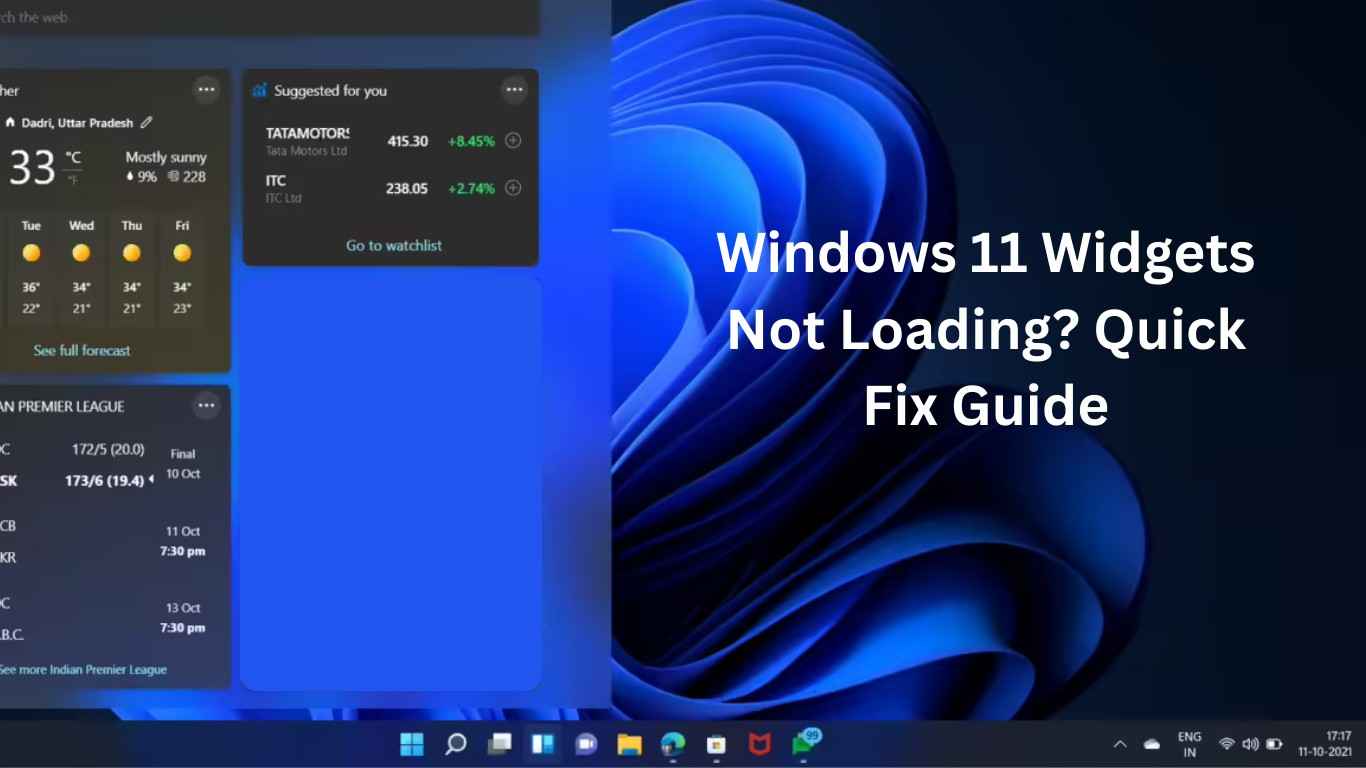
Windows 11 Widgets Not Loading is a common problem many users face after updates, system changes, or account syncing issues. Widgets are designed to provide quick access to weather updates, news, calendar events, sports scores, and personalized content — but when they stop working, the entire experience feels incomplete.
If your widgets panel shows a blank screen, keeps loading forever, or refuses to open, don’t worry. This detailed guide will walk you through safe, step-by-step solutions to fix the issue without risking your files or system stability.
This article is written specifically for beginners and advanced users alike, so you can quickly restore Widgets functionality and improve Windows 11 performance.
What Are Windows 11 Widgets?
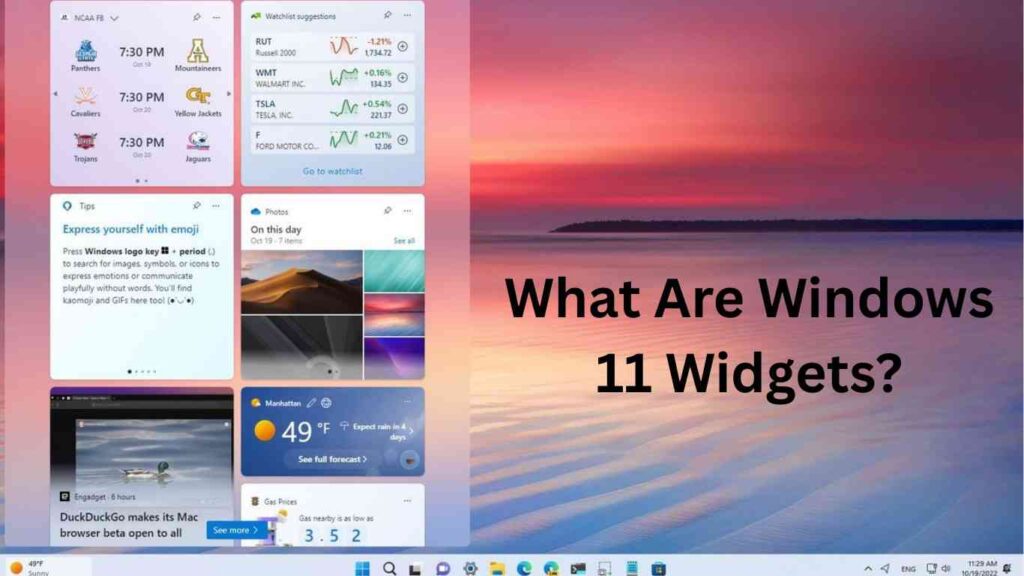
Before fixing the issue, it’s helpful to understand what Widgets actually do.
Windows 11 Widgets are powered by Microsoft services and run through background components like:
- Microsoft Edge WebView2
- Windows Web Experience Pack
- Microsoft account synchronization
- Background services and network connectivity
Because Widgets depend on online services, even small system glitches can prevent them from loading properly.
Common Signs of Windows 11 Widgets Not Loading
You may notice one or more of these symptoms:
- Widgets panel opens but stays blank
- Endless loading animation
- “Sign in” message keeps appearing
- Weather widget not updating
- Widgets button not responding
- News feed missing or frozen
If you’re experiencing any of these, the fixes below will help.
Why Windows 11 Widgets Not Loading Happens
Understanding the cause makes troubleshooting easier.
1. Corrupted Windows Web Experience Pack
Widgets rely heavily on this package. If it becomes corrupted, widgets not loading.
2. Microsoft Account Sync Issues
Widgets require a signed-in Microsoft account to fetch personalized content.
3. Background Services Disabled
Certain Windows services must run for Widgets to function.
4. Network or DNS Problems
Widgets pull live online data. Network errors can block loading.
5. Outdated Windows Version
Older builds may contain bugs affecting Widgets.
6. Graphics or System Glitches
Temporary system cache or GPU issues can interfere with the interface.
ALSO READ: Why Is My Computer Suddenly Slow in Windows 11?
Fix 1: Restart Windows Widgets Process (Fastest Method)
This is the quickest solution and works surprisingly often.
- Press Ctrl + Shift + Esc to open Task Manager.
- Find Windows Widgets or Widgets.exe.
- Right-click it.
- Select End Task.
- Restart your PC.
Now open Widgets again using Windows + W.
Fix 2: Sign Out and Sign Back Into Widgets
Account sync problems are one of the biggest reasons Windows 11 Widgets Not Loading occurs.
- Open Widgets panel.
- Click your profile icon.
- Sign out.
- Restart your PC.
- Sign back in using your Microsoft account.
This refreshes cloud synchronization.
Fix 3: Reset Windows Web Experience Pack
This component powers Widgets entirely.
Steps:
- Open Settings → Apps → Installed Apps.
- Search for Windows Web Experience Pack.
- Click the three dots → Advanced Options.
- Select Repair first.
- If not fixed, click Reset.
Restart your system afterward.
Fix 4: Check Internet Connection & DNS
Since widgets display live information, unstable internet can cause loading issues.
Try these steps:
- Restart your router.
- Disable VPN temporarily.
- Switch DNS to Google DNS:
Steps:
- Open Network Settings.
- Change DNS to:
- Preferred:
8.8.8.8 - Alternate:
8.8.4.4
- Preferred:
This often resolves content loading delays.
Fix 5: Enable Widgets from Taskbar Settings
Sometimes Widgets are simply disabled.
- Right-click Taskbar.
- Click Taskbar Settings.
- Turn ON Widgets toggle.
If already enabled, toggle OFF and ON again.
Fix 6: Restart Windows Explorer
Refreshing Explorer reloads UI components connected to Widgets.
- Open Task Manager.
- Locate Windows Explorer.
- Right-click → Restart.
This clears temporary UI bugs instantly.
Fix 7: Update Windows 11
Microsoft frequently releases fixes for widget-related bugs.
- Open Settings → Windows Update.
- Click Check for Updates.
- Install all pending updates.
- Restart PC.
Many users notice Widgets start working immediately after updating.
Fix 8: Reinstall Microsoft Edge WebView2 Runtime
Widgets depend on WebView2 for rendering content.
Steps:
- Open Installed Apps.
- Uninstall Microsoft Edge WebView2 Runtime.
- Restart PC.
- Windows automatically reinstalls it.
This resolves rendering problems causing blank widgets.
Fix 9: Run System File Checker (Advanced Fix)
Corrupted system files can break Widgets.
- Open Command Prompt as Administrator.
- Run:
sfc /scannow
Wait until scanning completes.
Then run:
DISM /Online /Cleanup-Image /RestoreHealth
Restart your computer afterward.
Fix 10: Enable Background Apps Permissions
Widgets require background activity access.
- Open Settings → Apps → Installed Apps.
- Find Widgets or Web Experience Pack.
- Open Advanced Options.
- Allow Background App Permissions.
Bonus Tips to Prevent Widgets Issues
To avoid Windows 11 Widgets Not Loading in the future:
- Keep Windows updated regularly
- Avoid aggressive system cleaners
- Don’t disable Microsoft services randomly
- Maintain stable internet connection
- Restart PC weekly to clear cache
SEO Optimization Tips (For Performance Lovers)
Widgets performance improves when system resources are optimized:
- Disable unnecessary startup apps
- Update GPU drivers
- Clear temporary files regularly
- Use SSD storage for faster loading
A clean system ensures smoother widget rendering.
ALSO READ: Windows 10 vs Windows 11 in 2026: Which One Should You Use?
Frequently Asked Questions (FAQs)
Why are my Windows 11 Widgets showing a blank screen?
Usually due to corrupted Web Experience Pack, account sync problems, or network issues preventing content from loading.
Do Widgets require internet to work?
Yes. Widgets fetch live data like weather and news, so an internet connection is required.
Will resetting Widgets delete my files?
No. Resetting Widgets or Web Experience Pack only refreshes app settings, not personal data.
Can Windows updates break Widgets?
Sometimes updates introduce temporary bugs, but newer patches usually fix them quickly.
Is Widgets related to Microsoft Edge?
Yes. Widgets use Edge WebView2 technology to display web-based content inside Windows.
Final Thoughts
The Windows 11 Widgets Not Loading problem may look serious, but in most cases, it’s caused by minor sync or system glitches. By following the fixes in this guide — especially resetting the Web Experience Pack and updating Windows — you can restore Widgets functionality within minutes.
If you maintain a clean, updated system and stable internet connection, Widgets should continue working smoothly and provide useful daily information right from your desktop.
ALSO READ: