
Windows 11 Update Stuck at 25% is one of the most frustrating problems users face in 2026. You start updating your PC expecting new features, security improvements, and performance upgrades — but suddenly the update freezes at 25% and refuses to move forward for hours.
If this sounds familiar, don’t worry. This issue is very common and usually does not mean your computer is damaged. In most cases, the problem is caused by temporary system glitches, corrupted update files, driver conflicts, or internet interruptions.
In this complete beginner-friendly guide, you’ll learn why Windows 11 updates get stuck, how to fix the issue safely, and how to prevent it from happening again in the future.
Why Windows 11 Update Gets Stuck at 25%
Before applying fixes, it’s important to understand the cause. When a Windows 11 Update Stuck at 25% happens, it usually occurs during the file verification or driver installation phase.
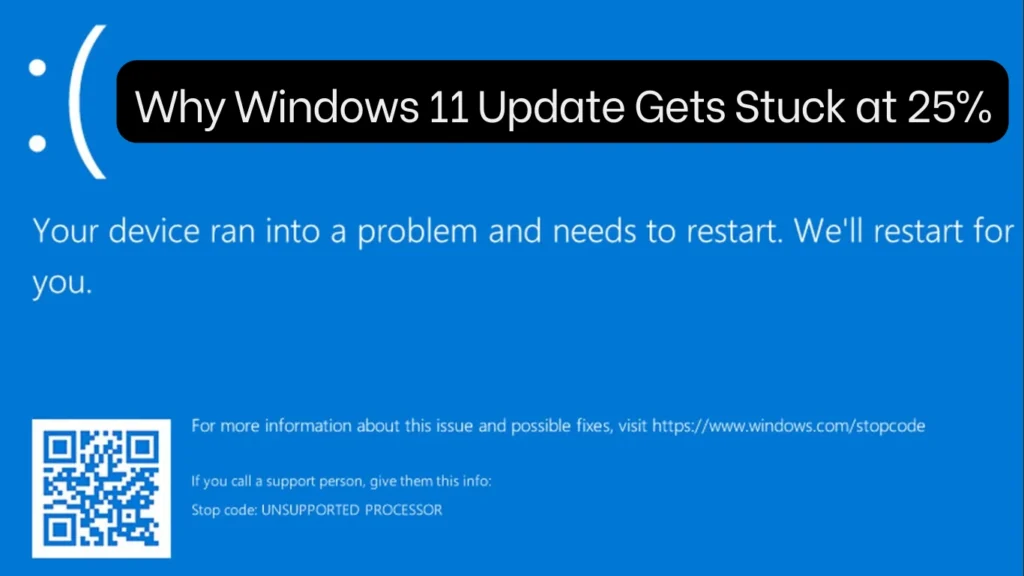
Common reasons include:
- Corrupted Windows Update cache files
- Slow or unstable internet connection
- Insufficient disk space
- Background software conflicts
- Outdated drivers
- Interrupted previous updates
- Antivirus blocking update components
Knowing the reason helps you apply the right solution faster.
Also Read: How to Take Screenshots on Windows (5 Easy Methods Everyone Should Know)
First Thing to Check (Very Important)
Sometimes updates appear stuck but are actually working in the background.
✅ Wait at least 30–45 minutes before taking action.
✅ Check HDD/SSD activity light or Task Manager disk usage.
✅ If activity is visible, let it continue.
If the percentage does not change after a long time, follow the fixes below.
Easy Fix #1 — Restart Your Computer (Safe Method)
Many users panic and force shutdown incorrectly. Instead:
- Press Ctrl + Alt + Delete
- Click the Power icon
- Select Restart
If Windows allows restart normally, the update process will resume automatically after reboot.
👉 This simple step fixes many cases where Windows 11 Update Stuck at 25% occurs due to temporary system freeze.
Easy Fix #2 — Run Windows Update Troubleshooter
Windows includes a built-in repair tool.
Steps:
- Open Settings
- Go to System → Troubleshoot
- Click Other troubleshooters
- Run Windows Update
The troubleshooter automatically repairs broken update services and missing components.
Easy Fix #3 — Clear Windows Update Cache (Most Effective Solution)
Corrupted update files are the #1 reason behind this issue.
Follow these steps carefully:
- Press Windows + R
- Type:
services.msc
- Stop these services:
- Windows Update
- Background Intelligent Transfer Service
- Now open:
C:\Windows\SoftwareDistribution
- Delete all files inside the folder.
- Restart your PC.
When you check updates again, Windows downloads fresh files, resolving the Windows 11 Update Stuck at 25% problem in most cases.
Easy Fix #4 — Free Up Disk Space
Windows updates require significant temporary storage.
Minimum recommended:
- 25–30 GB free space
Clean storage quickly:
- Open Settings → Storage
- Use Temporary Files cleanup
- Delete old downloads and recycle bin files
Low disk space often stops updates midway.
Also Read: How to Speed Up a Slow Windows Laptop: 15 Proven Fixes That Work Every Time
Easy Fix #5 — Disconnect External Devices
External hardware sometimes blocks driver installation.
Disconnect:
- USB drives
- Printers
- External hard disks
- Game controllers
Then restart update installation.
Easy Fix #6 — Disable Antivirus Temporarily
Third-party antivirus software may block update files.
Steps:
- Disable antivirus temporarily.
- Retry Windows Update.
- Re-enable protection after update completes.
⚠️ Do not browse unsafe websites while antivirus is disabled.
Easy Fix #7 — Use Windows Update Assistant (Advanced Fix)
If normal updating fails, use Microsoft’s official upgrade tool.
- Search Windows 11 Installation Assistant
- Download from Microsoft’s official website
- Run as Administrator
- Follow on-screen instructions
This bypasses corrupted update processes entirely.
Prevent Windows 11 Updates from Getting Stuck Again
Follow these best practices:
✅ Keep at least 30GB free disk space
✅ Update drivers regularly
✅ Avoid shutting down during updates
✅ Use stable internet connection
✅ Restart PC weekly to clear system cache
These habits reduce future update failures significantly.
Pro Tip (2026 Optimization Trick)
Before major updates:
- Open Command Prompt as Administrator
- Run:
sfc /scannow
This repairs system files and prevents update freezing issues.
Also Read: How to Free Up Disk Space on Windows 11 Without Deleting Important Files
Is it normal for Windows 11 update to stay at 25% for long?
Yes. Sometimes installation pauses temporarily while configuring drivers. Wait at least 30–45 minutes before troubleshooting.
Will I lose my files if update gets stuck?
No. Most update issues do not delete personal data unless a reset is performed manually.
Can I force shutdown when Windows update freezes?
Only if there is no disk activity for over an hour. Otherwise, forcing shutdown may corrupt system files.
Why does Windows 11 update freeze repeatedly?
Usually due to corrupted update cache, outdated drivers, or insufficient storage.
What is the fastest fix for Windows 11 Update Stuck at 25%?
Clearing the SoftwareDistribution folder and restarting updates works in most cases.
Final Words
Facing a Windows 11 Update Stuck at 25% issue can feel stressful, especially when your PC becomes unusable during updates. The good news is that this problem is rarely serious and can be fixed using simple troubleshooting methods.
By following the step-by-step solutions in this 2026 guide, you can safely complete updates, improve system stability, and keep your computer secure.
If this guide helped you, consider bookmarking SolvingDad.com for more practical Windows and tech solutions designed for everyday users.
Also Read: