
Optimize Battery Life on Windows Laptop: If your laptop battery seems to drain faster than it should, you’re not alone. Many Windows laptop users face the same issue, especially after updates or heavy usage. The good news is that you can extend your battery life significantly with the right tweaks. In this guide, I’ll show you exactly how to optimize battery life on Windows laptop using proven settings and adjustments. These methods are easy to follow, practical, and beginner-friendly.
Why Optimizing Battery Life Matters
Battery life is more than just convenience. A well-optimized battery helps you:
- Stay productive while traveling or working away from a charger.
- Improve the long-term health of your battery.
- Reduce heat and stress on your laptop’s hardware.
By applying the right settings, you can save hours of usage time without sacrificing performance too much.
1. Use Windows Battery Saver Mode
The first step in how to optimize battery life on Windows laptop is to enable Battery Saver mode.
Steps:
1. Click on the battery icon in the taskbar.
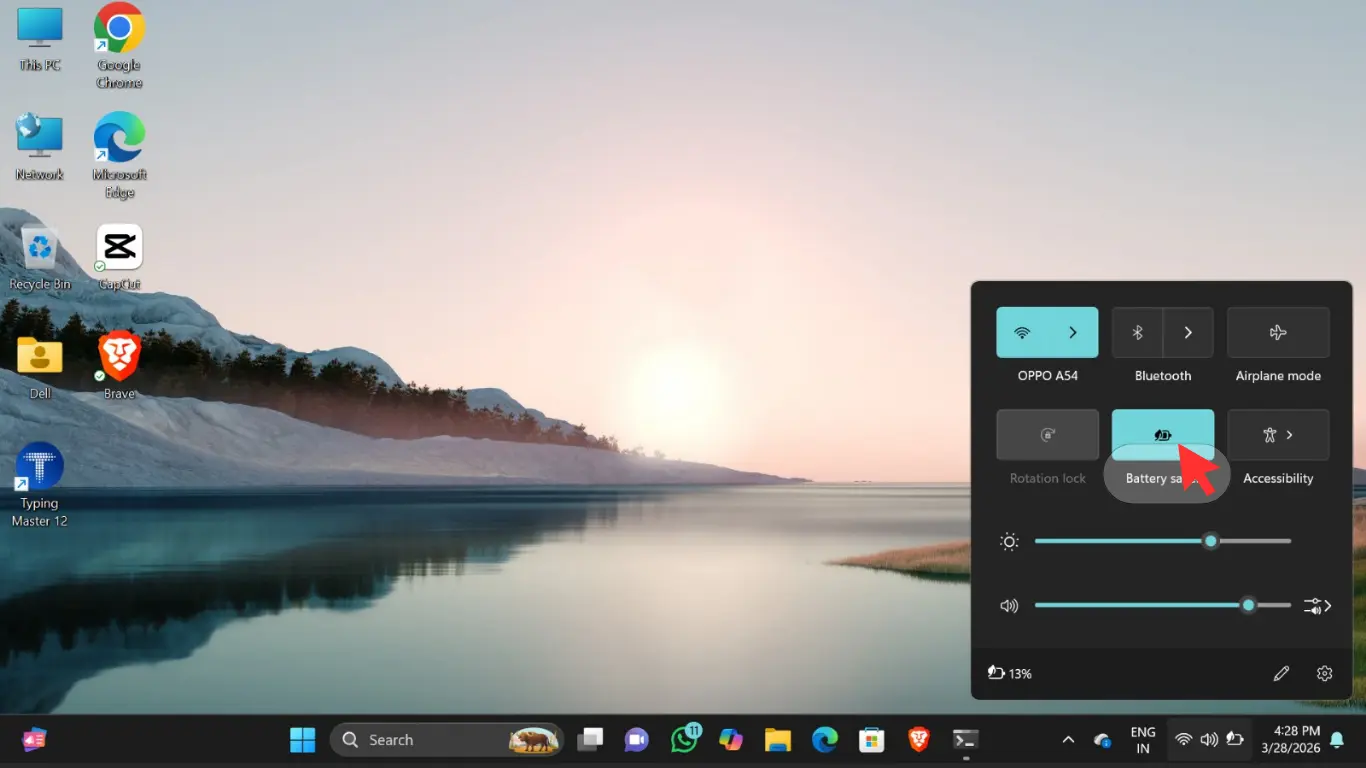
2. Select Battery Saver when your laptop is unplugged.
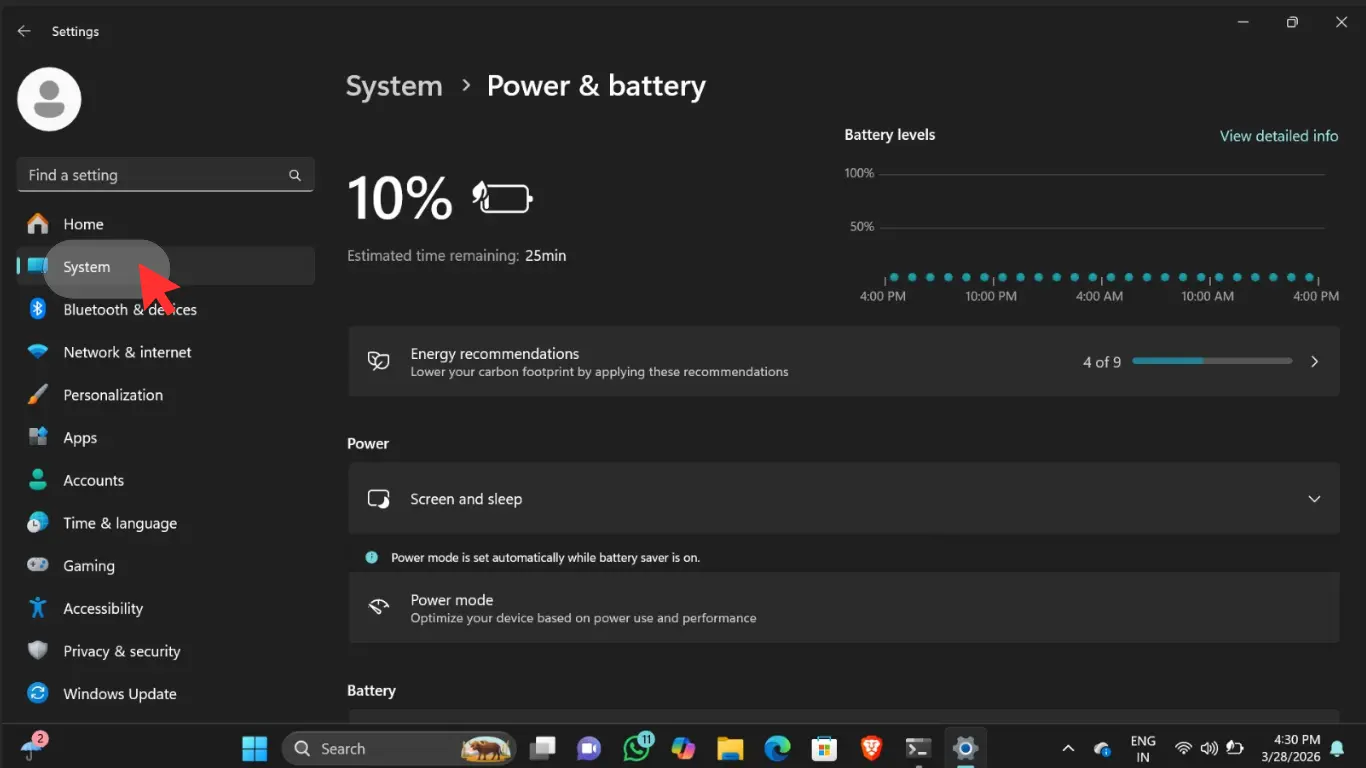
3. You can also go to Settings > System > Power & Battery to customize when it turns on automatically.
Battery Saver reduces background processes, lowers brightness, and ensures your system only uses necessary power.
2. Adjust Display Brightness
Your screen is one of the biggest power consumers. To optimize battery life:
- Lower your brightness to a comfortable level instead of keeping it at 100%.
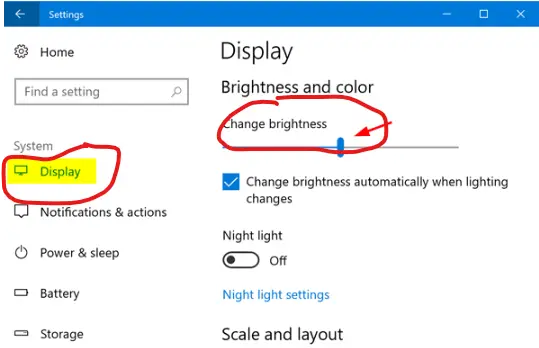
- Turn off adaptive brightness if it keeps adjusting unnecessarily (found in Settings > System > Display).
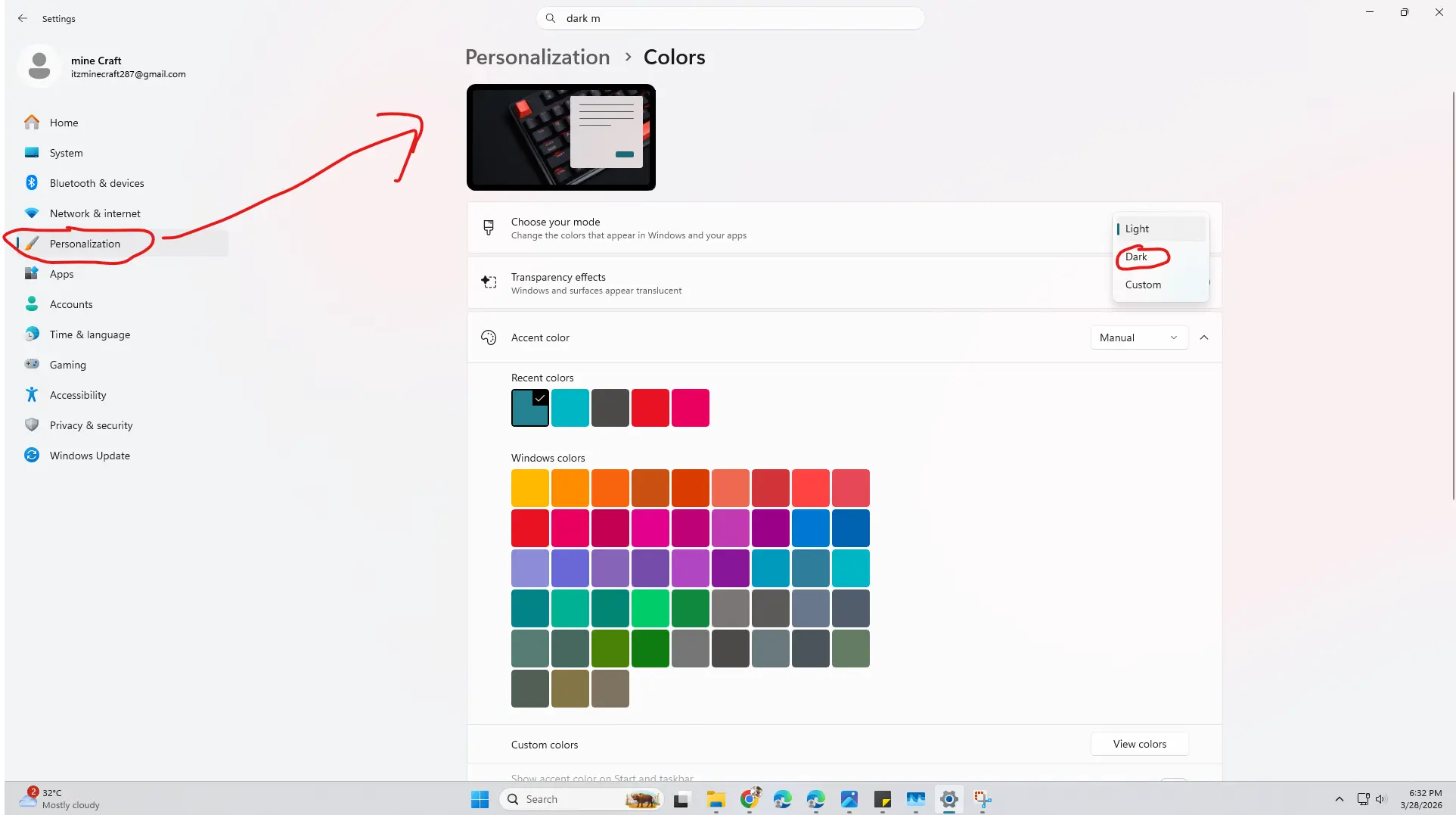
- Use dark mode and darker wallpapers to reduce strain on the battery.
3. Change Power & Sleep Settings
Tweaking Power & Sleep settings is one of the most effective ways to extend battery life.
Steps:
1. Go to Settings > System > Power & Battery > Screen and Sleep.
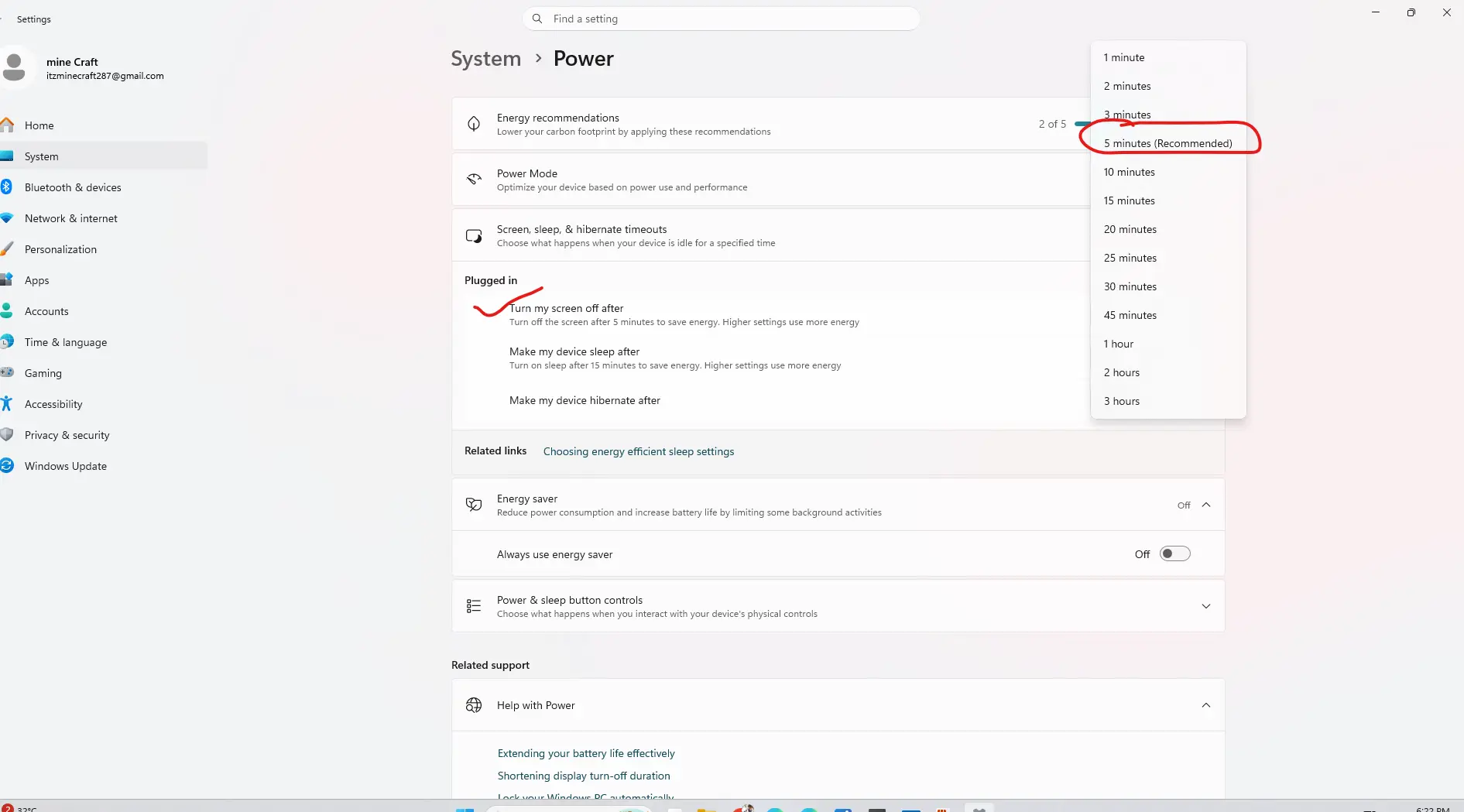
2. Reduce the time before your screen turns off when idle.
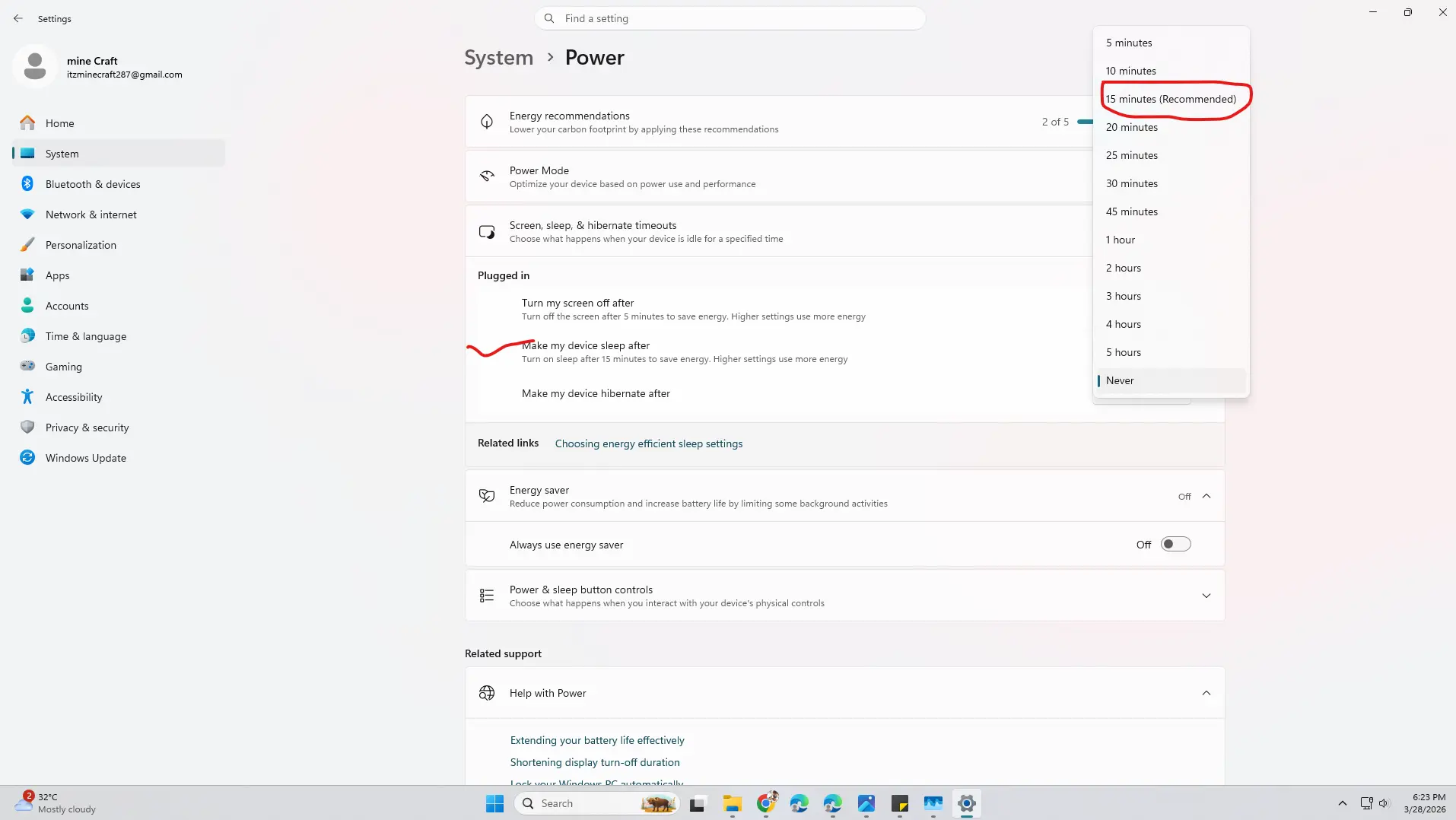
3. Set your laptop to sleep after a short period of inactivity (e.g., 5–10 minutes).
These simple changes stop unnecessary battery drain when you’re not actively using your laptop.
4. Disable Background Apps
Many apps run in the background even when you don’t use them. Disabling them helps in optimizing battery life on Windows laptop.
Steps:
- Open Settings > Apps > Installed Apps.
- Choose an app, click Advanced Options, and set Background Apps Permissions to Never.
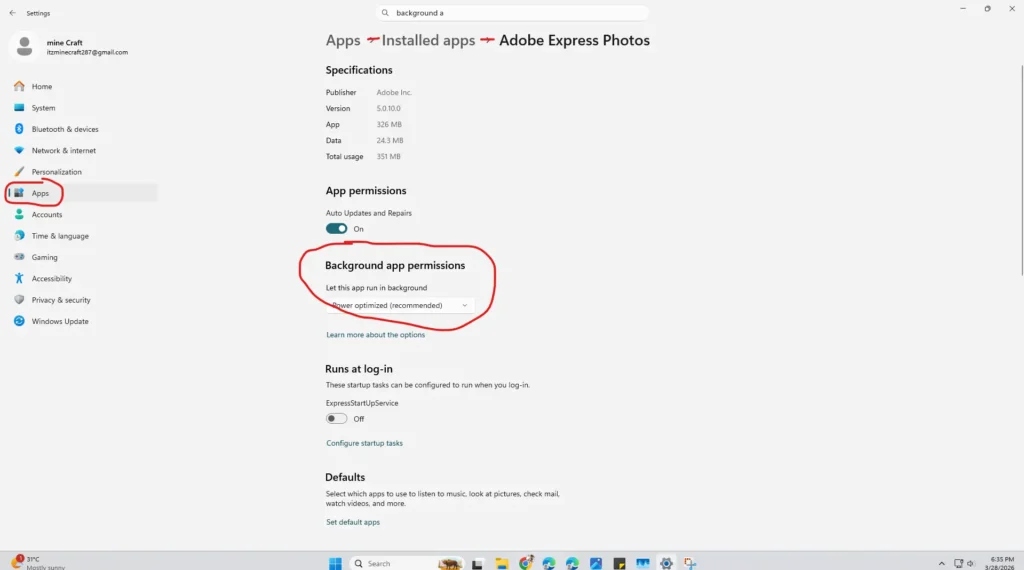
3. Do this for apps you don’t need running all the time.
5. Manage Startup Programs
Unnecessary startup apps not only slow boot times but also waste power.
Steps:
1. Press Ctrl + Shift + Esc to open Task Manager.
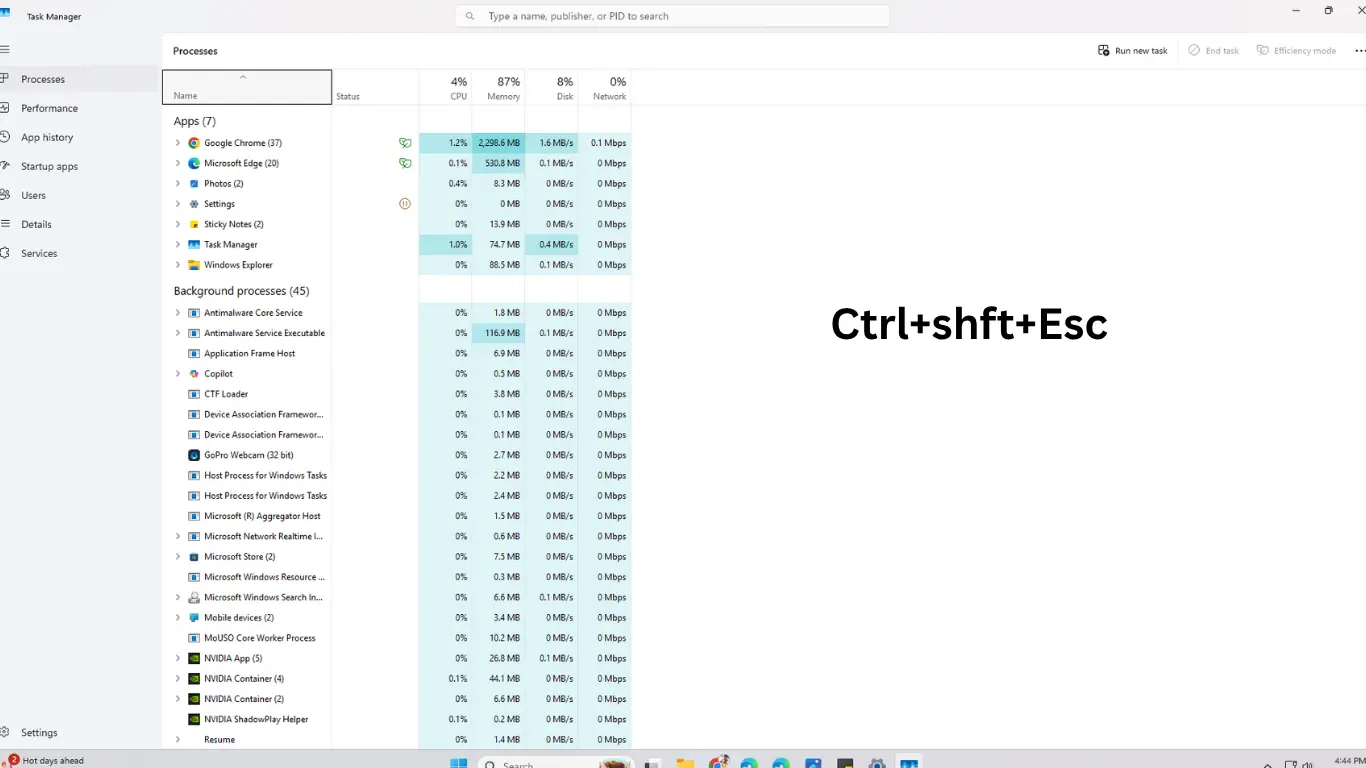
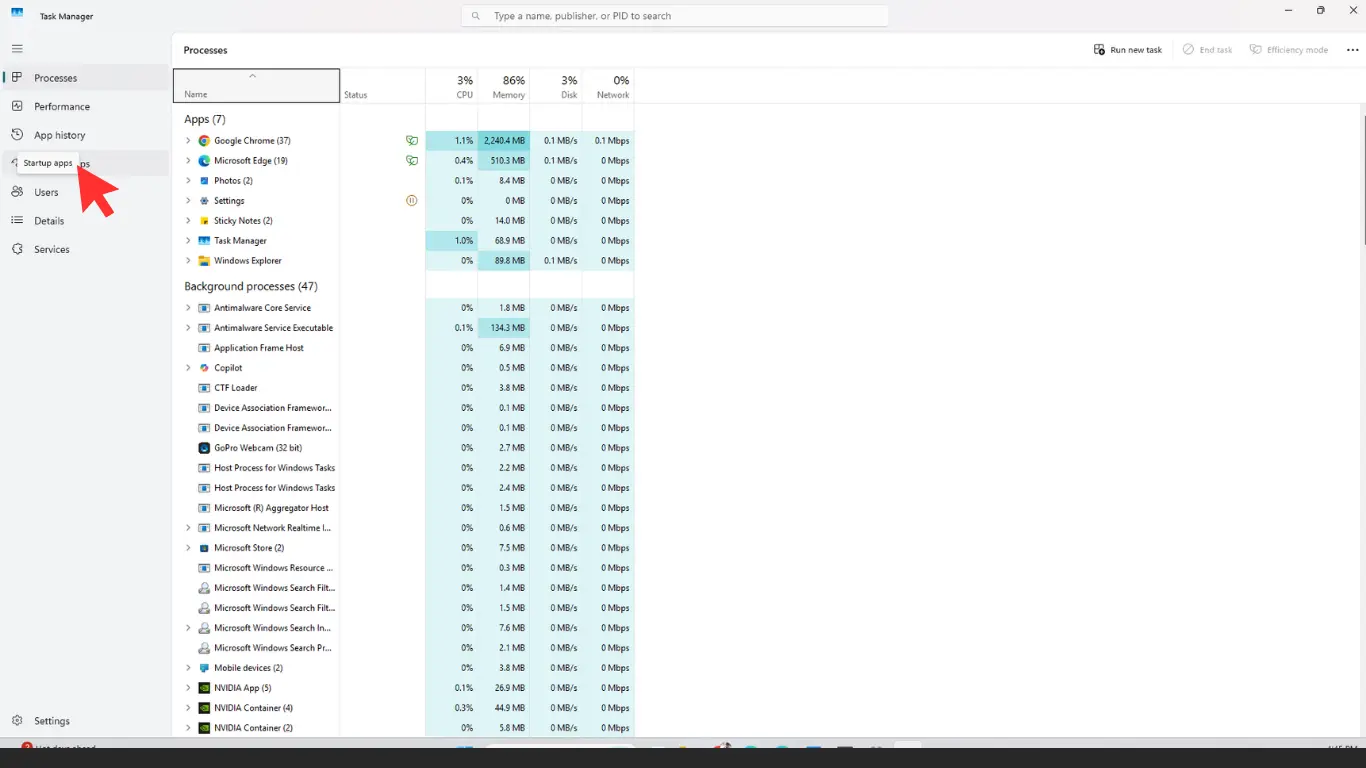
2. Go to the Startup tab.
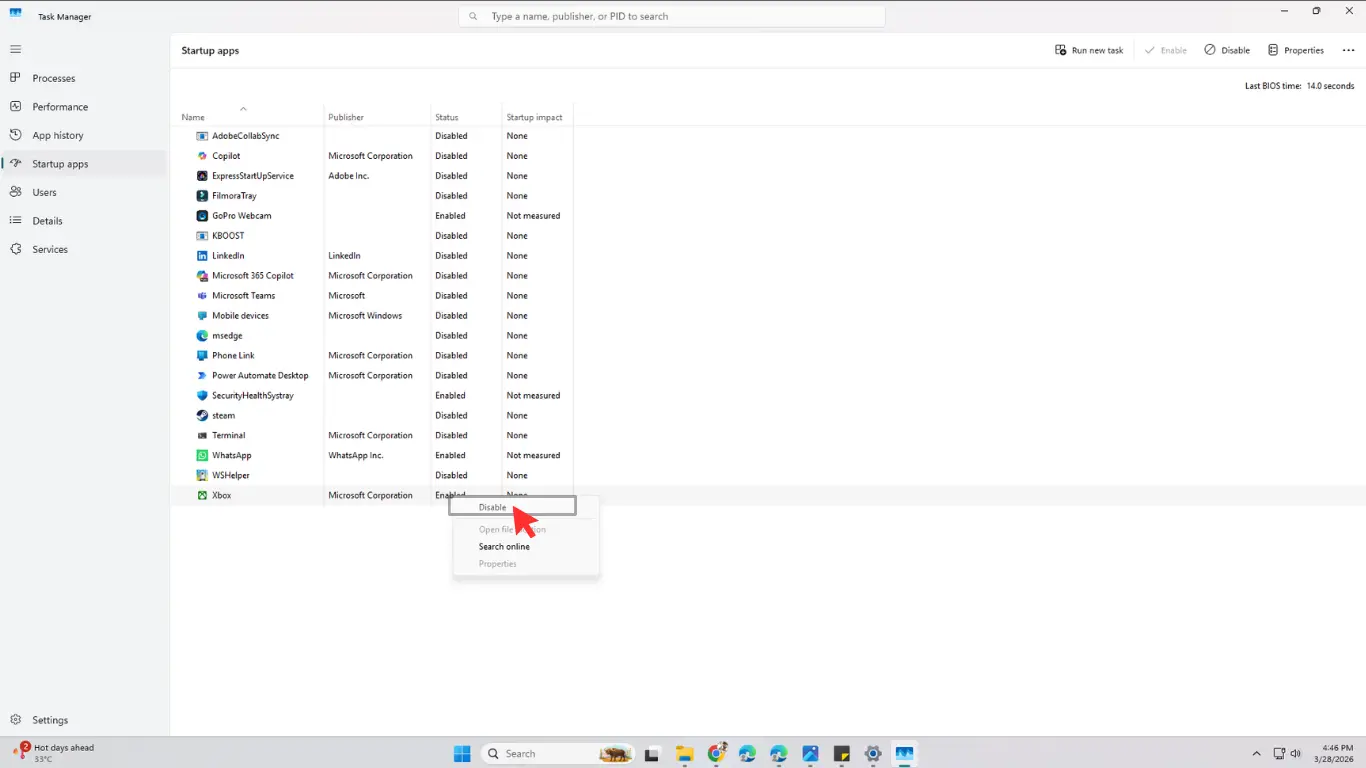
3. Disable apps you don’t need at startup.
6. Update Windows and Drivers
Outdated software can cause higher power consumption. Always keep your system updated.
- Go to Settings > Windows Update and install the latest updates.
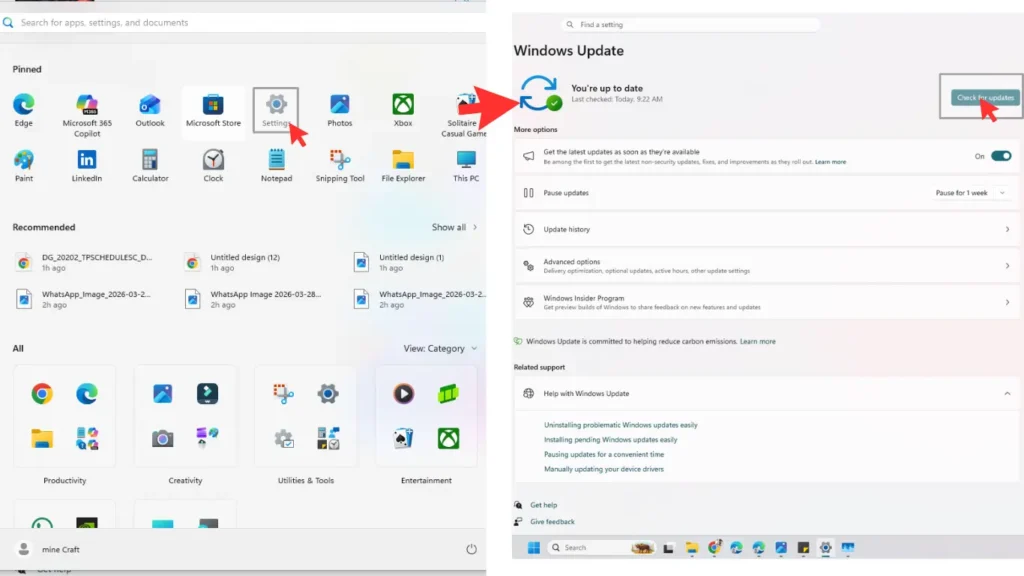
- Update drivers, especially for graphics and chipset, from your laptop manufacturer’s website.
7. Optimize Graphics Settings
If you have a laptop with both integrated and dedicated graphics, configure apps to use integrated graphics when on battery.
Steps:
- Go to Settings > System > Display > Graphics.
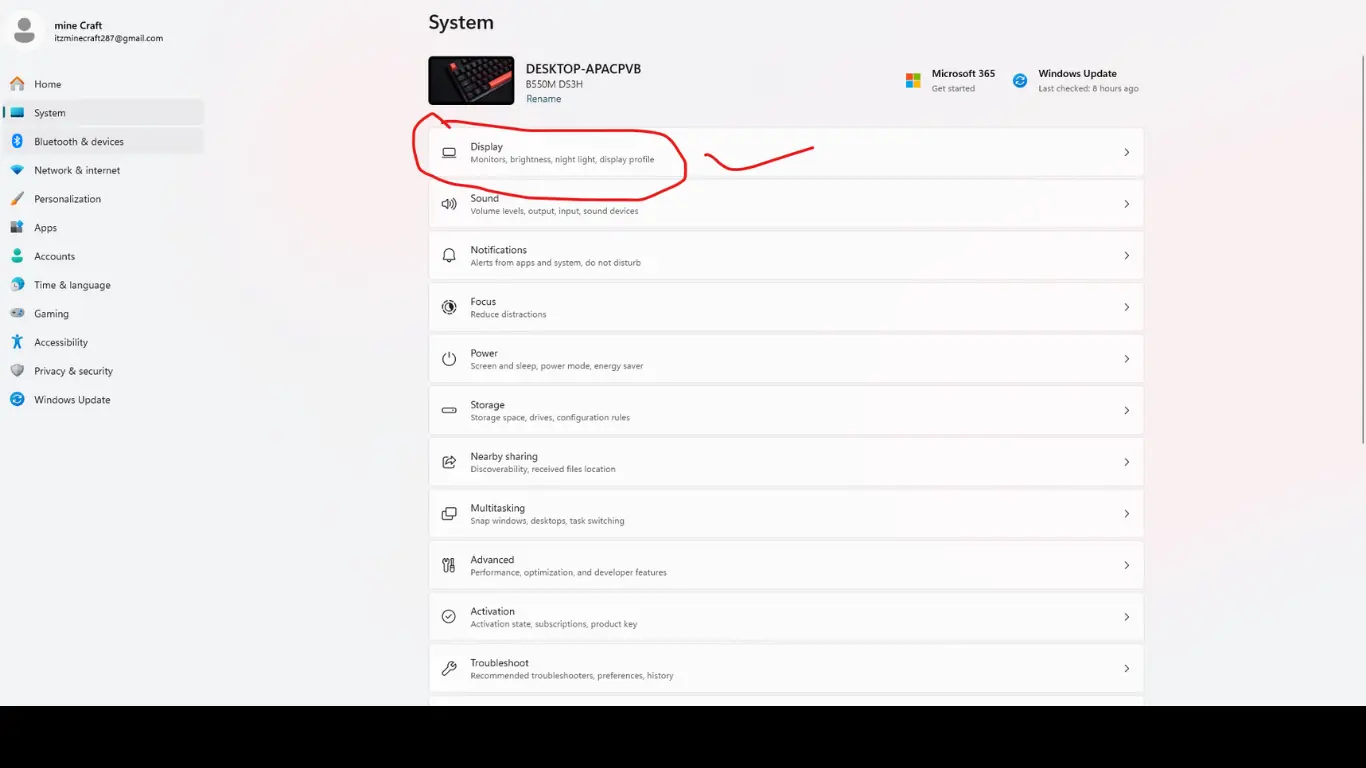
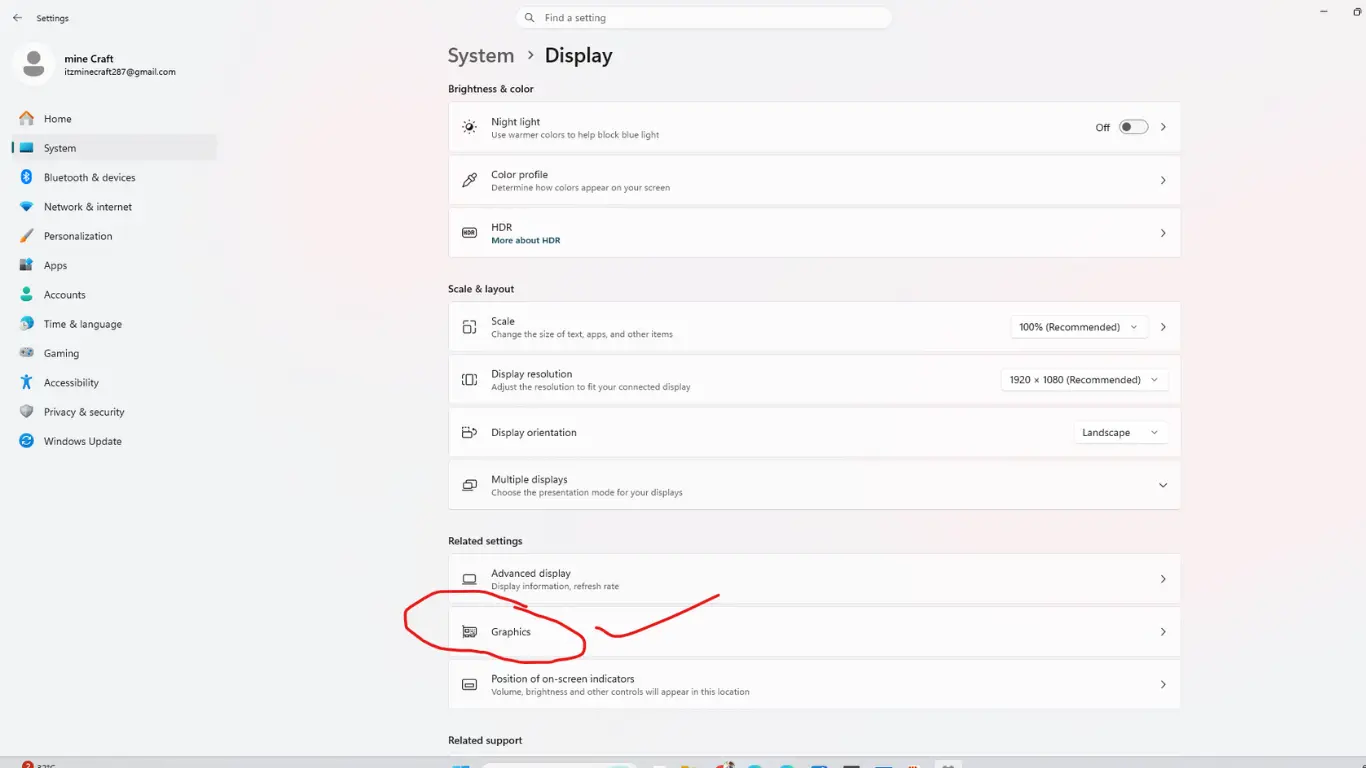
2. Select apps and set them to Power Saving mode.
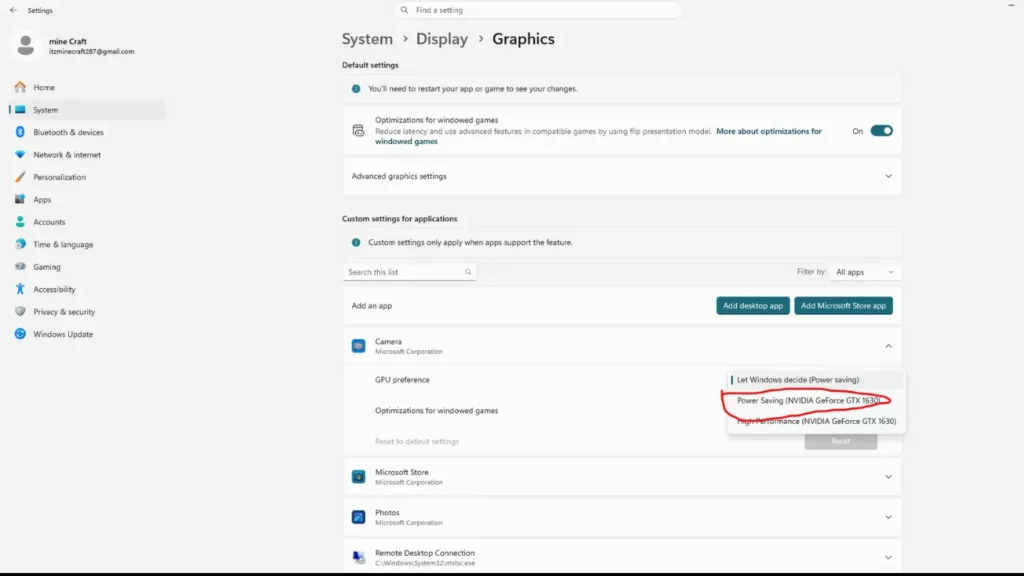
This prevents your GPU from draining the battery unnecessarily.
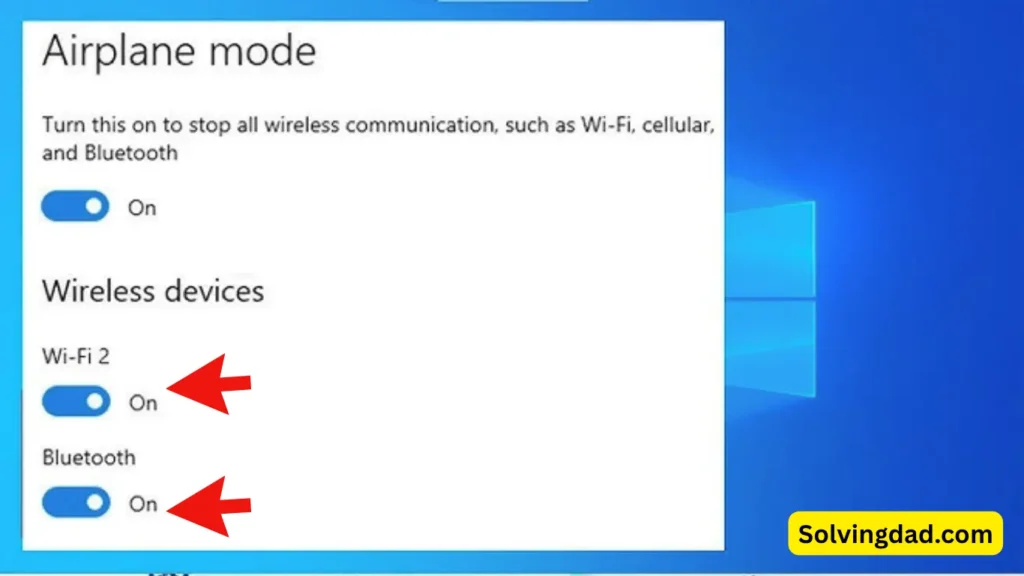
8. Turn Off Bluetooth and Wi-Fi When Not Needed
Leaving Wi-Fi and Bluetooth on when you don’t need them consumes battery. Simply turning them off can make a noticeable difference.
9. Reduce Background Sync and Notifications
Apps like OneDrive, Email clients, or chat apps often sync in the background. Disable or reduce sync frequency to conserve power.
10. Perform Battery Health Checks
Windows has a built-in command to check battery health.
- Press Windows + X, select Terminal (Admin), and type:
powercfg /batteryreport
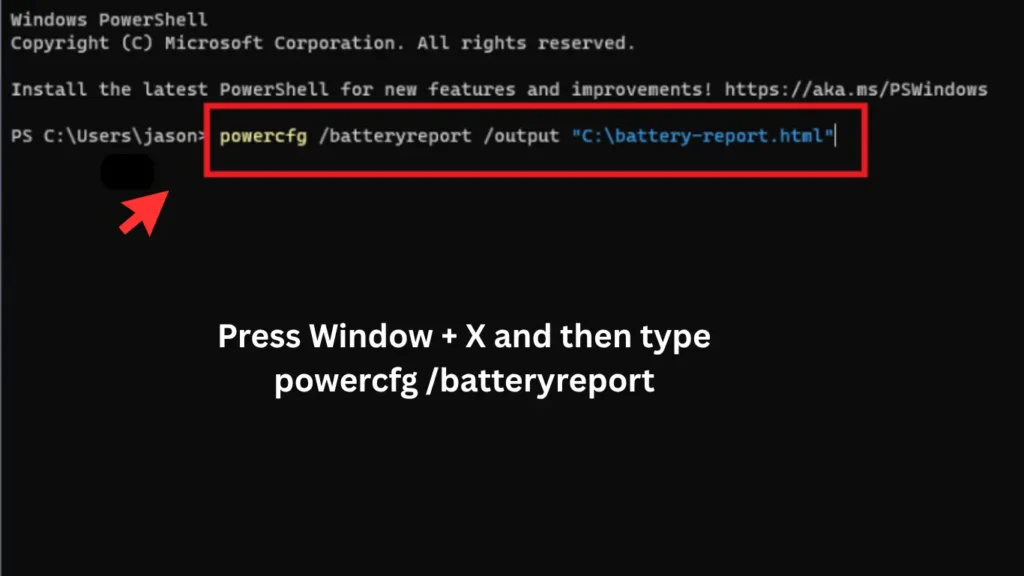
This generates a detailed battery report you can use to track health and performance. If your battery capacity has degraded too much, optimization may only help a little, and a replacement might be necessary.
Proven Tweaks for Extra Battery Life
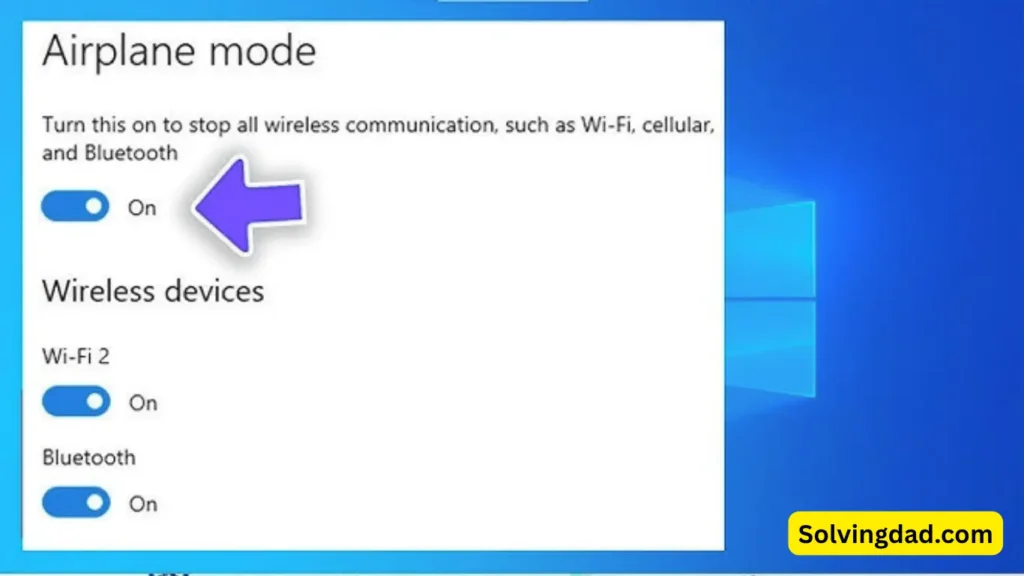
- Use Airplane Mode when offline.
- Unplug peripherals (mouse, external drives) when not needed.
- Keep your laptop cool – overheating drains battery faster.
- Switch to Hibernate instead of Sleep for long idle times.
Also Read: How to Fix 100% Disk Usage in Windows Task Manager
FAQs on How to Optimize Battery Life on Windows Laptop
Q1: Does lowering screen brightness really help save battery?
Yes, the display consumes significant power, so lowering brightness has a big impact.
Q2: Is it bad to keep my laptop plugged in all the time?
It won’t damage modern laptops immediately, but it can reduce long-term battery health. It’s best to unplug occasionally.
Q3: Should I use third-party battery optimizer apps?
Not really. Windows already has built-in tools like Battery Saver and Power Plans that are safer and more effective.
Q4: How often should I calibrate my laptop battery?
Once every 2–3 months is enough to keep the battery reporting accurate charge levels.
Q5: Can upgrading RAM or SSD improve battery life?
Yes, indirectly. Faster hardware reduces system load, which can lead to slightly better efficiency.
Final Thoughts
Now you know exactly how to optimize battery life on Windows laptop with proven settings and tweaks. From enabling Battery Saver to disabling background apps and adjusting power settings, these small changes can add hours of extra usage. If you follow these tips consistently, you’ll notice your laptop runs cooler, lasts longer, and performs more efficiently.
So, next time your laptop is running low on power, try these tricks before hunting for a charger!
Also Read: Windows 10 Laptop Slow After Update? Make It Fast Again (Complete 2026 Guide)
Also Read: