
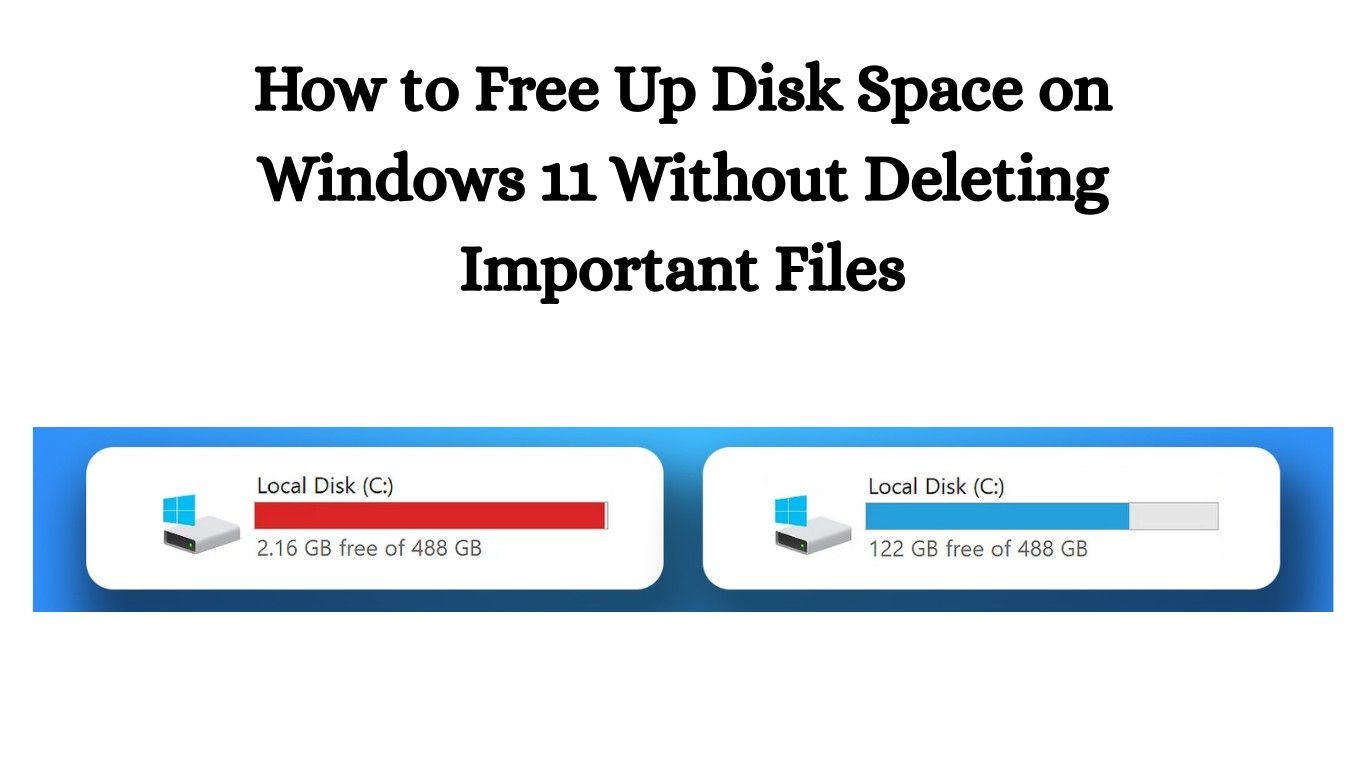
If you’ve been seeing that dreaded “Low Disk Space” warning on your Windows 11 PC, don’t panic. You’re not alone! Many people struggle with storage issues, but the good news is that you can learn how to free up disk space on Windows 11 without deleting important files. Yes, you read that right—you don’t have to lose your favorite photos, work documents, or important apps to reclaim space.
In this guide, I’ll walk you through proven, safe, and easy methods that actually work. So, grab a cup of tea, relax, and let’s dive in.
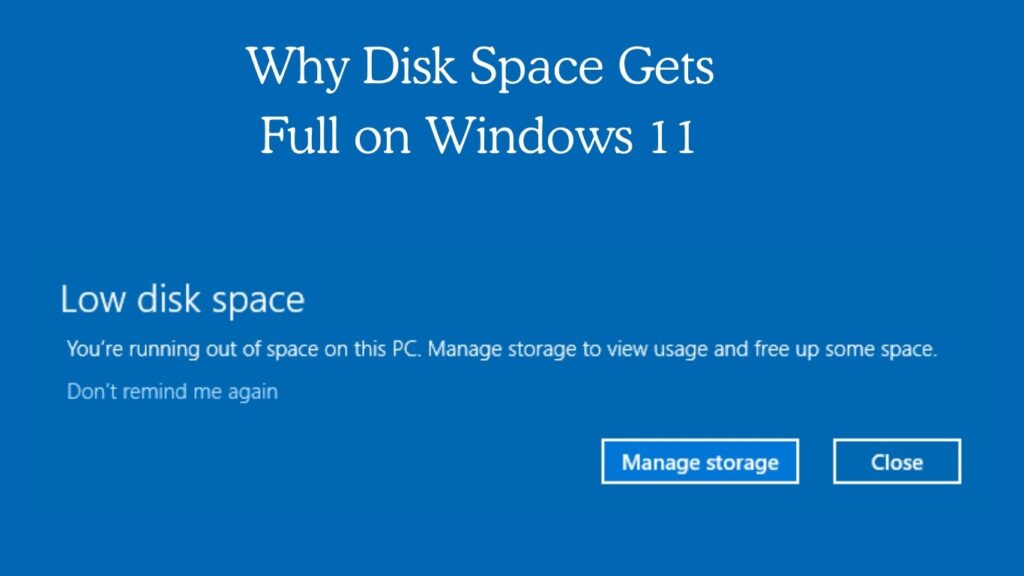
Why Disk Space Gets Full on Windows 11
Before we fix the problem, let’s quickly understand what eats up your storage:
- Temporary files created by apps and Windows updates.
- System restore points that keep backups of your PC.
- Unnecessary apps or bloatware you never use.
- Duplicate files and cache that pile up over time.
- Large hidden files you may not even know exist.
Now that we know the culprits, let’s move to the solutions.
1. Use Storage Sense (Your Built-in Cleanup Assistant)
Windows 11 comes with a handy feature called Storage Sense, which can automatically clear temporary files, cache, and junk.
Steps:
- Press Windows + I to open Settings.
- Go to System > Storage.
- Turn on Storage Sense and click Run Storage Sense Now.
This smart tool keeps your PC clean without touching your important files.
2. Delete Temporary Files Safely
Temporary files are like digital clutter—they serve no purpose once you’re done with them. Luckily, deleting them is 100% safe.
Steps:
- Press Windows + I.
- Navigate to System > Storage > Temporary Files.
- Select the files you don’t need (temporary files, cache, update leftovers).
- Click Remove files.
Boom! You’ll notice a nice boost in free space instantly.
3. Uninstall Bloatware and Unused Apps
If your laptop came with pre-installed apps you never touch, they’re eating up valuable space.
How to Remove Them:
- Open Settings > Apps > Installed apps.
- Scroll through and uninstall apps you don’t use.
- Don’t worry—Windows will warn you before removing anything critical.
4. Move Files to OneDrive or External Storage
If your system drive is too full, you don’t always have to delete files—you can move them.
- OneDrive Sync: Upload documents and photos to OneDrive to free up local storage.
- External Drives: Keep movies, large videos, and backup files on an external HDD or SSD.
This way, your files stay safe, and your PC stays fast.
5. Clear Your Downloads Folder
We all do it—download files and forget about them. Your Downloads folder might be packed with old installers, PDFs, and duplicate files.
Go through it once in a while and move the essentials elsewhere.
6. Adjust System Restore Points
System Restore is useful, but it often hogs gigabytes of storage. You don’t have to disable it, just limit the space it uses.
Steps:
- Search for Create a Restore Point in the Start menu.
- Select your system drive and click Configure.
- Reduce the Max Usage slider to something reasonable (5–10%).
7. Use Disk Cleanup Tool (Still Works in Windows 11)
Though old, Disk Cleanup is still a powerful tool.
- Search for Disk Cleanup in the Start menu.
- Select your drive (usually C:).
- Choose categories like Temporary Internet Files, System Cache, and Thumbnails.
- Click OK and free up space instantly.
8. Compress Files and Folders
Windows 11 allows you to compress large files without deleting them.
- Right-click any file or folder.
- Select Properties > Advanced > Compress contents to save disk space.
This keeps your data but reduces the storage it takes.
9. Turn Off Hibernation (Optional)
Hibernation mode saves your session but creates a large file (hiberfil.sys). Disabling it can save several gigabytes.
Steps:
- Open Command Prompt as Administrator.
- Type:
powercfg -h off
If you don’t use hibernation, this is a great way to save space.
10. Use Cloud Services for Media Files
Photos, videos, and music can quickly fill your drive. Use Google Drive, OneDrive, or Dropbox to offload large media collections.
Also Read: How to Backup and Restore Your Windows PC (The Complete Guide)
FAQs About Freeing Up Disk Space on Windows 11
1. Will deleting temporary files harm my PC?
No, temporary files are safe to delete. Windows recreates them when needed.
Is it safe to uninstall pre-installed apps?
Yes, as long as they’re not system-critical apps. Stick to things you don’t use.
How much space can I free up with Storage Sense?
It depends, but many users free up several gigabytes with just one click.
Should I use third-party cleanup tools?
Windows 11’s built-in tools are usually enough. Only use trusted third-party apps if you need advanced features.
5. Can I delete Windows.old folder?
Yes, if you’re sure you don’t need to roll back to the previous version of Windows.
Final Thoughts
Now you know exactly how to free up disk space on Windows 11 without deleting important files. The best part? You don’t need to be a tech expert—just follow these simple steps, and your PC will thank you with better performance and more breathing room.
Think of it like tidying up your home. A little cleaning here and there makes life smoother. So, go ahead—reclaim your storage and enjoy a faster, cleaner Windows 11 experience.
Also read: